Why would a brand-new Snapdragon laptop crash on the one thing you bought it for? Premiere Pro tries to push your export through the Snapdragon’s AI chip, and when that pipeline crashes, it . So the progress bar hits 40 percent and the app vanishes. Not your footage. Not your settings. Windows Studio Effects (the background blur and eye-contact camera tricks on Copilot+ PCs) run on the same NPU all day. When Premiere asks for that memory, there’s none left. Both problems have workarounds. None of them need a different laptop.
Fix 1 – Switch the Export to Software Encoding
Start here. It fixes the crash for most people.
Hardware encoding is what sends the job to the NPU. Software encoding uses the regular CPU cores instead. Slower, sure. But it finishes. Every time.
1 – Open your project and click the Export tab at the top of the window.
2 – On the right side, click to expand the Video section.
3 – Click More at the bottom of that section to show the extra options.
4 – Find Performance and change it from Hardware Encoding to Software Encoding.
5 – Click Export.
Expect maybe twice the export time. Annoying. Beats a crash at 40 percent, though.
Fix 2 – Set the Renderer to Software Only
Fix 1 covers encoding. This one covers rendering, the step before it. Different setting, same idea: keep the GPU and NPU out of it.
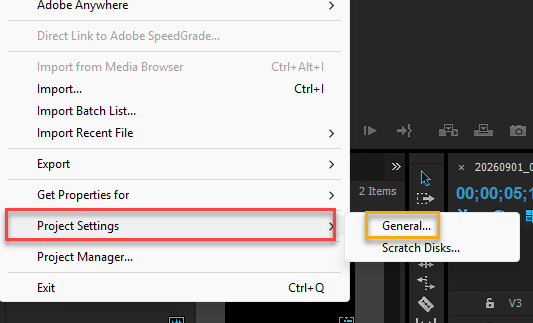
1 – Click File in the top left, then Project Settings, then General.
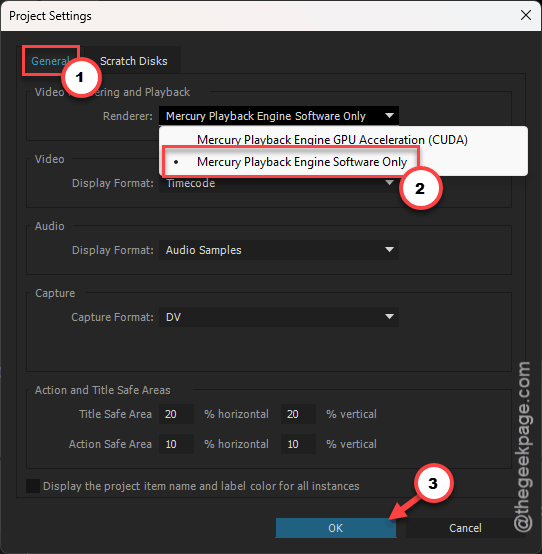
2 – Find the Renderer dropdown.
3 – Change it to Mercury Playback Engine Software Only.
4 – Click OK. Premiere may ask to delete preview files. Say yes.
5 – Try the export again.
Playback in the timeline gets choppier with this on. Switch it back to GPU acceleration for editing, then flip it to software right before you export. Two clicks each way.
Fix 3 – Turn Off Windows Studio Effects
Still crashing? Free up the NPU. Studio Effects sit on it constantly, even when no camera app is open.
1 – Click the Wi-Fi or speaker icon in the bottom right corner of the taskbar. The Quick Settings panel opens.
2 – Click Windows Studio Effects.
3 – Switch every effect to Off. Background blur, eye contact, automatic framing, all of them.
4 – Close the panel and run your export.
Don’t see the Studio Effects button? Click the pencil icon at the bottom of the panel, then Add, and pick it from the list.
Fix 4 – Clear the Media Cache
Every crashed export leaves half-written render files behind. And those files crash the next attempt before it even starts. So clear them out.
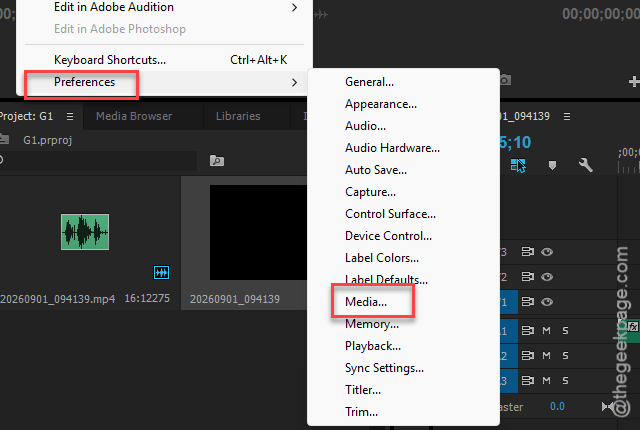
1 – Click Edit at the top, then Preferences, then Media Cache.
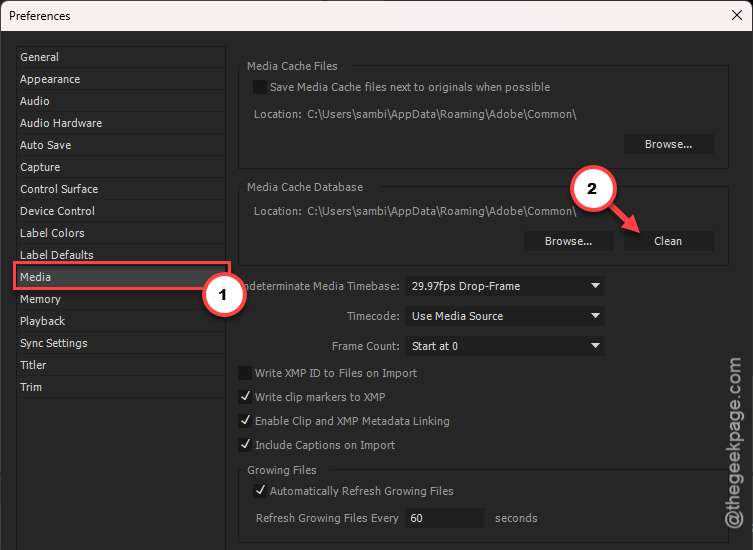
2 – Next to Remove Media Cache Files, click Delete/Clear.
3 – Choose Delete all media cache files from the system and click OK.
4 – Restart Premiere Pro.
Premiere rebuilds the cache when you reopen the project. And that takes a minute or two for a big timeline. Then export.
Fix 5 – Export Through Media Encoder Instead
Quick one.
1 – Instead of clicking Export in Premiere, click Queue right next to it.
2 – That sends the job to Adobe Media Encoder, a separate app that handles memory better and doesn’t take the editing window down with it if something goes wrong.
Media Encoder opens on its own. So click the green play button in the top right corner to start the queue.
Fix 6 – Install the Intel Version and Run It Emulated
Last resort. Copilot+ laptops can run the regular x64 build of Premiere through Prism (Windows’ translation layer for non-ARM apps). The x64 build never touches the Snapdragon NPU hooks, so the crash can’t happen. Slower, but stable.
1 – Open the Creative Cloud desktop app.
2 – Find Premiere Pro in your apps list, click the three dots (⋯) next to it, and choose Uninstall.
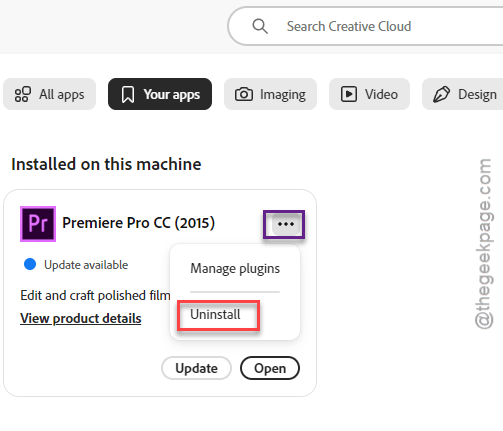
3 – Back in the apps list, click the three dots next to Premiere Pro again and choose Other versions (some builds label it Older Versions).
4 – Pick the Intel x64 build and click Install.
5 – Open it and load your project. Premiere may convert the project file, so keep a copy of the original.
Performance drops noticeably in emulation. Timeline scrubbing feels heavier. But exports go through, and for a deadline that’s what matters. Switch back to the native version once Adobe patches the NPU path.
Keep It From Coming Back
- Leave Performance on Software Encoding until Adobe’s release notes say the Snapdragon NPU path is fixed. Then test. Don’t assume.
- Clear the media cache after any crash. Takes ten seconds. Saves the next export.
- Turn Studio Effects on only for calls. Off the rest of the time.
- Queue big exports through Media Encoder by habit. If it dies, your edit survives.
People Also Ask
Why is Adobe Premiere crashing when I export a file?
On Copilot+ PCs it’s almost always the NPU. Premiere routes hardware encoding through the Snapdragon AI chip, and that path is unstable, so the export dies partway. Switch Performance to Software Encoding in the Export tab and set the renderer to Software Only. Clear the media cache too, since crashed exports leave broken files behind.
Why is my Premiere Pro export failing at the same percentage every time?
That usually points to a corrupted render file from an earlier crash. Go to Edit, Preferences, Media Cache and delete all cache files, then restart Premiere. If it still fails at the same spot, send the export through Media Encoder with the Queue button. It manages memory better than Premiere’s built-in exporter.