Nine times out of ten, another RGB app is holding your keyboard hostage. Windows can’t take control of the lighting because Razer Synapse, iCUE, or a background service grabbed it first. And the settings page won’t tell you that. It just says “No dynamic lighting compatible devices detected” and leaves you guessing. Helpful, right?
Where This Comes From
First, the keyboard’s firmware has to speak LampArray. Older firmware doesn’t — the keyboard sits there invisible to Windows no matter what you toggle.
Second, nothing else can be holding the lighting controls. But that’s exactly what vendor apps do. Synapse, iCUE, G HUB, Armoury Crate — they grab exclusive control the moment they start, and some of them leave background services running even after you close them (that’s the sneaky part).
So the fix is usually one of two moves: update the firmware so Windows can see the keyboard, or pry the vendor software’s fingers off it.
Fix 1 – Check What Windows Can Actually See
Before changing anything, look at what’s detected. It tells you which problem you have.
1 – Press Windows + I to open Settings.
2 – Click Personalization in the left sidebar.
3 – Click Dynamic Lighting.
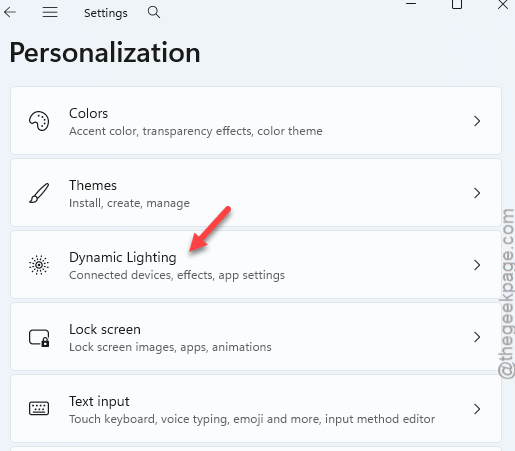
4 – Look at the top of the page. Detected devices show up there as little cards.
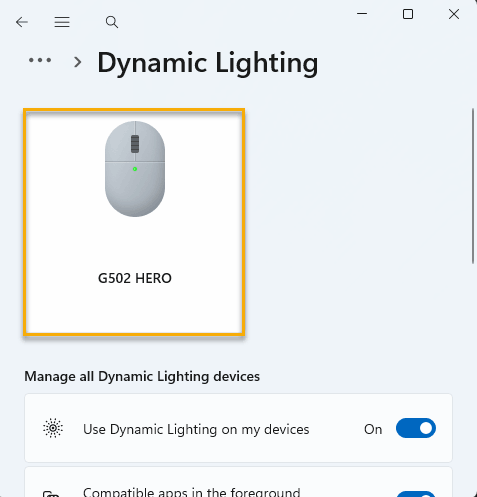
Is your keyboard listed but the effects aren’t applying? Skip ahead to Fix 3. Seeing “No dynamic lighting compatible devices detected” instead? Keep reading — and check the maker’s website for whether your exact model supports the LampArray API on Windows 11. If it flat out doesn’t, no toggle in the world will make it appear.
Fix 2 – Get the Vendor RGB Software Out of the Way
Sometimes, the vendor RGB software clash with the default utilty.
i1 – Look at the system tray in the bottom right corner of your taskbar. Click the little up arrow to see hidden icons.
2 – Right-click each RGB app you find — Razer Synapse, Corsair iCUE, Logitech G HUB, Asus Armoury Crate — and choose Exit or Quit.
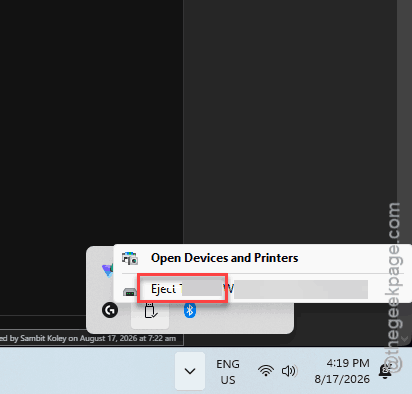
3 – Check the Dynamic Lighting page again. Keyboard appeared? You’ve found your culprit.
Now, you have a choice. Some of these apps have a setting called Windows Dynamic Lighting or Third-party control buried in their options — turning that on lets the app and Windows share nicely. Worth checking before anything drastic.
But if the app keeps stealing control anyway, uninstall it:
4 – Press Windows + I, go to Apps, then Installed apps.
5 – Search for the app by name, click the three dots (⋯) next to it, and select Uninstall.
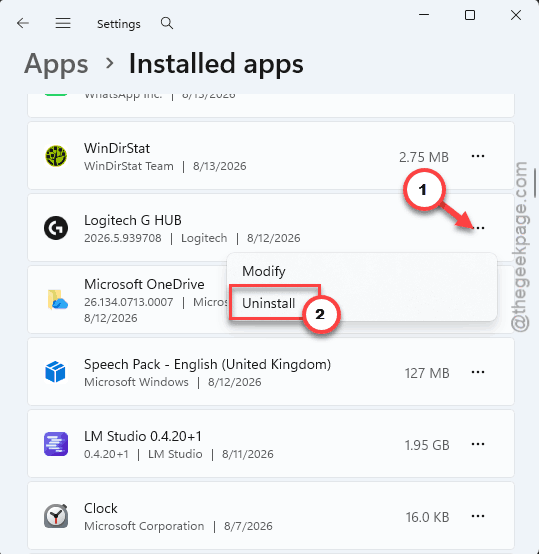
6 – Restart your PC so Windows can claim the keyboard cleanly.
Worried your fancy per-key profiles disappear with the app? They do. That’s the trade — one lighting boss at a time, either the vendor app or Windows.
Fix 3 – Toggle Dynamic Lighting Off and Back On
The settings page gets stuck sometimes. Flipping the main switch forces Windows to rescan for devices.
1 – Go to Settings > Personalization > Dynamic Lighting like in Fix 1.
2 – Switch Use Dynamic Lighting on my devices to Off.
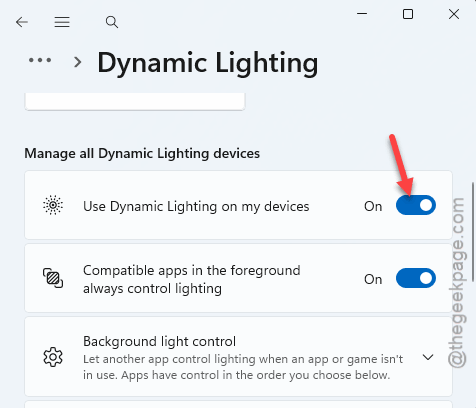
3 – Wait a few seconds.
4 – Switch it back On. That kicks off a fresh polling cycle.
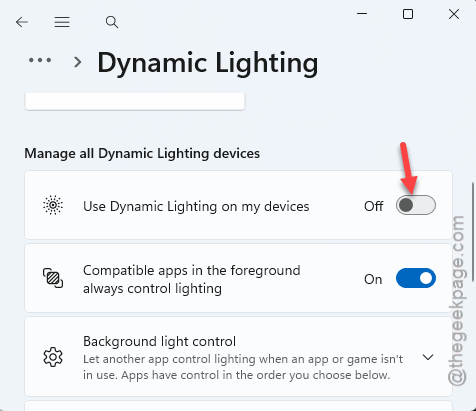
Nothing? Try the stronger version: toggle it off, restart the PC, then toggle it on after the reboot. Slower, but it clears more stuck state.
Fix 4 – Put Dynamic Lighting on Top of the Priority List
Windows keeps a ranked list of who controls your lighting. If a vendor app sits above Dynamic Lighting, the vendor wins — even with everything else set correctly. Few people know this list exists.
1 – Open the Dynamic Lighting settings page again.
2 – Scroll down and expand Background light control.
3 – Drag Dynamic Lighting to the top of the list, above any third-party controllers.
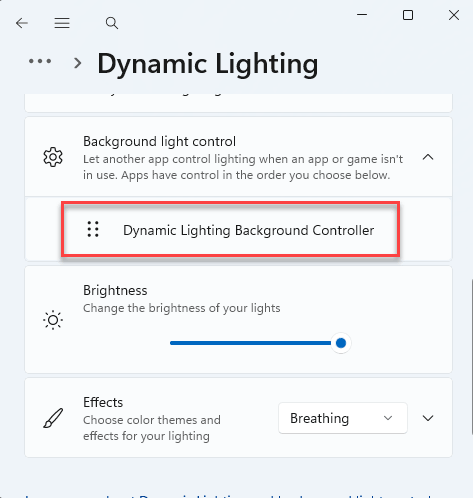
Your keyboard should react within a second or two. No restart needed for this one.
Fix 5 – Disable the Conflicting Services
Here’s the sneaky part I mentioned earlier: vendor services keep running even when the app is closed. One user pinned their whole problem on a single service — Logitech LampArray Service — and killing it fixed the interference for good.
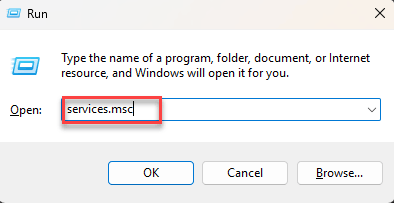
1 – At first, press Windows + R,
2 – Type services.msc, and press Enter.
2 – Scroll through the list (it’s alphabetical) and find Logitech LampArray Service, or whichever iCUE / Synapse services match your brand.
3 – Right-click the service and select Properties.
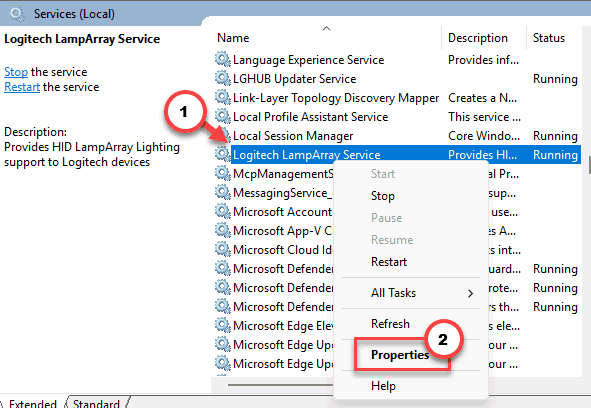
4 – Change Startup type to Disabled.
5 – Click Stop, then OK.
6 – Restart your PC.
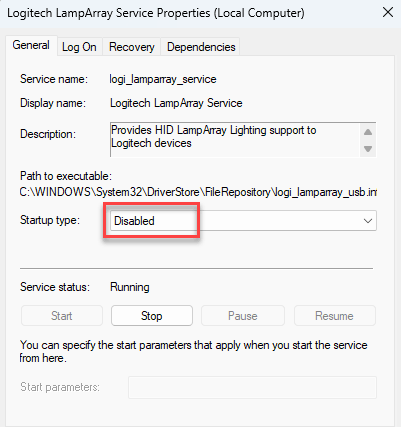
If lighting control breaks inside the vendor app later, just set the service back to Automatic. Nothing here is permanent.
Fix 6 – Update the Keyboard Firmware and Your BIOS
Remember the firmware requirement from earlier? The keyboard itself needs an update to understand the newer Windows 11 Dynamic Lighting commands. A keyboard on old firmware is invisible to the feature, full stop.
1 – Open your vendor’s app one more time (Synapse, iCUE, or whichever matches your keyboard).
2 – Find the device or firmware section and check for a firmware update for the keyboard.
3 – Run the update. Don’t unplug anything while it flashes — a firmware flash takes a minute or two, and the keyboard may go dark during it. That’s normal.
4 – When it’s done, exit the app fully and check Dynamic Lighting again.
And while you’re updating things: your motherboard’s BIOS can matter too. Manufacturers ship LampArray controller support in BIOS updates, so grab the latest one from your board maker’s support site if your devices still aren’t showing.
Fix 7 – Force the Feature On Through the Registry
Settings toggle doing nothing at all? There’s a backend switch you can set by hand.
A quick word first: the registry is the database where Windows stores its settings, and typos in the wrong place cause real problems.
1 – Press Windows + R, type regedit, and press Enter.
2 – Click Yes on the permission prompt.
3 – Use the address bar at the top and go to
HKCU\Software\Microsoft\Lighting
4 – Next, right-click empty space in the right pane and choose New > DWORD (32-bit) Value
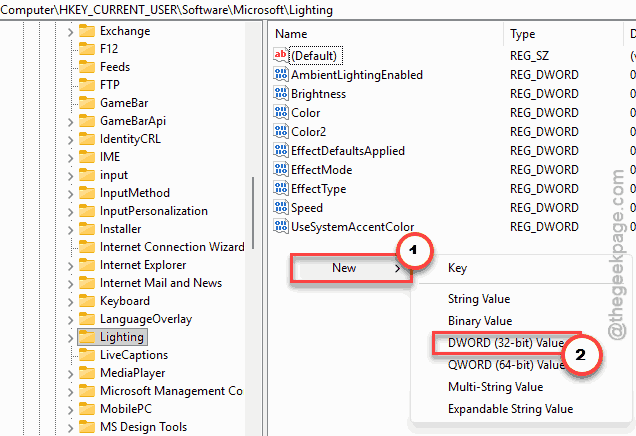
5 – Name it AmbientLightingEnabled.
6 – Double-click it and set the value to 1.
7 – Click OK, close the Registry Editor, and restart.
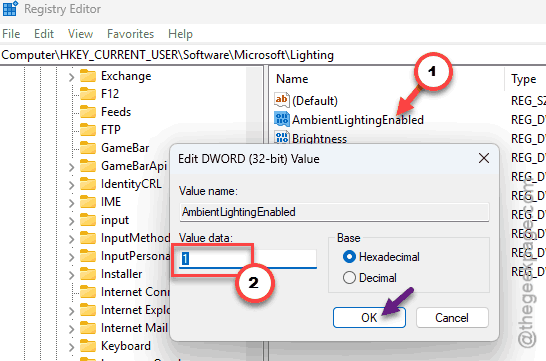
Check whether this helps the system detect the RGB lightning.
Fix 8 – Reinstall the USB Input Driver
Last resort.
1 – Right-click the Start button and select Device Manager.
2 – Expand Human Interface Devices.
3 – Right-click your keyboard’s entry and select Uninstall device.
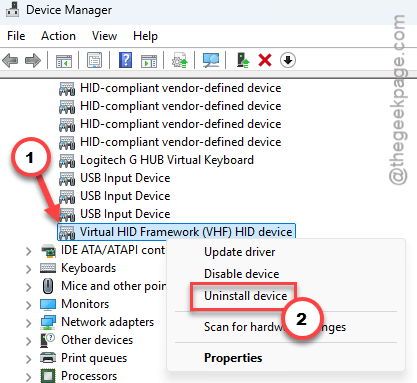
4 – Restart your PC. Windows reinstalls the driver on its own during boot — you don’t have to download anything.
The keyboard keeps typing through all of this, by the way. Uninstalling the HID entry looks scarier than it is.
Avoiding This Next Time
- Pick one lighting boss and stick with it. Windows or the vendor app — running both is how you end up back here.
- Update keyboard firmware every couple of months. LampArray support keeps improving, and old firmware is the quietest cause of this whole mess.
- After each big Windows 11 update, glance at the Dynamic Lighting page. Feature updates have a habit of resetting the priority list.
- Installing new peripheral software? Check its settings for a “Windows Dynamic Lighting” option right away and set it how you want. Two minutes now, zero mystery later.
Quick Answers
Why is my keyboard not lighting up in Windows 11 at all?
Completely dark is different from undetected. Check the keyboard’s own brightness shortcut first (often Fn plus an arrow or F-key), then make sure a vendor app didn’t set brightness to zero. If lights work but Windows won’t control them, that’s the detection problem this guide covers.
What does “no dynamic lighting compatible devices detected” mean?
Windows found no device speaking the LampArray API. Either your gear genuinely doesn’t support it — check the manufacturer’s Windows 11 LampArray list — or a vendor app and its background services are blocking detection. Exiting those apps usually makes supported devices appear within seconds.
Do I still need Razer Synapse or iCUE after switching to Dynamic Lighting?
Only for firmware updates and non-lighting features like macros or DPI settings. For lighting alone, Windows handles everything once it has control.