If the Adobe After Effects simpy looks like a broken install on your machine, don’t worry. It’s usually a preferences issue. Sometimes, you press spacebar to preview, After Effects thinks for a second, then throws “Out of memory” and locks up. There are user reports hovering in from machines with 64 GB of RAM. Here are five settings to fix this for you. None of them need a reinstall.
Why It Freezes
Here’s the deal. After Effects 2026 renders frames in the background whenever you stop working. It’s called idle caching, and the idea is that your next preview is already done. Nice in theory.
But the 2026 version is greedy about it. It starts a few seconds after your last click, keeps going, and stores the frames compressed, which costs even more memory to unpack later. So by the time you press spacebar, the RAM is already full of cached frames. The preview asks for memory. There isn’t any. Freeze.
And a leaky third-party plugin makes it worse, because it holds memory that never gets released. Why Adobe shipped it this way? No idea. But it’s all in Preferences, and each fix below turns off one piece of the problem.
Fix 1 – Cut the Idle Delay to 3 Seconds
Idle Delay is how long After Effects waits after your last action before it starts caching. Shorter sounds worse. It isn’t. A short delay makes the caching start and stop in small bursts instead of one big run that eats everything.
1 – Open After Effects.
2 – Press Ctrl + Alt + ; (that’s the semicolon key) to open Preferences.
3 – Click Preview in the list on the left.
4 – Find Idle Delay and change the value to 3.
5 – Click OK.
Test with a spacebar preview. Better already? Good. Still freezing? Fix 2 shuts the caching off completely.
Fix 2 – Turn Off Cache Frames When Idle
This is the main switch. Off means After Effects only renders when you ask it to. Previews take a bit longer to build. Nothing freezes.
1 – Click Composition in the menu bar at the top.
2 – Hover over Preview.
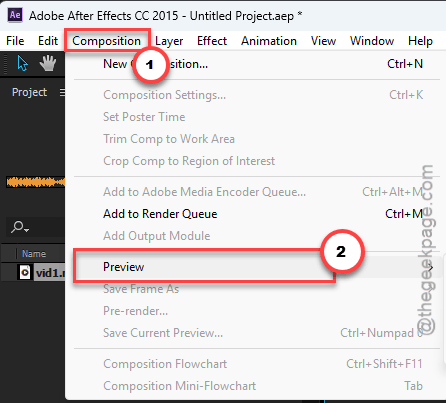
3 – Click Cache Frames When Idle to remove the checkmark next to it.
No restart needed. And this one is per project, so check it again when you open an old project (the setting travels with the file, weirdly).
Fix 3 – Disable Compressed Frames in the Disk Cache
Compressed frames take less disk space. But unpacking them on playback needs a chunk of RAM every single time, and that’s the chunk you’re running out of.
1 – Press Ctrl + Alt + ; to open Preferences.
2 – Click Media & Disk Cache on the left.
3 – Under the Disk Cache heading, uncheck Enable Compressed Frames.
4 – Click Empty Disk Cache right there while you’re at it, then click OK.
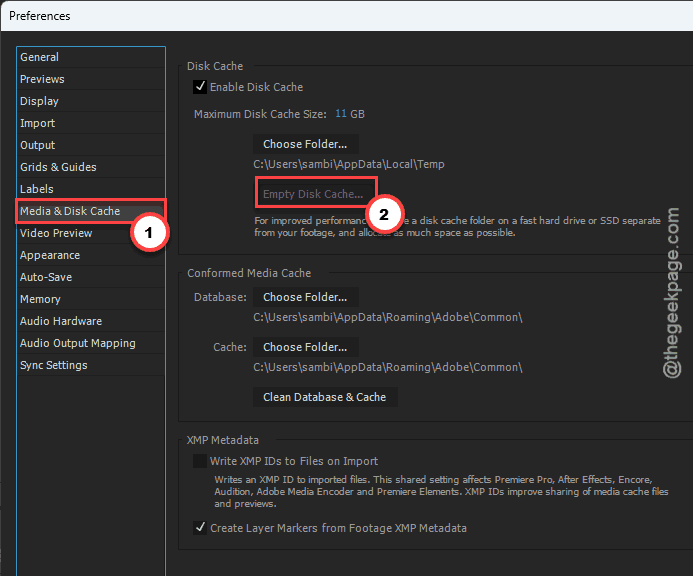
The empty step wipes the old compressed frames so they can’t come back to bite you.
Fix 4 – Reserve More RAM for Other Apps
Sounds backwards. Give After Effects less memory to fix an out-of-memory error? Yes. When it’s allowed to grab everything, it does, and then Windows and your other apps fight it for scraps. Reserving 32 GB for everything else forces After Effects to manage what it has.
1 – Open Preferences with Ctrl + Alt + ;.
2 – Click Memory & Performance on the left.
3 – Set RAM reserved for other applications to 32 GB. Do this even if you have 128 GB.
4 – Click OK and restart After Effects.
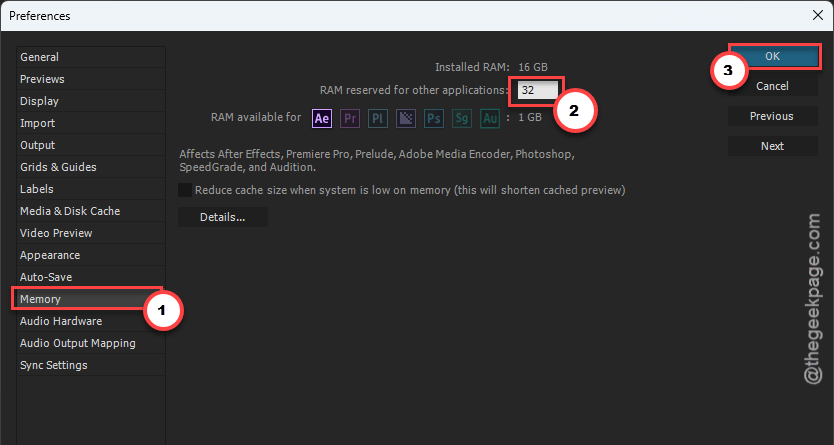
Only 32 GB total in the machine? Reserve 8 instead. The point is a real reserve, not the default 3 or 4.
Fix 5 – Find the Plugin That’s Leaking
Did all four and it still freezes? Then a plugin is the leak. Safe Mode starts After Effects with every third-party effect switched off, so you can prove it in one launch.
1 – Close After Effects.
2 – Hold Shift and double-click the After Effects icon. Keep holding until the window opens with a Safe Mode banner at the top.
3 – Open your project and press spacebar to preview.
4 – If it plays fine, open the Effects Manager (it’s in the Effect menu at the top, or from Preferences) and turn off every third-party plugin.
5 – Restart normally and turn plugins back on one at a time, previewing after each, until the freeze returns.
Whichever one brings it back is the leaker. Check its maker’s site for a 2026-compatible build. Until then, leave it off.
People Also Ask
Why does After Effects say out of memory when I have plenty of RAM?
Because the 2026 version fills that RAM with background-rendered frames before you ever press play. Idle caching plus compressed disk frames eat the memory, and the preview has nothing left.
How do I stop After Effects from freezing when I press spacebar?
Turn off idle caching first. Click Composition, hover over Preview, and uncheck Cache Frames When Idle. Then open Preferences with Ctrl + Alt + ; and disable compressed frames under Media & Disk Cache.
Does turning off idle caching make previews slower?
A little. Idle caching pre-renders frames while you’re not working, so the first preview after a change starts faster. Without it, After Effects renders when you press spacebar instead. On most projects that’s a few extra seconds.