You export 200 wedding photos and then open the folder. You may found them in this random order Wedding-001, Wedding-002, Wedding-005, Wedding-009. There are gaps everywhere, without a trace of consistency. Nothing missing, just numbered wrong. And the client wants them in order. Lightroom Classic 15 does this. Not you.
Why This Happens
Basically? The counter is broken. Version 15 keeps the sequence number in a memory buffer, and after a long editing session that buffer stops counting cleanly. It skips.
And 15.3 made it weirder. The background counter resets itself, but the Start Number box still shows the old value. So you see 1, Lightroom uses something else, and nobody tells you.
There’s a third thing. Single-digit and two-digit numbers with no leading zeros sort badly in Windows. So even a correct export can look out of order in the folder. Not skipped. Just shuffled.
Adobe hasn’t fixed it yet. But there are workarounds.
Fix 1 – Restart Lightroom Right Before You Export
A fresh launch flushes the broken buffer.
1 – Finish editing every photo in the batch.
2 – Close Lightroom Classic completely.
3 – Open it again.
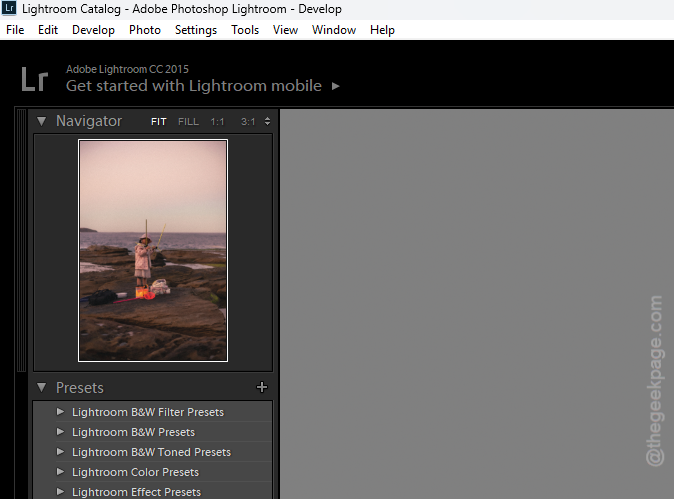
4 – Select your photos straight away, before you do anything else.
5 – Press Ctrl + Shift + E to open the Export window and run the batch.
Check the folder. Clean numbers? Good. Keep restarting before every big export until Adobe patches it. Annoying, but it works.
Fix 2 – Switch to the 3-Digit Sequence Token
Leading zeros fix the sorting problem and, for some reason, make the counter behave better too.
1 – Open the Export window with Ctrl + Shift + E.
2 – Scroll down to the File Naming section.
3 – Click the dropdown and pick Edit at the bottom.
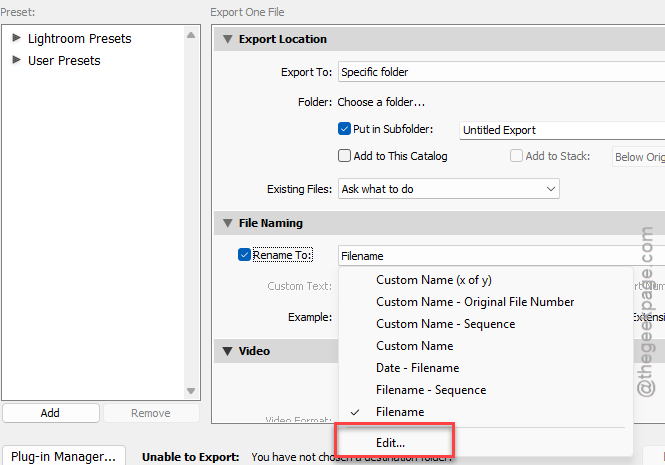
4 – Click the existing Sequence # token in the box and delete it.
5 – Below the box, find the sequence dropdown and insert Sequence # (001).
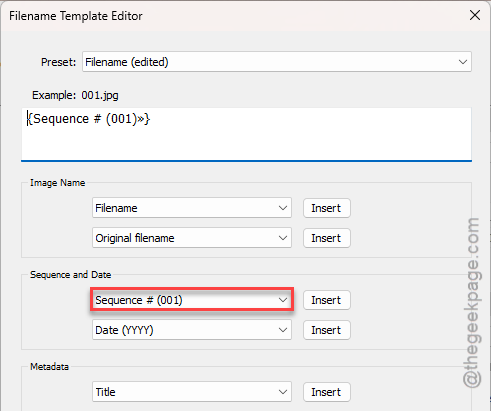
6 – Click the preset dropdown at the top and choose Save Current Settings as New Preset.
7 – Click Done, then Export.
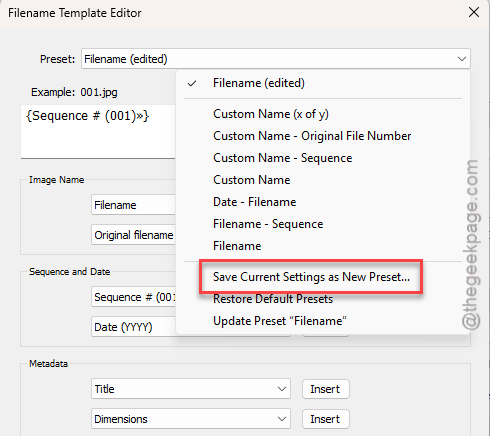
Now every file gets 001, 002, 003. Windows sorts them right. And the preset stays in the list for next time.
Fix 3 – Retype the Start Number
Quick one. The box says 1. Lightroom doesn’t believe it. Typing it again forces the real counter to match.
1 – Open the Export window.
2 – Scroll to File Naming.
3 – Click in the Start Number box.
4 – Delete whatever is there, even if it already says 1.
5 – Type 1 (or whatever number you want to start at).
6 – Click Export.
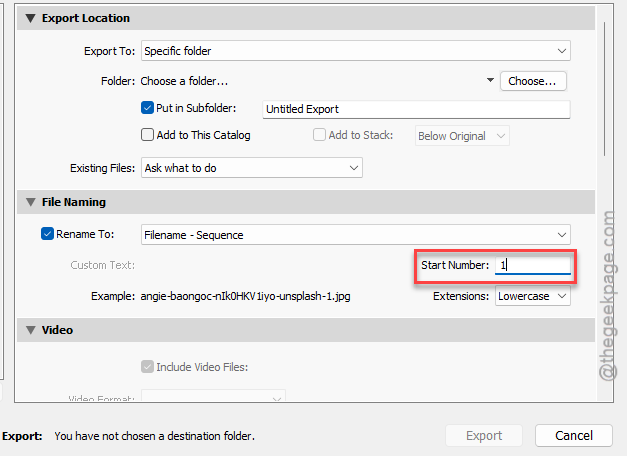
Do this every export on 15.3. Takes two seconds.
Fix 4 – Renumber After Export With PowerRename
Still getting gaps? Skip Lightroom’s renamer entirely. Export with the original filenames, then let Windows do the numbering. PowerToys is Microsoft’s free add-on pack, and PowerRename is the tool inside it.
1 – In the Export window, set File Naming to Filename so the originals keep their names.
2 – Export the batch.
3 – Install Microsoft PowerToys from the Microsoft Store if you don’t have it (free, about a minute).
4 – Open the export folder in File Explorer.
5 – Press Ctrl + A to select every photo, right-click, and click PowerRename.
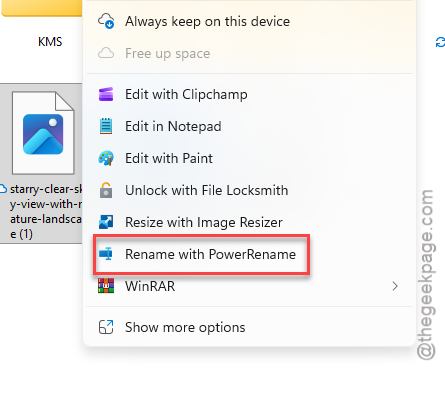
6 – In the Search for box, type .* and tick Use regular expressions.
7 – In the Replace with box, type Wedding-${001} (swap Wedding for your own name).
8 – Check the preview on the right, then click Apply.
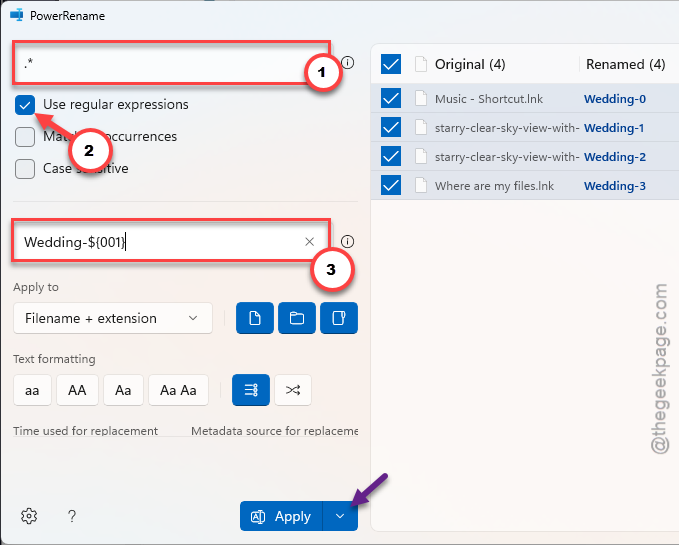
Perfect sequence. Every time.
Fix 5 – Roll Back to Version 14
Nuclear option. If your whole workflow depends on clean numbering, go back to 14 until a fix ships.
One thing first. Version 15 upgraded your catalog, and 14 can’t open the upgraded one. Lightroom left the old catalog file next to it when it upgraded (same name, older version in the filename). Edits made since the upgrade won’t be in that old file.
1 – Open the Creative Cloud desktop app.
2 – Click All apps in the left sidebar and find Lightroom Classic.
3 – Click the three dots (⋯) next to the Open button.
4 – Click Other versions.
5 – Pick the newest 14.x release and click Install.
6 – Wait for it to finish, then open the older catalog file.
How to Prevent This
- Restart Lightroom before any export that matters. Thirty seconds. Cheaper than redoing 200 files.
- Save an export preset with the 3-digit token. Then you never have to remember.
- Keep PowerToys installed.
- Read the release notes before updating. If the sequence bug isn’t listed as fixed, wait.
People Also Ask
Why is Lightroom skipping numbers when I export?
It’s a bug in Lightroom Classic 15. The sequence counter lives in memory and breaks after a long session, and 15.3 quietly resets it without updating the Start Number box.
Will rolling back to Lightroom Classic 14 lose my edits?
Not the old ones. Version 15 upgraded your catalog into a new file and left the previous one in place, so 14 opens that. But edits made after the upgrade live only in the 15 catalog, and 14 can’t read it. Export those photos or note the edits before you roll back.