You built a monster PC. 500 fps in the counter. And the game still hitches every teamfight. Backwards as it sounds, the hardware is the trigger. The engine’s frame pacing breaks at extreme framerates right now, Vanguard fights the NVIDIA overlay, and X3D processors park the game on the wrong CPU cores. Every fix below targets one of those.
Fix 1 – Pin League to Your X3D Cores
Running a 7900X3D or similar dual-chiplet AMD chip? This is probably your fix. Windows keeps scheduling the game onto the cores without the 3D V-Cache, and the game hates that. One player on a 7900 XTX / 7900X3D setup called this the fix after weeks of awful fps.
You’ll need the free version of Process Lasso(a tool that controls which CPU cores a program uses). Install it, then:
1 – Start a Practice Tool game so League is running.
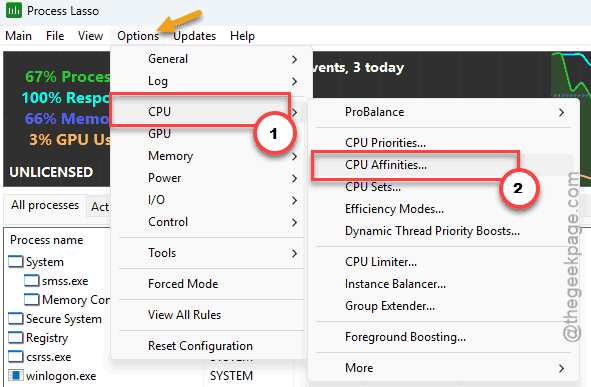
2 – In Process Lasso, open Options > CPU > CPU Affinity.
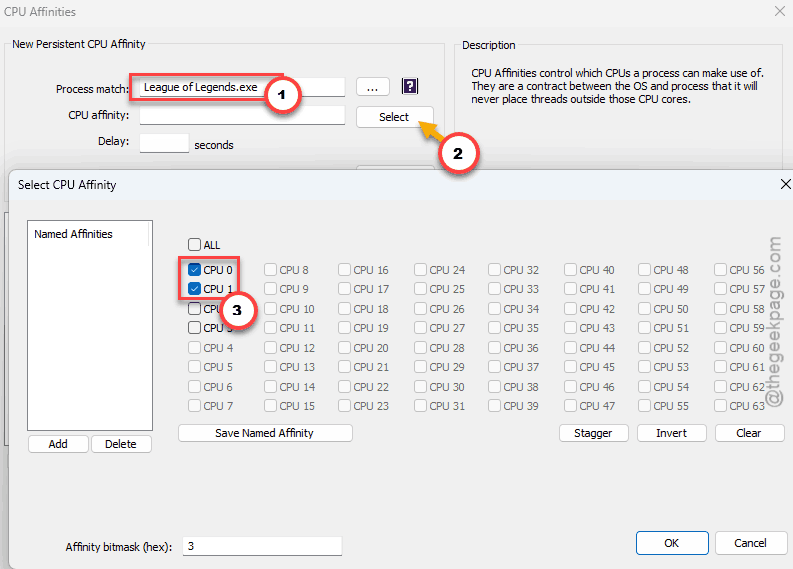
3 – In the process match field, enter League of Legends.exe.
4 – Click the Select button and tick only the cores with the 3D V-Cache. They’re marked specially in the core list — on that player’s chip it was the CCD0 cache cores.
5 – Set the delay to 5 so all cores still work during the loading screen.
6 – Click Add rule, then OK.
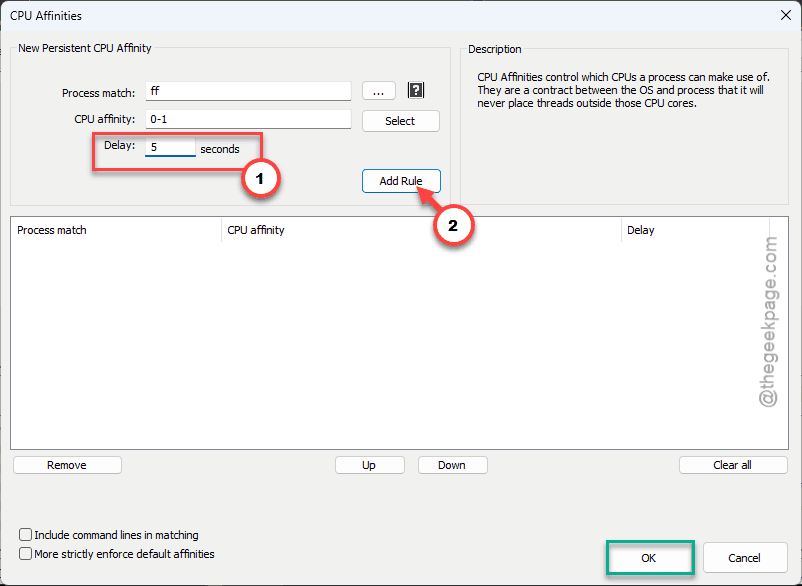
From then on, the rule applies automatically every game. Set it once, forget it.
Fix 2 – Turn On V-Sync
Yes, V-Sync. In League. The current patch mangles frame pacing at very high fps — capping it smooths everything out.
1 – Launch a custom game and press Esc to open Settings.
2 – Go to the Video tab.
3 – Check the box next to Wait for Vertical Sync.
Input lag worry? At 144 Hz or above, it’s small. Smaller than a stutter mid-fight, anyway.
Fix 3 – Disable the NVIDIA Overlay
The NVIDIA App overlay conflicts with Riot’s Vanguard anti-cheat since the latest update. The result is background hitching you can’t blame on fps — the counter stays high while the game skips.
1 – Open the NVIDIA App.
2 – Go to Settings.
3 – Toggle NVIDIA Overlay to Off.
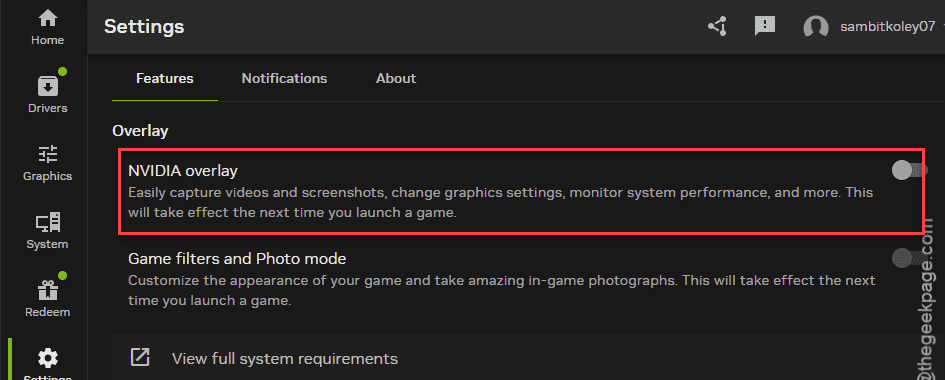
Instant replays and the fps counter go with it. Trade you a smooth game for them.
Fix 4 – Switch to DX11 Legacy Mode
The new patch brought shader compilation stutters (little freezes while the game builds graphics code on the fly). The older DirectX 11 path skips them entirely.
1 – Open the Riot Client.
2 – Click your profile icon in the top right corner, then Settings.
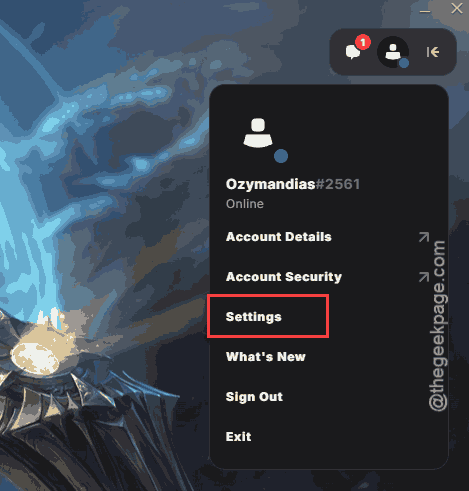
3 – Select League of Legends from the left sidebar.
4 – Check the box for Prefer DX11 Legacy Mode.
Next launch runs on the legacy renderer. Visually? You will not spot the difference.
Fix 5 – Stop Background Apps From Poking the Game
Two quick settings changes, one goal: nothing renders or runs over the game while you play.
First, the League client itself. One player found their fps went stable only after making the client close during matches — on a PC that had no business struggling. Open the client Settings, and under General, enable Close client during game.
Then Discord. Its hardware acceleration pulls GPU resources out of sync with the game engine.
1 – Open Discord and click the gear icon (User Settings) at the bottom left.
2 – Scroll down to System.
3 – Toggle Enable Hardware Acceleration to Off.
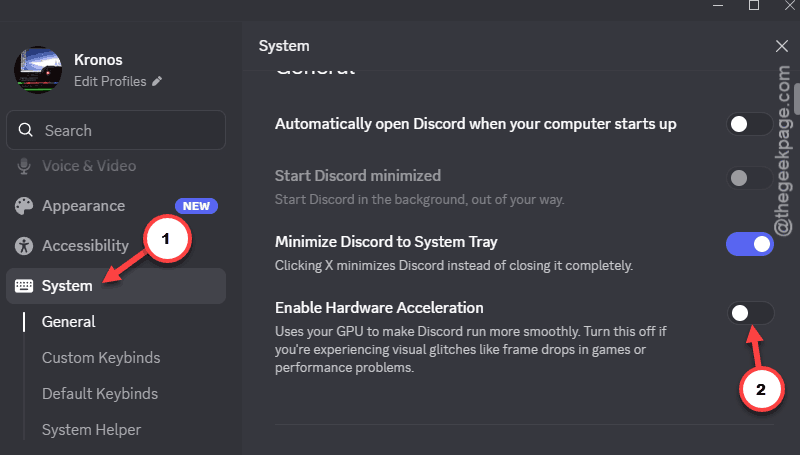
4 – Let Discord restart itself.
Fix 6 – Disable Global C-States in the BIOS
C-States are CPU power napping. Deep naps mean wake-up delays, and those delays show up as DPC latency spikes — micro-stutters that ignore your framerate completely.
1 – Restart your PC and press Del or F2 during startup to enter the BIOS.
2 – Find the Advanced CPU Settings or Overclocking menu. The name depends on your motherboard brand.
3 – Locate Global C-state Control (sometimes just “C-States”).
4 – Change it from Auto or Enabled to Disabled.
5 – Save and exit.
Idle power draw rises a bit. That’s the cost.
Fix 7 – Exempt League From Exploit Protection
Windows Defender’s exploit mitigations and Vanguard’s anti-cheat hooks fight over the same territory. You can tell Windows to back off for this one game.
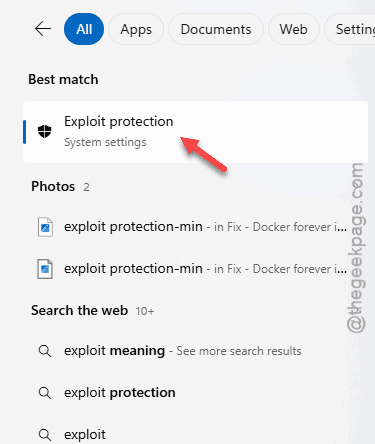
1 – Click Start, type Exploit Protection, and press Enter.
2 – Click the Program settings tab.
3 – Click Add program to customize, then Choose exact file path.
4 – Browse to C:\Riot Games\League of Legends\Game and select League of Legends.exe.
5 – Scroll down to Disable extension points, check Override system settings, and toggle it On.
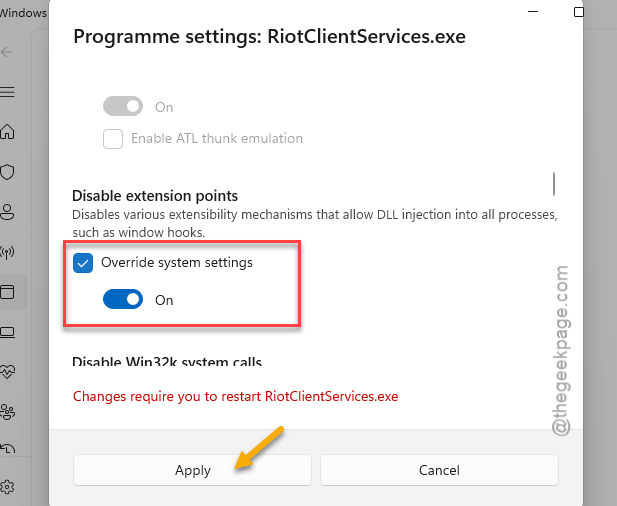
6 – Save, then reboot before your next match.
This only relaxes one narrow setting for one exe. The rest of your system keeps full protection.
Keep It From Coming Back
- Recheck the DX11 Legacy and V-Sync boxes after every big patch. Riot’s updates have a habit of quietly resetting them.
- Leave overlays off on a competitive PC. NVIDIA, Discord, whatever — each one is another hook into your game.
- On an X3D chip, keep the Process Lasso rule from Fix 5 around even when things feel fine. Windows’ scheduler regresses with updates. Often.
People Also Ask
Why does League stutter even when my FPS is high?
Because stutter is about frame timing, not frame count. Uneven pacing at extreme framerates, shader compilation hitches, overlay conflicts with Vanguard, and CPU core misscheduling all cause skips while the counter reads 400+. Cap with V-Sync and switch to DX11 Legacy Mode first.
Why is the League client so laggy in 2026?
The client is a separate app that keeps rendering and syncing while you play, and it eats resources on any PC. Enable Close client during game in the client settings — it shuts down during matches and relaunches at the end screen. Players report steadier fps with it on.