Another Unreal Engine game, another LowLevelFatalError. Manor Lords is a one-person passion project and I love it, but the launcher crash is getting old. You click Play. A black window appears.
Here’s what’s going on underneath. The game’s DirectX 12 renderer is missing texture calls for some setups, so it dies before the menu. Old shader files from the last patch make it worse. A corrupted Settings.ini can do it too, and Steam Cloud happily re-downloads that broken file every time you delete it. Overlays like MSI Afterburner hook into the game and push it over the edge. So, several causes. Same ugly error. Work down the list.
Fix 1 – Force the Game Into DirectX 11
The duct-tape fix. One player on the Steam forums called it “fixing a hole in your head with duct tape,” and honestly? Accurate. But it works for most people, and it takes thirty seconds.
1 – Open Steam and go to your Library.
2 – Right-click Manor Lords.
3 – Click Properties.
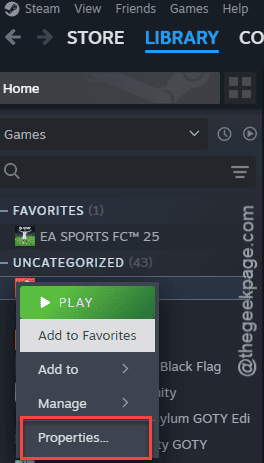
4 – On the General tab, scroll to the Launch Options box at the bottom.
5 – Type -d3d11 in the box.
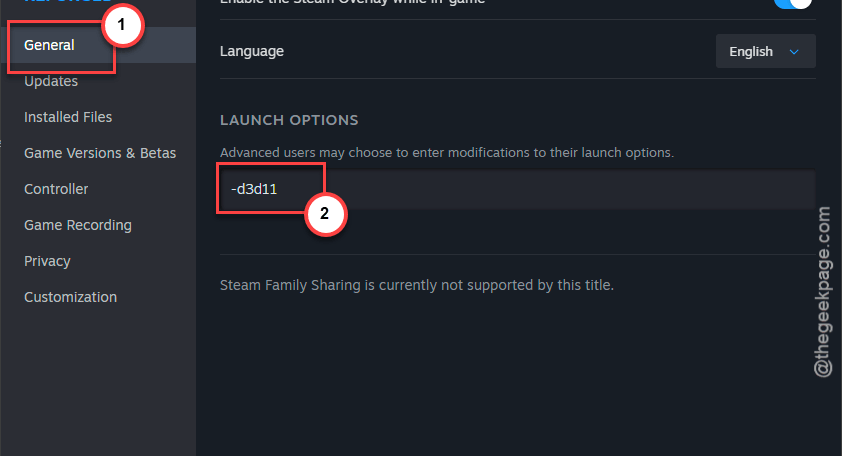
6 – Close the window and launch the game.
Still crashing? Swap the text for -dx11 and try again. Both tell Unreal to skip the DirectX 12 renderer (the part that’s actually broken) and use the older, calmer DirectX 11 path. You lose nothing you’d notice in a medieval village sim.
Fix 2 – Wipe the Saved Folder and Stop Steam From Restoring It
Crashes to a black screen before the menu even shows? That’s almost always a corrupted config file. And here’s the annoying part: Steam Cloud sees you deleted it and helpfully puts the broken copy right back. So you have to turn the cloud off first.
1 – In Steam, right-click Manor Lords and click Properties.
2 – On the General tab, switch Keep game saves in the Steam Cloud to Off.
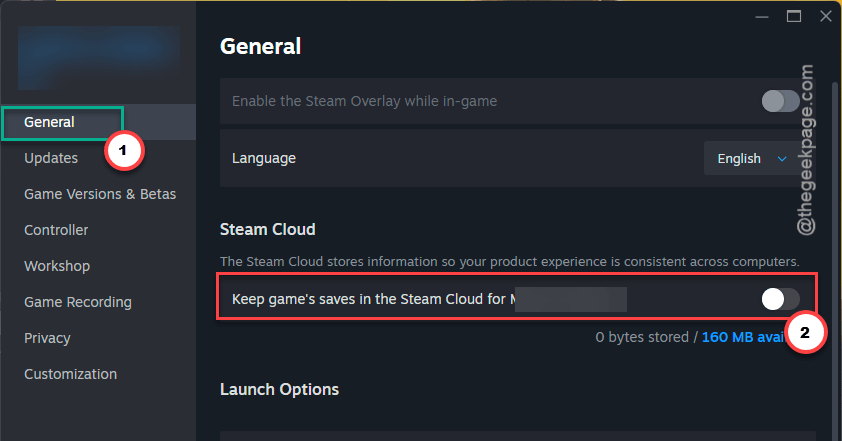
3 – Close the window.
4 – Press Windows + R.
5 – Type this address, and press Enter.
%localappdata%\ManorLords
6 – Delete the Saved folder.
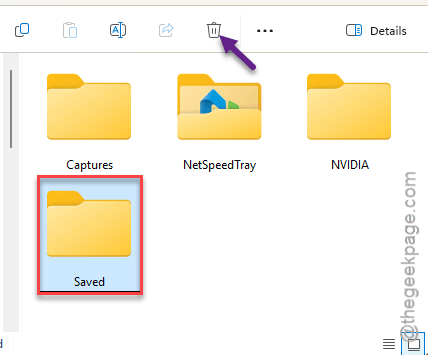
7 – Launch the game.
The game rebuilds that folder with clean default settings. Your graphics options reset (you’ll need to set resolution and quality again), but your actual town saves survive. They’re stored separately, and the cloud copy is untouched.
Once the game runs, you can turn the cloud toggle back on. Just don’t do it before you’ve launched successfully at least once.
Fix 3 – Clear the DirectX Shader Cache
Shaders are little pre-built instructions for your graphics card. Windows caches them to speed up loading. But when a patch changes the lighting engine, the cached files no longer match, and the game trips over them at boot. Of course Windows doesn’t clear them on its own.
1 – Press the Windows key and type Disk Cleanup.
2 – Press Enter.
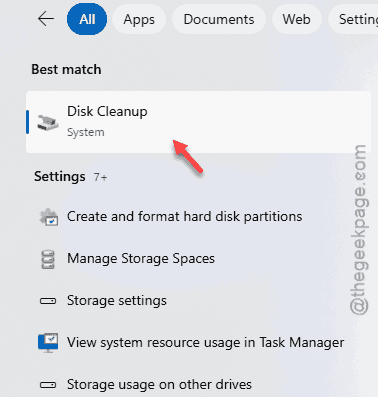
3 – Pick your C: drive and click OK. It scans for a few seconds.
4 – Scroll through the list and check DirectX Shader Cache. It’s near the bottom.
5 – Click OK, then Delete Files.
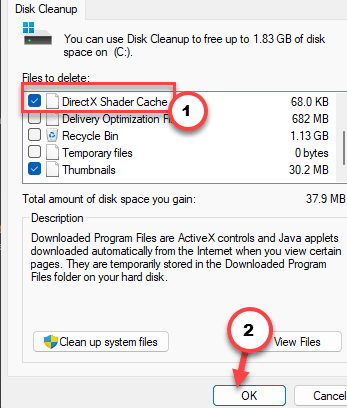
Launch Manor Lords afterward. The first load runs slower while the cache rebuilds. That’s expected, not a new problem.
Fix 4 – Close Every Overlay Before Launching
Sometimes the third-party tools such as, MSI AfterBurner or RIvatuner clashes with the Unreal Engine.
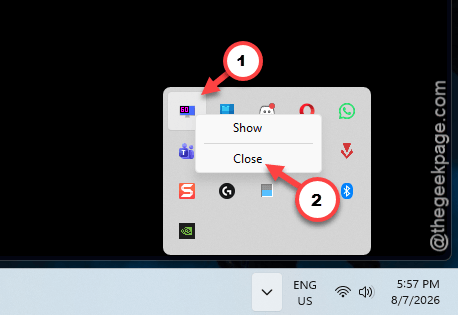
1 – Look at the system tray in the bottom right corner of the taskbar. Click the little up arrow if icons are hidden.
2 – Right-click the MSI Afterburner icon and click Close.
3 – Right-click the blue monitor icon for RivaTuner Statistics Server and click Close.
4 – Open Discord, go to Settings, click Game Overlay in the left sidebar, and switch the overlay off.
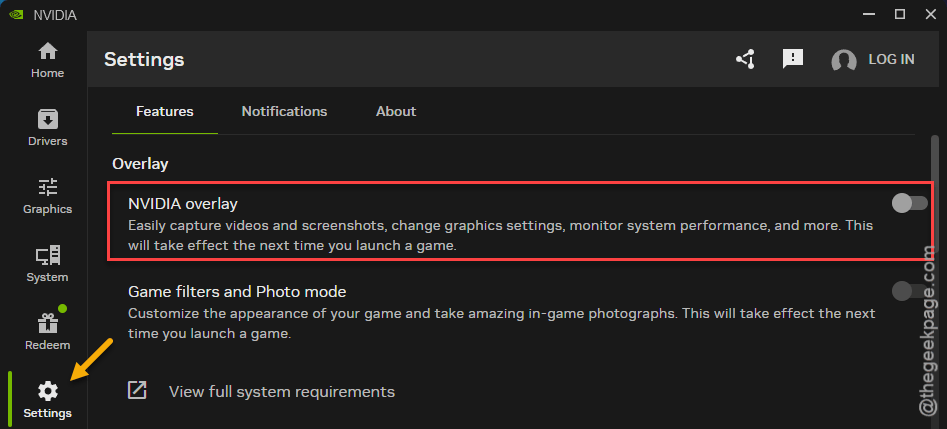
5 – Open GeForce Experience (or the NVIDIA App), open Settings, and turn off the in-game overlay.
6 – Launch the game.
Loads fine now? Then one of those was the culprit. Turn them back on one at a time to find out which, or just leave them off while you play this game. I’d leave them off.
Fix 5 – Rename the OpenXR Folder
This one’s strange. Manor Lords ships with an OpenXR folder (VR plumbing the game doesn’t even use). On some PCs, the engine tries to load it, fails, and dumps the whole thing. Renaming the folder makes the engine skip it.
1 – In Steam, right-click Manor Lords.
2 – Hover over Manage and click Browse local files. A File Explorer window opens in the game’s folder.
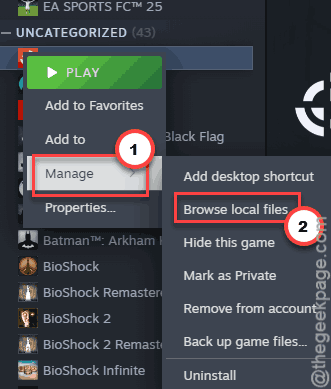
3 – Open Engine, then Binaries, then ThirdParty.
4 – Right-click the OpenXR folder and click Rename.
5 – Name it OpenXR.old and press Enter.
6 – Launch the game.
Nothing breaks if you rename it, because nothing in the game needs it. And if a patch puts a fresh OpenXR folder back, rename it again. Yes, really.
Fix 6 – Switch FSR Off in the Config File
Some setups crash the moment the game tries to start AMD’s FSR upscaler. You cannot change it from the menu if the menu never loads. So you change it in the text file instead.
1 – Press Windows + R.
2 – Type %localappdata% and press Enter.
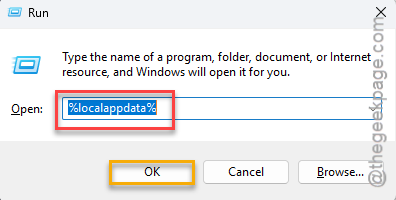
3 – Open ManorLords, then Saved, then Config, then WindowsNoEditor. Game Pass players open WinGDK instead of WindowsNoEditor.
4 – Right-click Settings.ini and open it with Notepad.
5 – Press Ctrl + F and search for ml.mode=FSR.
6 – Delete the word FSR so the line reads ml.mode= . On an NVIDIA card, type DLSS in its place instead.
7 – Save the file with Ctrl + S and close Notepad.
8 – Then, Right-click Settings.ini again.
8 – Next, click Properties. Go ahead and check the Read-only, and click Apply.
The read-only step matters. Without it, the game rewrites the line back to FSR on the next launch. Remember to uncheck read-only later if you want to change graphics settings from inside the game, or they won’t save.
Did Fix 2 already? Then this folder is fresh and the FSR line is probably fine. Skip ahead.
Keep It From Coming Back
- Leave -d3d11 in the launch options until the developer says DX12 is fixed. Check the patch notes. Not the forums, the actual notes.
- Clear the DirectX shader cache after every big patch. Sixty seconds, and it heads off half the launch crashes I see.
- Keep overlays off for Unreal Engine games in general. Afterburner is great. Its overlay is not.
- And back up Settings.ini once the game runs happily. Next time it corrupts, you just paste the good one back.
People Also Ask
Why does Manor Lords crash when I start it?
Usually the DirectX 12 renderer. It’s missing texture calls on some hardware, so the game dies before the menu. A corrupted Settings.ini, stale shader files from an older patch, and overlay tools cause the rest. Forcing DirectX 11 fixes most launch crashes. Turn off Steam Cloud before deleting config files, or the broken one comes right back.