After recieving the recent Cyberpunk update, users who use the Cyber Engine Tweaks or CET have complained the modding tool is crashing continously. The July Windows 11 update is the main suspect this round. But CET startup crashes have a handful of causes, and every one of them is fixable. Work through these in order.
Why This Happens
CET isn’t a normal mod. It injects itself into the game’s engine while the game boots (that’s the whole point — it rewrites things on the fly). So anything that changes how windows and overlays behave can knock it flat.
And the July Windows update did exactly that. It changed how the Xbox Game Bar claims screen priority, and now Game Bar fights CET’s overlay for the same spot. Why does a screen-recording toolbar break a mod loader? Because both want to draw on top of the game at the same instant, and Windows lets the Game Bar win.
And old config files make it worse. They carry window-position data saved under the previous OS build, and the new overlay hook reads that stale data and instantly panics.
One more cause worth knowing about: a corrupted graphics settings file. The game keeps its video options in a small file outside the game folder, and when that file goes bad, the engine freezes at the splash screen before any mod even loads.
Sometimes it’s simpler than all that — a CET version that doesn’t match your game patch, or one missing cache file. Both covered below too.
Fix 1 – Delete the CET Config Files
Start here. Corrupted config files cause instant crashes, and deleting them costs you nothing but your keybinds.
1 – At first, open File Explorer and go to your Cyberpunk 2077 game folder.
For Steam: it is usually under steamapps\common
For GOG it’s under your GOG Galaxy Games folder.
2 – From there, open bin, then x64, then plugins, then cyber_engine_tweaks.
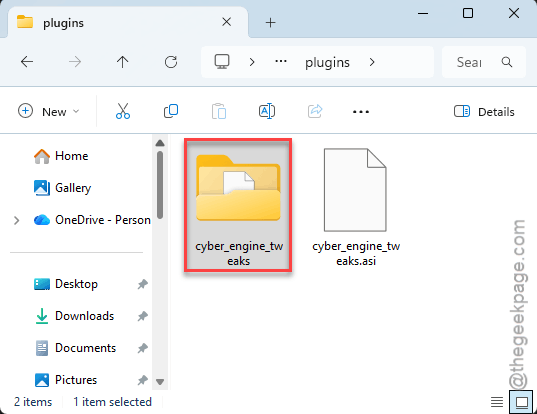
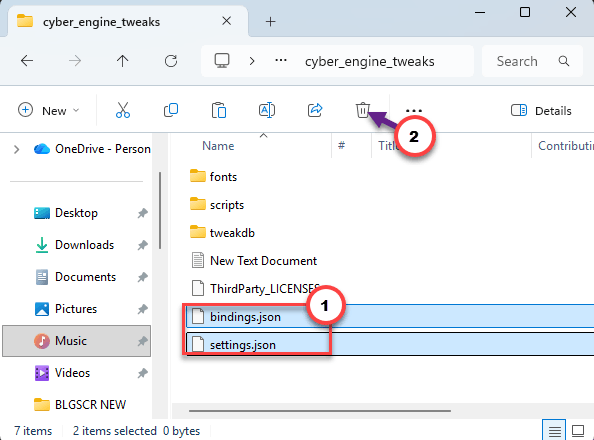
3 – Delete the bindings.json and settings.json files.
4 – Launch the game.
The first launch after deleting them takes a few seconds longer than usual while CET writes fresh copies. That’s normal. You’ll set your console hotkey again afterward. Small price.
Fix 2 – Reinstall CET From Scratch
An outdated CET is the most common flatline of all. The game patches, the mod doesn’t, and the engine hook lands in the wrong place. So don’t just re-download over the top — wipe it first, then install the current build clean (your saves aren’t touched by any of this).
1 – Go to Cyberpunk 2077\bin\x64 in File Explorer.
2 – Delete version.dll, global.ini, the LICENSE file, and the plugins folder.
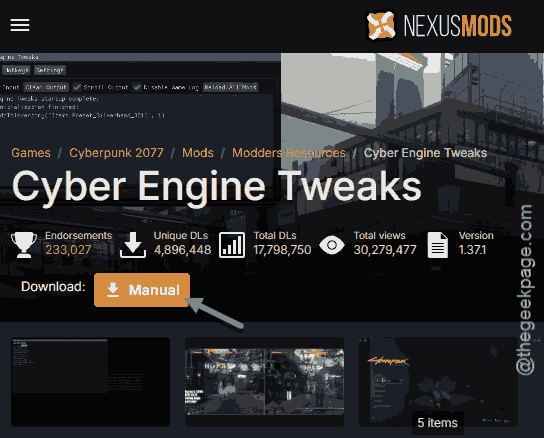
3 – Download the newest CET release that matches your exact game patch. The version pairing matters — the mod page lists which game build each release supports, so check that before grabbing anything.
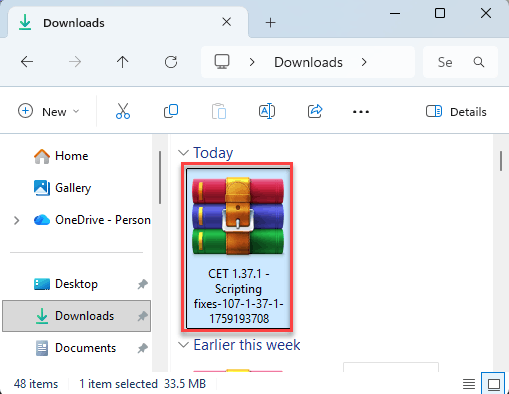
4 – Extract the download straight into the game directory, so the files land back in bin\x64.
5 – Launch the game and wait for the CET console prompt to show up.
Still dying at the splash screen? Keep going — the next fix restores a file this reinstall can’t.
Fix 3 – Copy tweakdb_ep1.bin Into the Modded Cache
Weird one, but real. If the Phantom Liberty database file is missing from the modded cache folder, CET and friends fail the moment the game starts. And no error message ever names the file, which is why nobody finds this on their own.
1 – Go to Cyberpunk 2077\r6\cache.
2 – Click the file named tweakdb_ep1.bin once, then press Ctrl + C to copy it.
3 – Open the modded folder sitting inside that same cache folder.
4 – Press Ctrl + V to paste the file there, then launch the game.
If Windows asks about replacing an existing file, let it replace.
Fix 4 – Turn Off the Xbox Game Bar
Quick one.
1 – Press Windows + I to open Settings,
2 – Later, go to the Gaming in the left sidebar.
3 – Then, reach to the Allow your controller to open Game Bar, and flip the toggle to Off.
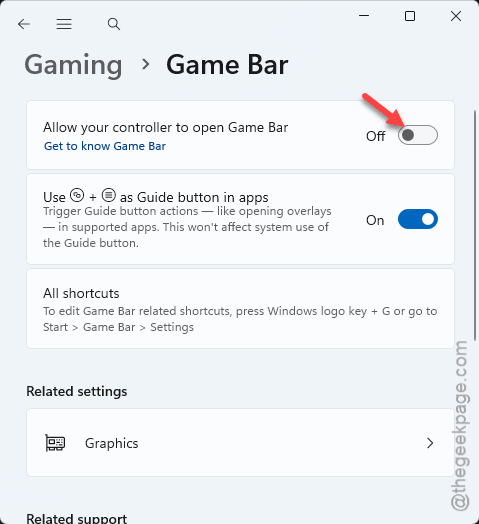
That is the overlay the July update taught to pick fights with CET. And honestly? If you don’t record clips with it, you will not miss it for a second.
Fix 5 – Switch to Borderless Windowed Mode
Exclusive fullscreen lets Windows block CET’s UI layer outright. Borderless windowed takes that power away. And since the game crashes before you can reach its own video menu, you set this from your GPU app instead.
1 – Open GeForce Experience if you’re on an NVIDIA card, or AMD Adrenalin on a Radeon.
2 – Select Cyberpunk 2077 from the games list.
3 – Change Display Mode to Borderless Windowed.
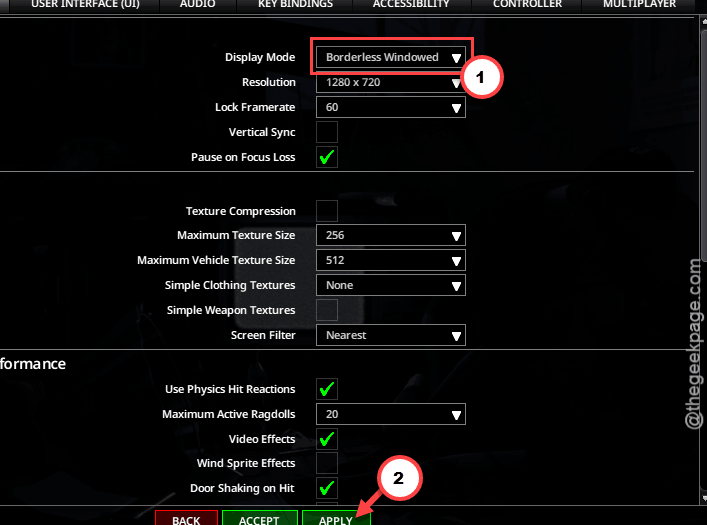
4 – Launch the game and see if it gets past the splash screen.
Fix 6 – Turn Off Hardware-Accelerated GPU Scheduling
HAGS (a Windows feature that lets the graphics card manage its own task queue) sounds great on paper. But it hands rendering priority decisions to the GPU, and CET’s memory injection hates that.
1 – Press Windows + I to open Settings.
2 – Go to System, then Display.
3 – Scroll down and click Graphics.
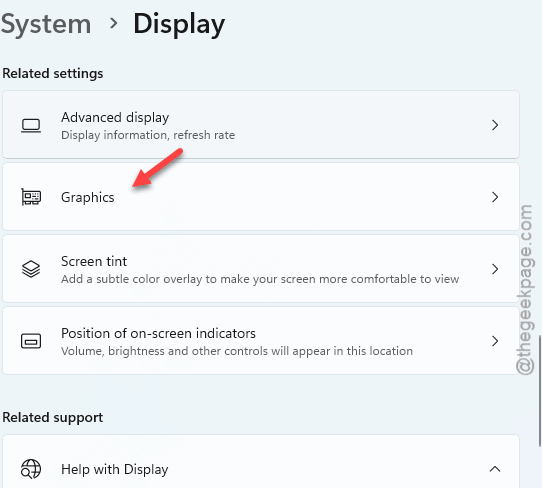
4 – Click Default graphics settings near the top.
5 – Turn off Hardware-accelerated GPU scheduling.
6 – Restart your PC. The change does not apply until you do.
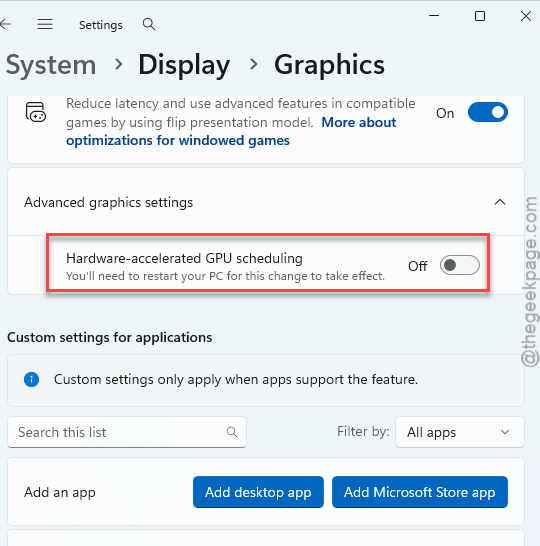
Then test the game again. But leave HAGS off even if this fix wasn’t the winner — with injection mods in the mix, it’s a repeat offender.
Fix 7 – Delete UserSettings.json
A bugged graphics profile can freeze the engine right at the CD Projekt Red splash screen — which looks exactly like a CET crash even when CET is innocent.
1 – Press Windows + R to open the Run box.
2 – Paste this into it and press Enter.
%LOCALAPPDATA%\CD Projekt Red\Cyberpunk 2077
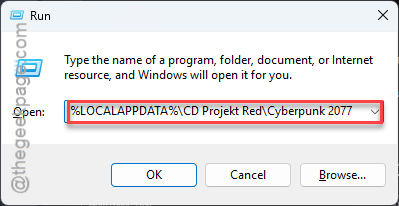
3 – Find UserSettings.json in the folder that opens and delete it.
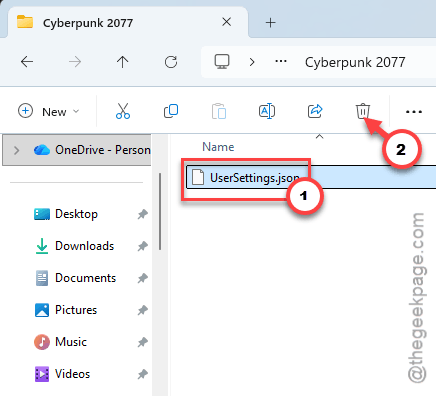
4 – Launch the game so it rebuilds the file from default settings.
Your graphics options reset, so you’ll redo those. Annoying, but it beats a game that won’t open.
Fix 8 – Run the Game in Windows 7 Compatibility Mode
Running the game in compatibility mode should resolve this issue.
1 – Go back to Cyberpunk 2077\bin\x64, like in Fix 2.
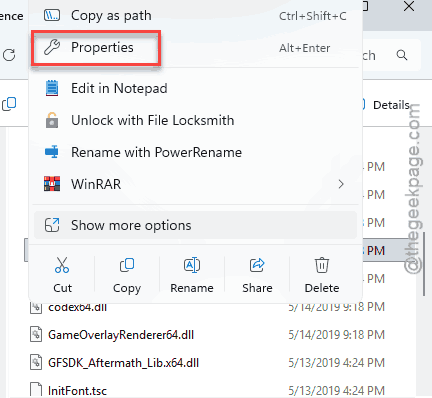
2 – Right-click Cyberpunk2077.exe and select Properties.
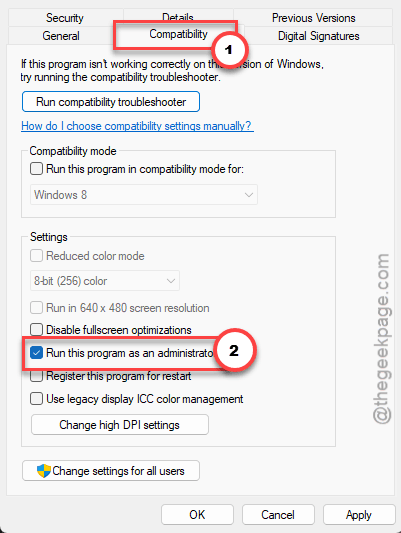
3 – Open the Compatibility tab.
4 – Check the box for Run this program in compatibility mode for and pick Windows 7 from the dropdown right below it.
5 – Click Apply, then OK, and launch the game.
Check if this works.
How to Prevent This
- Update CET before you launch after every game patch. Not after the crash — before. A matching build usually lands on the mod page within a day or two.
- Keep Xbox Game Bar off on a modded machine. It contributes nothing and fights every overlay you actually want.
- Stay in borderless windowed. Period.
- After any big Windows update, expect to wipe the CET configs once (Fix 1) before the game behaves.
People Also Ask
Why does Cyberpunk 2077 keep flatlining on startup?
On a modded install, it’s almost always Cyber Engine Tweaks — an outdated version after a game patch, or corrupted config files.
Why does my Windows 11 computer crash when I start a modded game?
Mod loaders inject code while a game boots, and Windows 11 updates keep changing the rules those injections rely on. Overlay conflicts with Xbox Game Bar are the big one right now. Turn the Game Bar off and update every mod loader you run.