You plug in your MIDI keyboard. Windows makes the connect sound. And then… nothing. No notes, no sound, dead. But it worked fine before the last update. So what changed? The whole MIDI system, as it turns out.
Why This Happens
If you installed a Korg or Akai driver years ago, it fights the built-in MIDI system. So your keyboard shows as connected but plays nothing.
Then a July update made it worse. It tightened the rules around which apps can reach your audio gear, and older devices got locked out. No error, no popup — just silence.
Why change all this at once? Better in the long run, apparently. Painful right now.
Fix 1 – Restart the Audio and MIDI Services
Start simple. These background services handle the handshake between Windows and your keyboard. If one didn’t start cleanly, a restart often wakes the device up.
First, the MIDI service.
1 – At first, plug your MIDI keyboard in. Leave it switched on.
2 – Then, click Start, type cmd. Then, right-click Command Prompt, and choose Run as administrator.
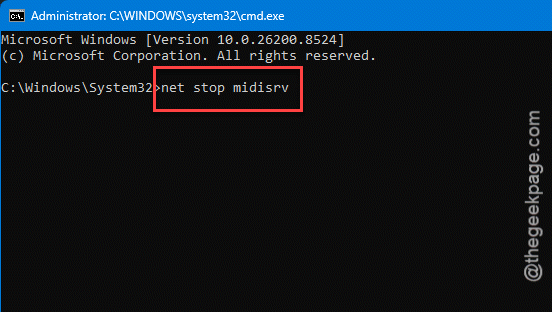
3 – Type and press Enter.
net stop midisrv
4 – Once it stops, type this code, and press Enter.
net start midisrv
Now the audio services, in case those are stuck too.
5 – Press Windows + R, type services.msc, and press Enter.
6 – Scroll to Windows Audio, right-click it, and choose Restart.
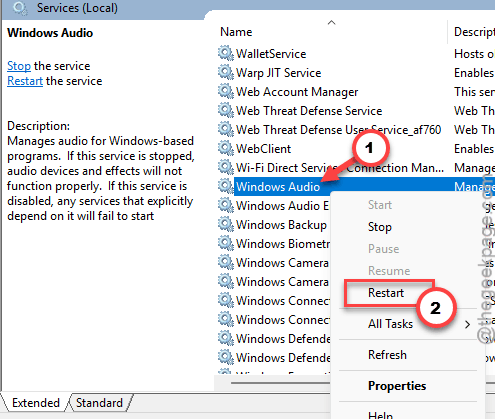
7 – Do the same for Windows Audio Endpoint Builder, just below it in the list.
So play a note. If sound’s back, you’re done here.
Fix 2 – Rip Out the Old Proprietary Driver
Try using the latest driver for your tool.
1 – Unplug the keyboard.
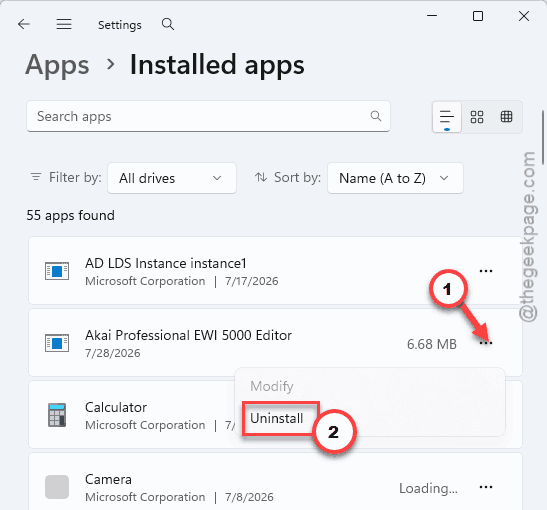
2 – Press Windows + I, click Apps, then Installed apps.
3 – Look for anything like KORG USB-MIDI or AKAI and uninstall it.
4 – Right-click Start and open Device Manager.
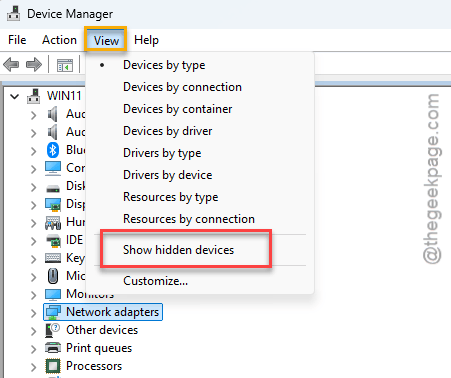
5 – Click View at the top, then Show hidden devices.
6 – Expand Sound, video and game controllers.
7 – Right-click the greyed-out MIDI device and choose Uninstall device.
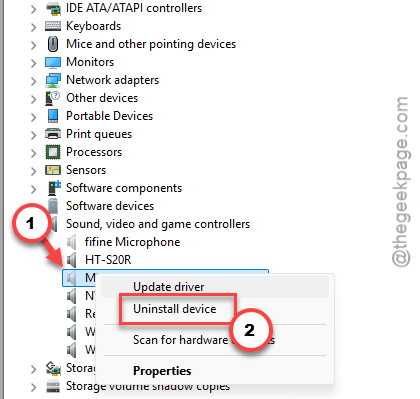
8 – Restart your PC, then plug the keyboard back in.
And Windows loads its own driver automatically this time. Give it a few seconds — a little install chime means it worked.
Fix 3 – Update the Firmware and ASIO Driver
Hardware makers know about this one. Most have already pushed updated drivers built for the new rules. You just have to go grab them, because Windows Update won’t hand them over.
1 – Go to your keyboard maker’s website (Korg, Akai, Focusrite, whoever made yours).
2 – Find the support or downloads page for your exact model.
3 – Download the newest firmware and ASIO driver. (ASIO is the low-lag audio driver that music software leans on.)
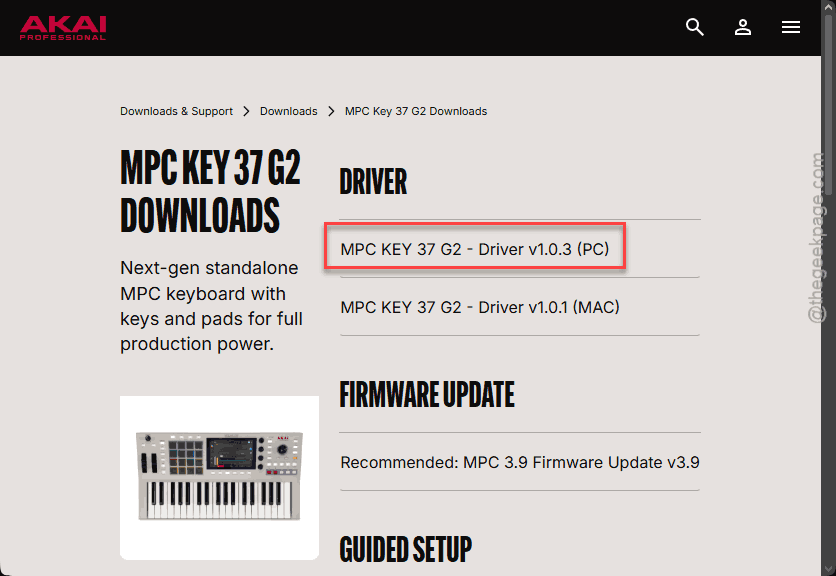
4 – Run the installer and follow the steps.
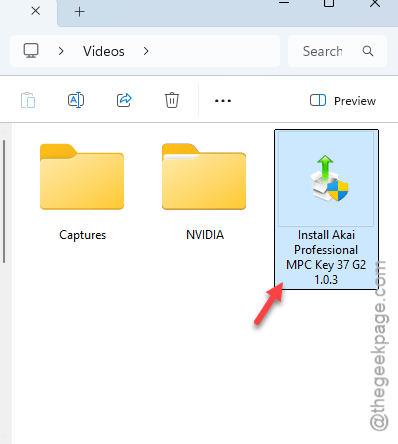
5 – Restart once it’s finished.
Check the date on what you download. You want something from the last few months, not a 2021 file that predates the whole problem.
Fix 4 – Run Your Music App in Compatibility Mode
Quick trick if one specific app can’t see the keyboard.
1 – Right-click your DAW or synth program (the recording software, like Ableton or FL Studio).
2 – Then,, choose Properties.
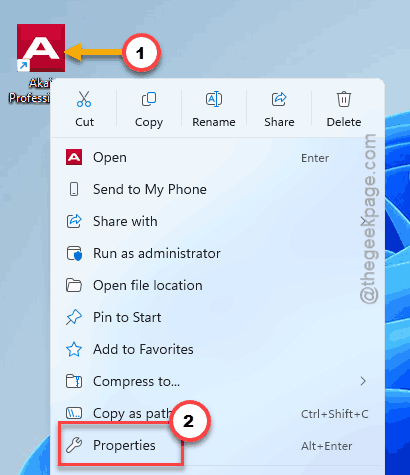
3 – Open the Compatibility tab.
4 – Tick Run this program in compatibility mode for, pick Windows 8 from the dropdown.
5 – Then, click OK, and reopen it.
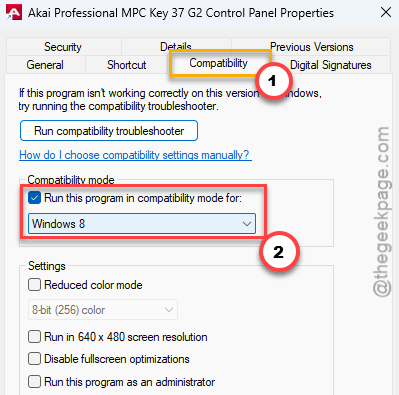
That makes the app use the older device polling the new security block skips right over. Weird, but it works for a lot of people.
Fix 5 – Re-register the MIDI Components
Nothing yet? A system file scan can rebuild the MIDI pieces if one got damaged.
1 – Load up the Command Prompt terminal as administrator.
2 – Write this down in the terminal, and press Enter.
sfc /scannow
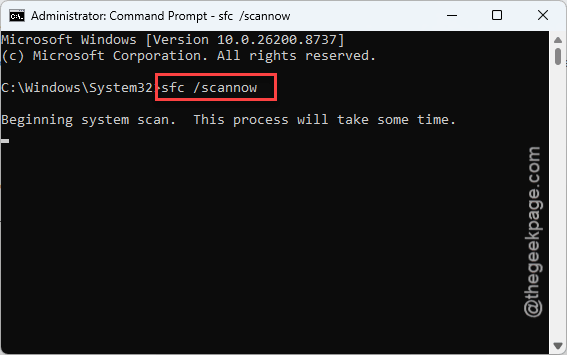
3 – Wait. It crawls toward 100% and can sit on one number for a while — leave it alone.
Restart your PC with the keyboard still plugged in, when this completes.
On the way back up, Windows re-checks the device and often registers it properly.
Fix 6 – Uninstall the July Patch
Got a gig tonight and need it working now? This is the blunt option. Removing the July update rolls back the security change that locked your device out.
1 – At first, load up the Command Prompt terminal as administrator.
2 – Type this code and press Enter.
wusa /uninstall /kb:5101650
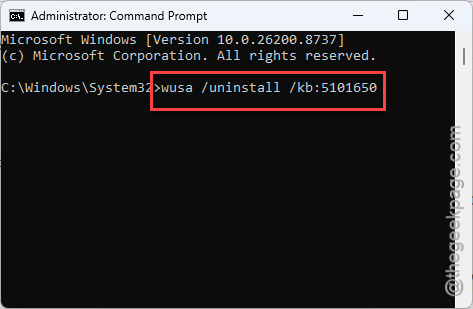
3 – Follow the prompt and restart.
Heads up though. This leaves that security fix off your machine. Fine as a stopgap for a show. But reinstall it and lean on the driver updates in Fix 3 once you’ve got the time — don’t leave it off for good.
How to Prevent This
– Get your MIDI drivers straight from the manufacturer, not Windows Update. They test against your exact gear.
– Skip the old proprietary driver on Windows 11 if the built-in one works. One less thing to fight.
– Read the update notes before a big patch. If it mentions audio or security changes, wait a beat.
– Keep one known-good driver installer saved on your drive.
People Also Ask
How do I fix a MIDI keyboard that isn’t working?
You should
What is the MIDI issue with Windows 11?
Windows 11 replaced the old MIDI system with a rebuilt one, and it clashes with older proprietary drivers. A July update piled on by tightening which apps can reach your audio hardware.