Can’t switch keyboards while using the device in mirroring mode on your MacBook? Users can easily mirror their iPhones to MacBook and control it as an extension directly from their laptop. But, there are some users who have problems switching keyboards while the iPhone is mirrored to their MacBook. This can be solved with a very easy solution that will take just seconds to perform.
Why I can’t switch keyboards during iPhone mirroring?
The users, who use multiple keyboards on their iPhone, can switch between keyboards even while their device is mirrored to the MacBook. The keyboards that you usually use on your iPhone may not be readily available in your MacBook. Even changing the keyboard directly on the iPhone won’t be fruitful while you are mirroring the device on MacBook.
In this case, you must use the MacBook shortcut to switch between the keyboards on the device. This way, you will get a complete list of keyboards that you can easily choose from.
Solution – Use the Fn key to change keyboard
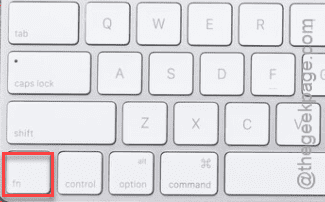
There is a quick shortcut key that you can use to get the keyboard console on your MacBook. You can easily switch between the keyboards from your MacBook easily.
Step 1 – Mirror your iPhone if you have not done it already.
Step 2 – Now, on your MacBook, tap the iPhone Mirroring from the dock to load up the iPhone layout on the main display.
Step 3 – Tap the Fn key /🌐 on your MacBook keyboard.
Step 4 – As soon as you have pressed the Fn/🌐 key, the keyboard selector console will load up on the iPhone. You can easily choose the keyboard of your choice from there.
This way, you can switch the keyboards according to your choice directly on the mirrored iPhone. This is extremely useful for the users who use multiple language keyboards at the same time.
NOTE – This Fn/🌐 key seems to be working for the native Mac keyboard. This fix may not work with the non-Apple keyboards or third-party keyboards, i.e. you can’t open up the language selection toggle using the same button.
Fix 2 – Update your MacBook
This seems to be a system bug with the recent Sequoia 15.5 update on the MacBook. Users have complained that the Fn/🌐 keyboard language toggle button has stopped working since the update. We recommend you to update to the latest version, where Apple may have patched it.
Step 1 – Open the system Settings on your MacBook.
Step 2 – Next, go to the General tab and later to the Software Update section.
Step 3 – Tap the Check for updates option to inquire for an update. Install the update, if you can find one.
This should fix the problem.