Lightroom Classic 15 split its graphics work in two. The AI masking runs on one part of your GPU, and the interface draws on another. On Windows, those two parts stop waiting for each other. And the whole window freezes. So you click Masking, pick Select Subject, and that’s it. Spinning cursor. Scaled displays and high-refresh monitors make it worse. So do leftover AI model files from a crash. And on a few fast AMD builds, the memory itself is the problem. Fix 1 handles most cases. Freezes only when the Masking panel opens? Start with Fix 1 and Fix 2. The whole app sluggish, sliders included? Skip ahead to Fix 6 and Fix 7. Freezes plus random crashes in other apps too? That points at Fix 8.
Fix 1 – Stop Lightroom Using the GPU for Display
This is the big one. Lightroom uses the graphics card for two separate jobs. One is the heavy math behind Select Subject and Select Sky. The other is just drawing the panels and sliders on screen. You keep the GPU for the first job (that’s the part that needs it) and hand the drawing back to Windows.
1 – Open Lightroom Classic.
2 – Click Edit at the top left, then Preferences.
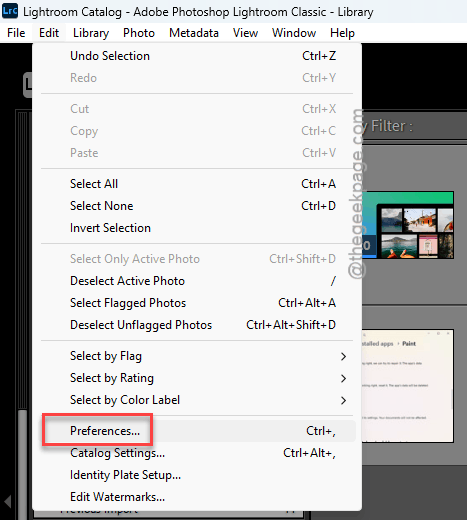
3 – Click the Performance tab.
4 – Under Camera Raw, change Use Graphics Processor from Auto to Custom.
5 – Leave Use GPU for image processing checked.
6 – Uncheck Use GPU for display.
7 – Leave Use GPU for export however you like it.
8 – Click OK and restart Lightroom Classic.
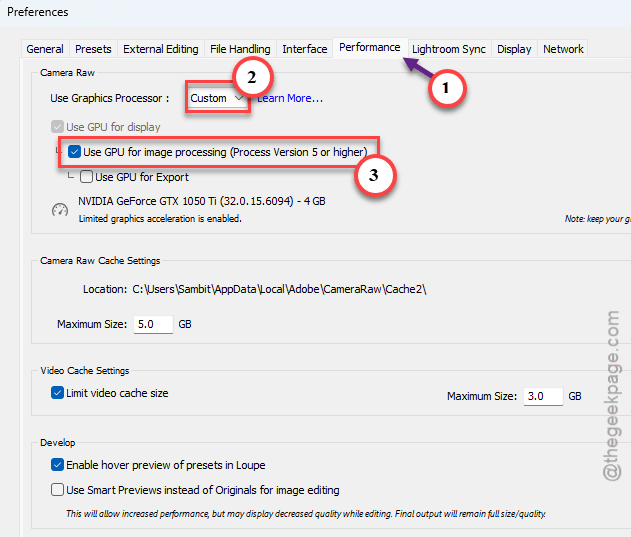
Masking still uses the card. But the interface stops fighting it. Try opening the Masking panel and running Select Subject. It should finish in a few seconds.
Fix 2 – Clear Out the AI Model Cache
Try clearing out the AI mask models cache from the application.
1 – Close Lightroom Classic.
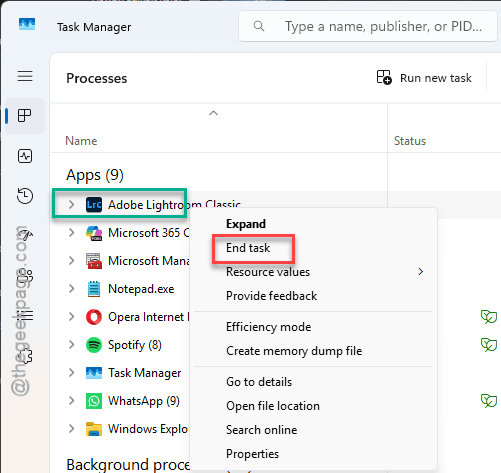
2 – Press Ctrl + Shift + Esc and make sure Lightroom.exe isn’t still listed. End it if it is.
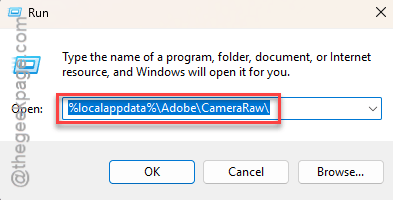
3 – Press Windows + R, paste %localappdata%\Adobe\CameraRaw\ and press Enter.
4 – Open the Cache folder and delete everything inside it. Nothing in there is yours, so this is safe.
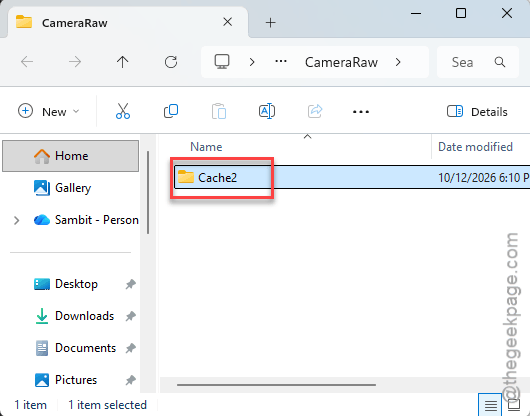
5 – Do the same for the GPU folder.
6 – Look for folders called MLCache or Models. Empty those too, if they exist.
7 – Open Lightroom Classic, pick a photo in the Develop module, and click Masking.
Check if this works.
Fix 3 – Turn Off G-Sync for Lightroom
Odd one. Lightroom only draws a new frame when you move something. A stalling driver may cause thi issue.
1 – Right-click an empty spot on your desktop and open NVIDIA Control Panel (or AMD Software: Adrenalin Edition).
2 – Go to Manage 3D settings and click the Program Settings tab.
3 – Click Add and pick Adobe Lightroom Classic from the list. Browse to Lightroom.exe if it isn’t there.
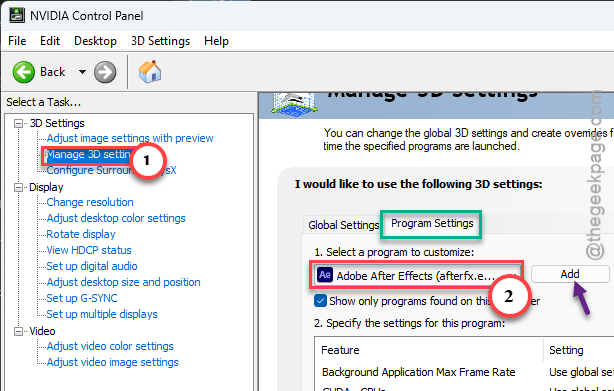
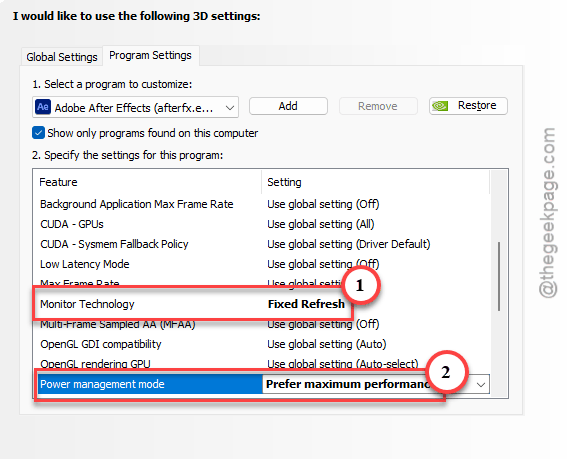
4 – Scroll down to Monitor Technology and change it to Fixed Refresh.
5 – Set Power management mode to Prefer maximum performance.
6 – Click Apply and restart Lightroom Classic.
Lightroom looks exactly the same afterward. You only notice the change when the Masking panel stops locking up.
Games keep G-Sync. Only Lightroom loses it. No downside there.
Fix 4 – Turn Off Hardware-Accelerated GPU Scheduling
Windows has its own setting that hands scheduling work to the graphics card. Lightroom 15 and that setting do not get along.
1 – Press Windows + I to open Settings.
2 – Click System, then Display.
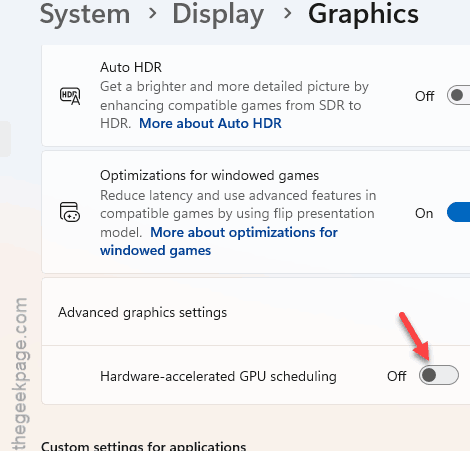
3 – Scroll down and click Graphics.
4 – Click Advanced graphics settings (older builds call it Change default graphics settings).
5 – Find the Hardware-accelerated GPU scheduling toggle near the top of the page and switch it to Off.
6 – Restart your PC. The change will not take until you do.
Didn’t help? Turn it back on afterward. But some games run better with it, so don’t leave it off for nothing.
Fix 5 – Cap the Camera Raw Cache
Quick one.
1 – Click Edit, then Preferences, then the Performance tab.
2 – Find Camera Raw Cache Settings near the bottom.
3 – If Maximum Size is huge or set to unlimited, drop it to 10 GB and click OK.
4 – While you’re in that box, the Purge Cache button next to it empties the old files, which is worth a click too.
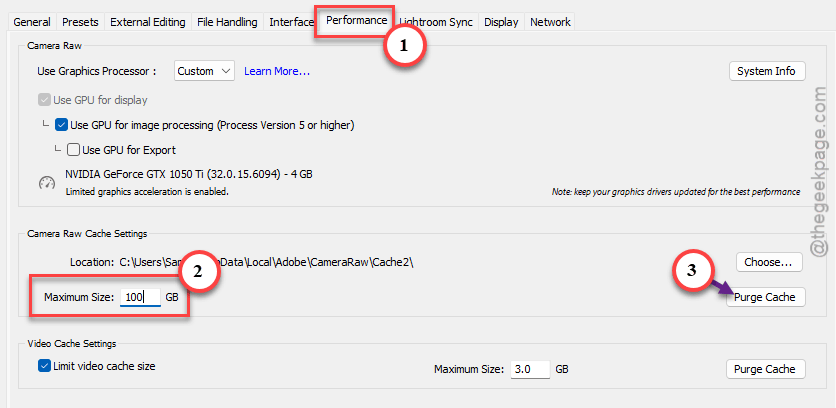
Left unlimited, the cache swallows whatever system resources it wants, and the masking engine starves. But ten gigs is plenty.
Fix 6 – Reset the Preferences File
Every panel feels sluggish, not just masking? Then your preferences file may be the problem. Resetting it does not touch your catalog or photos. Just settings.
1 – Close Lightroom Classic completely.
2 – Hold Shift + Alt on your keyboard.
3 – While press-holding them, double-click the Lightroom Classic shortcut.
4 – A box pops up asking to reset preferences. Click Reset Preferences.
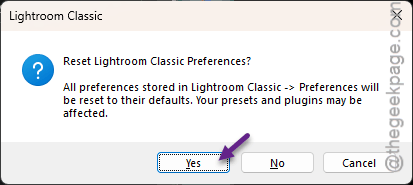
5 – Let it open. It looks like a fresh install.
Your panel layout and a few tweaks go back to default. Takes a minute to set them again. Your edits are all still there.
Fix 7 – Open a Backup Catalog From Before the Update
Sometimes the stutter isn’t the GPU at all. You should open a backup catalog before the version update.
1 – Click File, then Open Catalog.
2 – Go to your catalog’s Backups folder. It sits next to the catalog file by default.
3 – Pick the newest backup dated before you installed version 15.
4 – Click Open. A box says the catalog needs upgrading, so click Upgrade and wait. A big catalog can take a few minutes.
Edits you made after that backup date won’t be in there. So only do this if the freeze started with the update.
Fix 8 – Ease Off Your RAM Overclock
Running a 7800X3D build with memory at 7800 MT/s or similar? Lightroom’s AI masking hammers the memory controller.
1 – Restart your PC and press Delete (or F2) as it boots to enter the BIOS.
2 – Find the memory profile setting. It is usually called XMP, EXPO, or DOCP, and it lives under an overclocking or tweaker tab on most boards.
3 – Pick a slower profile, or drop the speed one notch (6000 is the usual safe spot on AMD boards).
4 – Save and exit. The PC restarts on its own.
Benchmarks lose a couple of percent. Lightroom stops freezing. Fair trade.
Keep It From Coming Back
- Leave Use GPU for display unchecked. Updates sometimes flip it back to Auto, so check it after each one.
- Clear the CameraRaw cache folders after every GPU driver update. Thirty seconds. Saves a frozen afternoon.
- Keep Lightroom on Fixed Refresh in the NVIDIA Control Panel. New driver installs can wipe program settings. So glance at it after one.
- Back up the catalog before every major Lightroom version. Then a bad upgrade costs you nothing.
People Also Ask
Why isn’t my masking working in Lightroom Classic?
Corrupted AI model files, most likely. Lightroom caches the Select Subject and Sky models under %localappdata%\Adobe\CameraRaw, and a crash can leave broken files behind. Close Lightroom, empty the Cache and GPU folders there, and reopen it. The first mask takes about 15 seconds while the models rebuild.