You select a paragraph in Notepad. Then, right-click it and found that the Rewrite option is grey. Or it’s not in the menu at all, and Ctrl + I does nothing either. It was there last week.
Why This Happens
Rewrite doesn’t run on your PC. It runs in Microsoft’s cloud. So Notepad has to be signed in, in a supported country, on a build new enough to have the button at all. Miss any one of those and the option just isn’t there. Or it’s grey.
No error. No hint. Microsoft’s way of saying “not for you.”
Then there’s the policy side. Any setting that switches off Copilot or Windows AI also kills Rewrite, because Notepad treats them as the same family. One debloat script. And the button is gone for good. Annoying? Very.
Fix 1 – Sign In to Notepad
Rewrite needs a Microsoft account. But a local Windows account won’t do it, and neither will a Microsoft account that Notepad itself isn’t signed into. Two different things, weirdly.
1 – Open Notepad.
2 – Click the gear icon in the top right corner.
3 – Look at the banner at the top of the settings page.
4 – You should sign in with your main Microsoft account (the one you use for Windows, usually).
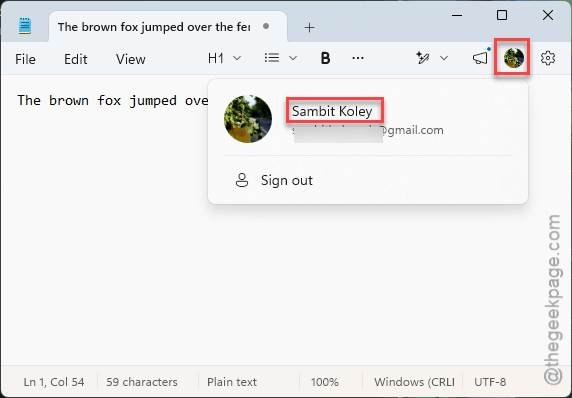
5 – Close Notepad and open it again.
6 – Select some text, right-click, and look for Rewrite. Or press Ctrl + I.
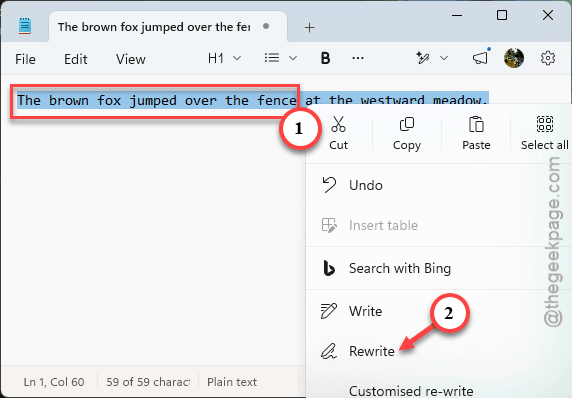
Rewrite also burns AI credits tied to that account. Out of credits? The button goes grey. Check the balance on your Microsoft account page under services.
Fix 2 – Switch Rewrite On in Notepad’s Settings
Quick one.
1 – Click the gear icon in the top right, scroll down to Advanced features, and make sure Writing Tool is is toggled on.
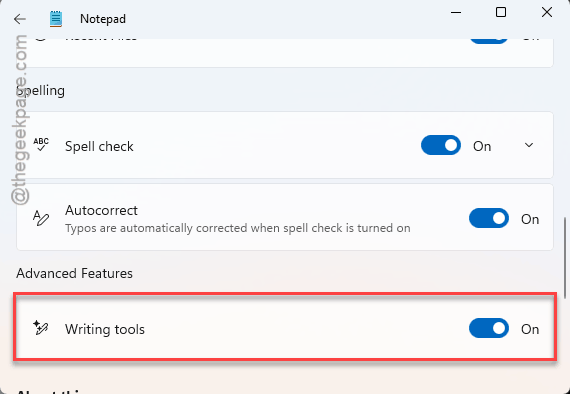
2 – Off by default on some builds, for some reason.
3 – So flip it, close the settings page, and try Ctrl + I again.
Check if this works.
Fix 3 – Update Notepad
Rewrite needs Notepad version 11.2410.15.0 or newer. But older builds don’t even have the code for it.
1 – Open the Microsoft Store.
2 – Click Library in the bottom left corner.
3 – Click Get updates at the top right.
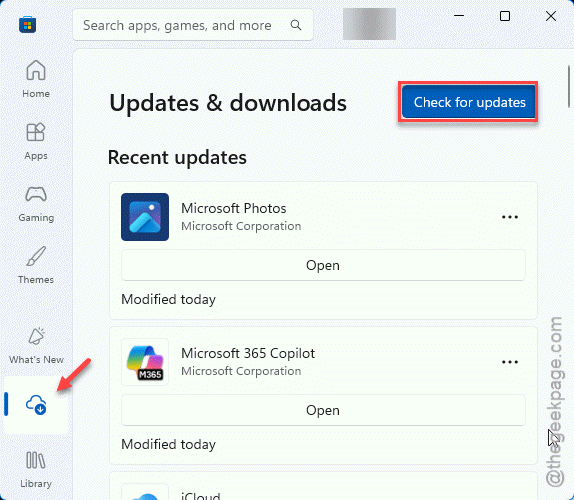
4 – If Windows Notepad shows up in the list, let it install.
5 – Open Notepad and check.
Store not finding the update? Open PowerShell and run: winget update Microsoft.WindowsNotepad. Same update, different door.
To see which version you have, click the gear in Notepad and scroll to the bottom (the number is under About).
Fix 4 – Clean Out the Registry Blocks
Debloat scripts love this spot. Even on Home, these two values shut Rewrite off.
1 – Press Windows + R, type regedit, and press Enter.
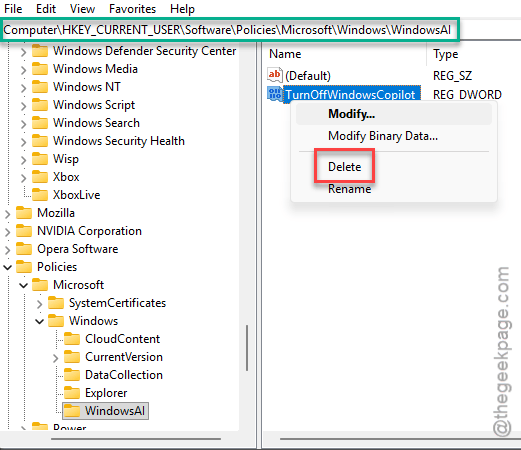
2 – Paste into the address bar at the top and press Enter.
HKEY_CURRENT_USER\Software\Policies\Microsoft\Windows\WindowsAI
3 – Go to the right-hand pane, double-tap the DisableAIDataAnalysis or TurnOffWindowsCopilot.
4 – If either is set to 1, double-click it and change it to 0. Or delete it.
5 – Restart the PC.
Export the key first (File, then Export). Takes a few seconds. And you can put it back if you need to.
Fix 5 – Check Group Policy
If you’re on Pro or Enterprise, two policies can kill Rewrite. Check both.
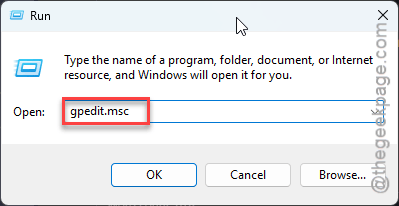
1 – Press Windows + R, type gpedit.msc, and press Enter.
2 – Open
Computer Configuration > Administrative Templates > Windows Components > Notepad
3 – Double-click Manage AI features.
If it is set to Disabled, change it to Not Configured and click OK.
4 – Now go this way –
User Configuration > Administrative Templates > Windows Components > Windows AI (called Windows Copilot on older builds)
5 – Double-click Turn off Windows Copilot. If it says Enabled, set it to Not Configured or Disabled. Click OK.
6 – Restart the PC.
Home edition has no gpedit. Fix 5 covers the same switches.
How to Prevent This
- Let the Store update Notepad. Blocking Store updates to keep an old look? You lose the AI bits too.
- Read debloat scripts before you run them. Most flip TurnOffWindowsCopilot without saying so. That’s this whole article in one registry value.
- Leave the region alone once it works. Each change can re-trigger the rollout check.
People Also Ask
Does Notepad Rewrite work with a local account?
No. Rewrite runs on Microsoft’s servers and bills AI credits to a Microsoft account, so a local Windows account has nothing to bill. You don’t have to convert your whole Windows login, though. Open Notepad’s settings and sign in there alone. The rest of Windows stays local.