Outlook never actually closed. That’s the whole problem. You clicked the X an hour ago, but the process kept running in the background — frozen solid.So when you try to open it again, Windows insists Outlook is already open. And shows you nothing. Classic Outlook has been pulling this stunt for years.
What’s Going On Here
Closing the window doesn’t reliably kill classic Outlook. It’s supposed to finish some cleanup in the background first. Supposed to.
Plenty of things jam that shutdown. A corrupted mail data file that refuses to let go. A broken add-in fetching data that isn’t coming. A missing WebView2 component. And on some PCs, a Windows notification service that flat-out deadlocks with Outlook.
Fix 1 gets you back into your email right now. The rest go after whichever cause is jamming yours.
Fix 1 – Kill the Stuck Process
1 – Press Ctrl + Shift + Esc to open Task Manager.
2 – In the Processes tab, scroll down to the Background processes section.
3 – Find Microsoft Outlook (or OUTLOOK.EXE), right-click it, and select End task.
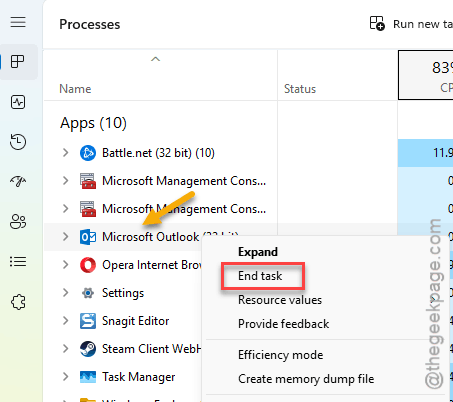
4 – Double-click your Outlook shortcut. It should open normally now.
This is first aid, not a cure. If you’re doing it every day — and plenty of people are — keep going down the list.
Fix 2 – Start Outlook in Safe Mode
Safe mode starts Outlook with no add-ins. And broken add-ins are freeze suspect number one.
1 – Press Windows + R.
2 – Type outlook.exe /safe and press Enter.
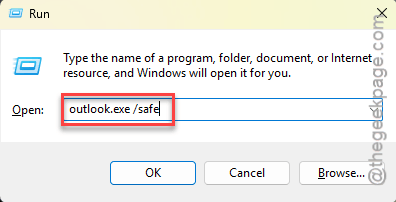
3 – If a profile prompt appears, pick your profile and click OK.
Runs fine like this? Then an add-in is your troublemaker. Turn them off under File > Options > Add-ins, then bring them back one at a time until the freeze returns. And whatever you don’t actually use, leave off for good. Fewer add-ins, fewer hangs.
Fix 3 – Turn Off Hardware Graphics Acceleration
1 – In Outlook, click File in the top left.
2 – Click Options.
3 – Click Advanced in the left column.
4 – Check the box for Disable hardware graphics acceleration.
5 – Click OK and restart Outlook.
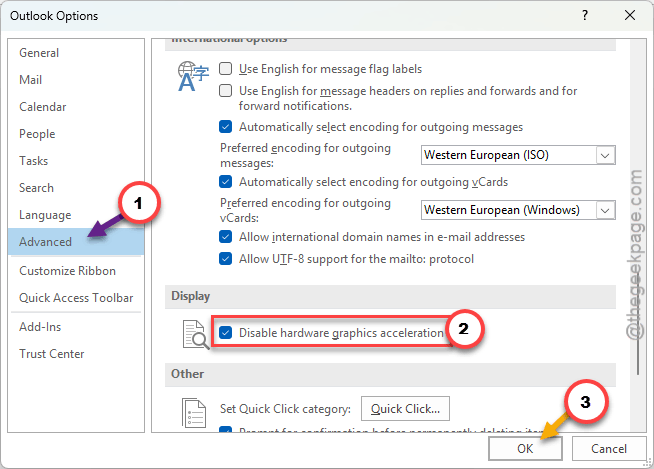
This makes the CPU draw the interface instead of the graphics card. Sounds backwards, works anyway — it stops the graphical hang-ups that stall Outlook while it’s closing.
Fix 4 – Repair Your Data File With SCANPST
Using a POP account? Your mail lives in a .pst file on disk. A corrupted one refuses to unmount, and the whole closing sequence stalls behind it. Microsoft ships a repair tool for exactly this — it’s just buried where nobody finds it.
1 – Close Outlook, and end the background process like in Fix 1.
2 – Open File Explorer and go to
C:\Program Files\Microsoft Office\root\Office16
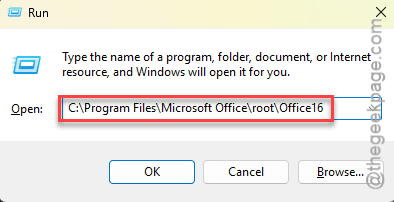
3 – Double-click SCANPST.EXE.
4 – Click Browse and pick your main .pst file.
5 – Click Start, and when the scan finds errors, click Repair.
Big mailbox? The repair can grind for twenty minutes or more. Let it. Interrupting a .pst repair is asking for trouble.
Fix 5 – Disable the Windows Notification Service
The odd one. On some machines, the Windows Push Notification User Service (WpnUserService) deadlocks with Outlook — two processes waiting on each other forever. Severe freezing, permanent “already open” limbo. Why hasn’t this been patched? Good question.
1 – Right-click the Start button and select Terminal (Admin) or Windows PowerShell (Admin).
2 – Type this, and press Enter.
sc stop WpnUserService
3 – Do the same thing with this:
sc config WpnUserService start= disabled
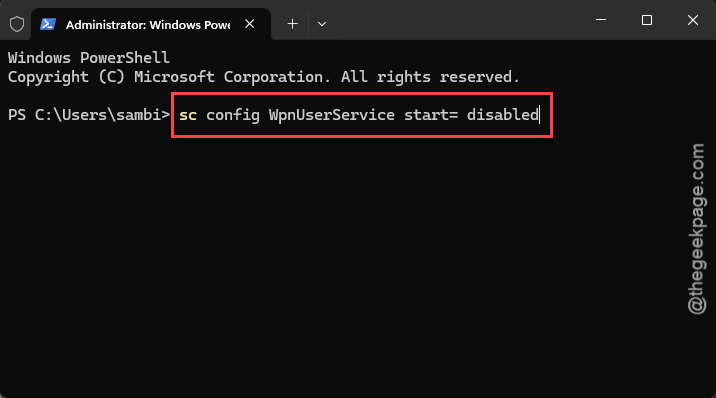
4 – Restart your PC and watch whether Outlook behaves.
You’ll lose some Windows pop-up notifications with this off. If that bothers you more than the freezing did, bring it back with sc config WpnUserService start= auto.
People Also Ask
Why does my Microsoft Outlook Classic keep freezing?
The usual suspects are a broken add-in, a corrupted .pst data file, hardware graphics acceleration choking on the interface, or a damaged WebView2 runtime.
How do I stop Outlook from running in the background?
Open Task Manager with Ctrl + Shift + Esc, find Microsoft Outlook under Background processes, right-click it, and choose End task. That kills the stuck copy so a fresh one can open. If it happens constantly, repair your data file — a corrupt .pst keeps Outlook from ever closing cleanly.
How do I get my Outlook to unfreeze?
Wait a minute first — it may be chewing through a large sync. Still stuck? Force-close it from Task Manager and reopen. For repeat freezes, disable hardware graphics acceleration under File > Options > Advanced and run SCANPST.EXE on your data file. Those two cure most cases.