Why would a search bar fall over because you pasted more than one name into it? There is no good reason. But that’s exactly what Lightroom’s cloud app does. You paste a client’s list of picks. Twenty filenames, maybe forty. Lightroom thinks for a second and shows you nothing. Not one match. The photos are right there in the library, too.
Why This Happens
Basically? Lightroom’s cloud search was never built for lists. It wants one thing at a time.
Paste twenty filenames and the engine just gives up. Doesn’t tell you, of course. You get zero results and a blank stare.
And it gets worse. The search simply doesn’t understand OR, AND, or those pipe characters. Then there’s the dot in every extension. Lightroom reads the dot as a break between words. So IMG_0001.JPG turns into two half-searches that fight each other.
Sometimes the local search index is the problem instead. It drifts out of sync with your photos. And then even short lists come back half empty. Adobe has known about all of this for a while. Still not fixed.
Fix 1 – Separate the Names With Commas Only
1 – Click the search bar at the top of Lightroom.
2 – Type the filenames separated by a comma and one space, like this: IMG_0001,IMG_0002.
3 – Then, make sure there are no quotation marks and no OR between the names.
4 – Press Enter.
Each comma-separated name runs as its own search. And that alone fixes it for a lot of people.
Fix 2 – Drop the File Extensions
Still nothing? Take the .CR3 or .JPG off the end of every name. The dot is poison to Lightroom’s search.
1 – Paste your whole list into Notepad (or any text editor).
2 – Press Ctrl + H to open Find and Replace.
3 – Type the extension in the top box, like .CR3, and leave the bottom box empty.
4 – Click Replace All.
5 – Copy the cleaned-up list and paste it into Lightroom’s search bar, with commas between the names like in Fix 1.
6 – Press Enter.
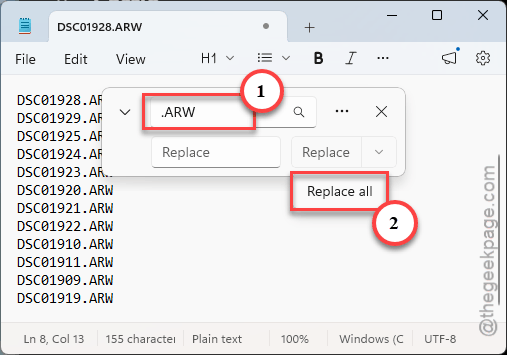
For an example – DSC01928, DSC01929, DSC01930 type of name works. But, names like DSC01928.ARW doesn’t. Same photos. Lightroom just does not cope with the dots.
Fix 3 – Paste Three or Four at a Time
Not elegant. But it works. The cloud engine chokes on long strings, so feed it small bites.
1 – Paste three or four names, press Enter,
1 – Then, star the results or drop them in an album, then paste the next batch.
Tedious for a 200-photo order? Yes. Still faster than scrolling through 4,000 thumbnails by hand.
Fix 4 – Run the Search on the Web Instead
The desktop app sometimes hands a complicated search off to Adobe’s servers and then times out waiting. But the web version doesn’t do that. Weirdly, it just works.
1 – Open your browser and go to Adobe Lightroom.
2 – Sign in with your Adobe ID.
3 – Paste the filename list into the search field at the top, commas and all.
4 – Select the results and add them to a new album (call it something like _ClientPicks).
5 – Go back to the desktop app. The album shows up within a minute or so, once it syncs.
You get your selection without ever fighting the desktop search bar.
Fix 5 – Rebuild the Search Index
If single filenames work but lists come back half empty, the local search index has drifted. Delete it and Lightroom builds a new one in the background.
1 – Close Lightroom.
2 – Press Ctrl + Shift + Esc, search for Adobe, and end any Adobe processes still running.
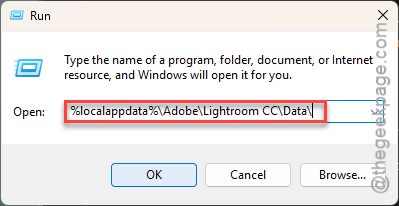
3 – Press Windows + R, paste %localappdata%\Adobe\Lightroom CC\Data\ and press Enter.
On a Mac, go to ~/Library/Application Support/Adobe/Lightroom CC/ in Finder.
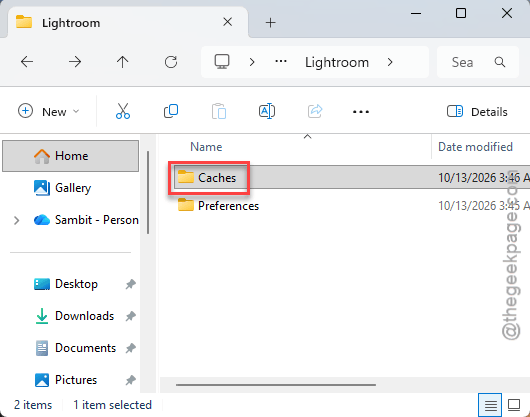
4 – Open the folder with the long jumble of letters and numbers (that’s your account folder).
5 – Find search.db (it may be called search_index.db) and drag it to your desktop.
6 – Open Lightroom.
Nothing looks different at first. And it won’t for a few minutes (longer for a big library) while it re-indexes. So give it some time, then try the search again.
Fix 6 – Use Lightroom Classic for the Big Lists
Classic handles a pasted list of a hundred names without blinking. So if you have it installed, let it do the heavy lifting.
1 – Open Lightroom Classic and turn on syncing (click the cloud icon at the top right).
2 – Wait for the synced photos to appear. This can take a while the first time.
3 – Click the + next to Collections in the left panel and choose Create Smart Collection.
4 – Set the rule to Filename contains and paste your list.
5 – Click Create.
The collection fills itself in. And it syncs back to the cloud, so the same set shows up in the cloud app too.
Fix 7 – Skip the Filename Search Entirely
Honestly? The filename list is the real problem. Your client picks photos on some gallery site, you get a text file of names, and then you fight Lightroom to match them up. But there’s a cleaner way.
If you want you can easily share a Lightroom web link instead. Your clients can tap the heart on the photos they want.
When they return to the Lightroom, they can filter by Favorites and the picks are just there. No list. No pasting.
How to Prevent This
- Commas and spaces between names. No OR, no quotes, no extensions. Ever.
- Keep lists short.
- Get clients picking inside Lightroom with hearts or a gallery plugin. So there’s no list to search for in the first place.