A background process called mscaptions.exe is quietly chewing through your memory. That’s the Live Captions engine. And when it leaks, it doesn’t nibble — it grabs RAM until the whole PC crawls.
Why This Happens
Short version: the caption engine gets stuck in a loop. The profanity filter is the usual culprit — that little real-time masking script can spin forever on one chunk of audio, grabbing memory the entire time. Microsoft ships it turned on by default. Of course they do.
But the filter isn’t the only trigger. On newer laptops, the NPU driver (the AI chip that handles transcription) can crash mid-caption, and the engine bloats while it waits for an answer. A corrupted language model in the cache does the same thing.
Either way, the process never lets go of the memory. It just grows until you kill it.
Fix 1 – Kill the mscaptions.exe Process
Terminating the mscaptions.exe process should help you resolve this issue.
1 – Press Ctrl + Shift + Esc to open Task Manager.
2 – Type “mscaptions” in the search box at the top. It shows up as mscaptions.exe.
3 – Right-click it and select End task.
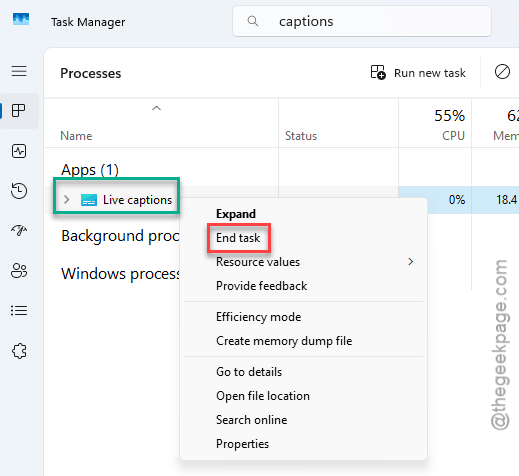
Your RAM number should drop within a few seconds. Now go fix the actual cause below.
Fix 2 – Turn Off the Profanity Filter
This one setting causes most of the leaks. Why a swear-word masker needs an infinite memory loop, nobody knows.
1 – Turn on Live Captions so the caption bar appears.
2 – Click the Settings gear on the caption bar.

3 – Click Preferences.
4 – Toggle off Filter profanity.
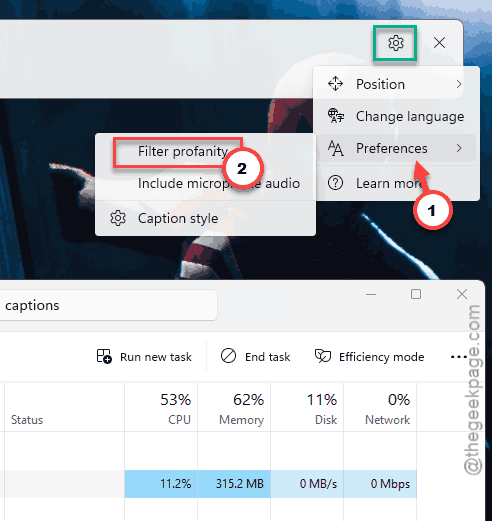
And yes, captions will now spell out whatever people actually say. Small price.
Fix 3 – Clear the Translation Cache
Still leaking with the filter off? Then the stored language models are probably corrupted. Wipe them and Windows fetches a clean copy.
1 – You should press the Windows + R keys together, to open the Run box.
2 – Type %localappdata%\Microsoft\LiveCaptions\ and press Enter.
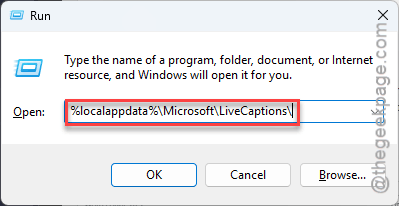
3 – Select every folder inside and delete them. Don’t touch anything outside this folder.
4 – Restart Live Captions.
The first start takes longer than usual — it’s re-downloading the models. That’s normal.
Fix 4 – Force CPU Decoding
Got a laptop with an NPU? A flaky NPU driver crashes the engine over and over, and every crash leaks a little more. Shifting the work to your main processor sidesteps the bad driver completely.
1 – Press Windows + I to open Settings.
2 – Go to System, then Display, then Graphics.
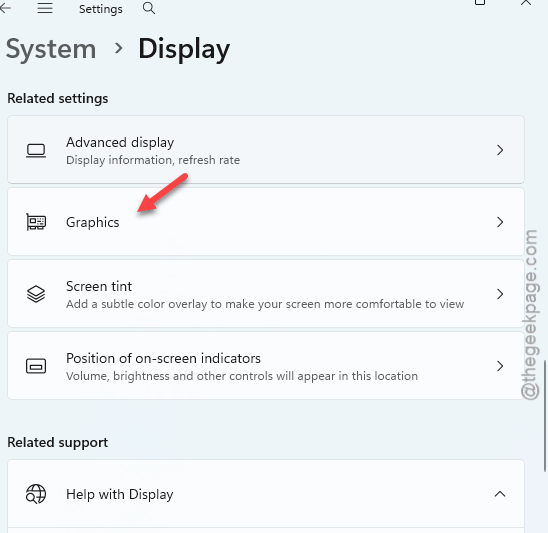
3 – Find Live Captions in the app list.
4 – Select it, click Options, and choose Power saving.
5 – Click Save.
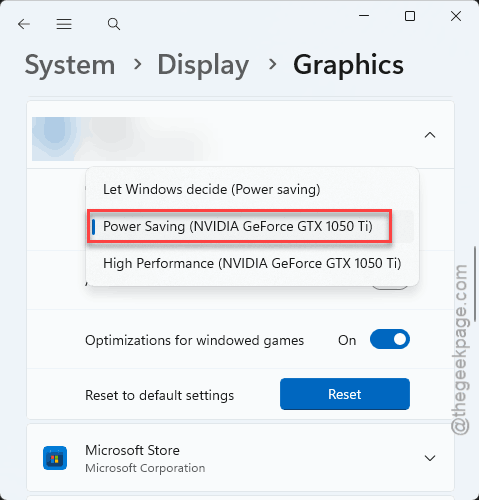
Captions might feel a touch slower on CPU. But slow beats a frozen machine.
Fix 5 – Reinstall the Speech Pack
The nuclear option, and the one that clears deep corruption. You are pulling out the whole speech engine and letting Windows download a fresh one.
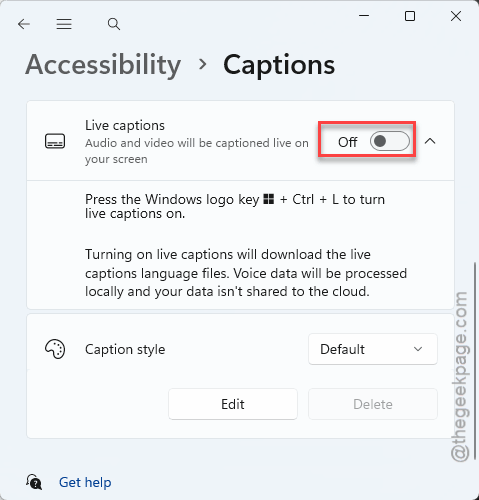
1 – Press Windows + I and go to Accessibility, then Captions.
2 – Toggle Live Captions to Off.
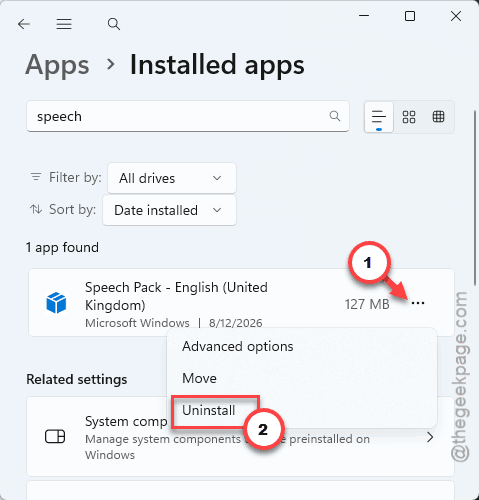
3 – Go to Apps, then Installed apps.
4 – Next, write “Speech Pack” in the search box.
5 – Then, click the three dots (⋯) next to your language pack, English (United States), for example, and choose Uninstall.
6 – Restart your PC. This flushes the dead memory blocks for good.
7 – Go back to Accessibility and open up the Captions tab.
8 – Then, turn Live Captions on.
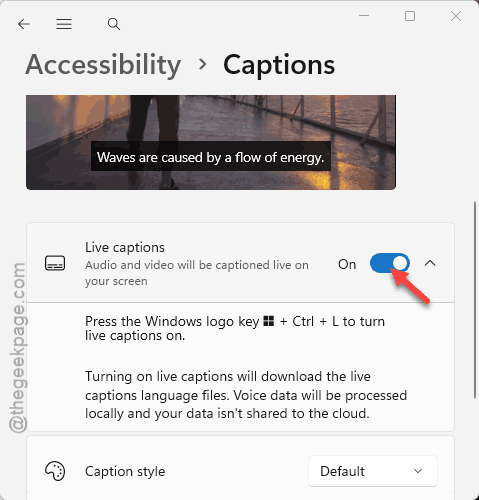
Windows downloads a clean engine on its own.
How to Prevent This
- Leave the profanity filter off. It’s the loop trigger, and the captions work fine without it.
- On an NPU laptop, keep Live Captions set to Power saving in Graphics settings. The CPU path is boring but stable.
- If the leak creeps back months later, clear the cache folder again like in Fix 3. Takes under a minute.
People Also Ask
Why are my live captions not working in Windows 11?
Usually a broken speech pack or a corrupted caption engine. Toggle Live Captions off under Accessibility > Captions, uninstall the Speech Pack from Installed apps, restart, and turn captions back on.
What can I do if live captions freeze or stop mid-video?
Kill the mscaptions.exe process in Task Manager first — that unfreezes the system. Then turn off the profanity filter and clear the cache folder at %localappdata%\Microsoft\LiveCaptions\. A frozen caption bar almost always means the engine hit its memory loop again.