Does the Elden Ring Shadow of the Erdtree runs fine for a stretch and then you walk past a waterfall and the frame rate falls off a cliff? If this happens to you, the boss fights will be a glitchful experience, ruining your mode completely Here’s the annoying part: the game itself is only half the problem. Sometimes, the NVIDIA overlay causes such issues. Windows keeps shoving the game’s threads onto the wrong CPU cores.
Fix 1 – End the PresentMon Process
Wondering what PresentMon even is? It’s Nvidia’s hidden performance-measuring tool, and its constant background polling wrecks frame pacing — worst near waterfalls and heavy particle effects. Killing it has restored a locked 60 FPS for a lot of players.
1 – Launch Elden Ring and get to the point where it stutters.
2 – Press Alt + Tab to leave the game, then press Ctrl + Shift + Esc to open Task Manager.
3 – Scroll down the Processes list and find PresentMon (there are often two of them).
4 – Right-click each one and select End task.
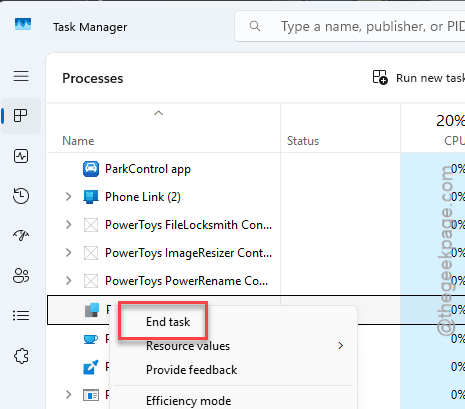
5 – Switch back to the game and watch the frame rate.
The catch? It comes back next session. So treat this as a 30-second pre-game ritual, not a one-time cure — more on that at the end.
Fix 2 – Turn Off Nvidia Instant Replay
Instant Replay records your gameplay nonstop so you can save clips after the fact. Nice feature. But that means it’s writing video to your drive at the exact moment the game wants to stream shaders from the same drive, and the two collide.
1 – Press Alt + Z to open the Nvidia overlay (or open the Nvidia App and go to its overlay settings).
2 – Click Instant Replay.
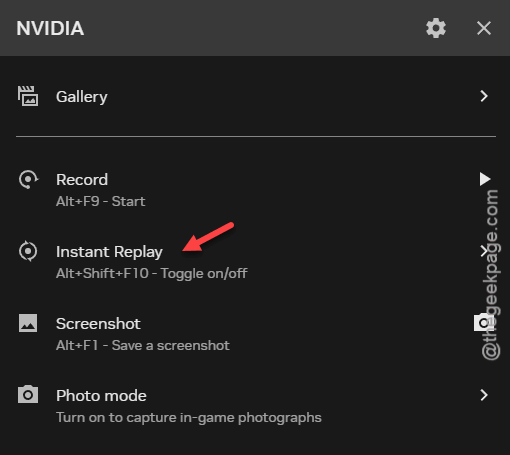
3 – Switch it to Off.
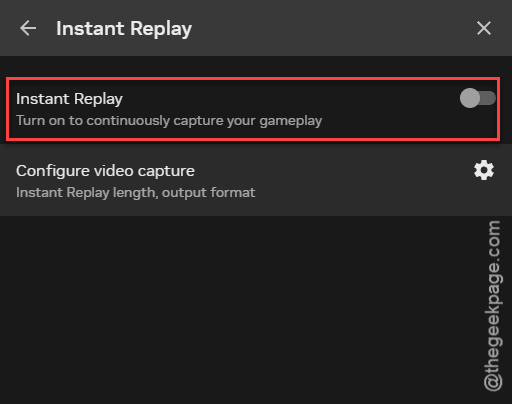
4 – While you’re in the overlay settings, turn off any other background capture features too.
And this one sticks between sessions, thankfully. Set it once and forget it.
Fix 3 – Move the Game Off CPU 0
Quick one, and weirdly effective. Windows runs its own background tasks on the first CPU core, so pushing the game’s main thread off that core stops them from interrupting each other (this resets every time you launch the game).
1 – With the game running, open Task Manager like in Fix 1.
2 – Click the Details tab.
3 – Right-click eldenring.exe and select Set Affinity.
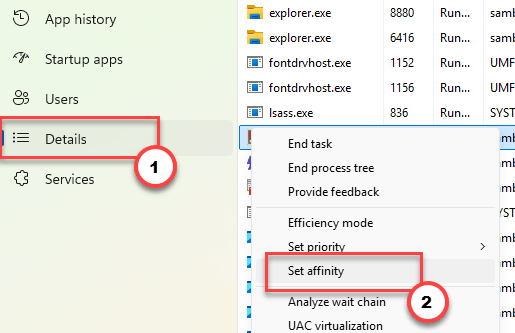
4 – Uncheck CPU 0 and click OK.
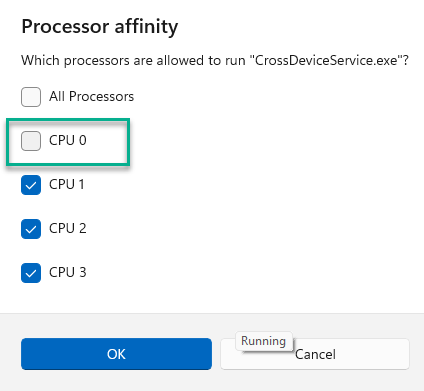
Check if this works out.
Fix 4 – Disable the Ghost Device Polling
There’s a Windows component called the Device Association Root Enumerator, and it spends its life scanning for legacy devices that mostly don’t exist. Why? Nobody outside Microsoft knows. But the polling definitely causes those one-second hard freezes in Elden Ring’s engine.
1 – Right-click the Start button and select Device Manager.
2 – Expand the Software devices category.
3 – Right-click Microsoft Device Association Root Enumerator and select Disable device.
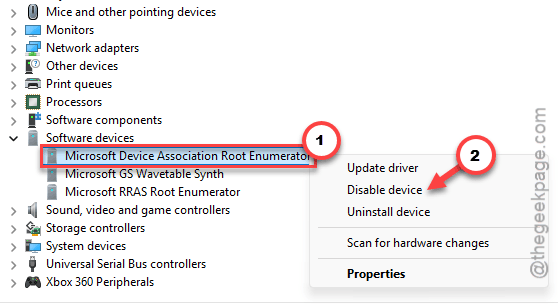
4 – Confirm the warning.
Don’t let the scary dialog worry you — this component isn’t load-bearing, and you can re-enable it from the same menu any time.
Fix 5 – Turn Off the E-Cores in Your BIOS
This one’s for Intel 12th-gen and newer CPUs. Those chips carry two kinds of cores: fast Performance cores and slower Efficiency cores meant for background work. And the game randomly dumps physics calculations onto the slow ones, which is exactly the frame-time spike you feel mid-boss.
1 – Restart your PC and rapidly press F2 or DEL during startup to enter the BIOS.
2 – Find CPU Configuration or Advanced CPU Settings.
3 – Locate the Active E-Cores setting.
4 – Change the value to 0 (some boards say Disabled instead).
5 – Save with F10 and boot back into Windows.
Worried about the rest of your PC? Fair — the change applies system-wide. So heavy multitaskers may want to try Fixes 1-4 first and keep this as the big hammer. Flipping it back takes the same two minutes.
Fix 6 – Trim the Graphics Settings That Matter
If the stutter is smaller now but not gone, the last stretch comes from the game’s own settings menu. And a few of those settings cost far more than they look.
1 – Open the game’s System menu, then Graphics Settings.
2 – Change Screen Mode to Borderless Window. Fullscreen ties frame delivery to your monitor’s refresh behavior in ways that cause hitches here.
3 – Turn Ray Tracing off completely.
4 – Drop Shadow Quality from Max to High or Medium.
5 – Set Volumetric Quality to Low. The visual difference is tiny; the GPU savings aren’t.
6 – Set Effect Quality to Medium or High instead of Max.
Then go stand next to the nearest waterfall and see how it holds.
Keep It From Coming Back
- Make the pre-game ritual a habit: kill PresentMon, set the CPU affinity, launch. Half a minute, and it covers the two fixes that reset each session.
- Leave Instant Replay off for demanding games. Record manually when you actually want a clip.
- After every GPU driver update, peek at the overlay settings again. Updates love re-enabling capture features you turned off.
- The E-core and ghost-device changes stick on their own. Nothing to redo there.
People Also Ask
Why do I have FPS drops in Elden Ring?
Usually it’s background software, not your hardware. Nvidia’s PresentMon telemetry and Instant Replay interfere with frame pacing, and Windows device polling causes one-second freezes. Killing PresentMon, disabling Instant Replay, and turning off the Device Association Root Enumerator fixes most cases.
Why is my FPS high but the game still stutters?
That’s a frame pacing problem — frames arrive unevenly even though plenty are being drawn. Stutter with high FPS points to interference: background recording, telemetry polling, or the game’s threads landing on slow efficiency cores. It’s why upgrading hardware often changes nothing here.