The Focus Mode on iPhone automatically silences incoming notifications and alerts so that you can focus on your work. But, there are sometimes when there is a need for some of the critical alerts to reach you, like in case of emergency. Don’t worry. The Focus Mode has this fork on iOS that allows you to customize it to let the important calls and alerts to pass through it.
If you are in a hurry, here is a quick step guide. We have explained the methods in details later~
| Procedure name | Quick Steps |
|---|---|
| Allow Calls in a Focus Mode | Settings > Focus Mode> Particular focus mode > People > Add people > Add contact |
| Emergency Bypass | Contact > Specific contact > Edit > Ringtone > enable the Emergency Bypass |
What is Focus Mode on iPhone?
The Focus Mode was introduced with the iOS 15. It is an enhanced version of the traditional Do-Not-Disturb that lets you create and customize separate profiles according to the specific user needs. The Focus Mode on iOS comes with the 5 basic modes such as Personal, Work, Sleep, etc. It keeps the distractions aside and let you ‘focus’ on what is important.
Why Allow Calls to Ring in Focus Mode?
Even when you have turned on any of the Focus Modes, there are certain alerts that need to go through to you. Like, messages from family or close ones, emergency alerts or critical alerts from your workplace – these are time-sensitive and demands your immediate attention. So, you can set up the calls to ring even when you are in the Focus Mode.
How to Allow Calls to Ring in Focus Mode~
You can manage some of the calls from your choice of contacts to ring in Focus Mode.
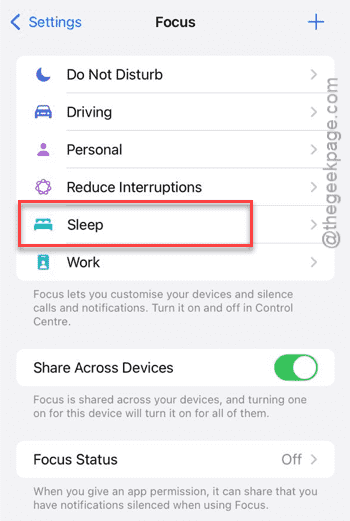
Step 1 – On the Settings page, head on to the Focus tab. Or, you can just open it up from Focus tab from Control Centre as well.
Step 2 – Next, tap the focus mode that you want to allow the calls to go through.
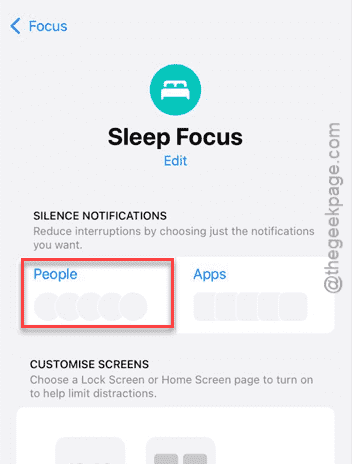
Step 3 – Then, tap the People icon there.
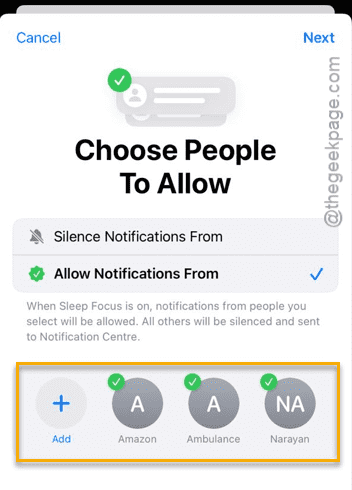
Step 4 – Later, tap the Add button next. On the next page, choose the contacts that you want to share and tap Done.
Step 5 – Once you have added the contacts, come back to the main page or tap Next to proceed further.
Step 6 – Now, set the ‘Allow Calls from‘ to Allowed People only mode.
Step 7 – If you want, you can enable or disable the Allow Repeated Calls option there.
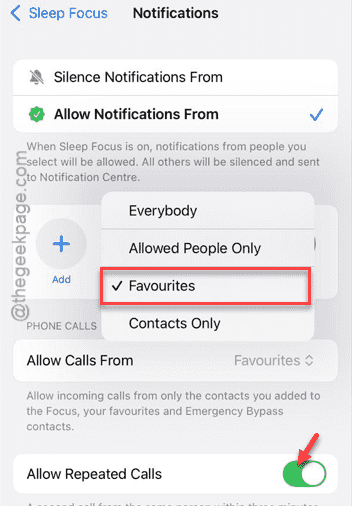
These are the simple steps to allow calls to ring in Focus Mode. Similarly, you may edit any other focus modes to allow calls or alerts.
Bonus Tip – Using Emergency Bypass method ~
There is a simple trick that lets call or alerts in from specific contacts in any Focus Modes or Silent Mode.
Step 1 – Open up the Contacts app.
Step 2 – Look for the contact that you want to give this permission and open it up.
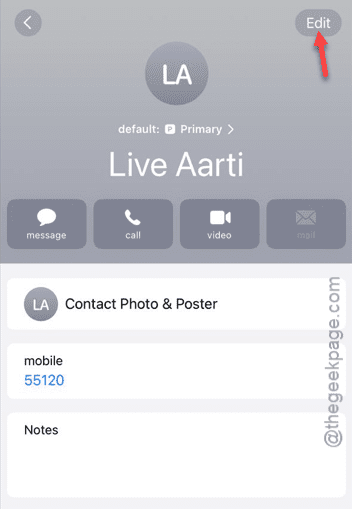
Step 3 – Next, tap the Edit option on the top right-corner to edit the contact.
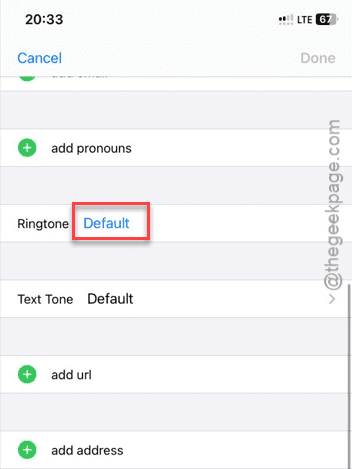
Step 4 – Next, open up the Ringtone option.
Step 5 – Turn on the Emergency Bypass option at the top. Tap Done to save the change.
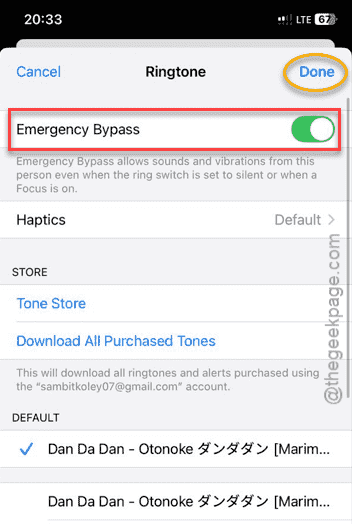
The calls from this specific contact will pass through even when the device is in Silent mode or any of the Focus Modes.
FAQs~
1. Can I allow calls from unknown number in Focus Mode?
No. iOS does not allow calls from an unknown number to ring while the device is in Focus Mode. Even the emergency bypass option works for the contacts that are saved on your phone book.
2. Will allowing calls in Focus Mode affect other notifications?
No. Allowing calls from certain contacts in Focus Mode does not affect any other notification system. The calls and alerts that the user have opted to get during that specific Focus Mode does get in. No other alerts can slip through.
3. What is the difference between Focus Mode and DND?
Apple’s Focus Mode is an enriched version of the classical Do Not Disturb mode. You can configure the focus modes according to your personal need. It has a few preset profiles, and you can create new ones according to your need.