What kind of bug freezes a game dead for three seconds, then carries on like nothing happened? In this Elden Ring’s case, it’s usually a USB device having a meltdown in the background that usually causes such issues. I know how that sounds. Here is a detailed list of solutions that you can resort to, if you are also stuck with the 3-second
The Short Version
Somewhere on your desk, a flaky USB device keeps disconnecting and reconnecting. Windows plays its little chime each time and polls the hardware. And Elden Ring’s engine, for whatever reason, stalls completely during that poll. Three seconds, frozen, every single time it happens.
It gets dumber. In exclusive fullscreen, the chime itself can yank focus away from the game — a hard visual lock, courtesy of a sound effect.
And there are two accomplices. Windows aggressively polls ghost devices (hardware entries for stuff that isn’t even plugged in anymore). Plus MSI Afterburner’s overlay clashes with the game’s anti-cheat hooks and produces the same, identical 3-second lockup. So the fixes below shut all of this down, one suspect at a time.
Fix 1 – Unplug the USB Suspects
The fastest test you’ll ever run. Unplug every USB device you don’t actually need right now — printers, thumb drives, card readers, that Bluetooth dongle for headphones you lost in 2024.
Then play for a bit and listen. Really listen. That soft Windows disconnect chime is your smoking gun. If the chime stops and the freezing stops with it, you’ve found your culprit — plug things back in one at a time to catch which device it is.
Cheap USB hubs are repeat offenders here. So are aging wireless receivers.
Fix 2 – Mute the Device Connect Chime
Sometimes the audio interrupt itself makes the engine skip frames during the hardware poll. So silence it. The freeze can’t ride a sound that never plays.
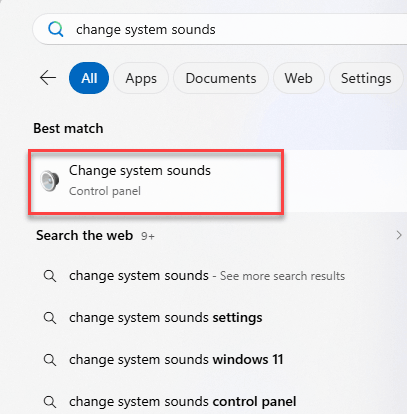
1 – Press the Windows key, type “Change system sounds“, and press Enter.
2 – Scroll down the Program Events list to Device Connect.
3 – In the Sounds dropdown below the list, choose (None).
4 – Do the same for Device Disconnect, right nearby in the list.
5 – Click Apply.
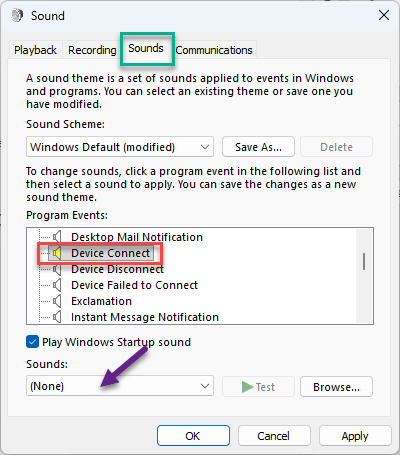
This also spares you that chime during downloads and phone charging. Honestly? Worth doing on any gaming PC.
Fix 3 – Disable the Device Association Root Enumerator
Scary name, harmless change. This Windows component aggressively polls legacy and ghost devices in the background, and it’s a primary cause of DirectX 12 stutter.
1 – Close the game completely.
2 – Right-click the Start button and open Device Manager.
3 – Expand the Software devices section.
4 – Right-click Microsoft Device Association Root Enumerator and select Disable device.
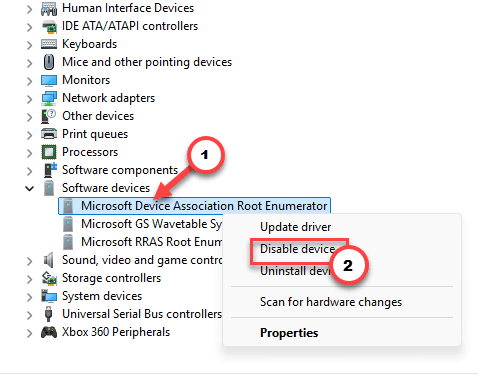
5 – Confirm when Windows asks if you’re sure.
Your mouse, keyboard, and controller keep working — this only stops the background polling loop. And if you ever need it back, the same right-click menu has Enable.
Fix 4 – Stop MSI Afterburner Loading at Boot
Running Afterburner or its overlay? The game’s anti-cheat and the overlay hook the same rendering pipeline, and they do not share nicely. The result is that same 3-second lockup.
1 – Open MSI Afterburner and click the Settings gear icon.
2 – Under the General tab, uncheck Start with Windows.
3 – Reboot your PC.
4 – Launch Elden Ring first, then open Afterburner manually if you need it.
Order matters here. Game first, overlay second. The hooks land differently that way and the clash usually disappears.
Fix 5 – Switch to Borderless Windowed
Quick one.
1 – Open the in-game Settings,
2 – Go to the System tab, then Sound and Display,
3 – Finally, change Screen Mode to Borderless Windowed
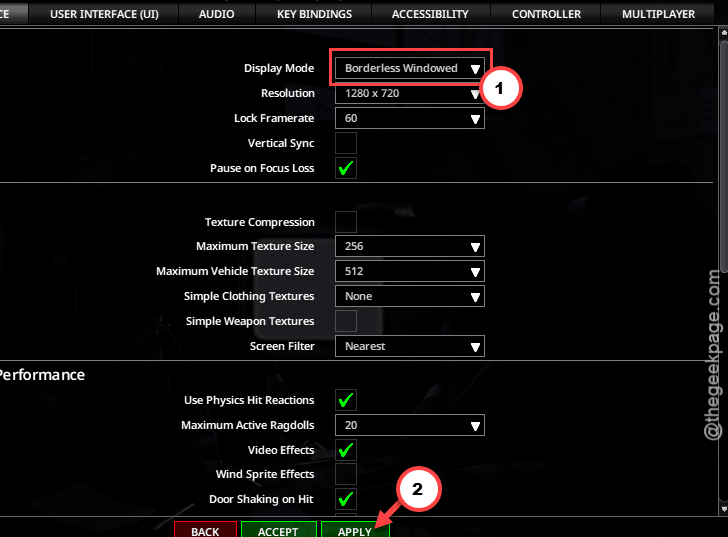
Exclusive fullscreen is what lets a focus steal hard-lock the picture — borderless simply doesn’t have that failure mode. The performance difference on a modern PC? Basically nothing.
Fix 6 – Take Core 0 Away From the Game
Windows dumps most of its own background work on the first CPU core. When Elden Ring fights the OS for that core, frames stall. You can just tell the game to use the other cores.
1 – Launch Elden Ring.
2 – Press Alt + Tab, then open Task Manager with Ctrl + Shift + Esc.
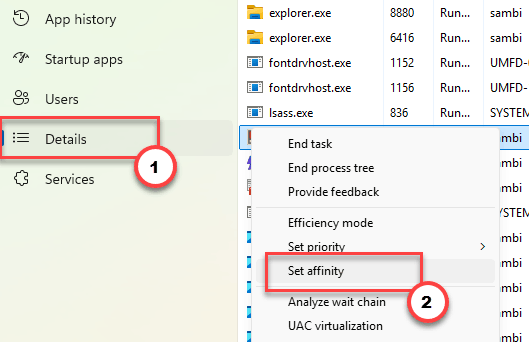
3 – Go to the Details tab.
4 – Right-click eldenring.exe and select Set affinity.
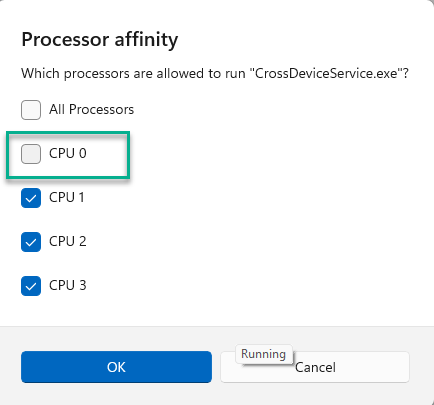
5 – Uncheck CPU 0 and click OK.
6 – Switch back into the game.
One catch: this resets when the game closes. You’ll redo it each session, which is mildly annoying, but it’s a ten-second habit once you know the path.
Fix 7 – Unpark Your CPU Cores With ParkControl
Windows likes to park idle CPU cores to save power. Waking a parked core mid-fight takes just long enough to stall a frame. ParkControl, a free tool from Bitsum, stops that.
1 – Download and open ParkControl.
2 – In the dropdown at the top, select the Bitsum Highest Performance power profile.
3 – Click Make Active.
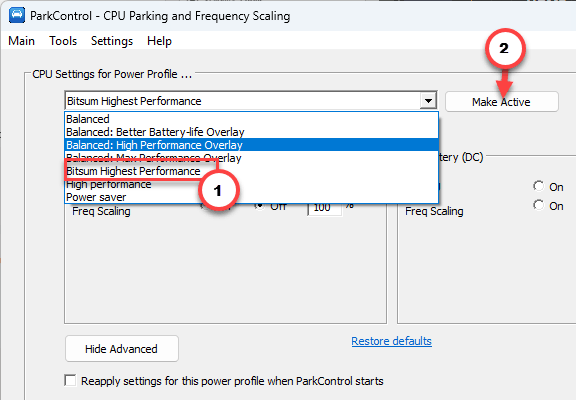
4 – Check the bottom-right corner of the window — every core should now show as active, none parked.
5 – Leave that profile active while you play.
Avoiding This Next Time
- New dongle or hub? Plug it in and listen for chime loops before you blame the game.
- Keep the overlay diet lean. And always launch the game before Afterburner, never after.
- Windows updates love to resurrect ghost devices. If stutter returns after an update, recheck Device Manager — five minutes, tops.
- Stay in Borderless Windowed for this game. There’s no real cost, and one whole failure mode just goes away.
Quick Answers
Why does Elden Ring freeze for a few seconds on my PC?
The most common cause is a USB device stuck in a connect/disconnect loop — the game’s engine stalls while Windows polls the hardware. Unplug unneeded USB devices and listen for the disconnect chime. Overlay conflicts with MSI Afterburner produce the same 3-second freeze.
Why does my PC randomly stutter and freeze?
Failing USB hardware, aggressive background device polling, and power-saving features are the usual trio. Check Device Manager for warning icons, disable the Device Association Root Enumerator under Software devices, and test with all non-essential USB gear unplugged. One of those exposes the culprit surprisingly often.
Why is my game freezing every few seconds on PC?
Regular, rhythmic freezes point to something interrupting on a schedule: an overlay polling sensors, a device reconnecting in a loop, or parked CPU cores waking up late. Close overlay apps first, then unpark your cores with a tool like ParkControl and retest.
Is it safe to disable the Microsoft Device Association Root Enumerator?
Yes, for most PCs. It handles background device-pairing chores, not your mouse or keyboard — those keep working normally. Some wireless accessories may pair less smoothly with it off. If anything acts up, re-enable it in Device Manager with two clicks.