Some Apple users have reported about reduced Wi-Fi or Cellular connectivity on their devices after updating to the iOS 26. These reports have found their places in various thread, Apple community forums. Usually, the software updates do not impact Wi-Fi or cellular connectivity. So, you should focus on WI-Fi-oriented fixes or cellular solutions to fix the problem at your end.
Fix 1- Reset the iPhone’s Network Settings
Wrong network credentials can cause this problem, where we suggest that you do a full network reset for your iPhone and start the process from scratch.
NOTE – It will delete all the saved network credentials, such as Wi-Fi passwords, carrier settings on the device.
Step 1 – Tap the ⚙ icon to load up the Settings utility.
Step 2 – Next, proceed this way –
General ⇾ Transfer or reset iPhone
Step 3 – Then, tap the Reset button once to load up the reset tools.
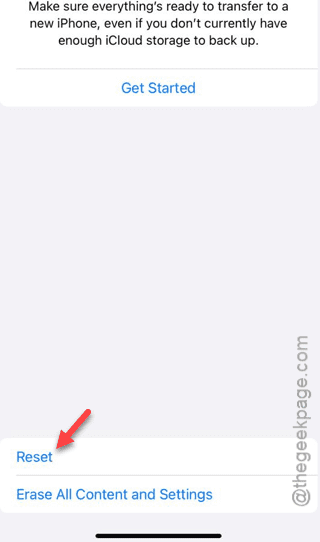
Step 4 – Next, tap the Reset Network Settings option.
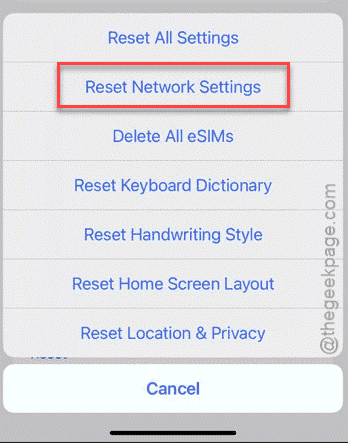
Step 5 – Input your 6-digit Apple passcode to verify that you are confirming the network resetting process.
After resetting the network of your iPhone, load up the Wi-Fi settings and input the SSID, password to connect to it. It also resets the carrier settings as well.
So, check the network connectivity around your home.
Fix 2 – Forget the Wi-Fi and Rejoin the Wi-Fi Network
It might be a bug in the iOS 26 which is limiting the Wi-Fi capabilities. Just forget the Wi-Fi and rejoin the network.
Step 1 – In the iPhone Settings, go to the Wi-Fi tab.
Step 2 – Then, tap the ℹ button next to the Wi-Fi that you are connected to.
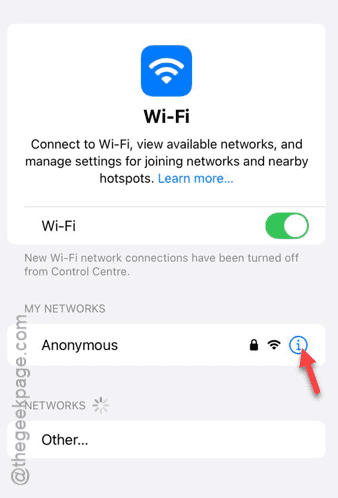
Step 3 – On the next step, tap the Forget this Network option.
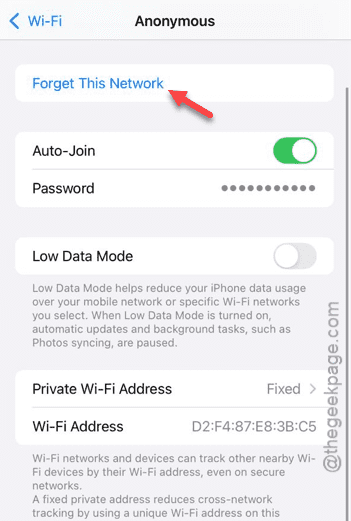
After deleting the Wi-Fi network credentials, you will be returned to the main Wi-Fi page.
Step 4 – Now, tap the Wi-Fi there and use the password to reconnect to the network.
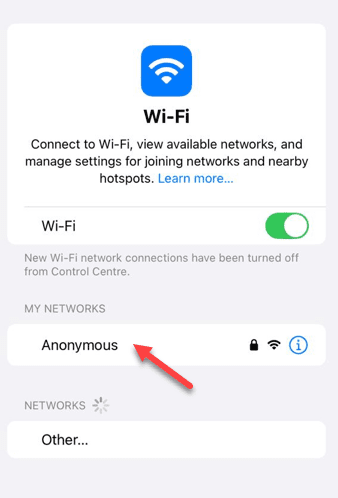
Once it reconnects, test the reception around the location.
Fix 3 – Refresh the Network Connection with Airplane Mode
After updating the iPhone, you should refresh the iPhone’s network connection with Airplane mode.
Step 1 – Slide down from the top to load up the Control Center.
Step 2 – Next, turn on the Airplane mode there. It will turn off the Wi-Fi, cellular reception, Bluetooth on the iPhone.
Step 3 – Wait for a few seconds. Then, turn off the Airplane mode.
The Wi-Fi, cellular reception will be restored very shortly. Check the Wi-Fi, cellular reception now.
Fix 4 – Re-insert the SIM card
If you feel that cellular reception has gone down since the iOS 26 update, eject the SIM card and re-insert it in the iPhone.
Step 1 – Use the SIM ejector tool to pull out the SIM tray from your iPhone.
Step 2 – Do not pull out the SIM from the SIM tray. Let it stay there.
Step 3 – Next, re-insert the SIM tray into the iPhone.

Then, check whether this retrieves the normalcy of the
Fix 5 – Check for Carrier Settings Update
Look whether there is a pending update from your carrier, post the iOS 26 update.
Step 1 – Make sure you are connected to a Wi-Fi. Then, proceed to the Settings page on iPhone.
Step 2 – Proceed this way –
General ⇾ About
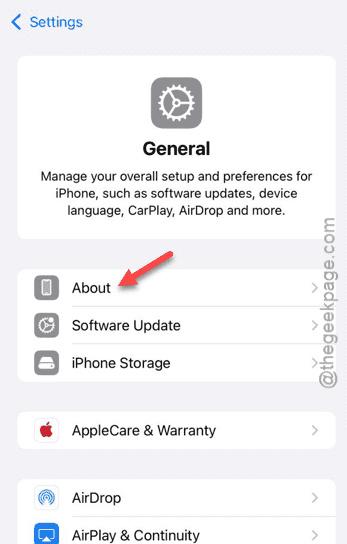
Step 3 – If any carrier update is pending, you can install that update from there.
This will finally resolve the Wi-Fi or cellular receptions issue that you are having on your iPhone.