You nudge your mouse on your Snapdragon laptop/PC, but nothing at all. Half a second later the cursor leaps across the screen like it’s making up for that lost time. Then it’s fine again for some time. It can be maddening for the users. Your Snapdragon X Elite laptop is obsessed with battery life, so Windows sometime puts the Bluetooth radio to sleep the moment your hand stops moving. It is because the Wi-Fi and Bluetooth share one single Qualcomm chip, a busy 2.4 GHz network steals airtime from the mouse too. So the stutter has two parents.
Fix 1 – Stop Windows From Putting the Bluetooth Radio to Sleep
You can ask Windows disable the Bluetooth radio to sleep.
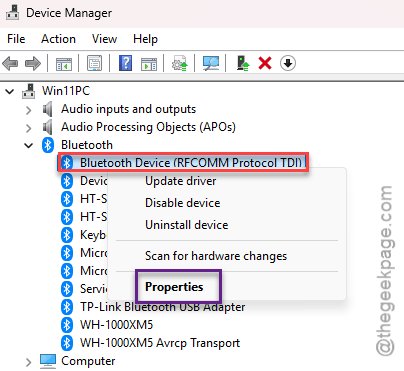
1 – At first, right-click the Start button and click Device Manager.
2 – Then, expand Bluetooth.
3 – Right-click your main Bluetooth adapter. It’s usually called Qualcomm FastConnect followed by a model number.
4 – Click Properties.
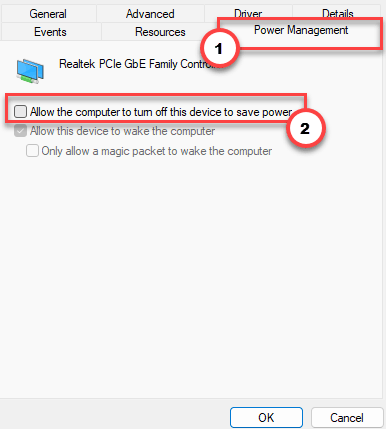
5 – Click the Power Management tab along the top.
6 – Finally, uncheck the Allow the computer to turn off this device to save power feature in there.
7 – Click OK.
8 – Restart your laptop.
Wondering what it costs you? A few minutes of battery a day, maybe. And in return the cursor moves when you do.
Fix 2 – Turn Off USB Selective Suspend
Odd one, this. Try turning off the USB selective suspend feature.
1 – Press Windows + R, type control, and press Enter.
2 – Click Hardware and Sound, then Power Options.
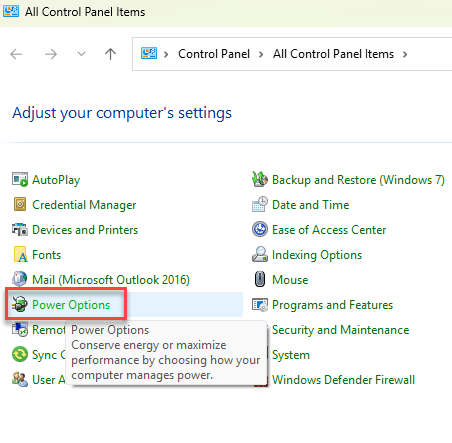
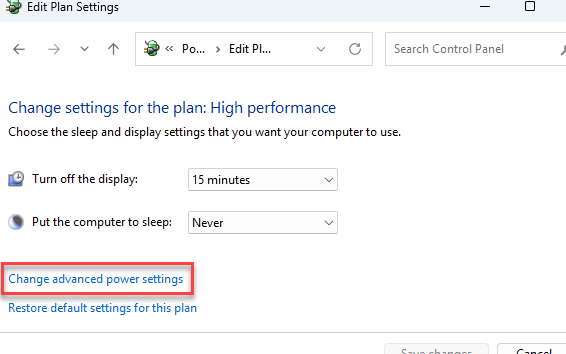
3 – Click Change plan settings next to the plan that’s selected.
4 – Click Change advanced power settings.
5 – Expand USB settings, then USB selective suspend setting.
6 – Set both On battery and Plugged in to Disabled.
7 – Click Apply, then OK, and restart.
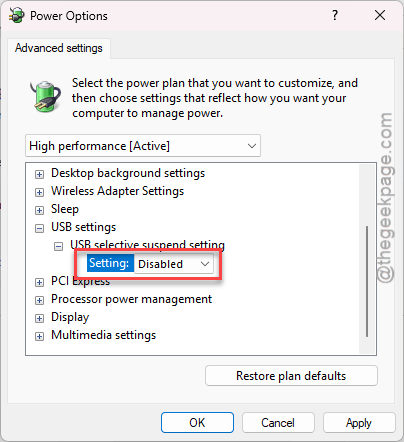
Nothing changes visibly after this. But the radio stops losing power between movements.
Fix 3 – Disable the Bluetooth LE Enumerator
The Low Energy version can cause such power-related issues.
1 – At first, open Device Manager again.
2 – Expand Bluetooth.
3 – Right-click Microsoft Bluetooth LE Enumerator.
4 – Click Disable device, then Yes.
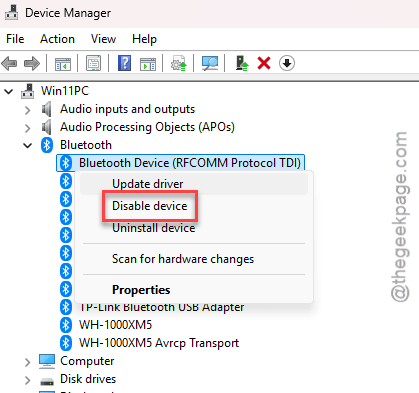
Your mouse might vanish for a few seconds and come back on its own. Test if this works out for you.
Fix 4 – Move Your Wi-Fi Off the 2.4 GHz Band
The bluetooth lives on 2.4 GHz. So does the slower Wi-Fi band.
1 – At first, click the Wi-Fi icon on the taskbar.
2 – Disconnect from your current network.
3 – Then, manually connect to the 5 GHz or 6 GHz version from the same place again.
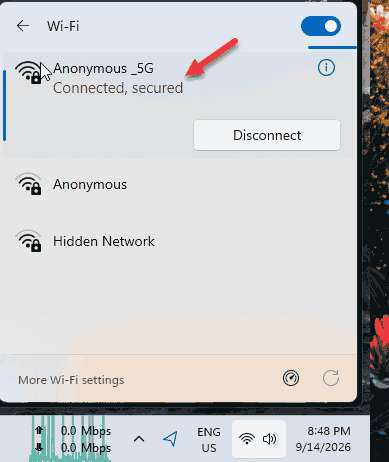
Only one network name showing? Your router is blending the bands.
1 – Log into its admin page.
2 – Then, split 2.4 GHz and 5 GHz into two names.
3 – Then, connect the laptop to the 5 GHz one only.
Check if this solves your issue.
Fix 5 – Install the official Radio Firmware
Quick one, and it is easy to skip by mistake.
Qualcomm and Microsoft push Bluetooth firmware patches for these ARM chips through the manufacturer’s own app (Dell SupportAssist, Lenovo Vantage, HP Support Assistant).
1 – Search for optional updates from the search box. Tap the View Optional Updates item.
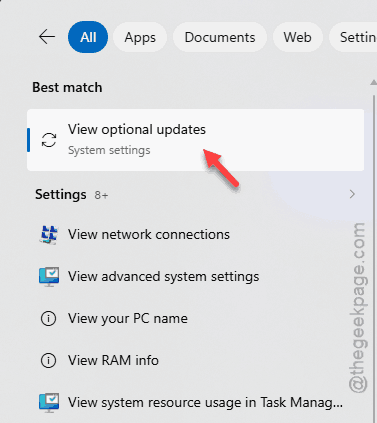
2 – Then, expand the Driver updates. Find any Bluetooth driver update pending there, and update it from there.
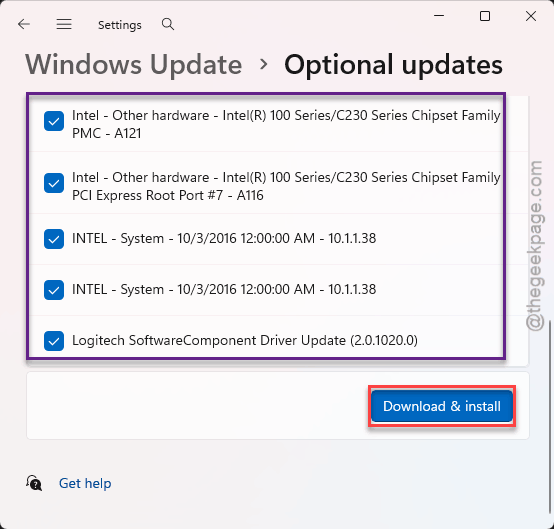
Restart when it asks. Not installed? The manufacturer’s support site has it.
Fix 6 – Uncheck Enhance Pointer Precision
This won’t stop dropped packets. But it stops Windows from exaggerating them.
1 – Press Windows + I to open Settings.
2 – Click Bluetooth & devices in the left sidebar, then Mouse.
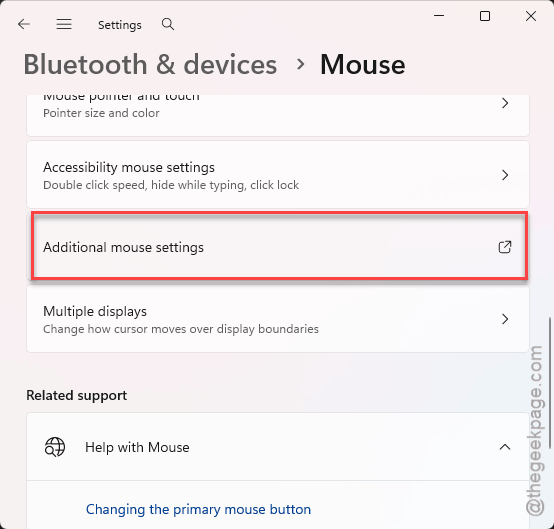
3 – Scroll down and click Additional mouse settings under Related settings.
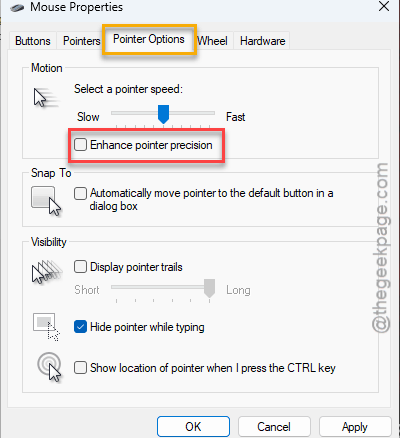
4 – Click the Pointer Options tab.
5 – Uncheck Enhance pointer precision under Motion.
6 – Drag the pointer speed slider to the exact middle, the sixth notch.
7 – Click Apply, then OK.
Feels sluggish for a day? Normal.
Keep It From Coming Back
- Recheck the Power Management tab after big Windows updates. They quietly tick that box again.
- Keep the laptop on 5 GHz at home and at work. Less crowding for the mouse.
- Run your manufacturer’s update tool once a month (it takes about two minutes). Windows Update will not bring these radio patches. Ever.
People Also Ask
Why is my Bluetooth mouse stuttering?
On Snapdragon X Elite laptops, Windows sleeps the Bluetooth radio between movements to save battery, and the wake-up lag is the stutter. Crowded 2.4 GHz Wi-Fi on the same Qualcomm chip adds to it. Uncheck the power-saving box on the adapter in Device Manager, then move your Wi-Fi to 5 GHz.
How do I fix mouse cursor stuttering?
Start with power. Turn off power management on the Bluetooth adapter and disable USB selective suspend in your power plan. Then disable the Bluetooth LE Enumerator so the mouse uses classic Bluetooth. Finish by installing radio firmware from your laptop maker’s update tool.