This might look like Microsoft is trolling you. Some users have reported that the Copilot keeps coming back at boot because the switch you flipped in the settings, isn’t the one that counts. It must be very annoying for you. But the real switch takes about two minutes to find, and it actually holds. Check if this helps.
Why This Happens
Short version: Copilot stopped being a Windows feature and became its own app. And that app brought its own startup rule along with it.
Task Manager can’t see that rule. Neither can the Startup Apps page, most of the time. You untick Copilot there, feel good about it, and the app’s internal setting quietly flips it back on at the next login. Of course it does.
Then there’s the scheduled task. A recent update planted one under a WindowsCopilot folder in Task Scheduler, and it launches the app at logon whether you asked for it or not. Why hide it there? No idea. Two triggers, then. And most guides only mention one.
So you end up chasing it in circles. Turn it off here, it comes back from there. The fixes below close every door, in order from gentlest to nuclear.
Fix 1 – Flip the Switch Inside Copilot Itself
Start here. This is the setting that overrides everything else. And it is the one nobody looks for, because it lives inside the app (not in Windows).
1 – You need to open the Copilot app, first.
2 – Next, tap your profile picture in the bottom right corner of the Copilot window. Tap the ⚙️ button and click Settings.
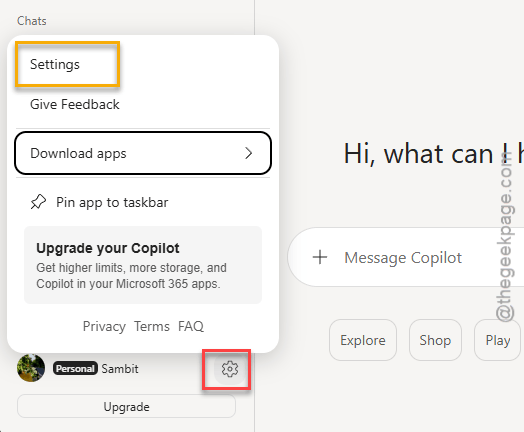
4 – Go to the Pinning and Start button.
5 – Then, go to the Modify auto-start settings button on the right-hand pane.
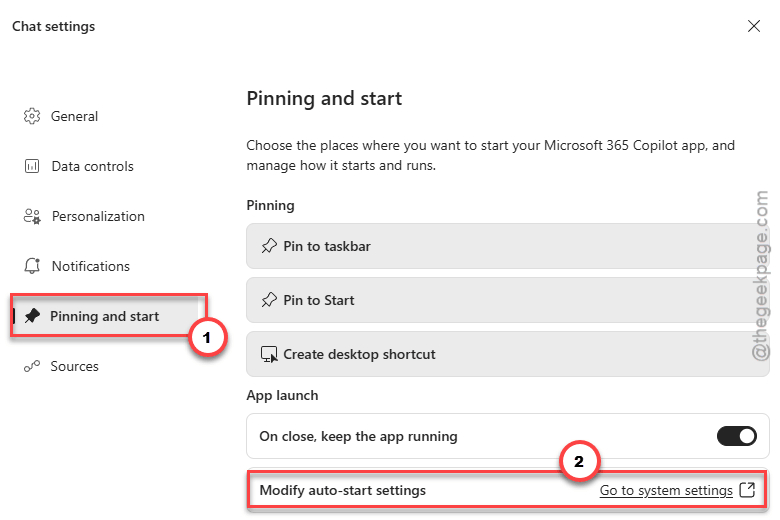
6 – Turn off the Microsoft 365 Copilot in that list.
6 – Restart your PC.
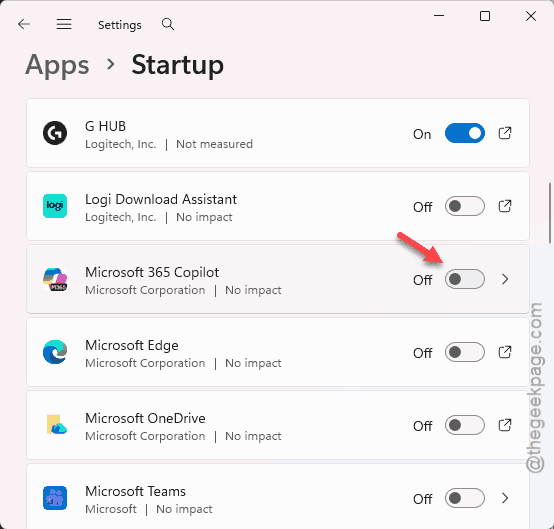
Don’t see a profile picture? Older builds of the app hide the same settings under a three-dot menu instead. Same toggle, different door.
After the restart, watch the taskbar for a minute. If Copilot stays gone, you’re done. If it pops up anyway, something else is launching it. Keep going.
Fix 2 – Turn It Off in Startup Apps Too
Quick one.
1 – At first, click the search icon on the taskbar.,
2 – Then, type Startup Apps, and open it.
2 – Later, scroll down the list until you find Microsoft 365 Copilot.
3 – Then, flip its switch to Off.
On its own, this rarely holds. But once Fix 1 is done, it stops the app from arguing with Windows about who’s in charge. Belt and suspenders.
Fix 3 – Disable the Hidden Scheduled Task
Here’s the trigger most people never find. The update tucked a task away in Task Scheduler.
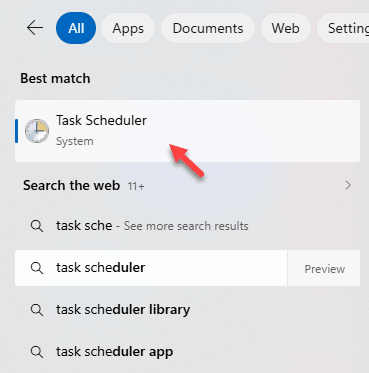
1 – Tap the search icon on the taskbar and type Task Scheduler.
2 – Open Task Scheduler from the results.
3 – In the left pane, expand Task Scheduler Library, then Microsoft, then Windows.
4 – Click the WindowsCopilot folder.
5 – In the middle pane, right-click the startup task listed there.
6 – Click Disable.
The task’s status should change to Disabled right away. No restart needed for this one.
Fix 4 – Lock It Out With Group Policy (Pro and Enterprise)
If you’re on Windows 11 Pro, Enterprise, or Education, this is the heavy lock.
Home edition does not have this tool. Skip to Fix 5 instead.
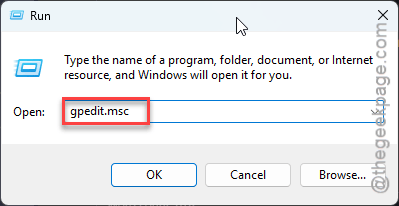
1 – Press Windows + R,
2 – Then, type gpedit.msc, and press Enter.
3 – Proceed this way –
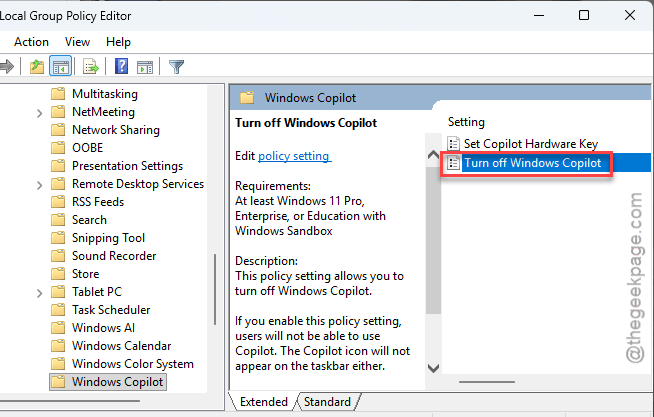
User Configuration > Administrative Templates > Windows Components > Windows Copilot
4 – Then, double-click Turn off Windows Copilot policy.
5 – Set the Enabled option. Then, click Apply, then OK.
6 – Restart your computer.
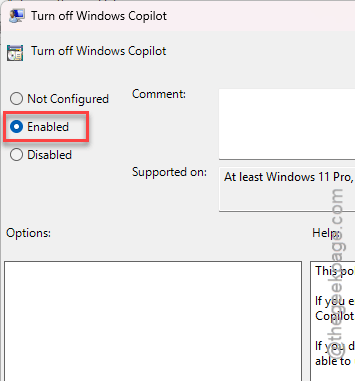
Yes, you pick Enabled to turn it off. You’re enabling the policy that disables Copilot. Microsoft wording at its finest.
Fix 5 – Add the Registry Key on Windows 11 Home
Same lock as Fix 4, just set by hand.
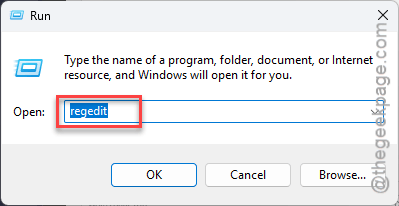
1 – At first, Press Windows + R keys together.
2 – Then, write down this, and press Enter.
regedit
3 – Go to this address bar at the top, paste this path, and press Enter:
HKEY_CURRENT_USER\Software\Policies\Microsoft\Windows
4 – Now, right-click the Windows folder in the left pane.
5 – Then, tap New, then Key.
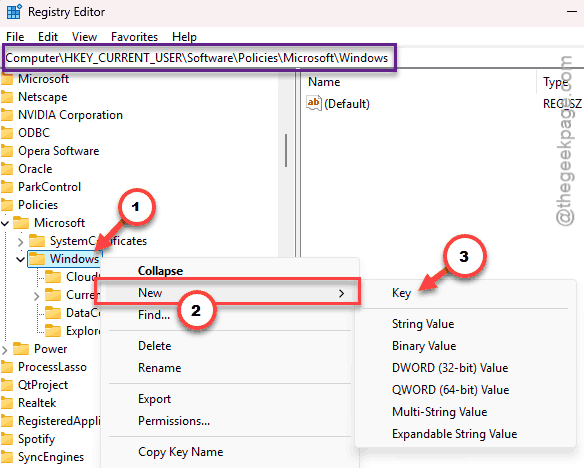
6 – Name the new key WindowsCopilot.
7 – Right-click the new WindowsCopilot key.
8 – Then, click New, then DWORD (32-bit) Value.
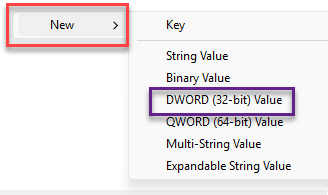
9 – Name it TurnOffWindowsCopilot.
10 – Double-click that value and change Value data to 1.
11 – Click OK.
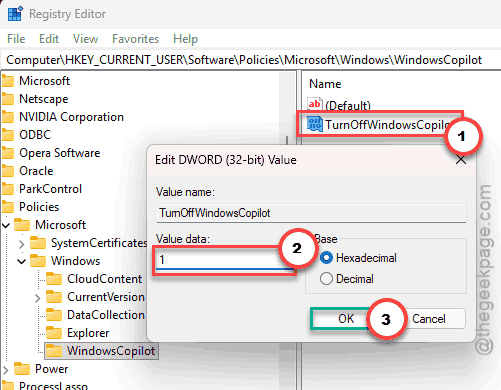
12 – Restart your PC.
That’s the same policy Fix 4 sets, written straight into the registry. And once it’s there, Copilot has no business starting.
Fix 6 – Uninstall Copilot With PowerShell
Nuclear option. If the app ignores every toggle and keeps squatting on your taskbar, rip the package out entirely.
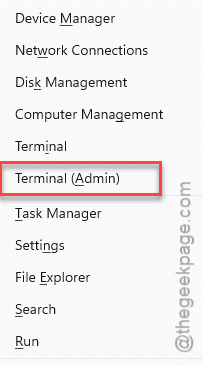
1 – Right-click the Start button.
2 – Click Terminal (Admin). On some PCs it says Windows PowerShell (Admin) instead.
3 – Click Yes on the permission prompt.
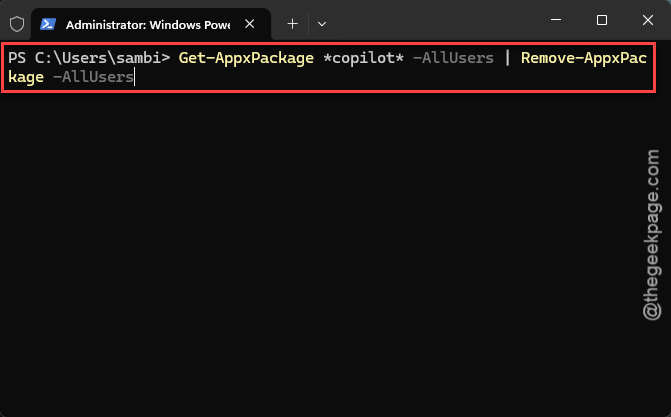
4 – Later, paste this command and press Enter:
Get-AppxPackage *copilot* -AllUsers | Remove-AppxPackage -AllUsers
5 – Wait a few seconds until the prompt comes back. Nothing dramatic shows on screen (that’s normal).
6 – Restart your computer.
The app and its startup task go with it. Want it back someday? The Microsoft Store still has it, and it will not remember your old settings. So redo Fix 1 right after reinstalling.
How to Prevent This
- Check the toggle inside Copilot after every big Windows update. Feature updates love resetting it.
- Keep the Group Policy or registry block in place even after uninstalling. It’s the part updates respect.
- Do not trust Task Manager’s Startup tab for this app. It never saw the real trigger. Period.
- Peek at Task Scheduler once in a while, especially after an update that brought Copilot back. That task returns quietly.
People Also Ask
How do I stop Copilot from launching on startup in Windows 11?
Open the Copilot app, click your profile picture in the top right, open Settings, and turn off Start Copilot when Windows starts. That internal switch beats Task Manager. Then check Task Scheduler under Microsoft > Windows > WindowsCopilot and disable the startup task there too. Two triggers, and both need closing.