You’re playing the Death Stranding 2 PC port, and every few seconds a tiny freeze is hitting your system. A hitch. A stutter. The framerate looks fine on paper. But the game feels awful because of these constant micro stutters. This is a known issue with the PC port. And most of the fixes involve disabling things that shouldn’t be running in the background.
Why This Happens
Short version: the PC port of Death Stranding 2 is super sensitive to overlays and background processes. Steam overlay. NVIDIA overlay. GeForce Experience. Any of those running? Micro stutters.
The game’s rendering pipeline doesn’t play well with injection-based overlays. They interrupt frame delivery. And the game doesn’t handle it gracefully—instead of dropping a frame cleanly, it hitches.
There’s also a hardware angle. If your GPU is running at a lower PCIe bandwidth than it should be — like x1 or x4 instead of x16 — that bottleneck causes stutters in GPU-heavy games. And you’d never know unless you check. For some reason, poorly seated GPUs are way more common than people think. So yeah.
Fix 1 – Check Your GPU PCIe Bandwidth
This one’s sneaky. If your GPU isn’t seated properly, it might be running at reduced bandwidth. And you’d never know unless you check.
1 – Download GPU-Z (free tool from techpowerup.com).
2 – Open it.
3 – Look at the Bus Interface line.
4 – It should say something like PCIe x16 4.0 @ x16 4.0 (the numbers vary by card).
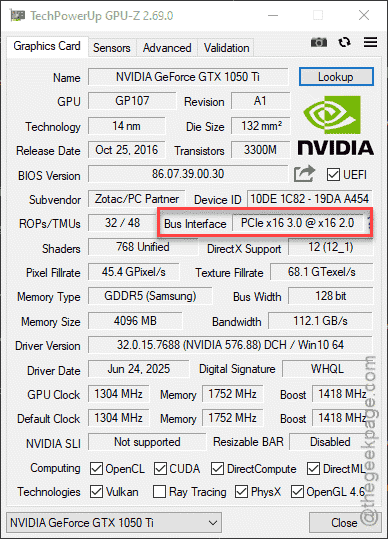
5 – If it says @ x1 or @ x4 instead of @ x16 — your GPU is running at reduced bandwidth.
If it’s wrong:
6 – Shut down your PC completely. Unplug it.
7 – Open the case.
8 – Remove the GPU.
9 – Clean the PCIe slot and GPU contacts with compressed air.
10 – Reseat the GPU firmly. Make sure it clicks into place.
11 – Plug everything back in and boot up.
12 – Check GPU-Z again.
One person had their GPU running at x4 for three years without knowing. Reseated it to x16. Game ran flawlessly after that. So yeah, worth checking.
Fix 2 – Disable All Overlays
This is the most important fix. The game stutters badly with overlays running.
Disable Steam Overlay:
1 – Open Steam.
2 – Click Steam in the top left menu.
3 – Click Settings.
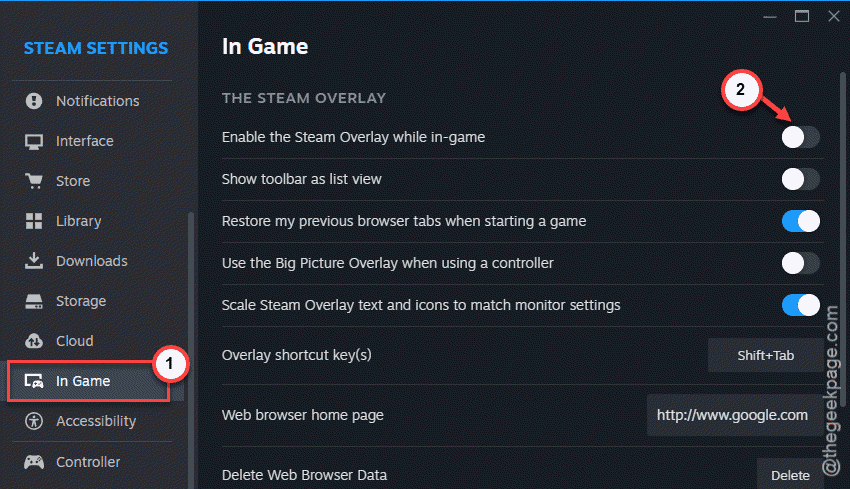
4 – Click In Game on the left.
5 – Uncheck Enable the Steam Overlay while in-game.
Disable NVIDIA Overlay:
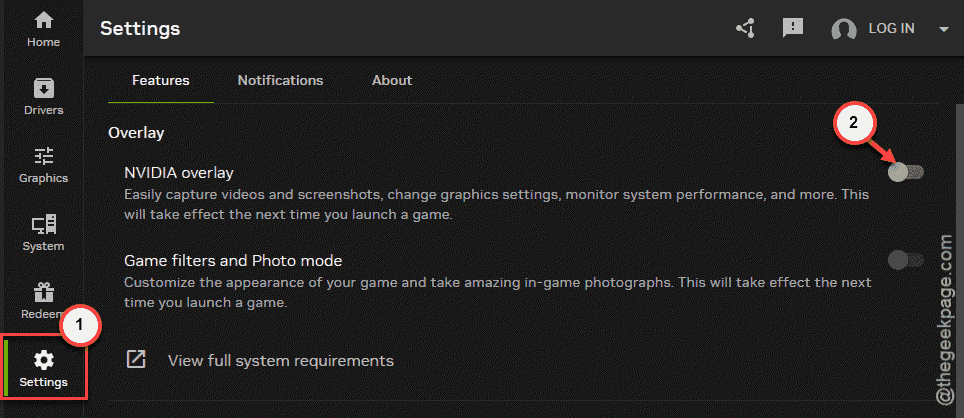
6 – Open the NVIDIA App (or GeForce Experience if you still have the old version).
7 – Click the gear icon for settings.
8 – Find the NVIDIA Overlay option.
9 – Toggle it off.
And disable any other overlays too — Discord, Xbox Game Bar, AMD Software. All of them.
This alone fixes the stuttering for a lot of people. The port is extremely sensitive to this. Not ideal. But that’s how it is.
Fix 3 – Lock FPS to 60 and Enable VSync
Uncapped framerates cause micro stutters in this game. Locking it down helps a lot.
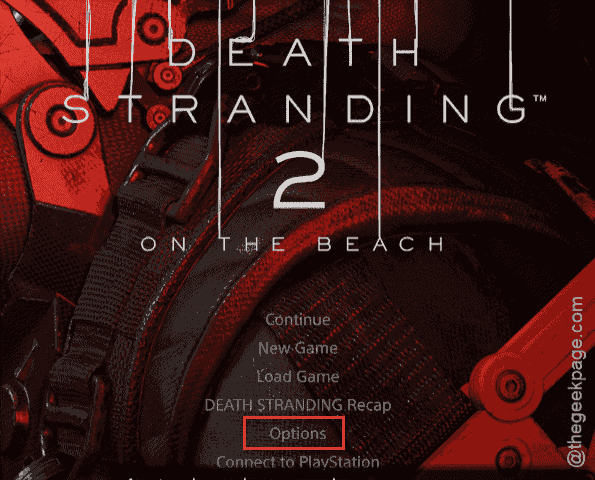
1 – Open Death Stranding 2.
2 – Go to Options.
3 – Go to Graphics or Display settings.
4 – Set the frame rate cap to 60 FPS.
5 – Enable VSync.
6 – While you’re here, set the display mode to Exclusive Fullscreen. Not Borderless. Not Windowed.
The combo of a 60 FPS cap, VSync, and exclusive fullscreen gives the smoothest experience. Some people report higher caps work fine for them. But start at 60 and go from there.
Fix 4 – Use Exclusive Fullscreen Mode
If you skipped this in Fix 2, go back and change it. Borderless windowed causes more stuttering in this game specifically.
1 – In the game’s Display settings, find Screen Mode or Display Mode.
2 – Set it to Exclusive Fullscreen.
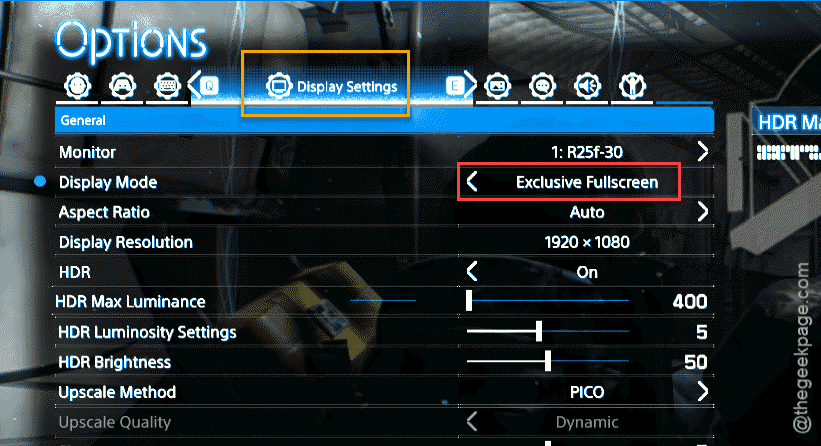
Exclusive Fullscreen gives the game full control of the display output. No compositor. No Windows overhead. Less stutter. The difference in this game is — honestly — pretty dramatic.
Fix 5 – Close Background Apps
Anything running in the background can compete for resources and cause hitches.
1 – Press Ctrl + Shift + Esc to open Task Manager.
2 – Click the Processes tab.
3 – Close anything you don’t need while gaming. Especially:
- Web browsers (they eat RAM)
- Discord (or at least disable its overlay)
- OneDrive syncing
- Antivirus real-time scanning (temporarily)
- Any RGB software or hardware monitoring tools
The fewer things running, the smoother the game. Death Stranding 2 is especially picky about this.
Fix 6 – Update GPU Drivers
Make sure you’re on the latest drivers. Game-ready drivers specifically for Death Stranding 2 may have shipped.
1 – For NVIDIA: open the NVIDIA App or GeForce Experience.
2 – Check for driver updates.
3 – Download and install the latest Game Ready Driver.
4 – For AMD: open AMD Software.
5 – Check for updates.
6 – Install the latest driver.
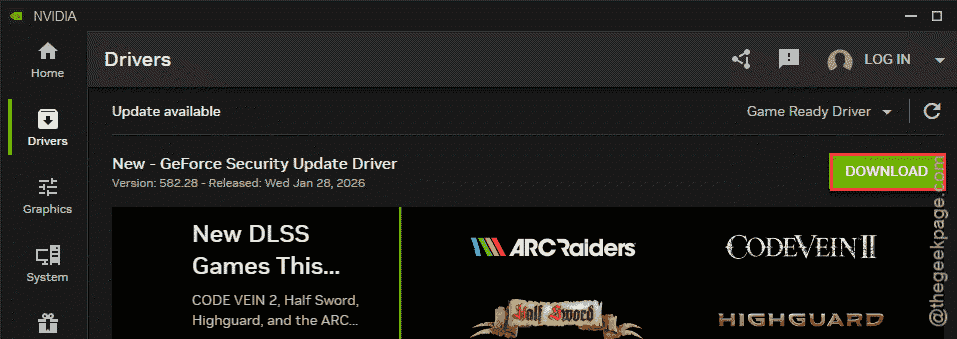
And do a clean install if you can. Both NVIDIA and AMD have options for that during the install process. Removes old driver remnants that can cause conflicts.
Fix 7 – Lower Graphics Settings
If your hardware is borderline for the game’s requirements, lowering settings reduces the load and can eliminate stuttering.
1 – In the game’s Graphics settings, try lowering Shadow Quality.
2 – Lower Volumetric Lighting.
3 – Lower Post-Processing quality.
4 – Set Texture Quality to match your VRAM (don’t go higher than your GPU can handle).
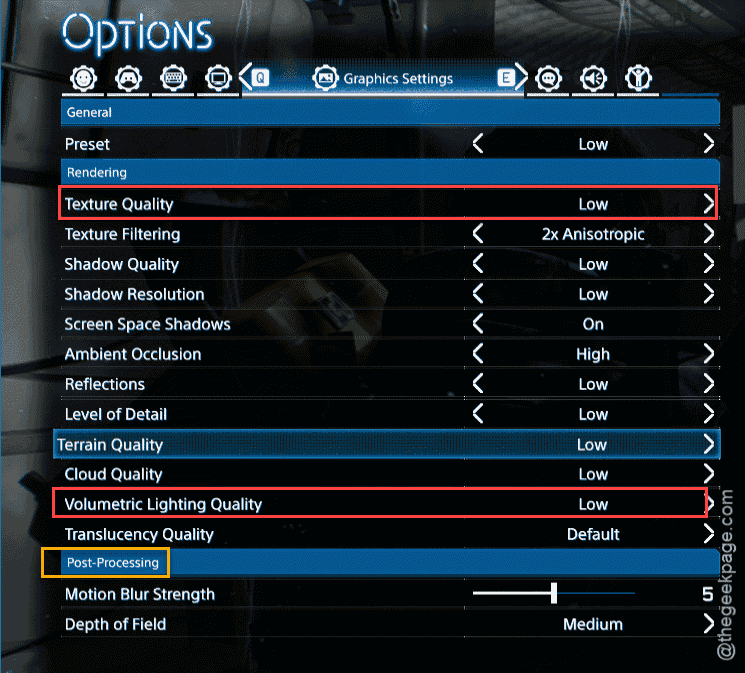
You don’t need to set everything to Low. Just reduce the most demanding settings. Shadows and volumetric lighting are the biggest performance hogs in this game.
How to Prevent This
- Always disable overlays before launching Death Stranding 2. Every time. The game does not handle them well.
- Use Exclusive Fullscreen and cap at 60 FPS until performance patches improve things.
- Check GPU-Z after building or cleaning your PC to make sure the GPU is seated at full x16 bandwidth.
- Keep GPU drivers updated. Game-specific optimizations make a real difference.
People Also Ask
How to fix micro stuttering lag in PC games?
Disable overlays. Cap your FPS. Use Exclusive Fullscreen. Update GPU drivers. Close background apps. And check GPU-Z to make sure your card is running at full PCIe bandwidth.
Is Death Stranding 2 well optimized for PC?
Not great at launch. Very sensitive to overlays and background processes. Runs okay once you disable everything and lock to 60 FPS. But out of the box? Rough.
Does VSync cause micro stutters?
Usually the opposite. VSync prevents tearing and can smooth out stutters. In Death Stranding 2 specifically, enabling VSync at 60 FPS helps. Just make sure the game can actually hold 60 consistently or you’ll get frame drops instead.