If you get mouse stutter or lag while playing Resonance: A Plague Tale Legacy. It isn’t. Resonance just handles mouse input badly out of the box, and a few settings sort it out. The camera jerks when you pan. Aim feels heavy. Sometimes it skips, even with a solid frame rate.
Where This Comes From
Steam treats your mouse like a controller stick in this game. Extra layer, extra lag.
And mouse sensitivity is tied to frame time. So an uneven frame rate means uneven aim. A 1000 Hz mouse can also flood the game’s input buffer until it starts dropping movements.
Why ship it like this? No idea. But a patch for part of it is already out.
Fix 1 – Update the Game
Quick one.
1 – Close the game and restart Steam so it checks for updates.
2 – Then click the game in your Library and hit Update if the button shows up.
Do this before anything below.
Fix 2 – Disable Steam Input
1 – Right-click Resonance: A Plague Tale Legacy in your Steam Library.
2 – Select Properties.
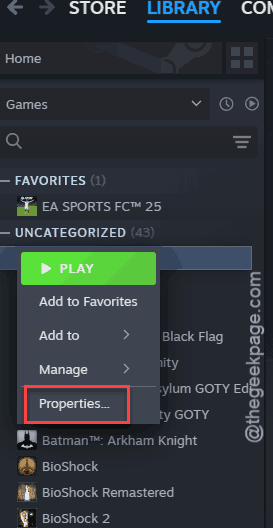
3 – Click the Controller tab on the left.
4 – Pick Disable Steam Input from the drop-down.
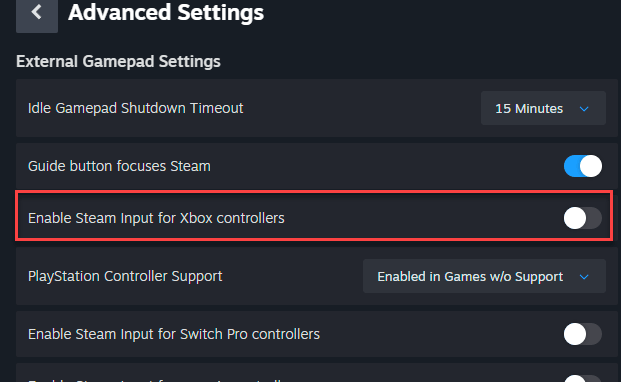
Now the game reads your mouse directly. No fake joystick in between.
Fix 3 – Drop Your Mouse Polling Rate to 500 Hz
Polling rate is how often your mouse reports its position to the PC. Anything at 1000 Hz or above overloads this game.
1 – Open your mouse software (Logitech G HUB, Razer Synapse, Corsair iCUE, and so on).
2 – Go to your mouse’s performance or sensor settings.
3 – Change Polling Rate (some apps call it Report Rate) to 500 Hz.
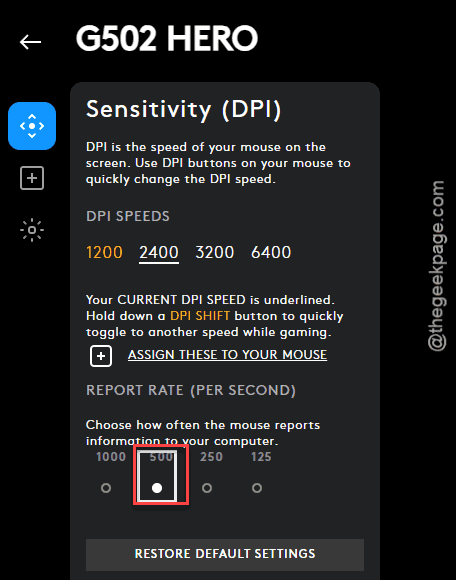
You won’t notice it on the desktop (browsing and typing feel the same). Honestly. Still stuttering? Try 125 Hz.
Fix 4 – Switch to Exclusive Fullscreen
Borderless mode lets Windows handle V-Sync for the game. But that messes with mouse input.
1 – Open Display Settings in the game.
2 – Change Window Mode from Borderless to Exclusive Fullscreen.
3 – Apply the change.
Then avoid Alt + Tab while you play.
Fix 5 – Lock Your FPS and Turn Off Reflex
1 – Open Graphics Settings in the game.
2 – Find Framerate Limit.
3 – Set it to a number your PC can hold even during big rat swarms. 60 or 90 is a good start.
4 – Scroll down to NVIDIA Reflex Low Latency.
5 – Turn it Off.
Reflex is supposed to help. But in this build it causes micro-stutter when you pan with a mouse. Go figure.
Fix 6 – Use Fast Sync Instead of In-Game V-Sync
The game’s own V-Sync adds 2 to 3 frames of input lag. That’s the heavy feeling. Fast Sync skips the lag and still stops screen tearing.
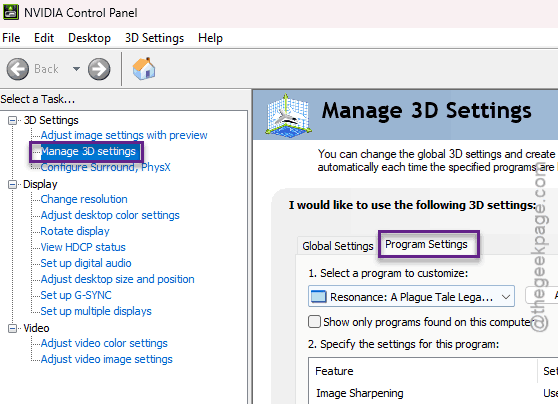
1 – Right-click your desktop and open NVIDIA Control Panel.
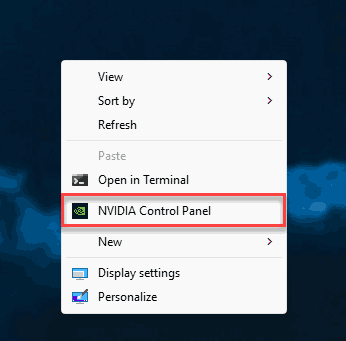
2 – Click Manage 3D settings on the left.
3 – Open the Program Settings tab.
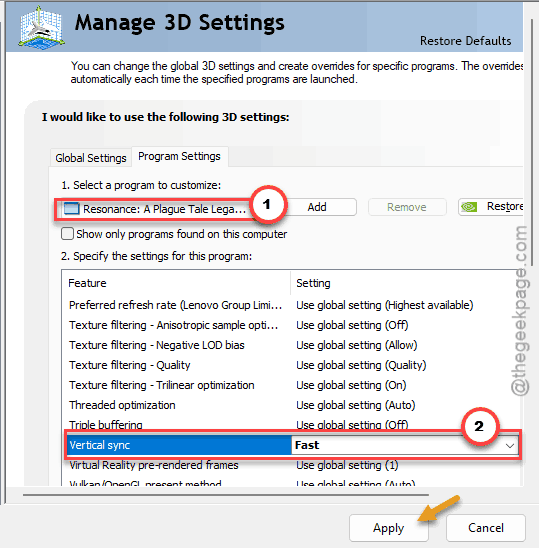
4 – Pick the game from the drop-down. Not listed? Click Add and find it.
5 – Scroll to Vertical sync and set it to Fast.
6 – Click Apply at the bottom right.
7 – Launch the game and turn its V-Sync off.
On AMD? Turn on Enhanced Sync in AMD Software: Adrenalin Edition instead.
Fix 7 – Move the Game Off CPU 0
Windows handles mouse and USB traffic on the first CPU core. So when the game hammers that same core? Traffic jam.
1 – Launch the game and leave it on the main menu.
2 – Then, press the Ctrl + Shift + Esc buttons together to open Task Manager.
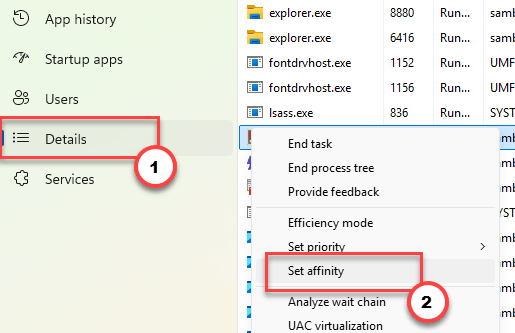
3 – Click the Details tab.
4 – Right-click Resonance.exe and choose Set affinity.
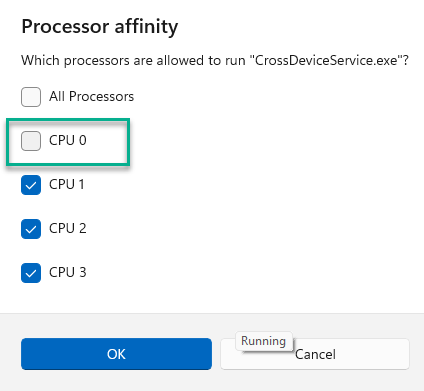
5 – Uncheck the CPU 0 and leave every other box checked.
6 – Click OK and go back to the game.
Check if this helps you fix the issue.
Quick Tips –
- Save a 500 Hz mouse profile just for this game. Most mouse apps switch profiles on their own when a game starts.
- Keep Steam Input off for mouse-and-keyboard games. It’s built for controllers.
- Cap FPS first, raise settings second. Steady beats high here.
Quick Answers
How do I fix mouse stutter in games?
Start simple. Lower your mouse polling rate to 500 Hz and switch the game to exclusive fullscreen. Cap your frame rate too.
Why is my game stuttering even though I have high FPS?
High FPS isn’t the same as smooth FPS. If frame times jump around, the game feels choppy even at 100+ FPS. Some games also tie mouse movement to frame time. Locking your frame rate to a steady number usually smooths it out.
Should I turn off NVIDIA Reflex in Resonance?
For now, yes. In the current build, Reflex causes micro-stutter when you pan the camera with a mouse. Turn it off in Graphics Settings. You give up a little latency reduction, but camera movement gets smoother right away.