Auto SR and an RGB lighting driver are fighting over the same memory. It is the reason you are getting the EXCEPTION_ACCESS_VIOLATION error message. A driver for keyboard lights taking down a game. But that’s the conflict Microsoft’s release health notes describe, and a hotfix for it is already out. Here is a detailed guide on how to fix this issue yourself.
Why This Happens
Auto SR (Automatic Super Resolution) is a Windows feature on Copilot+ PCs. It runs your game at a lower resolution and uses the PC’s AI chip, the NPU, to sharpen the picture back up. More frames, same look. Nice idea.
So who’s reaching? The big offender is a small driver called inpoutx64. RGB lighting apps install it without asking (you’ve probably never heard of it). Overlays cause the same clash, because they try to draw into the space Auto SR is using.
But a damaged NPU driver can do it too, with no other software involved. Which one is yours? No way to tell from the error, unfortunately. Work down the list.
Fix 1 – Update the Auto Super Resolution Package
Do this first (it takes two minutes). Microsoft’s hotfix for this crash comes through the Microsoft Store.
1 – Open the Microsoft Store.
2 – Click Downloads in the bottom left corner. Older versions of the Store call it Library.
3 – Click Check for updates.
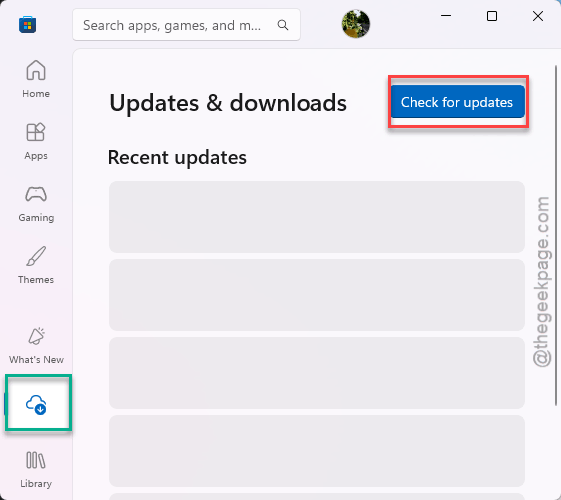
4 – Install the update for Auto Super Resolution Package.
Check if this works.
Fix 2 – Turn Off Auto SR for the Crashing Game
Don’t want to give up Auto SR everywhere? You don’t have to.
1 – Press Windows + I to open Settings.
2 – Go to System, then Display.
3 – Scroll down and click Graphics.
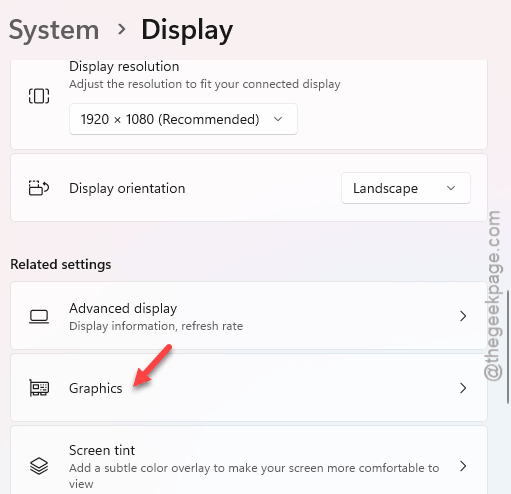
4 – Find the crashing game in the app list. If it is not there, click Browse and add the game’s .exe file.
5 – Click the game, then click Options.
6 – Set Automatic Super Resolution to Off.
7 – Launch the game.
This is the quickest way to get playing again. And it is the right call for games with strict anti-cheat (ARC Raiders is one players mention), because those can reject Auto SR no matter what else you fix.
Fix 3 – Disable the inpoutx64 Driver in the Registry
This is the official workaround for PCs that have not received the patch yet. It switches off the RGB driver and leaves everything else alone. Your lights may stop syncing (a fair trade for a game that runs).
1 – Press Windows + R.
2 – Next, type regedit and press Enter.
3 – Then, go to this address:
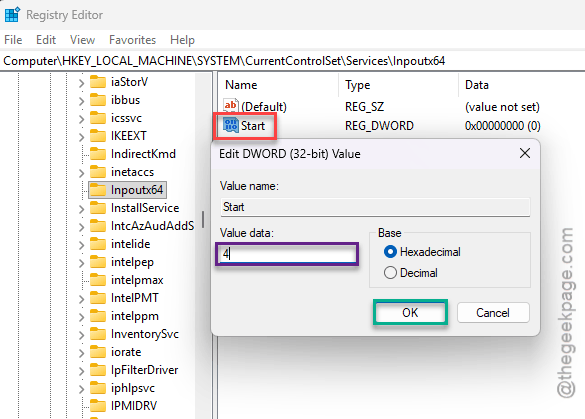
HKEY_LOCAL_MACHINE\SYSTEM\CurrentControlSet\Services\inpoutx64
4 – Double-click Start in the right pane.
5 – Change Value data to 4.
6 – Click OK.
7 – Restart your PC.
Can’t find an inpoutx64 folder under Services? Then the driver isn’t installed, and this is not your cause. Skip ahead.
The number 4 means disabled. Write down the old number before you change it, so you can put it back later.
Fix 4 – Uninstall the RGB Software That Brings It Back
Here’s the catch with Fix 3. RGB apps quietly reinstall the driver. So the crash can return after a reboot, and you’ll wonder what you did wrong. Nothing. It’s the app.
1 – Open Settings and go to Apps.
2 – Click Installed apps.
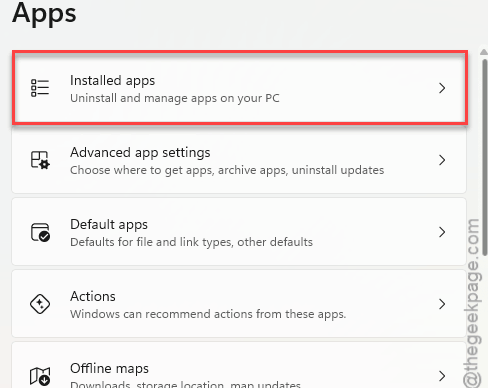
3 – Find your RGB or peripheral software. iCUE and Razer Synapse are the common ones.
4 – Click the three dots (⋯) next to it.
5 – Select Uninstall.
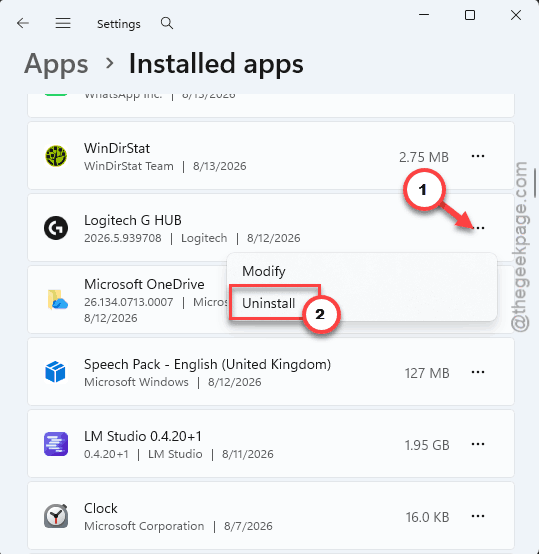
6 – Restart before you launch the game.
Type the app’s name in the search box at the top of the list. Faster than scrolling.
Fix 5 – Close Your Overlays
Auto SR sets up its own layer to slide the sharpened frames in. If another app tries to draw an overlay into that same space, you get the access violation. So shut the overlays down.
1 – At first, look at the system tray in the bottom right corner of the taskbar.
2 – Next, close the MSI Afterburner and RivaTuner Statistics Server app, if they are running.
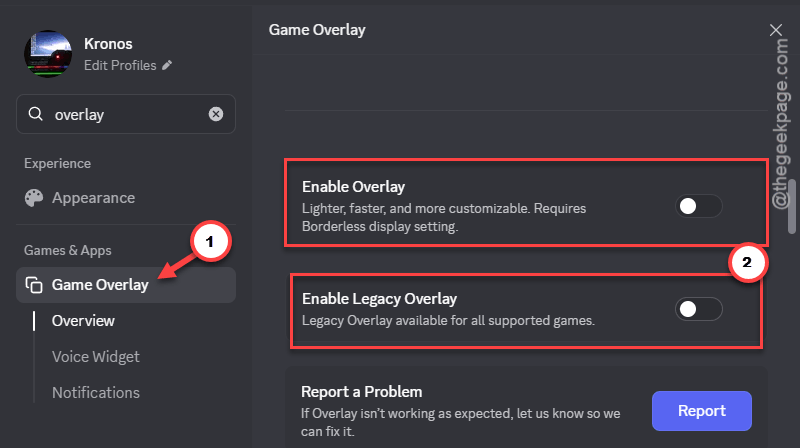
3 – Thereafter, open the Discord app.
4 – Go to User Settings, and load up the Game Overlay.
5 – Turn Enable in-game overlay off.
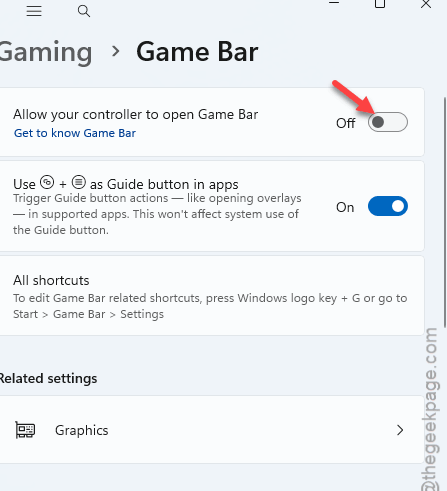
6 – Press Windows + I, go to Gaming.
7 – Later, open up the Game Bar, and turn it off.
8 – Finally, press Ctrl + Shift + Esc and end any overlay still running from the Task Manager.
Then launch the game with Auto SR on and see whether it starts cleanly.
Fix 6 – Clean Install the NPU Driver
Still crashing with all of that done? Then look at the NPU itself.
1 – At first, right-click the Start button and select Device Manager.
2 – Expand Neural processors. On some PCs the NPU is listed under System devices.
3 – Right-click your NPU. It is named something like Qualcomm Hexagon, Intel AI Boost, or AMD IPU.
4 – Select Uninstall device.
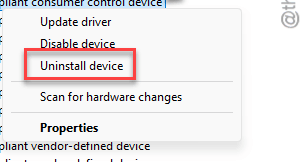
5 – Check Attempt to remove the driver for this device if the box appears.
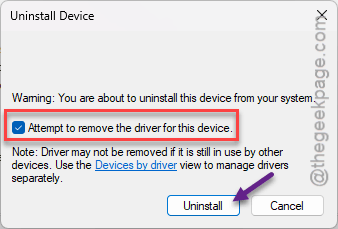
6 – Restart your computer.
7 – Download the latest NPU driver from your laptop maker’s support page and install it.
Get the driver from the manufacturer, not from Windows Update. The generic one Windows hands out will not always be the newest.
How to Prevent This
- Check the Microsoft Store for updates every few weeks. The Auto SR package updates there, and it’s easy to forget.
- Skip RGB software you don’t really need. One lighting app is plenty.
- Close overlays before you start a game that uses Auto SR. Especially Afterburner.
- When a new game crashes on day one, switch Auto SR off for that game first, because you can always turn it back on after a patch.
People Also Ask
How to fix exception_access_violation?
On a Copilot+ PC, start with Auto SR. Update the Auto Super Resolution Package in the Microsoft Store, or switch Auto SR off for that game under Settings, System, Display, Graphics. Then close overlays like Discord and MSI Afterburner.
What does the error “Exception_access_violation” mean?
It means a program tried to read or write memory it has no right to use. Windows stops the program right away to protect the rest of the system. So the game closes. The cause is usually a clash between two pieces of software, or a damaged driver.
How can I fix an access violation error?
Close overlays and monitoring tools first. Update the app and your drivers. Did the crashes start after you installed something new, like RGB or tuning software? Remove it and test again. A clean driver reinstall is the last step.