Does the ARC Raiders or the Finals crashing again and again? A tiny driver called inpoutx64.sys is crashing your game. Neither your graphics card or the game files causing this. One old file that some motherboard tool dropped on your PC years ago, and Easy Anti-Cheat now refuses to run next to it. So ARC Raiders dies on launch. The same thing happens to The Finals too. Same error every time: EXCEPTION_ACCESS_VIOLATION. This is extremely annoying, but fixable in about ten minutes.
Why This Happens
Short version: inpoutx64.sys is a driver with low-level access to memory and hardware. Gigabyte’s RGB Fusion and App Center used it. So did older Intel XTU builds, OpenRGB, and a few fan-control tools. It reads sensors. Harmless on its own.
But cheat makers use that same driver to poke at game memory. And Easy Anti-Cheat (the anti-cheat both Embark games run) can’t tell the difference. It sees the driver loaded, panics, and kills the game. Instant crash.
The August security update, KB5121003, is what changed. Before it, the anti-cheat mostly tolerated the driver. After it? Zero tolerance. The driver loads at boot, the game refuses to run alongside it, and you crash before the menu even shows.
The fix is to get rid of the driver. And then get rid of whatever keeps putting it back.
Fix 1 – Stop and Delete the inpoutx64 Service
Start here. This is the one that works for most people.
1 – Click Start and type cmd.
2 – Right-click Command Prompt and click Run as administrator.
3 – Click Yes when Windows asks for permission.
4 – Type sc stop inpoutx64 and press Enter.
5 – Type sc delete inpoutx64 and press Enter.
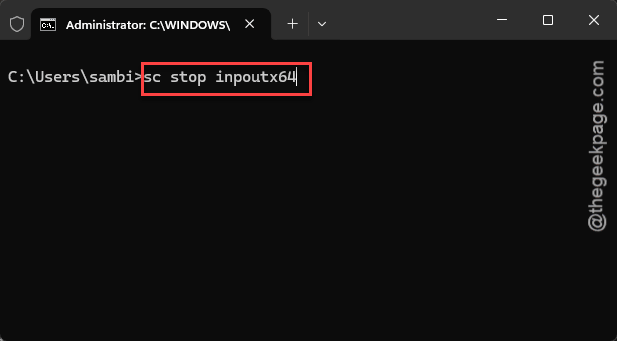
You should see “[SC] DeleteService SUCCESS” after that second command. If the first one says the service isn’t running, that’s fine (it just means the driver wasn’t loaded yet). Keep going.
6 – Restart your PC.
Then launch the game. Crash gone? Great. Still crashing? The file itself is probably still on the disk.
Fix 2 – Delete the Driver File Itself
Removing the service doesn’t always remove the file. And the file is what the anti-cheat scans for.
1 – At first, hit the Windows + E to load up File Explorer.
2 – Then, proceed to the address bar at the top.
3 – Later, paste C:\Windows\System32\drivers, and press Enter.
3 – Click the search box in the top right corner and type inpoutx64.
4 – Right-click inpoutx64.sys and click Delete.
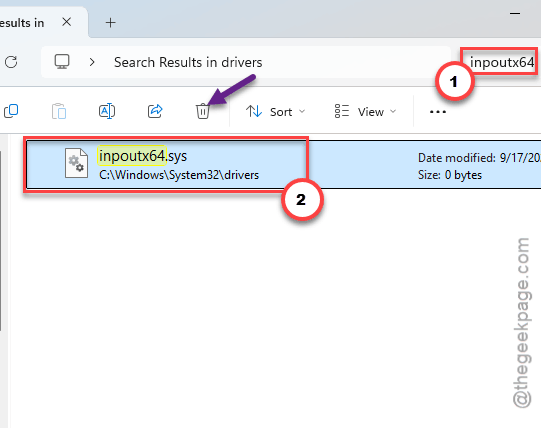
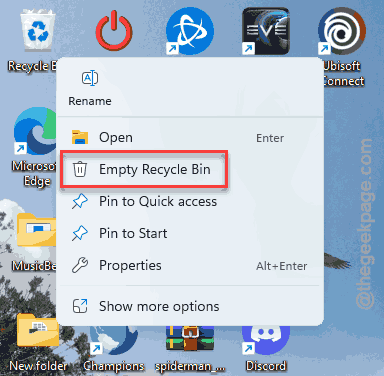
5 – At first, right-click the Recycle Bin on your desktop, and tap the Empty Recycle Bin.
Check if this offers any help.
Fix 3 – Uninstall RGB Fusion and Gigabyte App Center
Try uninstalling the RGB Fusion and Gigabyte App Center app from your device.
1 – Press Windows + R.
2 – Type appwiz.cpl and press Enter.
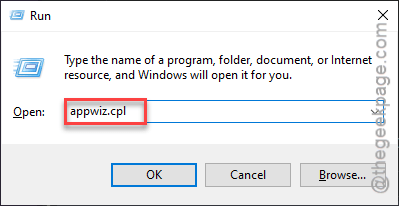
The Programs and Features window opens.
3 – Scroll through the list and look for RGB Fusion, Gigabyte App Center, or any other Gigabyte lighting tool.
4 – Right-click it and click Uninstall.
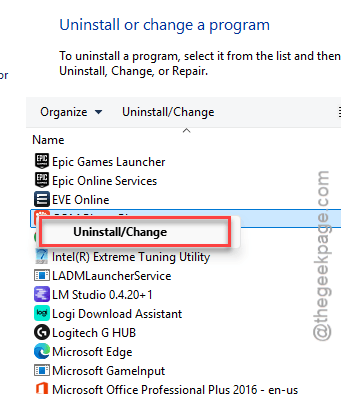
5 – Follow the prompts until it finishes.
6 – Restart your PC.
After the restart, check the drivers folder again like in Fix 2. The file should stay gone this time.
Your lighting falls back to whatever the motherboard defaults to. Usually rainbow. Not ideal. But it beats a game that won’t open.
Fix 4 – Remove Other Tools That Load the Driver
No Gigabyte software? Other programs bundle the same driver. Look for any OpenRGB. Some fan-control apps.
1 – Press Windows + I to open Settings.
2 – Go to the Apps tab, in the left sidebar, then click Installed apps.
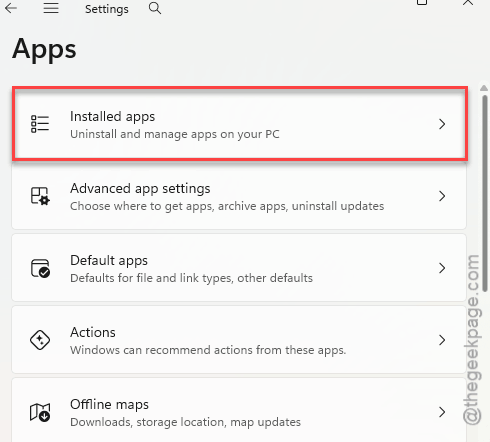
3 – Type XTU, OpenRGB, or fan in the search box at the top to find them fast.
4 – Then, tap the three dots (⋯) on the right side of the app and click Uninstall.
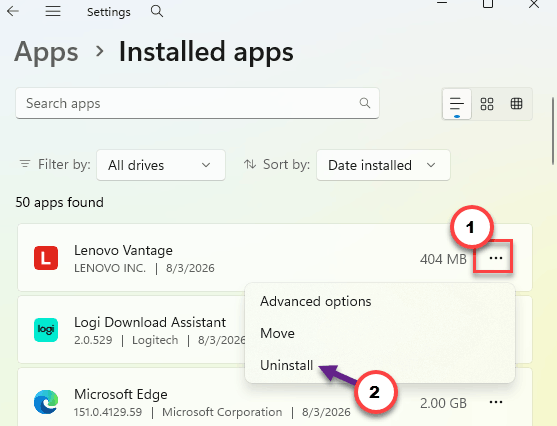
5 – Open File Explorer, go to C:\Program Files, and delete any leftover folder with that app’s name.
6 – Restart your PC and test the game.
This is temporary. Once the game runs, install the newest version of the tool you actually need, then check the drivers folder again. If inpoutx64.sys is back, that tool is the source. Keep it off.
Fix 5 – Turn Off Fullscreen Optimizations
Different cause, same crash. Try disabling the fullscreen optimizations facility.
1 – Open the folder that contatins the ARC Raider’s executable file.
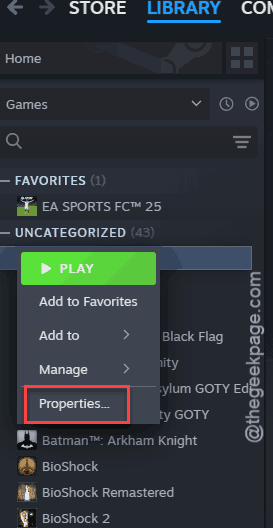
2 – In Steam, right-click the game in your Library, hover over Manage. Then, tap the Browse local files.
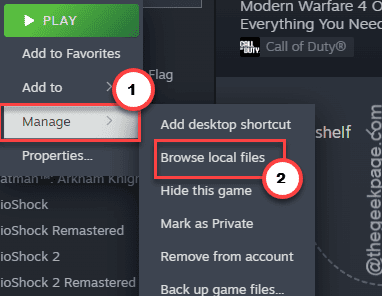
3 – Next, right-click the game’s .exe file and click Properties.
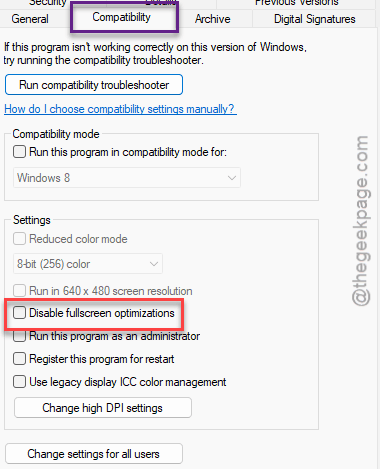
4 – Later, go to the Compatibility tab.
5 – Next, check the box next to Disable fullscreen optimizations feature.
6 – Click Apply, then OK.
Do it for both games if you play both.
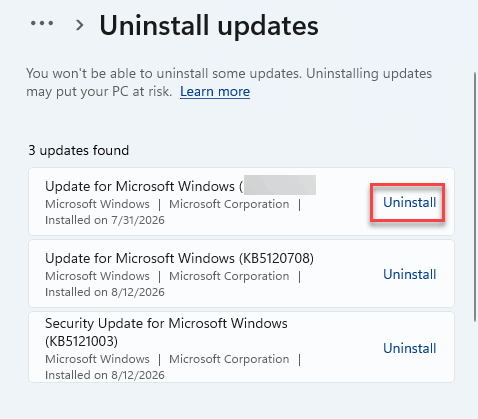
Fix 6 – Uninstall Update KB5121003
Last resort. Removing the August update rolls back the change that made the anti-cheat so twitchy. But Windows will try to install it again, so treat this as a stopgap until Embark or Microsoft patches things.
1 – Press Windows + I to open Settings.
2 – Click Windows Update at the bottom of the left sidebar.
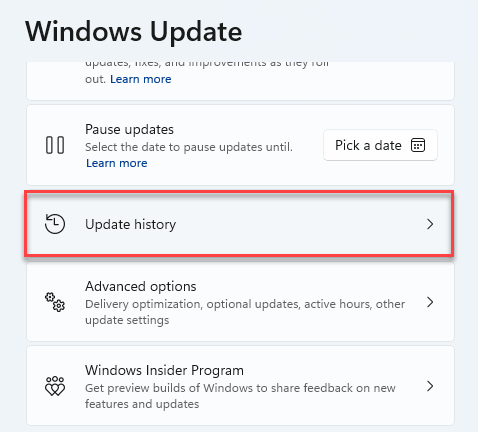
3 – Click Update history.
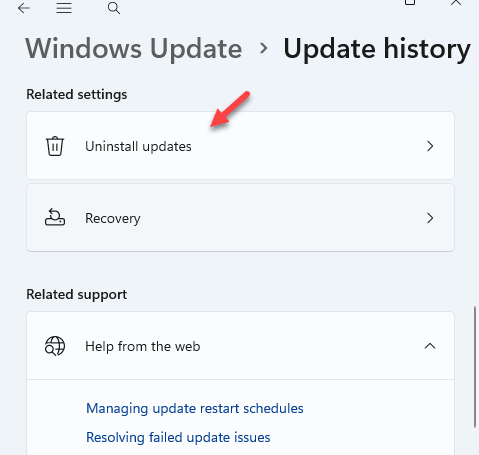
4 – Scroll to the bottom and click Uninstall updates.
5 – Find KB5121003 in the list and click Uninstall next to it.
6 – Restart when Windows asks.
Takes a few minutes, and the PC may reboot twice. Normal.
How to Prevent This
- Skip the motherboard’s bundled RGB and monitoring suites. Set your lighting in the BIOS instead. Less bloat, no rogue drivers.
- Keep OpenRGB, XTU, and fan tools updated if you really need them. Old builds are the ones carrying inpoutx64.
- After any big Windows update, glance at C:\Windows\System32\drivers for inpoutx64.sys. Ten seconds. Saves an hour of guessing.
- Pause updates for a week when a new patch drops. Let other people find the bugs first.