Millions of users around the world use their Apple Watch as a fitness tracker on a regular basis. So, even if the Apple Watch stops recording workout or fitness activities properly for a fraction of these users, it is not an issue that can be easily ignored. After the recent watchOS 26 update, there are many users who have faced the same problem with their Apple Watches. It usually happens due to the synchronization lag between the watch app and the Health app or a simple calibration glitch. Apply these solutions to fix this problem.
Fix 1 – Refresh the Fitness Tracking and Health Feature
Sometimes the fitness tracking and health feature gets stuck in the Apple Watch background.
Step 1 – Open the Privacy & Security tab in the iPhone Settings.
Step 2 – Then, go to the Motion & Fitness tab.
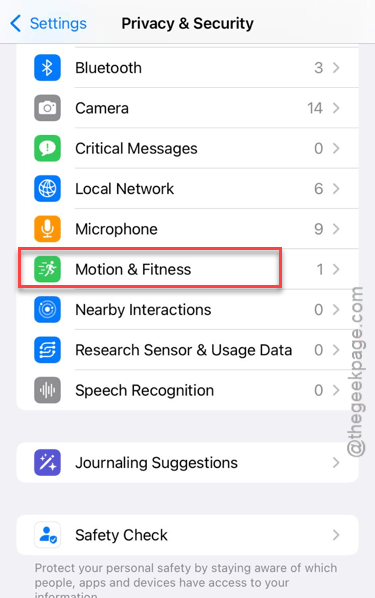
Step 3 – Toggle the Fitness Tracking and Health settings to OFF.
Step 3 – Restart both the iPhone and Apple Watch.
Step 4 – After this, return to the Motion & Fitness tab, and turn the Fitness Tracking and Health settings to ON.
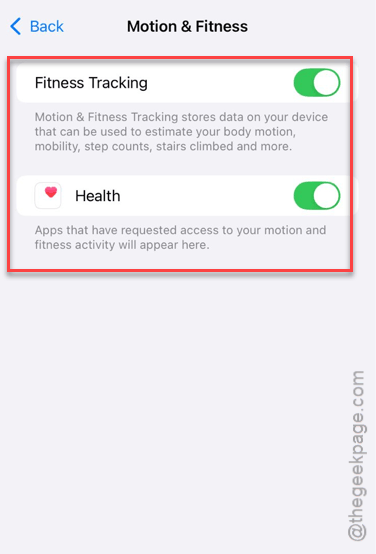
After refreshing the fitness tracking, the activity features will be
Fix 2 – Reset the Fitness Calibration Data
If the fitness rings are not moving on Apple Watch, you can reset the fitness calibration data.
Step 1 – Open the Watch app on the iPhone. Proceed to the My Watch tab. Open the Privacy section.
Step 2 – Tap the Reset Calibration Data option there.
Step 3 – Next, use the Reset Calibration Data option to reset the calibration data of the Apple Watch.
Step 4 – There will be another confirmation prompt. Tap that to reset the Apple Watch’s calibration data.
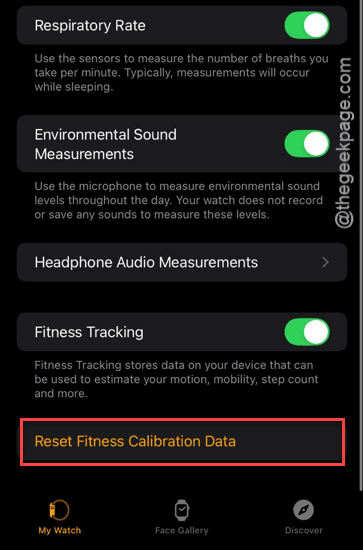
After resetting the calibration of the Apple Watch, continue using it for some time. The updated fitness data will be reflected on the watch.
Fix 3 – Turn on the Wrist Detection
Your Apple Watch won’t record the activity if it can’t detect that you are wearing it.
Step 1 – Go to the Passcode settings on the Watch app of the iPhone.
Step 2 – Make sure the Wrist Detection is turned ON in there.
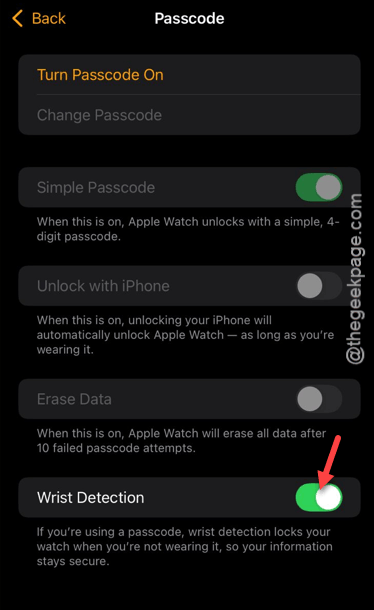
While the wrist detection is turned on, the wearable can track the activities easily.
NOTE – If you have a thick layer of inked tattoos on your wrist, that ink can block the sensors from functioning properly.
Fix 4 – Enable Location Services for Apple Watch Workout
If the workout statistics are being recorded, except for the map data, the missing location services can be linked to this issue.
Step 1 – On the iPhone Settings page, proceed to the Privacy & Security tab.
Step 2 – Open the Location Services tab. Make sure it is turned ON.
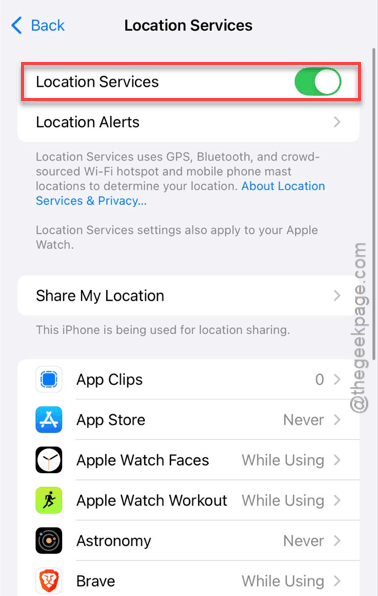
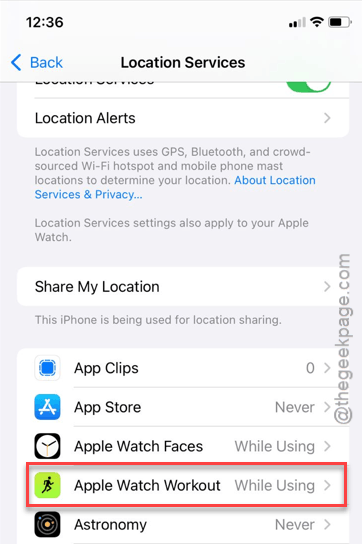
Step 3 – Go to the Apple Watch Workout settings and open them up.
Step 4 – Set it to the While Using the App feature.
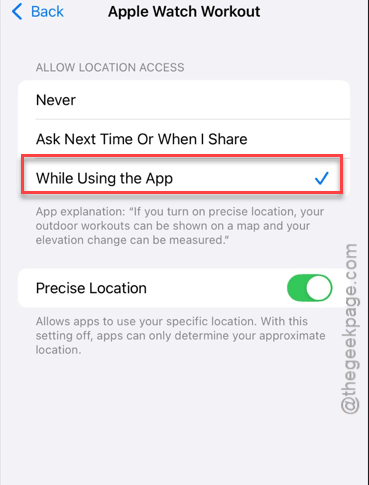
After refreshing the location settings on Apple Watch, the fitness activities will be recorded properly.
Fix 5 – Hard Reset the Watch and iPhone
If you are still struggling with the Apple Watch not recording your activities, you should hard reset your iPhone and Apple Watch.
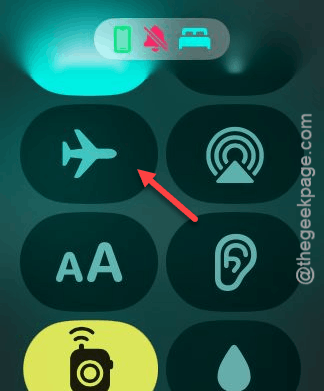
Step 1 – Put both the Apple Watch and the iPhone on Airplane mode.
Step 2 – Then, power OFF both the devices.
- Tap and hold the side button of the Apple Watch. Tap the power button there to switch off the Apple Watch.
- Open the Control Center on the iPhone. Tap the power icon at the top and choose to power off the toggle on the lock screen.
Step 3 – At first, turn ON the iPhone. Then, power ON the Apple Watch.
Step 4 – Then, disable the Airplane Mode on both the devices.
This should refresh the Bluetooth/Wi-Fi sync between the devices for activity data tracking. Check if this works out for you!