You’re working. Internet drops. A few seconds later it’s back. Then drops again. The Realtek PCIe GBE Family Controller — the chip in most Windows PCs — has a habit of doing this. Painfully.
Why This Happens
Here’s the deal. Realtek’s driver has an “Auto Disable Gigabit” setting that does what the name says. When the system thinks the network is idle? It cuts the link to save power.
And it doesn’t always come back smoothly. The reconnect is delayed. Sometimes it just stays disconnected until you click the icon. Hence the constant drops.
There’s also a second culprit — Windows’ own power management. It puts the adapter to sleep alongside Realtek’s setting. Two separate systems doing the same dumb thing. Result: a network that won’t stay up.
The 2025 Windows updates made this worse. Microsoft tightened power-saving defaults. Realtek users got hit hardest.
Fix 1 – Disable “Auto Disable Gigabit”
This is the main fix. Realtek’s power-saving feature is the trigger.
1 – Right-click Start and pick Device Manager.
2 – Expand Network adapters.
3 – Right-click Realtek PCIe GBE Family Controller. Pick Properties.
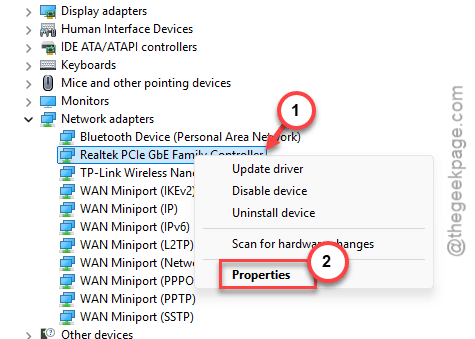
4 – Click the Advanced tab.
5 – In the Property list, find Auto Disable Gigabit. It’s usually near the top.
6 – On the right, change the Value dropdown to Re-link Battery or AC. Or just Disabled if you don’t see that.
7 – Click OK.
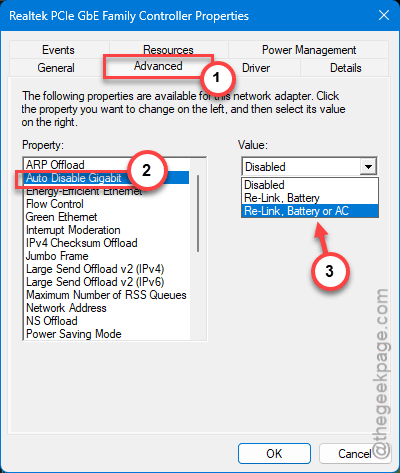
Done. The adapter stops auto-disabling itself. Drops should stop within a minute.
Fix 2 – Stop Windows From Killing the Adapter
Even with Fix 1 in place, Windows can still power down the adapter on its own. Belt and suspenders.
1 – Right-click Start and pick Device Manager.
2 – Expand Network adapters.
3 – Then, right-tap the Realtek PCIe GBE Family Controller adapter from the list and tap the Properties button.
4 – Go to the Power Management tab.
5 – Find the Allow the computer to turn off this device to save power feature and untick it.
6 – Click OK.
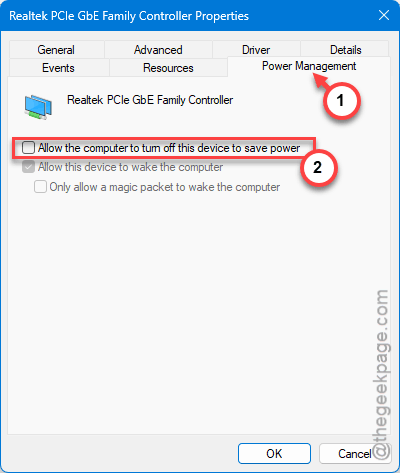
And honestly? This should be the default for desktops.
Fix 3 – Configure It Through Network and Sharing Center
If you can’t access the Device Manager or can’t find the Realtek adapter there, you can follow this path. Same setting, different path. If Device Manager is acting weird, try this route.
1 – Press Windows + S. Type Control Panel and open it.
2 – Set View by (top right) to Large icons.
3 – Click Network and Sharing Center.
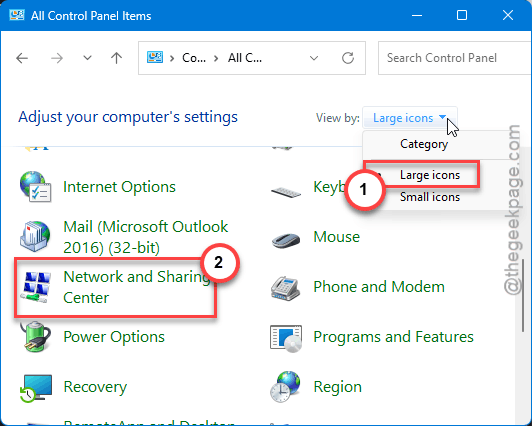
4 – Click your active connection name (usually Ethernet or your network name).
5 – Click Properties, then Configure.
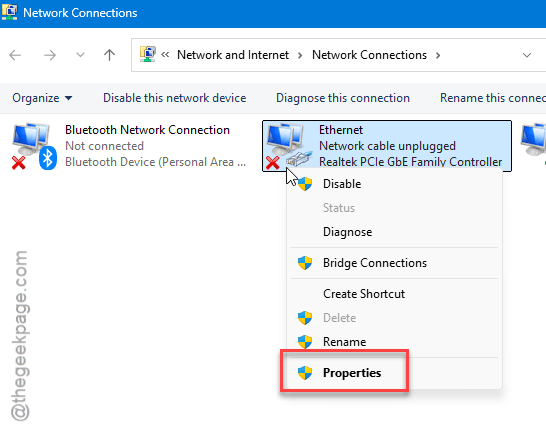
6 – Go to the Advanced tab.
7 – Find Auto Disable Gigabit. Set it to Re-link Battery or AC. Click OK.
Same effect as Fix 1. Just an alternate way in.
Fix 4 – Reset the Network Stack
If the adapter’s settings look right but it’s still dropping? The network stack is corrupted. Reset it.
1 – Press Windows + S and type cmd.
2 – Right-click Command Prompt and pick Run as administrator.
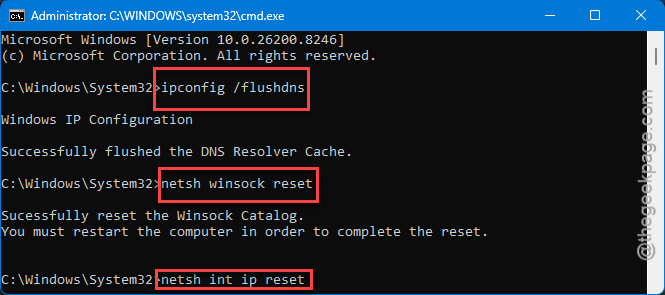
3 – You have to execute these two codes one after another –
ipconfig /flushdns
netsh winsock reset
5 – Finally, copy-paste this code netsh int ip reset and press Enter.
6 – Restart your PC.
That clears any stale state. Adapter loads fresh on next boot.
Fix 5 – Get the Latest Realtek Driver Directly
Windows Update pushes ancient Realtek drivers. Get the current one from the source.
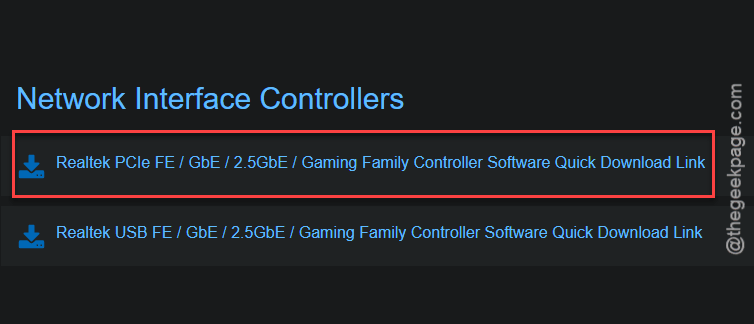
1 – Open your browser. Go to RealTek Network Interface webpage.
2 – Once you are there, look for the latest Windows 11 (or 10) driver for PCIe FE / GBE / 2.5G / 5G Ethernet driver.
3 – Download it.
4 – Run the installer.
5 – Restart your PC.
And after the update? Re-do Fix 1 — installers sometimes reset the Auto Disable setting back to “On“.
Fix 6 – Check the Cable and Port
Quick one. Don’t skip this.
1 – Unplug the Ethernet cable on both ends. Plug them back in firmly.
2 – Try a different port on your router.
3 – If you have a spare cable, swap it.
A bent cable mimics this exact symptom. Drops, reconnects, drops again. Not always Realtek’s fault.
How to Prevent This
- Disable Auto Disable Gigabit once and forget about it. The setting sticks across reboots.
- Get Realtek drivers from realtek.com — not Windows Update.
- On a desktop, leave power management for the network adapter off. No reason to save power on a wired desktop.
- After major Windows updates, re-check both Auto Disable Gigabit and Power Management. Updates can flip them back.
People Also Ask This –
How to fix Realtek PCIe GBE Family Controller keeps disconnecting?
Open Device Manager. Find the Realtek adapter under Network adapters. In Properties > Advanced, set Auto Disable Gigabit to “Re-link Battery or AC” or just Disabled. Then in the Power Management tab, uncheck “Allow the computer to turn off this device”. That stops the constant drops in most cases.
Why is the Realtek PCIe GBE Family Controller not working?
Usually a driver issue or a power-saving feature kicking in. Get the latest driver directly from realtek.com. Then disable Auto Disable Gigabit and the Windows power management option. If you are still not having any connection, you should connect it to a different port or use a completely different cable.