Does the shortcuts on your Apple Watch not syncing with your iPhone? The main functionality of shortcuts on the iPhone can be linked and used with your Apple Watch. So, if you can’t use your shortcuts on your Apple Watch, these solutions will be helpful.
Fix 1 – Run your shortcut on your iPhone
After creating the shortcut, you must run it at least once on your iPhone. So, after creating the shortcut on your iPhone, you must run it for one time.
Once you have run it, the shortcut should become accessible on your Apple Watch.
Fix 2 – Resync the Shortcuts
You have to synchronize all of your shortcuts on the iPhone.
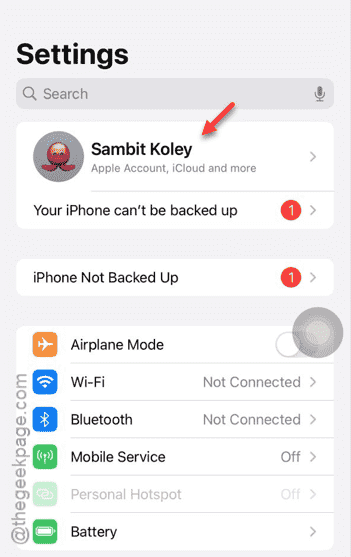
Step 1 – Load up the iPhone Settings page.
Step 2 – Next, head on to the Apple ID page.
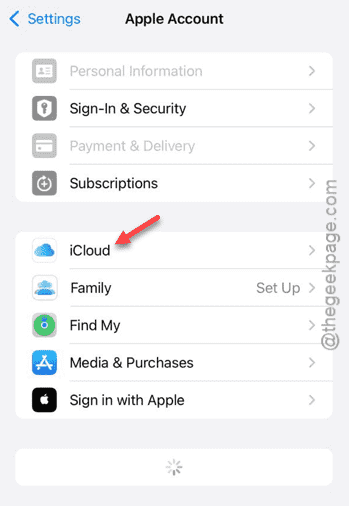
Step 3 – After loading up the Apple ID panel, tap the “iCloud” panel.
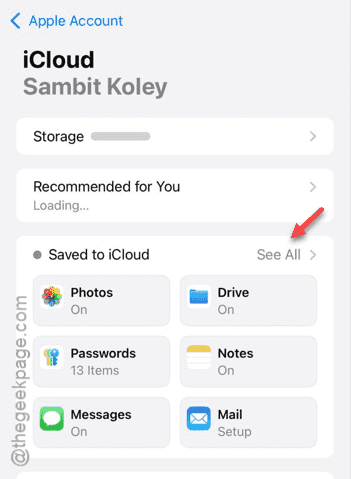
Step 4 – Scroll down and tap the “Show All” button to load the entire list of iCloud apps.
Step 5 – Find the “Shortcut” toggle in there. Turn it off ionce.
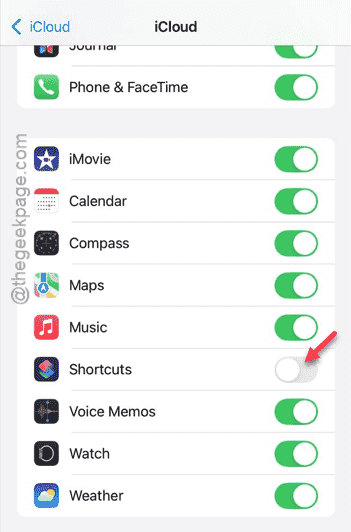
Step 6 – Then, turn it on.
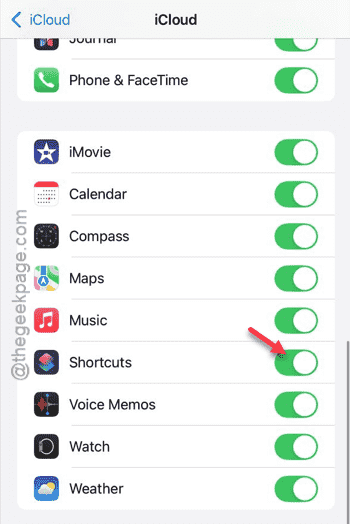
Once you have done this, shortcuts will become accessible once again.
Fix 3 – Turn on the iCloud sync for Shortcuts
You must have the iCloud synchronization enabled for the Shortcuts app.
Step 1 – Open up the iPhone Settings on your device.
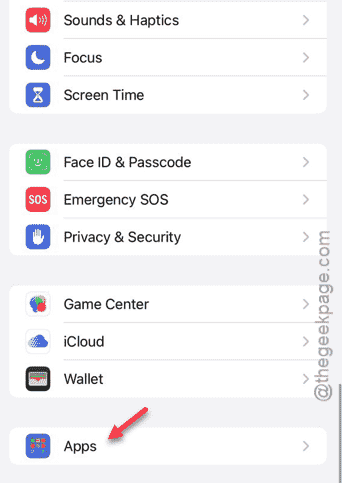
Step 2 – Later, tap the “Apps” tab to find the complete list of apps.
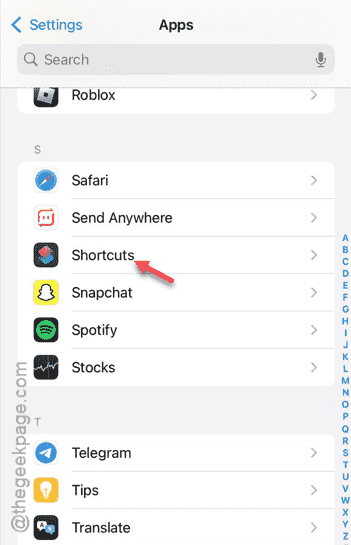
Step 3 – In the Apps tab, you can find the “Shortcuts” app.
Step 4 – In the Shortcuts app, enable the “iCloud Sync” option.
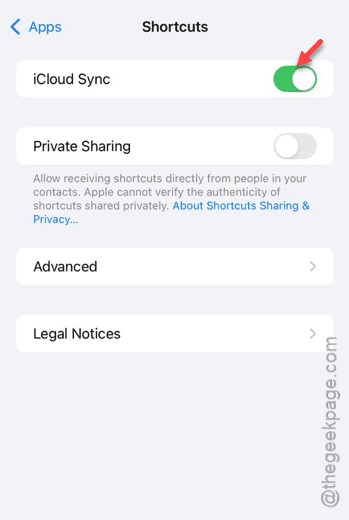
Once you are done, the problem with the shortcuts will be gone.
Fix 4 – Turn on the Bluetooth
You must have the Bluetooth turned on your device to work it out.
Step 1 – At first, load up the Control Center on your device.
Step 2 – Next, turn on the “Bluetooth” from there.
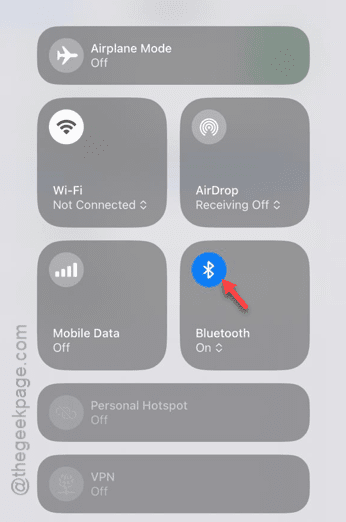
While the Bluetooth is turned on, you should be able to use shortcuts again.
Fix 5 – Restarting both the devices
You should restart your iPhone and the Apple Watch to fix this problem.
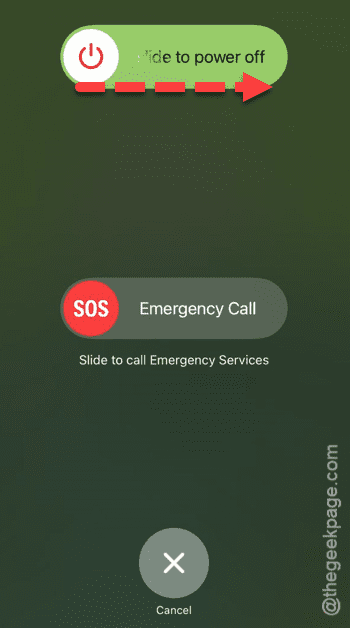
Step 1 – At first, press the Volume Down and the Power button together to load in the power console.
Step 2 – Next, use the “Slide to power off” to power it off.
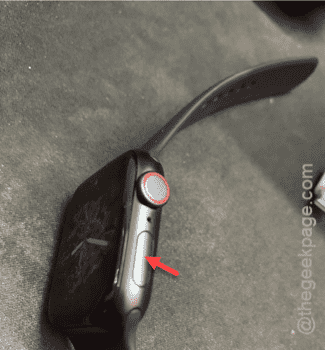
Step 3 – Now, it is time to restart the Apple Watch. So, just press-hold the side button on the device.
Step 4 – Now, you may use the ‘Power off‘ sign in there.
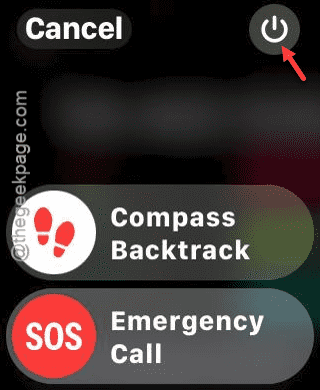
Step 5 – Finally, tap the “Power off” slider to power off the watch.
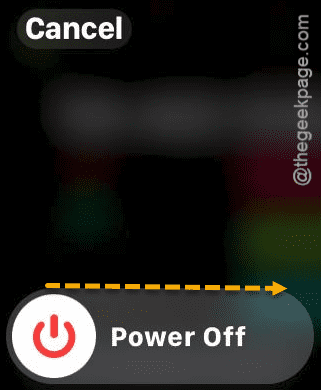
Step 6 – Finally, long-press the power button or side button on both the devices to restart them.
Once you have restarted both of the devices, test the functionality of shortcuts again. See if this works.
Fix 6 – Reinstall the Shortcut app
You can just uninstall the Shortcuts app and reinstall the same.
NOTE – This procedure will remove all the current shortcuts that you have created on your iPhone and Watch.
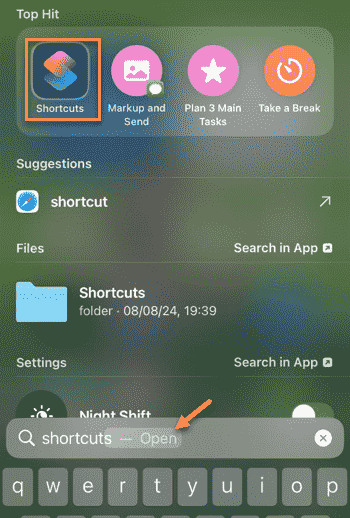
Step 1 – Search for the “Shortcut” app using the search box.
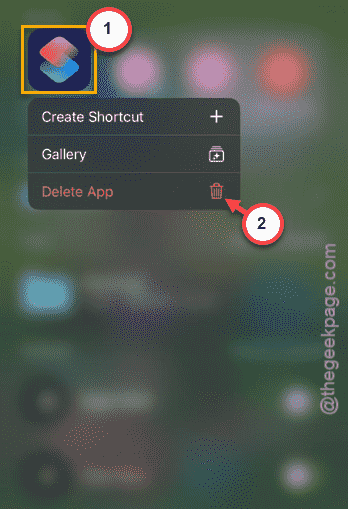
Step 2 – Once you have found it, hold down the “Shortcuts” in the search page.
Step 3 – Next, tap the “Delete App” option to delete the app from your iPhone.
Step 4 – Load up the App Store.
Step 5 – Now, you may reinstall the Shortcuts app from there.
After you have reinstalled the same, you can use it properly.