Does the reminders on your Apple Watch not syncing with your iPhone? Some of the users have faced issues with not having the reminders of the iPhone on their Apple Watch. Usually, this is a simple synchronization issue that has affected both the devices. In this guide, we have listed out the best fixes for this issue, along with a brief overlook on the origin of this problem.
| Steps to Fix | Time Required |
|---|---|
| iPhone Settings ⇾ Apple ID ⇾ iCloud ⇾ See All ⇾ Reminders (turn Off and On) | 30 sec |
| Watch app ⇾ My Watch ⇾ General ⇾ Reset ⇾ Reset Sync Data | 1 min |
Fix 1 – Refresh or Turn On the Sync for Reminder
After refreshing or enabling the Reminder synchronization, the reminders should be resyncing.
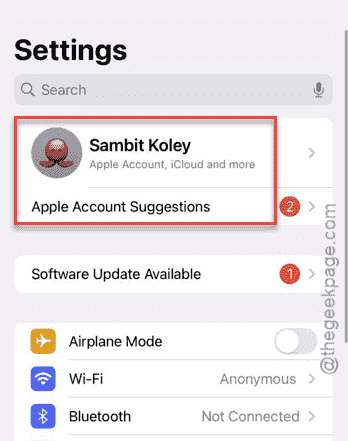
Step 1 – Open the Settings on the iPhone.
Step 2 – Next, tap the Apple ID.
Apple ID
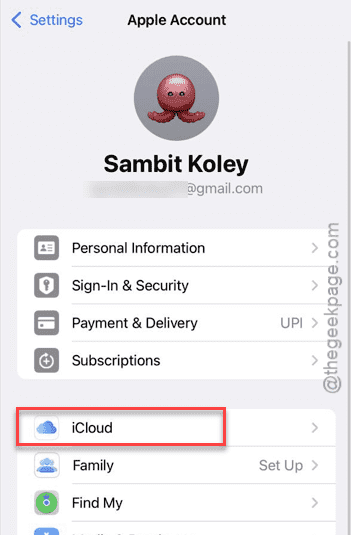
Step 3 – Then, load up the iCloud settings.
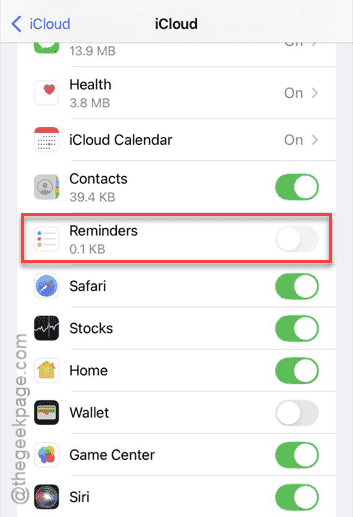
Step 4 – Tap the See All option to see all the apps.
Step 5 – Turn off the Reminders option there.
Step 6 – Next, turn it back on.
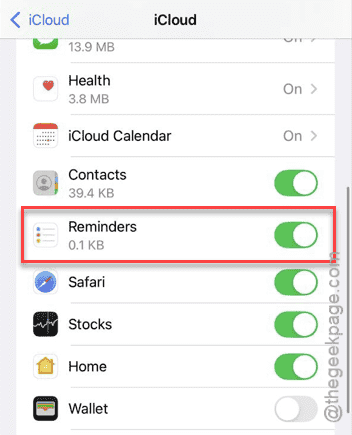
After refreshing the reminders settings, you have to re-create the reminder on your iPhone. The new reminder will be automatically synced onto your Apple Watch.
Fix 2 – Reset the Apple Watch Sync Data
If the reminders are still not syncing on your Apple Watch with your iPhone, there must be some issue with the Watch’s synced data.
NOTE – Resetting the sync data on your Apple Watch will remove all the synced information such as contacts, call logs, etc. from the Apple Watch. Don’t worry. This won’t remove anything from your iPhone. All the data will be resynced as soon as you pair it with your iPhone.
Step 1 – Open Watch app on your iPhone. Next, go to the My Watch tab.
Step 2 – Next, open up the General tab on the Watch app.
Step 3 – Later, go to the Reset settings.
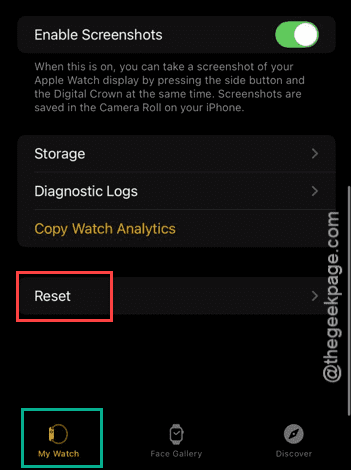
Step 4 – Next, use the Reset Sync Data option there to start resetting the synced data on the Apple Watch.
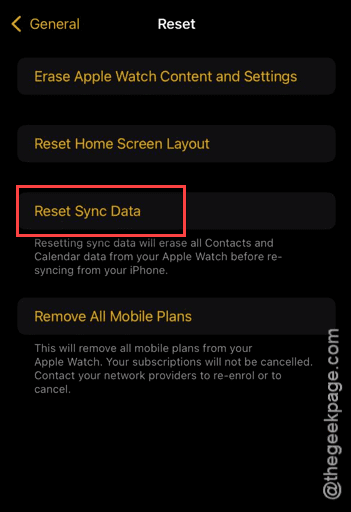
Once the entire process is complete, you
Fix 3 – Make sure you have same Apple ID
You must use the same Apple ID on the iPhone and the Apple Watch for the reminders to synchronize properly.
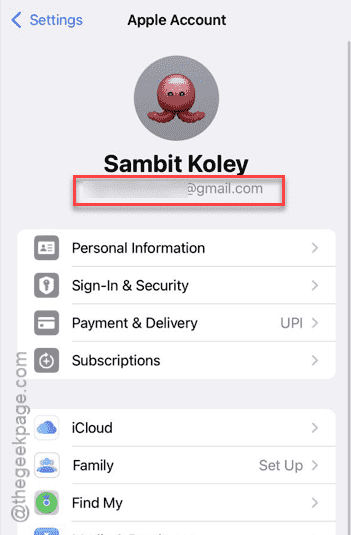
Step 1 – Open the iPhone Settings and tap the Apple ID banner at the top.
Step 2 – There you shall find the email ID associated to the Apple ID.
Step 3 – On your Apple Watch, tap the crown button once. Now, access the Settings utility from there.
Step 4 – Tap the Apple ID banner at the top of the Settings page.
Step 5 – Check whether you can see the same email ID as same as the one that you have seen on your iPhone Settings.
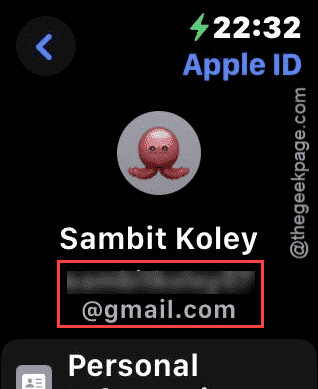
In case if you detect any discrepancy, you must log out of that particular Apple ID on your Apple Watch.
Why the iPhone reminders are not syncing with my Apple Watch?
The synchronization between your Apple devices like iPhone and Apple Watch is done through iCloud. So, any wrong modification in the iCloud settings can create issues syncing the reminders across your devices. This can be a simple watchOS bug as well. Restarting the Apple Watch, along with refreshing the Reminders settings in the Watch settings.