Not seeing the watch faces on your Apple Watch? If you are seeing a watch face on the Watch on your iPhone, but not getting the same on your watch, there must be a synchronization gap in the Apple Watch and the iPhone. We have this set of solution that can help you troubleshoot the syncing problem on the Apple Watch faces.
Fix 1 – Remove any other watch faces
You have to delete all the other watch faces except the current one from your watch.
Step 1 – Load up the Watch app on your iPhone.
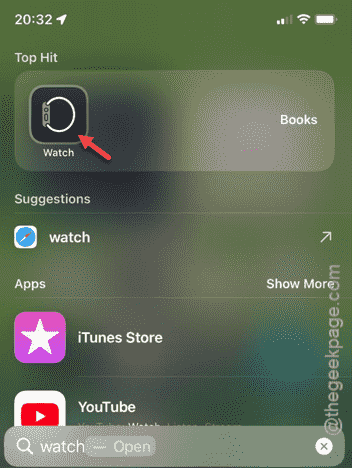
Step 2 – Go to the “My Watch” panel.
Step 3 – You can find the watch faces in the My Faces tab. Tap the “Edit” button right there.
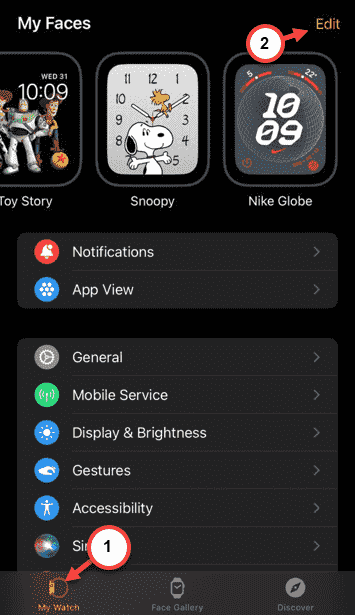
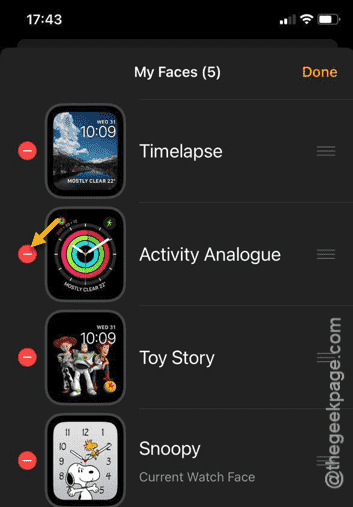
Step 4 – On the Watch page, you can find the all your watch faces.
Step 5 – Tap the “➖” sign beside the watch face.
Step 6 – Tap “Remove” to remove it from the app.
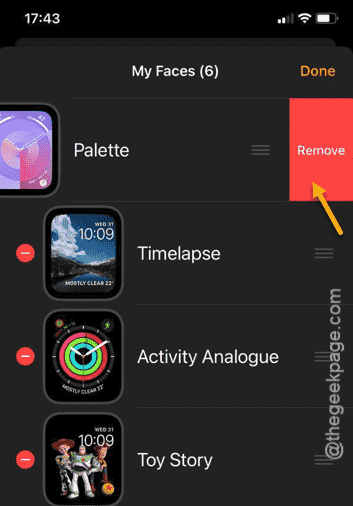
Step 7 – You have to delete all the watch faces except your default watch face.
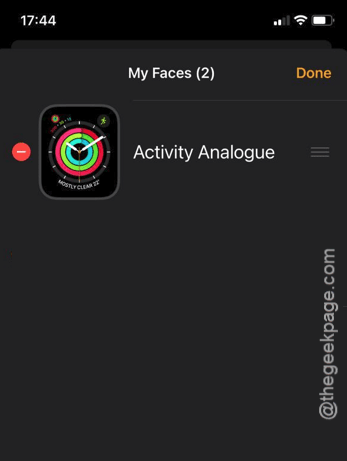
Once you have deleted all the other watch faces, the only watch face left should be synced to your watch.
Fix 2 – Remove and add the watch face
There might be some problem with the current watch face. So, you can just remove the watch face and add it.
Step 1 – At first, load up the Watch app.
Step 2 – Then, go to the “My Watch” section.
Step 3 – Now, tap the “Edit” to load all your watch face options.
Step 4 – Now, remove your default watch face.
Step 5 – Now, go back to the Watch app home page.
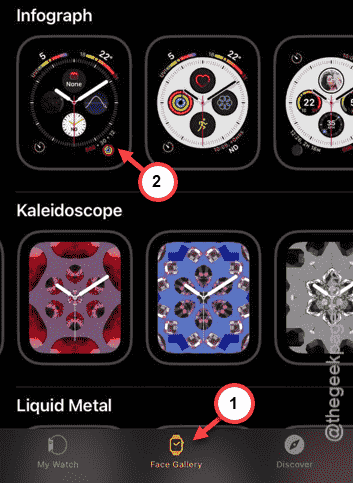
Step 6 – This time, visit the “Face Gallery” zone.
Step 7 – Select the watch face from there to select it on your watch.
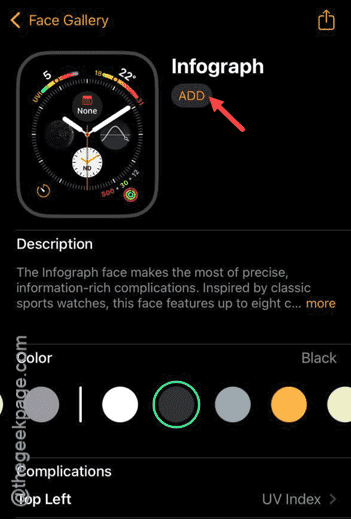
Step 8 – Tap “Add” to add the watch face.
If you are still having some problem with the watch face sync, follow the next solution.
Fix 3 – Restart both the devices
You should do a restart setup for both the devices.
Step 1 – At first, press and hold the side button on the Apple Watch until the Power console loads up.
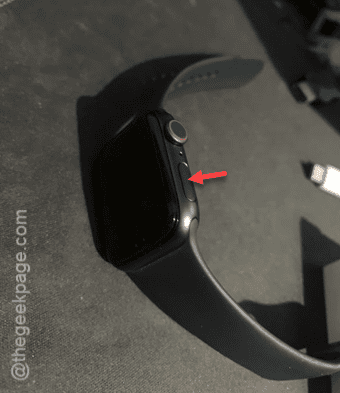
Step 2 – Tap the power button in there.
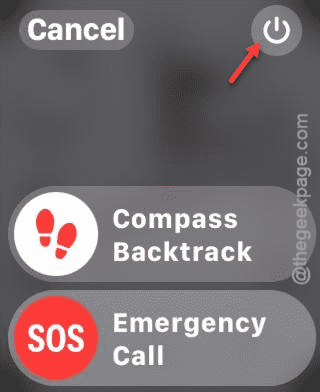
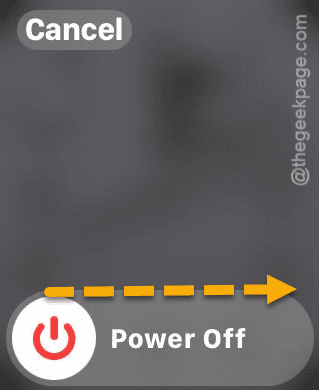
Step 3 – Tap the “Power Off” to power off the Apple Watch.
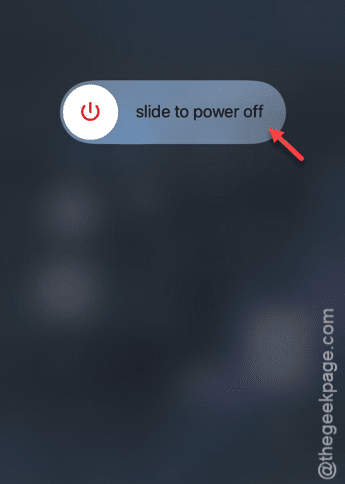
Step 4 – You can just tap and hold the power button on the iPhone.
Step 5 – Tap the “Slide to power off” to power off the iPhone.
Once you have switched off both the device, press and hold the same power/side button on the devices to restart the same.
Fix 4 – Reset the Apple Watch sync data
If nothing is working, you can reset your Apple Watch sync data.
Step 1 – Open the Watch app.
Step 2 – Next, go to the “My Watch” tab.
Step 3 – Go to the “General” tab.
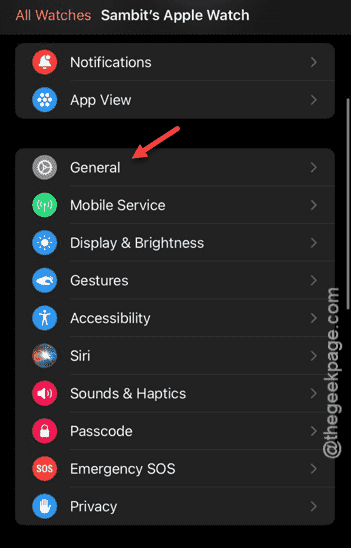
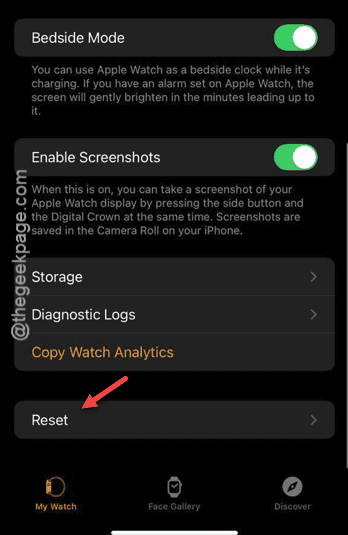
Step 4 – Scroll down and open the “Reset” option there.
Step 5 – In the Reset tab, tap the “Reset Sync Data” option.
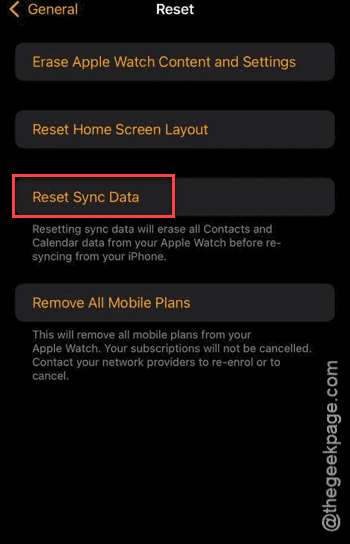
After resetting the synchronization data on the watch, the problem will be fixed.
Check once again!