Spotify, the leading music streaming brand, have made their application accessible on a wide variety of platforms. Spotify on the web or Spotify web player offers the luxury of operating the app without even have to switch between apps. But, some Spotify users have reported some issues using the Spotify web player. They can’t listen to songs, or change tracks while using the Spotify on the web browser. But, Spotify is working on other devices. These fixes should help you fix the problem at your end.
Fix 1 – Check Spotify service status
If you are having any problem streaming your favorite songs on Spotify from the web player, you should definitely give the Spotify app a try. Whether it is your iPhone, Mac, iPad or any other device – it doesn’t matter which device you have. Try to access the Spotify services from any of the apps and check whether you can stream music or not.
Step 1 – You can check Downdetector on a browser page.
Step 2 – Check whether are any surge in the user reports about the Spotify is down or not.
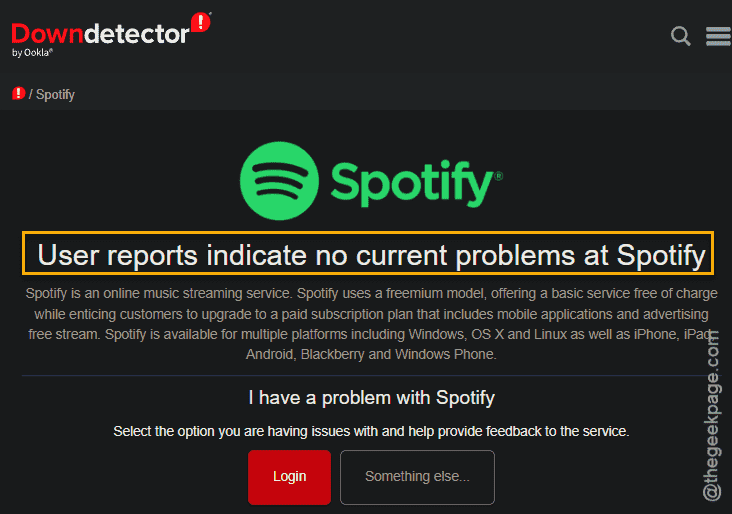
If you can’t log in to your Spotify account or use any of the Spotify services on any of the devices, there must be some problem at Spotify’s end. Check back in a short while.
Fix 2 – Get the Media Feature pack on Windows 10
Windows 10 N is shipped without the media feature packs and subsequent media functionalities. This can be the reason why you can’t use Spotify on web browser.
Step 1 – All you have to do is to install the Media Feature Pack for “N” version of Windows.
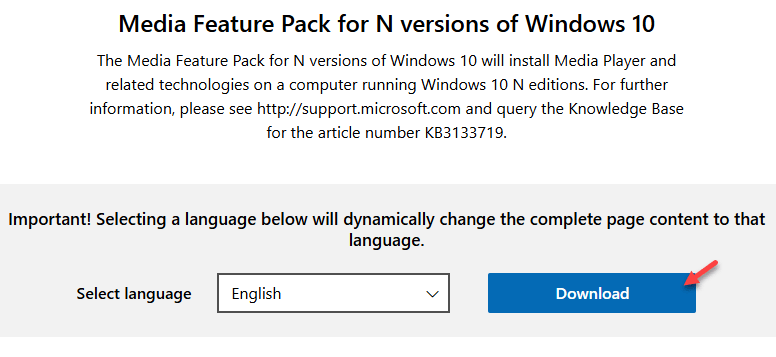
Step 2 – So, open up the Media Feature pack on the browser page.
Step 3 – Tap the “Download” button to download the feature package.
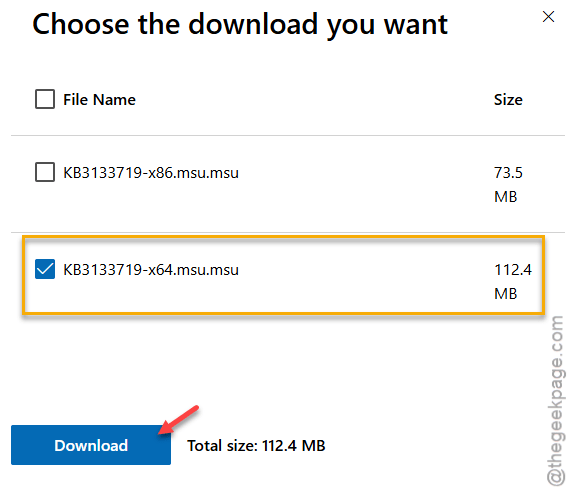
Step 4 – You will have two choices. Download the x64 file, unless you are running an x-32 bit Windows 10.
Step 5 – Run the feature package and complete the installation.
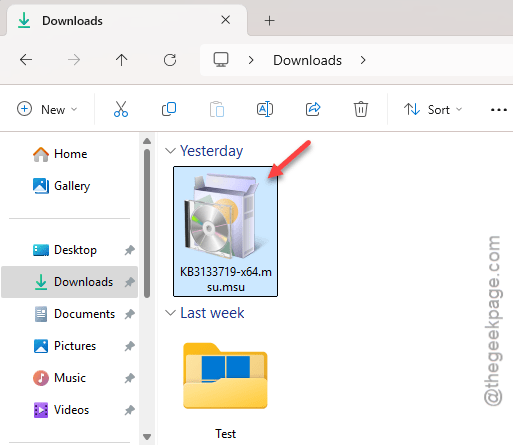
Installation of feature packages like this one requires a system restart to complete the process. So, do restart your computer. Try to stream music on Spotify from the web player.
Fix 3 – Turn on the permission for protected content
All the songs on Spotify are DRM (Digital Rights Management)-protected. You can’t stream the song unless you allows sites to play protected contents.
Step 1 – On the Google Chrome web browser, load up a new page.
Step 2 – Then, paste this in the browser tab and hit the Enter key.
chrome://settings/content
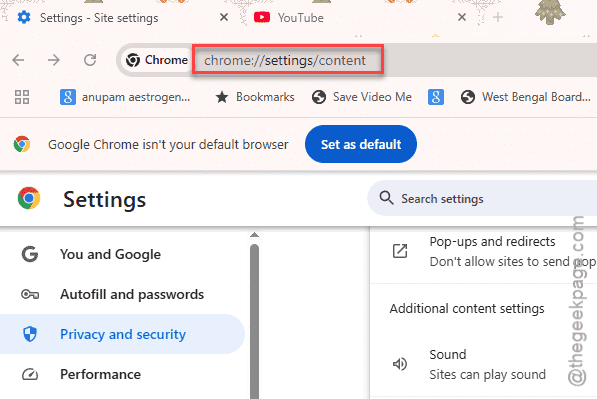
Step 3 – Expand the “Additional content settings” option.
Step 4 – In the Content page, look for the “Protected content IDs” on the right-hand tab.

Step 4 – In the Protected content IDs tab, set the ‘Default behavior’ to the “Sites can play protected content” mode.
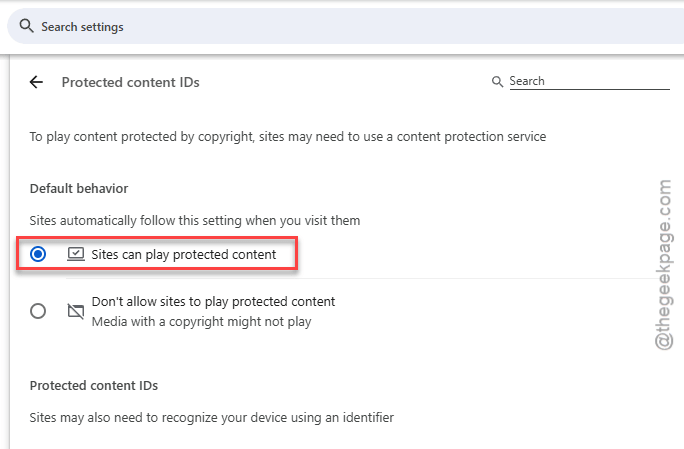
After modifying the content settings in the Chrome, retry streaming the songs on the web browser.
Fix 4 – Use a new tab to access Spotify
You will need a new tab to access the Spotify services.
Private tab –
Step 1 – Press the Ctrl+Shift+N keys together to open up an incognito tab on Google Chrome.
Step 2 – Load up the Spotify on that page. You will have to log in using your Spotify account credentials and then try to stream the songs on the web browser.
Use external Spotify links –
If you can’t use Spotify on the web directly, you can use Spotify links to playlist or song to get around this issue.
Step 1 – Open up the Spotify on your phone or any nearby devices.
Step 2 – Find a random playlist from the Home page. Hold the playlist there and tap “Share” to share the playlist.
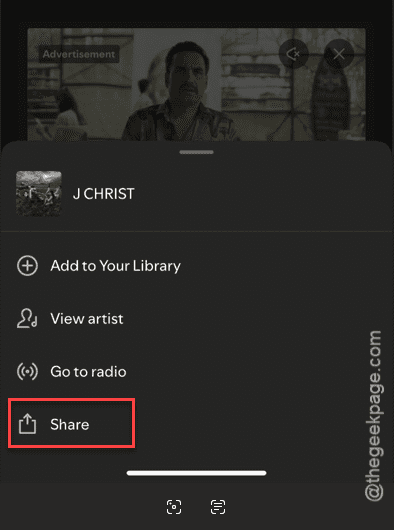
Step 3 – Share the playlist to your system in any way you see fit.
Step 4 – Tap the same shared link to load it up on your browser.
This way, you can have access to Spotify on the web player as well.
Fix 5 – Clear the Spotify browser cookies
Sometimes, the stored-up cache or cookies of Spotify in the browser can lead to this problem.
Step 1 – Open up the Spotify on your browser. Doesn’t matter if web player doesn’t load up.
Step 2 – Tap the small “View Site information” icon beside the address bar on Spotify webpage.
Step 3 – Then, tap the “Site settings” to load up the site settings.
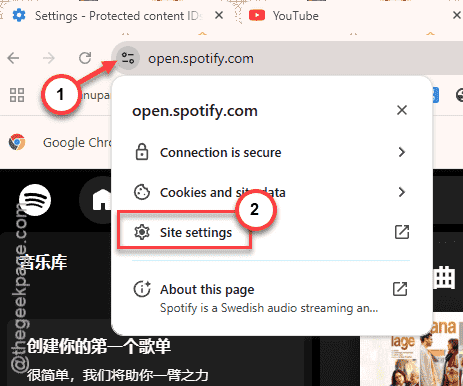
Step 4 – Tap the “Delete data” to clear the site data from your browser.
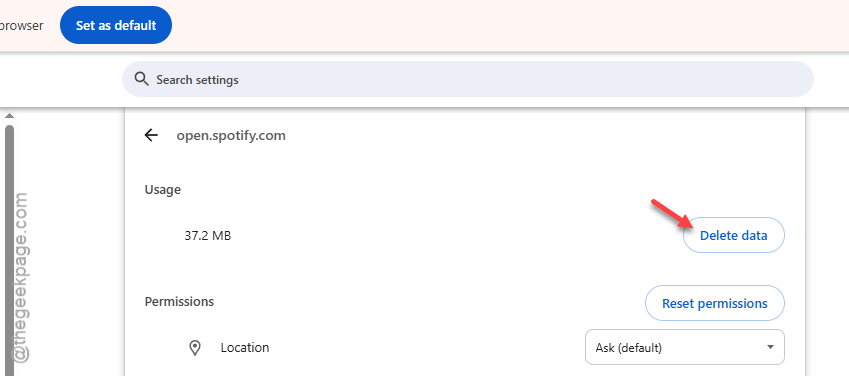
Clearing the site data means that the user will be logged out of your Spotify account. So, you have to log in to your Spotify account again. Hope this solves your problem!