Having some issues with the touchscreen responses on your iPhone 16? iPhone 16 users, generally the 16 Pro and Pro Max users, have registered their complaint about having some issues with the responsiveness of the touchscreen display of iPhone 16. Though the maximum of complaints is from the iPhone 16 Pro and Pro max users, there are some complaints from base iPhone user.
What is causing the touchscreen issues on iPhone 16 Pro and 16 Pro Max?
According to user reports, the iPhone 16 Pro and 16 Pro Max has suffered the most from this particular issue. Apple procures their display from BOE, LG and Samsung for their entire iPhone lineup. So, the difference in the source of procurement can lead to this issue. But, the majority has blamed the different iterations of the iOS 18 for this problem. It seems that the iOS 18.2 is the reason behind this responsiveness of the touchscreen.
If you have applied a screen protector on your 16 Pro display, that may cause this delay in the display response. If you are also experiencing this low responsiveness problem, the following solutions will definitely help you resolve the issue~
Fix 1 – Turn on the touch accommodation feature
Enabling the touch accommodation have shown positive results for many affected users.
Step 1 – Load up the iPhone Settings.
Step 2 – Next, go to the Accessibility settings from there.
Step 3 – Later, load up the Touch settings.
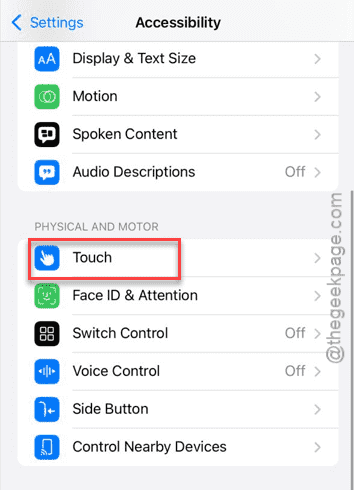
Step 4 – Find the Touch Accommodations setting from there and load it up.
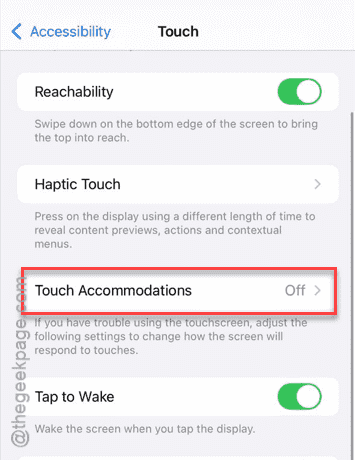
Step 5 – Turn on the Touch Accommodations option.
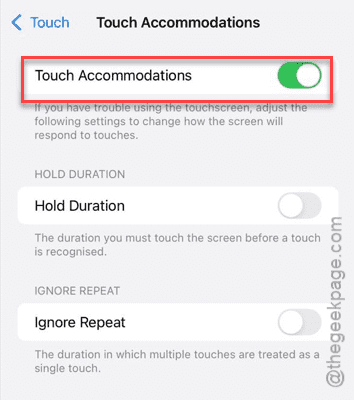
This particular setting is useful in this kind of scenarios where you are having touch response issues on your iPhone.
Check again.
Fix 2 – Do not use screen protector
Sometimes using toughened screen protectors can cause certain delays in the screen responsiveness of the iPhone. Some of the screen protectors that are of poor quality or too thick can interfere with the user touch input. This also holds true for usage of incompatible cases on your iPhone, that in turn may cause ghost touch or presumably dead zones (near the side and corners of the display) on your iPhone.
Try using the iPhone without any screen protector or any other protective case. See if that fix the touchscreen issues.
Fix 3 – Update the iPhone
We have already explained that the users have noted this issue with the iOS 18.2. So, update to the latest version and test.
Step 1 – Start by loading up the iPhone Settings page.
Step 2 – Next, go this way ~
General > Software Update
Wait for a few seconds for the device to fetch the necessary update information.
Step 3 – Tap the Update Now button to install the update on the device.
After installing the update, let the device reboot. This will fix the touchscreen issue.
Fix 4 – Consult the Apple Support
If you are still not comfortable with the responsiveness of the iPhone, you should be in the contact with the Apple Support. They will direct you in the correct path of resolution.
NOTE – If you have recently purchased the device, you can just return it and get another model (depends on the Apple’s region-based return policy).