Is your Microsoft Excel client becoming unresponsive when trying to load up a big CSV file? It can be an extremely frustrating experience for the users if the Excel sheet is becoming white trying to import a 100MB+ CSV file. If you are also getting stuck with the Excel in this situation, here are some steps that will help you out.
Quick Fix Table –
| Issue | Recommended Action |
| Excel hangs at 0% or 10% | Use Power Query (Data > Get Data) instead of opening directly |
| Screen Whites Out or Freezes | Disable Hardware Graphics Acceleration |
| Out of Memory Error | Increase Windows Virtual Memory (Paging File) settings |
Fix 1 – Use Power Query to Import CSV file
Instead of double-clicking the large CSV file in Microsoft Word, you can use a Power Query to handle millions of rows without directly loading up the entire file into the active interface.
Step 1 – Go to the Data tab. Tap the Get Data option and select From File feature.
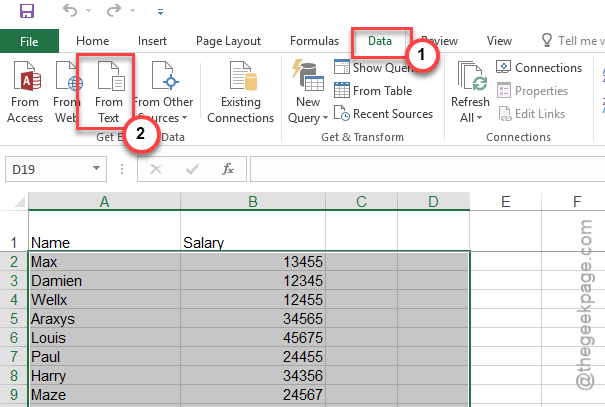
Step 2 – Then, choose the From Text/CSV option.
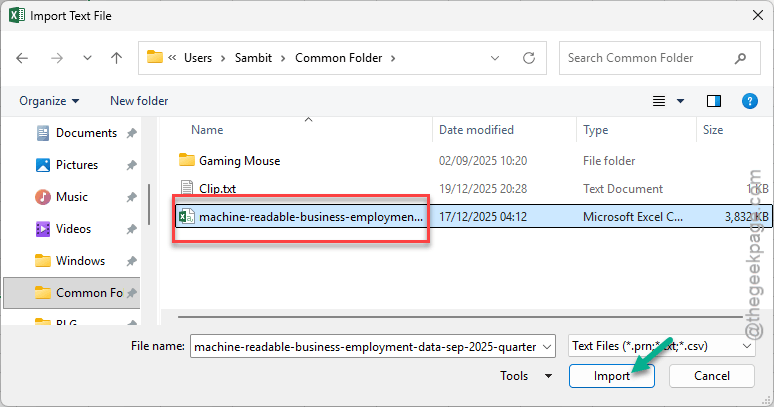
This way, you can easily filter out any unnecessary columns or rows before they impact your main Excel spreadsheet.
Fix 2 – Disable the Hardware Graphics Acceleration
Sometimes, Microsoft Excel may freeze trying to render the entire visual layout of the massive CSV file.
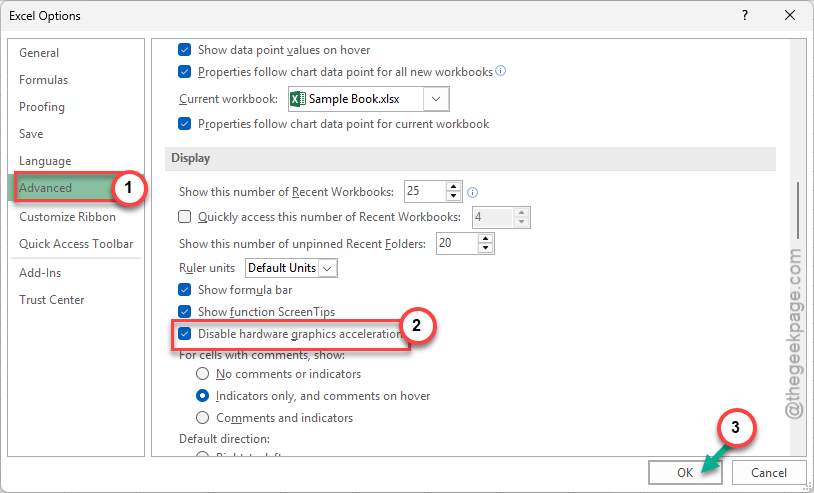
Step 1 – To counter this problem, go to the File tab in the Excel spreadsheet. Then, open up the Options tab.
Step 2 – Go to the Advanced tab, next.
Step 3 – Scroll down to the Display section there. Check the Disable hardware graphics acceleration feature. Save the changes using the OK button.
Now, try to import the CSV file into your main Excel sheet.
Fix 3 – Run the in Excel in Safe Mode
The third-party add-ins in Microsoft Excel can crash it during the loading process of a high-volume CSV file.
Step 1 – Save the changes and close Microsoft Excel.
Step 2 – Then, use the Win+R buttons together to call up a Run box.
Step 3 – Paste this code there and click OK to launch the Excel app in Safe Mode.
excel /safe
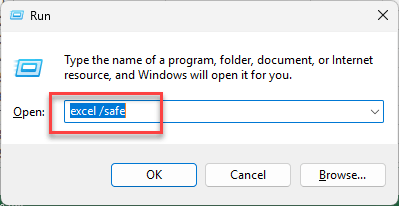
Microsoft Excel shall load up without the interference of third-party plug-ins.
Step 4 – You can now load up the Microsoft Excel sheet and continue your work with the CSV file.
Microsoft Excel won’t crash or stop responding like before.
Fix 4 – Increase the Virtual Memory
Microsoft Excel requires a massive amount of RAM while opening the 1000MB+ file. If the system runs out of the physical RAM, you can use the Paging File on the hard drive.
Step 1 – Hit the Win+R buttons together. Then, input this code there, and click OK.
sysdm.cpl

Step 2 – Go to the Advanced tab. Under the Performance tab, click the Settings button.
Step 3 – In the Advanced sub-section, look for the Virtual Memory button. Tap the Change button.
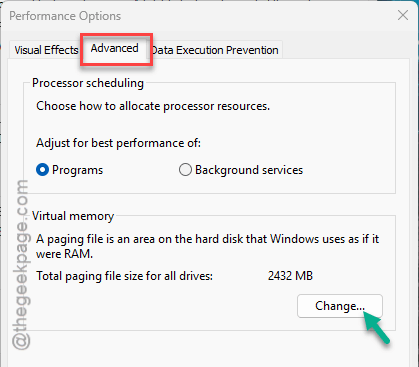
Step 4 – Next, make sure that the Automatically manage paging file size option is checked.
Step 5 – Save the changes there.
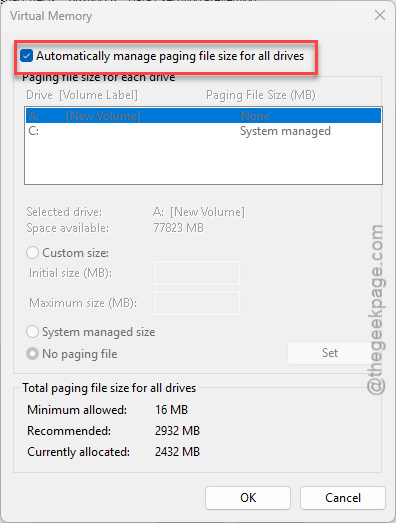
[NOTE – You can manually adjust the virtual memory to 1.5 times of your physical RAM as an alternative measure.]
See if this works out for you.
Fix 5 – Convert to .Binary (.XLSB) or .Table
If the file opens up, do save the file in a newer format like binary or .Table format.
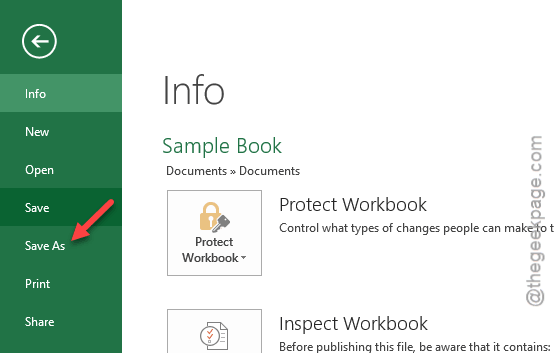
Step 1 – Go this way –
File > Save As
Step 2 – Save the file as Excel Binary Workbook (.xlsb) format.
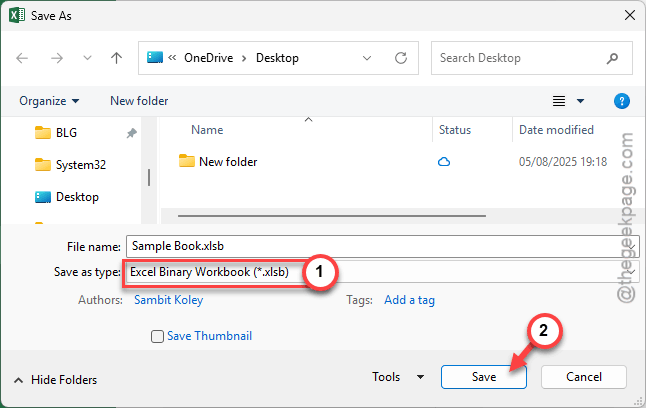
This binary format is much faster than the usual text-only CSV format and also reduces the size on the disk drive.