Exploring Hogwarts. Beautiful scenery. Then the game stutters. Micro-freezes every few seconds. Frame rate drops from 70 to 15 and back. Ruins the entire experience.
Though the game is quite well-optimized to cater the older rigs, Hogwarts Legacy has a well-versed stuttering problem. This is mostly related to shader compilation and GPU scheduling. Fixable with some tweaks.
Why This Happens
Hogwarts Legacy is developed on Unreal Engine 4. Thanks to its massive map area, it can sometimes stutter whenever you enter a new location, because the shaders do the compiling job at the backend.
And Windows’ default GPU scheduling is not optimized for this. Sometimes, the Windows in-built feature Hardware-accelerated GPU scheduling helps. If you have the NVIDIA shader cache size set too low, the game will be forced to re-compile again and again, leading to occasional stutter.
Fix 1 – Enable Hardware-Accelerated GPU Scheduling
This lets the GPU handle its own memory scheduling instead of relying on Windows. Reduces stutter significantly.
1 – Click the Start button and open Settings.
2 – Go to System, then Display.
3 – Scroll down and click Graphics.
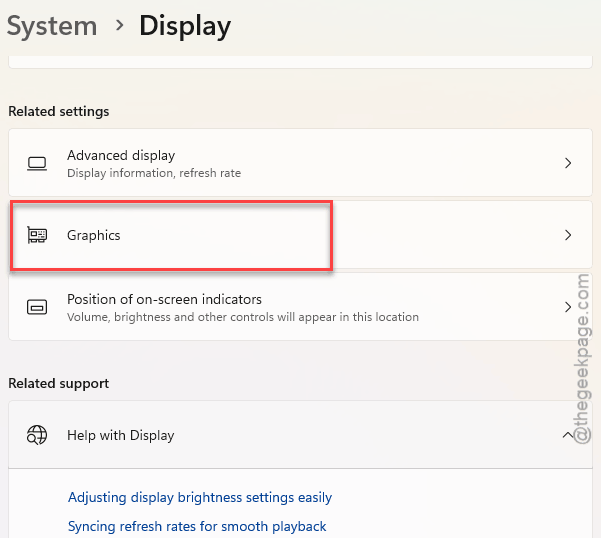
4 – Click the link that says Advanced graphics settings. It is near the top of the page.
5 – Switch Hardware-accelerated GPU scheduling settings to On mode.
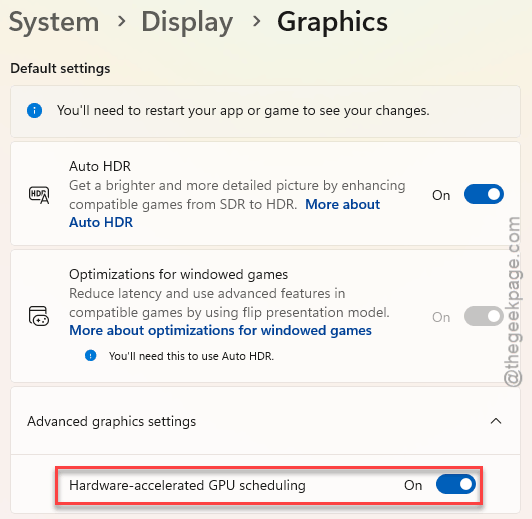
6 – Restart your PC.
And honestly, this should be on by default. No idea why Microsoft leaves it off. Makes a noticeable difference in shader-heavy games like this one.
Fix 2 – Edit the Engine Configuration File
This tweaks internal Unreal Engine settings. Forces better threading and texture streaming. Sounds scary but it is just editing a text file.
1 – Press Windows + R to open Run.
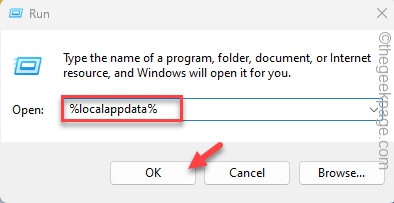
2 – Type %localappdata% and press Enter.
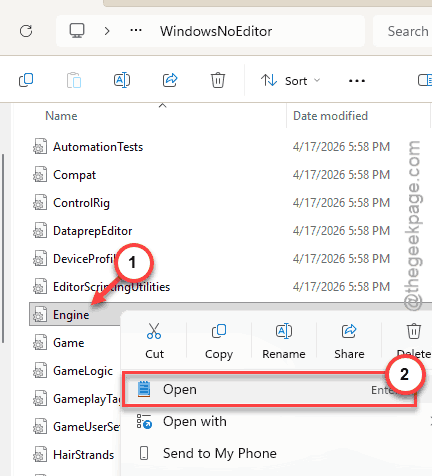
3 – Go to Hogwarts Legacy, then Saved, then Config, then WindowsNoEditor.
4 – Find the file called Engine.ini.
5 – Before you commit any changes, create a backup of this file.
6 – Right-click Engine.ini and open it with Notepad.
7 – Scroll to the bottom. Add these lines:
[SystemSettings]

r.bForceCPUAccessToGPUSkinVerts=True
r.GTSyncType=1
r.OneFrameThreadLag=1
r.FinishCurrentFrame=0
r.TextureStreaming=1
r.Streaming.PoolSize=3072
r.Streaming.LimitPoolSizeToVRAM=1


[ConsoleVariables]
AllowAsyncRenderThreadUpdates=1
AllowAsyncRenderThreadUpdatesDuringGamethreadUpdates=1
AllowAsyncRenderThreadUpdatesEditor=1
8 – Save the file and close Notepad.
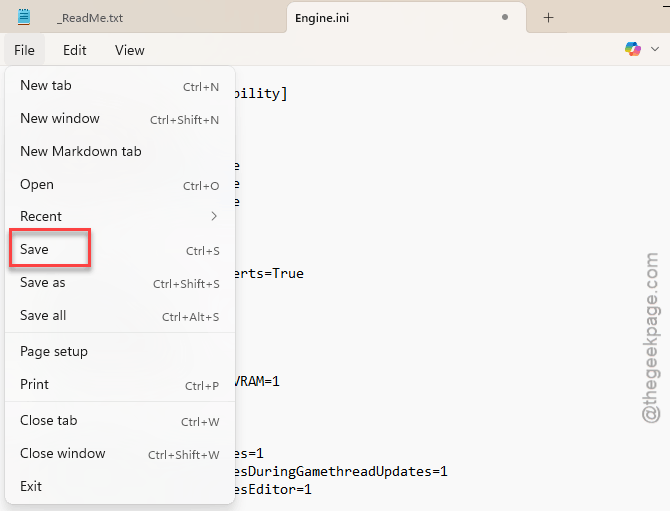
The game should stutter way less after this. These settings force better CPU-GPU coordination and improve texture streaming so the engine does not choke on new assets.
Fix 3 – Increase Shader Cache Size (NVIDIA Only)
If the shader cache is too small, the GPU keeps recompiling shaders it already compiled before. More cache means less recompilation. Less recompilation means less stutter.
1 – At first, tap the small arrow button on the taskbar. Tap to load up the NVIDIA Control Panel.
2 – Select the Manage 3D Settings from the left hand tab.
3 – Go to the Global Settings tab.
4 – Scroll down to Shader Cache Size. Choose the 10 GB (or Unlimited) from the drop-down box.
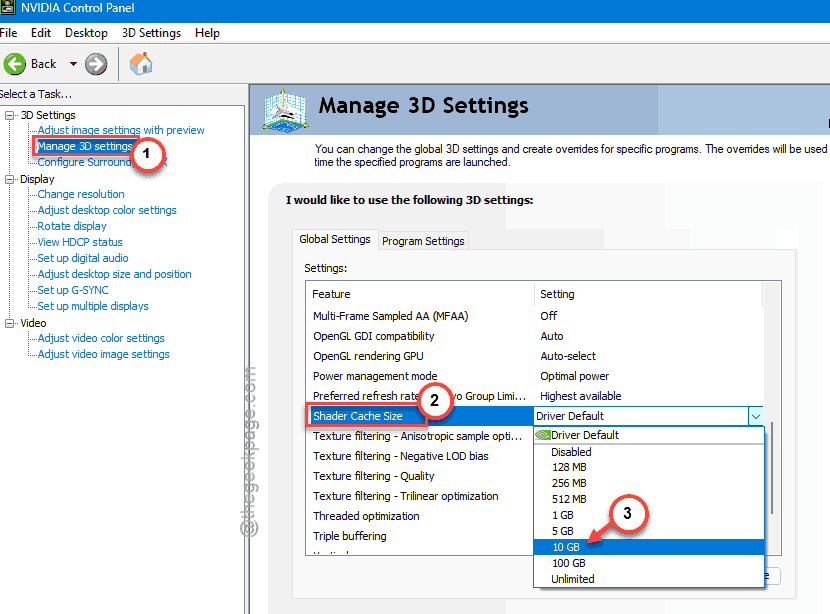
6 – Click Apply at the bottom.
More cache equals smoother gameplay. Simple as that.
Fix 4 – Apply NVIDIA App Preset (DLSS Fix)
If you use DLSS and still get stutter, applying the recommended preset through the NVIDIA App fixes a rendering pipeline issue.
1 – Open the NVIDIA App.
2 – Next, proceed to the Graphics tab in the NVIDIA App.
3 – Locate the Hogwarts Legacy in the game list.
4 – Scroll down to the DLSS Overrides section.
5 – Open the dropdown for Model Presets and select Recommended.
6 – Then, launch the game. Switch the DLSS Super Resolution mode to Quality, Balanced, or DLAA, whichever you prefer and your GPU supports.
People report going from constant stuttering to smooth 70 FPS with ray tracing on after this. Worth trying if you have an NVIDIA card.
Fix 5 – Lower In-Game Settings That Cause Stutter
Some settings hit performance harder than others.
1 – Open the game and go to Settings, then Graphics.
2 – Set Ray Tracing to Off (biggest stutter source).
3 – Set Foliage Quality to Medium.
4 – Set Population Quality to Medium.
5 – Set View Distance to Medium.
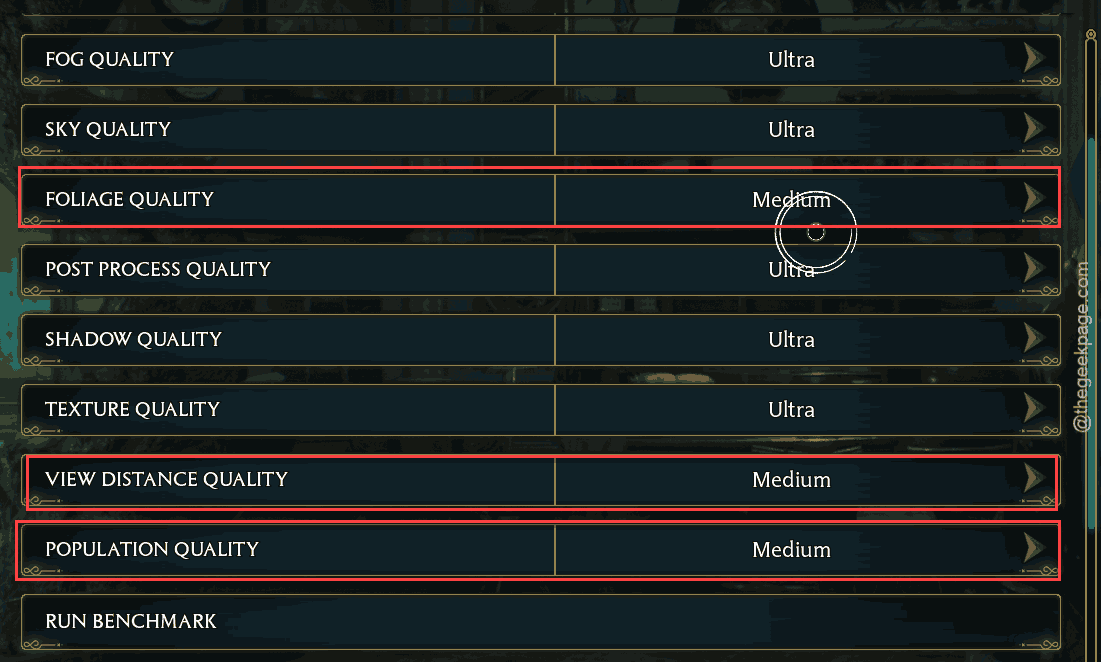
Ray tracing is the main offender. Turning it off frees up a massive amount of GPU headroom. And honestly, the game still looks gorgeous without it.
How to Prevent This
- Set NVIDIA shader cache to 10 GB or higher. The default is way too low for modern games.
- Once the game updates, remove the shader_cache folder in the %localappdata%\Hogwarts Legacy location. It will automatically rebuild during the next game startup.
- Keep your system GPU drivers updated.
People Also Ask
How to fix shader cache stuttering?
You have to increase the shader cache size from the NVIDIA Control Panel. Default is too small. Set it to 10 GB. Also delete old shader cache files from the game folder and let it rebuild. That forces clean compilations instead of using corrupted old data.
How to clear shader cache in Hogwarts Legacy?
You have to use Windows + R to call up a Run box. Type %localappdata% there and hit Enter. Go to Hogwarts Legacy> Saved. Try to find any shader_cache folders. Delete them. The game will rebuild the cache next time you launch. Expect longer initial loading, but smoother gameplay after.
How to make Hogwarts Legacy stop stuttering?
Three things. Enable hardware-accelerated GPU scheduling in Windows Settings. Edit the Engine.ini file with the threading fixes. And increase shader cache size if you have an NVIDIA card. That combo eliminates stutter for most setups.