You added your folder to Trusted Locations. You did everything right. And Excel still shows that security warning. Every. Single. Time.
This is one of those problems that makes you question whether Trusted Locations actually do anything. Spoiler: they do. But there is a catch that trips people up.
Why This Happens
Windows has a security feature that marks files downloaded from the internet as potentially dangerous. It is called the Mark of the Web. Even if your file sits in a Trusted Location, that internet mark overrides everything. Excel sees the mark and throws up the warning anyway. So your Trusted Location is working. But the file itself is flagged. And Excel treats flagged files differently no matter where they live. This is especially common after downloading .xlsm files from email or SharePoint.
Fix 1 – Unblock the File in Properties
This is the fix that gets most people. The file has a hidden internet flag. You need to remove it.
1 – Close the Excel file if it is open.
2 – Open File Explorer and find the .xlsm file.
3 – Right-click the file and select Properties.
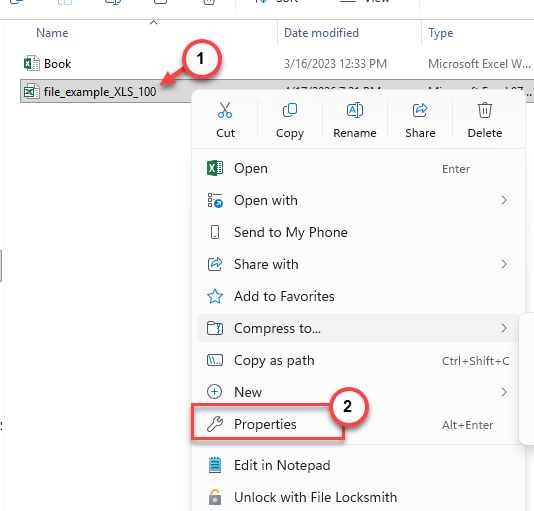
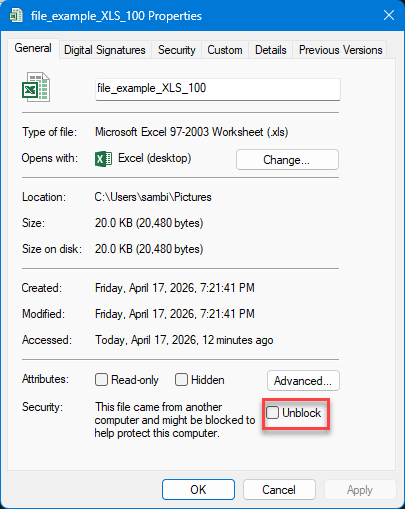
4 – At the bottom of the General tab, look for a Security section. You will see a checkbox that says Unblock.
5 – Check that box. Then click OK.
Open the file again. The warning should be gone. And honestly, this should be more obvious. But Microsoft buries it at the bottom of Properties where nobody looks.
Fix 2 – Unblock Using PowerShell
Same fix as above, just faster if you have multiple files. Worth a shot if you deal with this a lot.
1 – Reach the location of the file in the File Explorer.
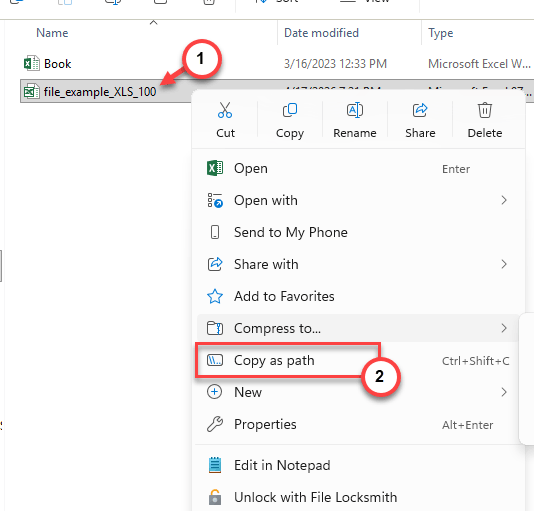
2 – Then, right-click the file and tap Copy as Path to copy the file path.
1 – Then, open PowerShell (search for it in the Start menu).
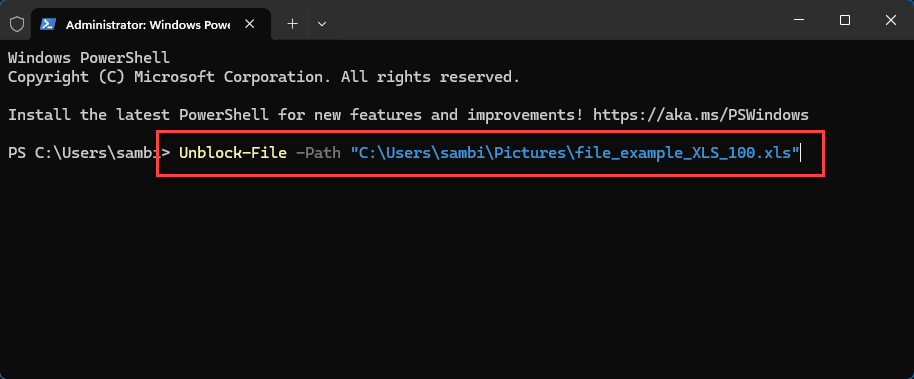
2 – Type this command and press Enter:
Unblock-File -Path "C:\Path\To\YourFile.xlsm"
3 – Replace the path with your actual file location that you have copied.
Done. No restart needed.
Fix 3 – Verify Your Trusted Location Is Set Up Correctly
Maybe the Trusted Location itself is misconfigured. It happens. Here is how to double-check.
1 – Open Excel. Click File in the top left corner.
2 – Click Options at the bottom of the menu.
3 – Click Trust Center on the left side. Then click Trust Center Settings.
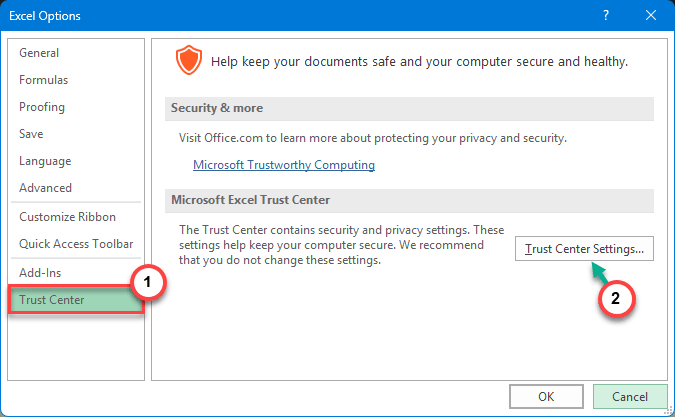
4 – Click Trusted Locations on the left.
5 – Make sure your folder is listed. If it is a network path, check the box at the bottom that says Allow trusted locations on my network. That one catches people off guard.

And if the folder is there but still not working? Remove it. Close Excel. Reopen. Add it back. Sometimes the cache gets weird.
Fix 4 – Check Macro Settings
Your macro setting might be overriding the Trusted Location. Quick check.
1 – Go to File > Options > Trust Center > Trust Center Settings.
2 – Click Macro Settings on the left.
3 – Make sure it is NOT set to Disable all macros without notification. That setting blocks everything regardless of Trusted Locations.
4 – Set it to Disable all macros with notification for now. This way you get the yellow bar with the option to enable.
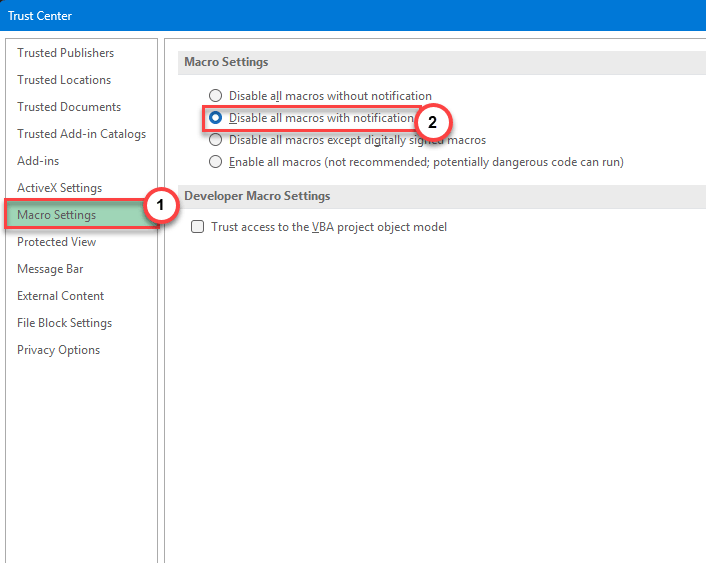
But if you want zero warnings, you can temporarily try Enable all macros for testing. Just do not leave it on permanently (yes, really).
Fix 5 – Move the File to a Local Folder
Network locations and cloud-synced folders cause extra headaches with Trusted Locations. For some reason, Excel does not always respect trust on network paths.
1 – Create a new folder on your local drive. Something like
C:\Users\YourName\Documents\TrustedMacros
2 – Move your macro-enabled workbook into that folder.
3 – Add this local path as a Trusted Location in the Trust Center.
Not ideal if you need the file on a network share. But it works. And it eliminates the network trust issue completely.
Fix 6 – Clear and Re-add All Trusted Locations
Nuclear option for Trusted Locations. Sometimes the list gets corrupted.
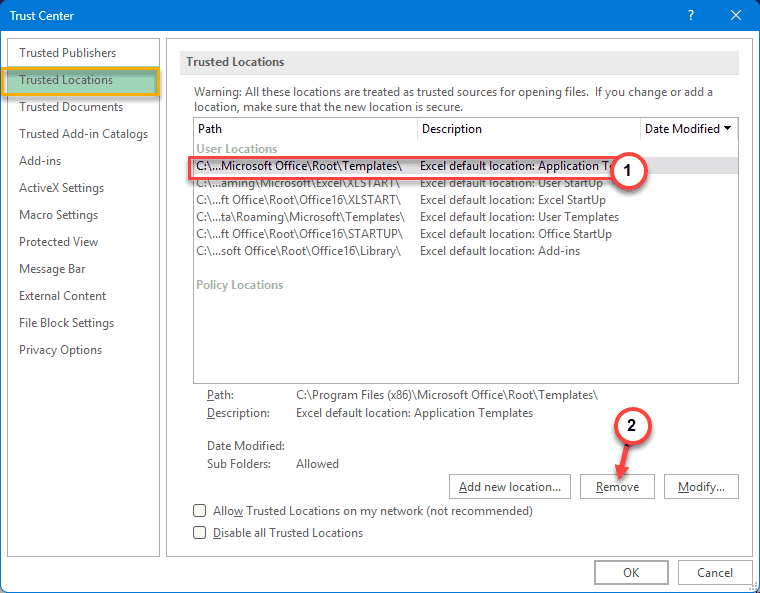
1 – Go to File > Options > Trust Center > Trust Center Settings > Trusted Locations.
2 – Remove every location from the list.
3 – Close Excel completely.
4 – Reopen Excel. Go back to Trusted Locations.
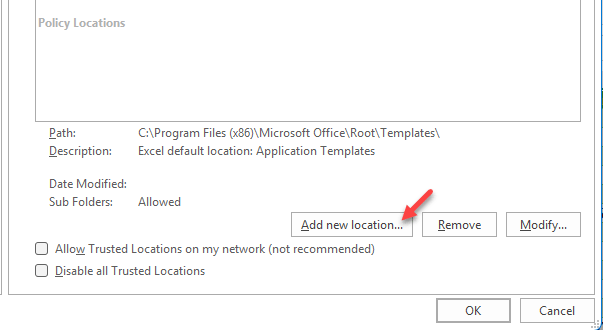
5 – Re-add your folders one by one.
Tedious? Absolutely. But it forces Excel to rebuild its trust cache from scratch.
How to Prevent This
– Always unblock downloaded .xlsm files before opening them. Right-click > Properties > Unblock.
– Use local folders for Trusted Locations instead of network shares when possible.
– After Office updates, check that your Trusted Locations and macro settings did not reset.
– If you share macro files via email, tell recipients to unblock the file first. Otherwise they will hit the same wall.
People Also Ask
How do I turn off macro security warning in Excel?
Go to File > Options > Trust Center > Trust Center Settings > Macro Settings. Pick a less restrictive option. But the real fix is usually unblocking the file itself. The warning comes from the file being flagged, not from your macro settings.
How to fix security warning in Excel?
Right-click the file in File Explorer. Open Properties. Check Unblock at the bottom. That removes the internet flag. And then add the folder to Trusted Locations if you have not already.
Why are Excel macros a security vulnerability?
Macros can run code on your computer. So a malicious macro could delete files or install malware. That is why Excel blocks them by default. Annoying for legit files. But the alternative is worse.