What to do when the formulas on Google Sheet are not working correctly? Don’t worry. If the formulas are not working, there are something that you can do. Formulas in a spreadsheet is very important. The inability to use formula can burden your shoulders with more manual work with the iteration of repetitive tasks that you could have done within seconds.
Fix 1 – Refresh the sheets
The first thing that you can do is to refresh the Google Sheets. A Google Sheet can have an unlimited set of data and formulas. So, the abundance of the formulas can sometimes cause the Sheet to glitch out and provide erratic output.
Fix 2 – Restore the Google Sheet to an earlier version
Google Sheet saves multiple iterations of the worksheet, even while you are working and making changes on it.
Step 1 – If you look closely, you can find a clock icon 🕔 on the top of the sheet to load the Version History of Google Sheet.
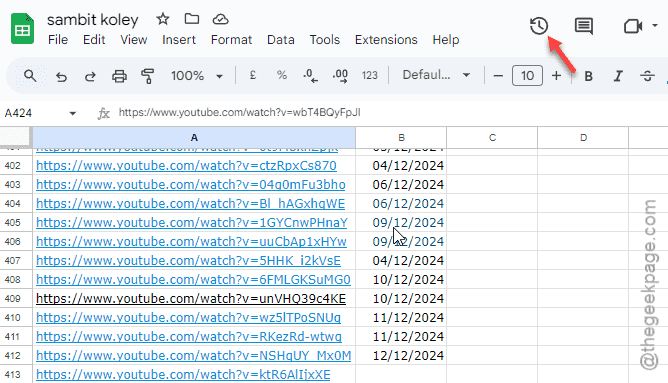
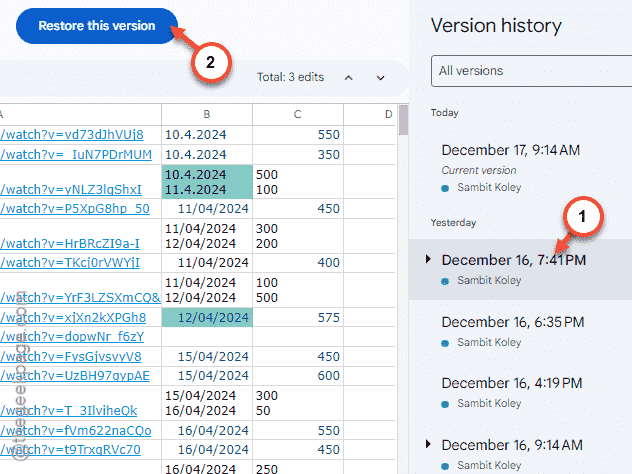
Step 2 – Check all the version history available from the right pane.
Step 3 – Select the one that doesn’t have this formula issue, select it and tap “Restore this version” to restore the Google Sheet version to that.
See if this works!
Fix 3 – Change iterative calculations settings
There are live formulas (like DATE, RAND) that updates in specific intervals. So, change the iterative calculation settings to fix that.
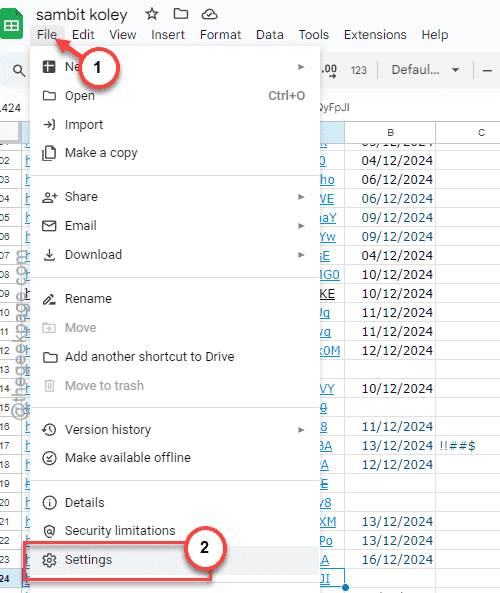
Step 1 – Tap the “File” from the menu bar on Google Sheet.
Step 2 – Next, tap the “Settings” to load Google Sheet settings.
Step 3 – After this, go to the “Calculation” tab.
Step 4 – Set the ‘Recalculation’ to “On change and every hour” mode from the drop-down.
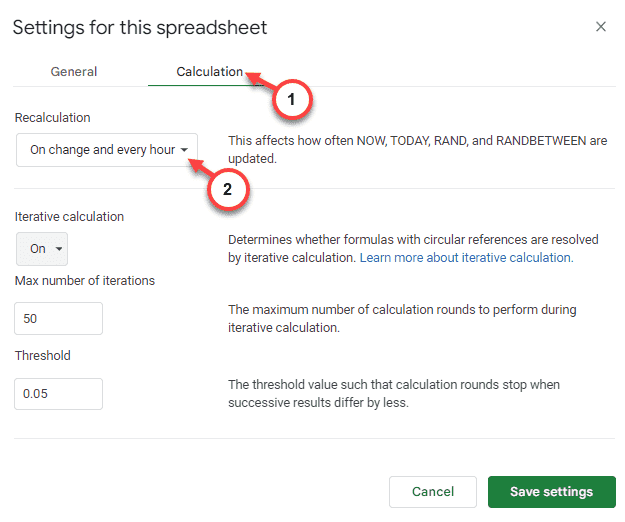
Step 5 – Turn on the “Iterative Calculation” mode.
Step 6 – Tap the “Save settings” to save it.
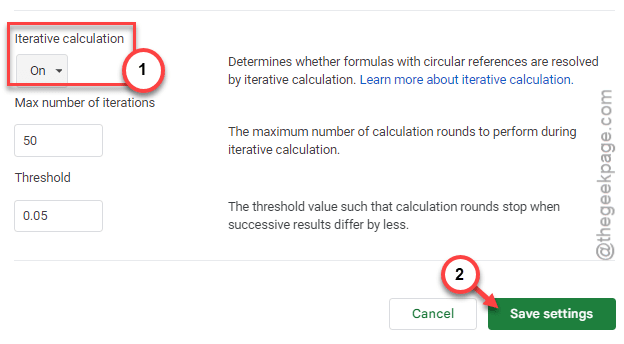
After changing these settings, formulas should start to work.
Fix 4 – Download the sheet and re-open it
You can just download the Google sheet and open it manually.
Step 1 – Tap the “File” menu and use the “Download” or “Make a copy” function.
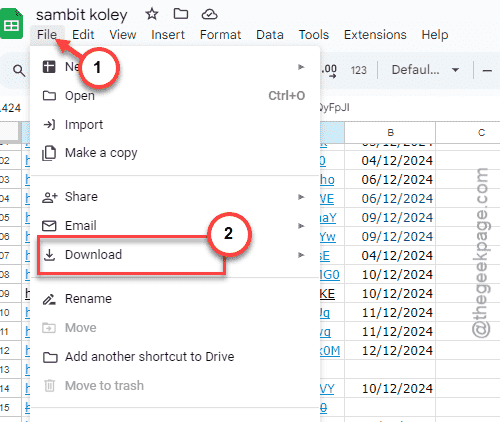
Step 2 – Close this Google Sheet.
Step 3 – Later, you can just open the downloaded Google Sheet on a new tab.
It will open up, and the formulas will work again!
Hope these tricks have helped you out.