Is your iPhone vibrating automatically on its own? There are certain apps that may vibrate your iPhone whenever it pushes a notification. So, if you want to stop this erratic vibration on your iPhone, you can do it following these easy steps on your phone. Don’t allow the notifications from any non-essential apps on the device.
Fix 1 – Disable notifications for unnecessary apps
Just find the culprit app and turn off the notifications in the app settings. When you disable the app notifications, the iPhone won’t vibrate randomly.
Step 1 – To do this, you have to identify the app which is sending you this annoying vibrating notifications.
Step 2 – Just notice the name of the app when you get such notifications.
Step 3 – Later, go to the Settings page on your iPhone.
Step 4 – Scroll up through the Settings page, and you shall be able to identify the app.
Step 5 – Open it up.
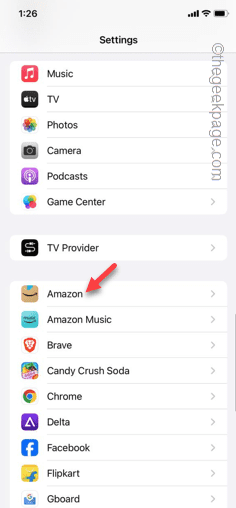
Step 6 – Inside the app settings, find and open the “Notifications and Banners“.
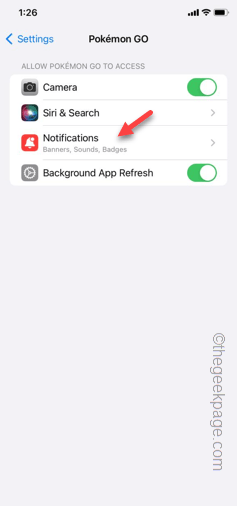
Step 7 – Now, you may set the “Allow Notifications” to “Off” mode.
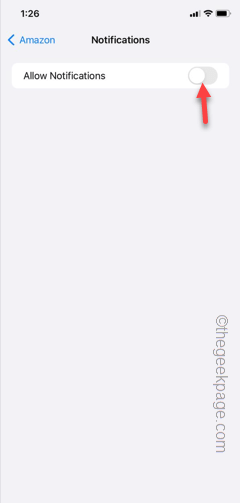
After disabling the notifications feature of the app, your iPhone won’t vibrate unnecessarily.
If you are a Pokémon GO gamer, that app has the habit of pushing several notifications that may vibrate your iPhone.
Step 1 – So, you must disable all the notifications from the game.
Step 2 – So, open the Settings in the iPhone.
Step 3 – Later, scroll down and open the “Pokémon GO” game.
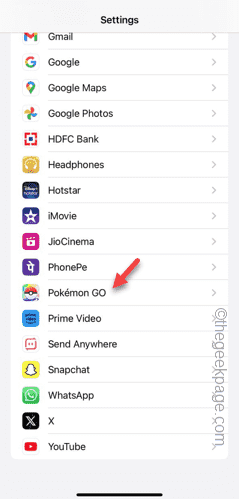
Step 4 – Just open the “Notifications & Banners” settings, once more.
Step 5 – Turn off the notifications in the game settings.
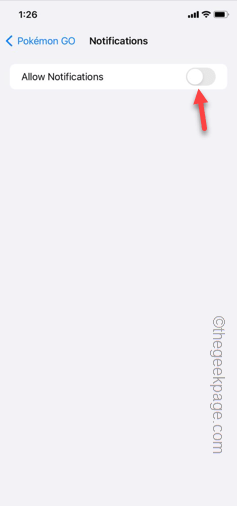
Turning off the app notification should fix the vibration issue of the iPhone.
Fix 2 – Switch on the Silent Mode
Going to the silent mode can fix silence all the notifications as well.
Step 1 – But, you have to change some Settings in iPhone, first.
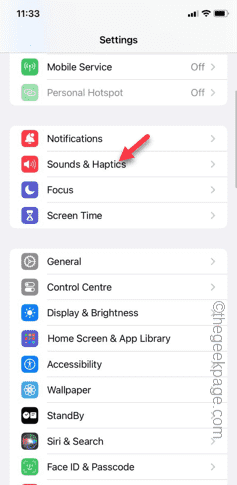
Step 2 – In the iPhone Settings, go to the “Sounds & Haptics” setting.
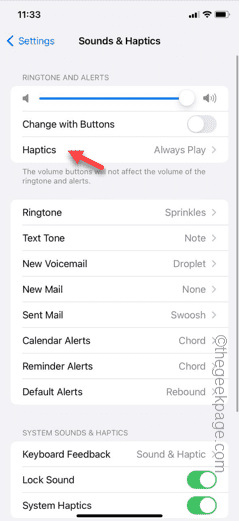
Step 3 – Open the “Haptics” module.
Step 4 – Make sure to set the ‘Haptics for ringtone and alerts’ mode to “Don’t Play in Silent Mode“.
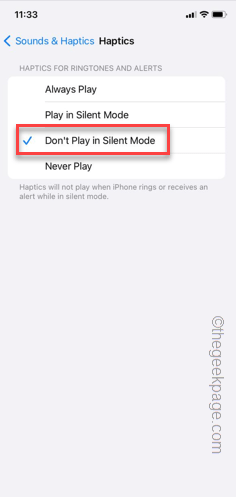
This way, your iPhone won’t give out vibration or haptic feedback when a notification appears in the silent mode.
Step 5 – Now, just tweak the ‘Alert Slider‘ to the Silent mode.
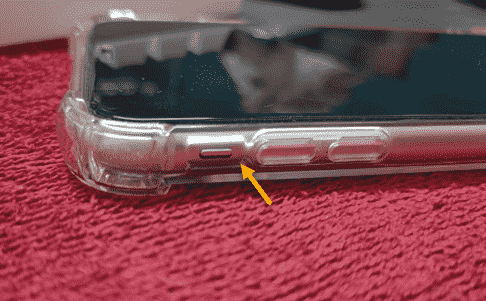
None of the apps will send you a notification that vibrate the iPhone. Though this is a workaround, you can update the apps on the iPhone.
Fix 3 – Restore all the iPhone settings to default mode
A single mistake in the iPhone Settings can cause this erratic vibration issue. So, you must restore the iPhone to the default level.
Step 1 – When you are in the iPhone Settings, go to “General” tab.
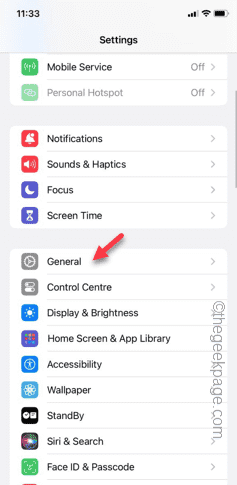
Step 2 – Scroll up and access the “Transfer or reset iPhone“.
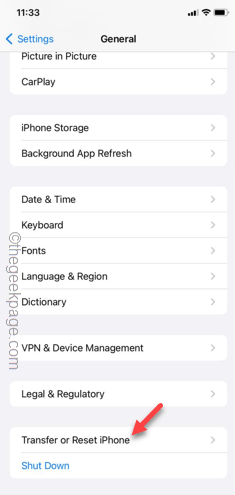
Step 3 – Open the “Reset” settings.
Step 4 – Now, you have to touch the “Reset All Settings” option.

Just follow a few more steps to reset all the iPhone settings. Your phone will be restarted will be automatically to reset the iPhone configuration.
When the phone restarts, you can unlock the device and check whether the iPhone vibrates or not.