Missing the True Tone feature on your iPhone Settings page? Some users have complained about the sudden disappearance of the True Tone feature from their device a few weeks after getting the iOS 26 update. True Tone controls your iPhone’s display quality according to the ambient lighting condition. It just could be a simple bug or the UI glitch that has caused the True Tone option to disappear.
Fix 1 – Disable the Conflicting Accessibility Filters
There are certain display filters, such as Color Filters or Invert Colors, that can conflict with each other and disable the True Tone effect on iOS 26.
Step 1 – Open the Accessibility tab on the iPhone’s Settings console.
Step 2 – Next, proceed to the Display & Text Size panel.
Step 3 – Then, toggle the Color Filters to OFF mode.
Step 4 – Set the Smart Invert settings to OFF mode as well.
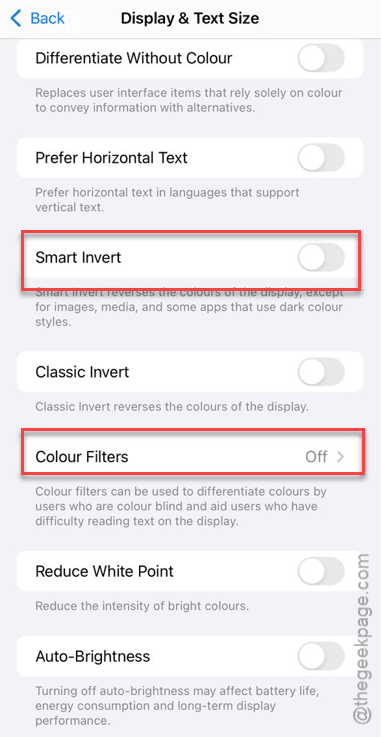
Finally, restart your iPhone and check the Display & Brightness toggle for the True Tone menu.
Fix 2 – Toggle the Auto Brightnes settings
On the iOS 26 devices, the master brightness controller may have hidden the True Tone toggle from the iPhone Settings.
Step 1 – In the iPhone Settings console, go through the same path again –
Accessibility > Display & Text Size
Step 2 – Find the Auto Brightness toggle in the same settings page. Toggle it to OFF mode.
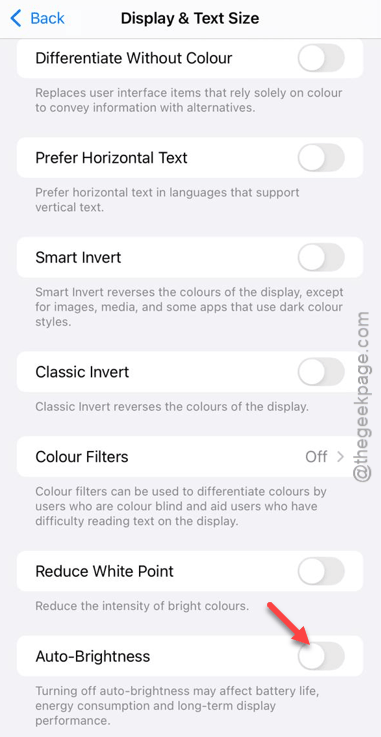
Step 3 – Then, toggle it to ON mode to refresh the setting.
After refreshing the auto brightness settings, try to find the True Tone settings and tweak them in the iPhone Settings.
Fix 3 – Clear the Night Shift Schedule
A permanent Night Shift schedule can make the True Tone toggle disappear from the iPhone Settings.
Step 1 – Open the Display & Brightness settings on iPhone.
Step 2 – Next, load up the Night Shift tab.
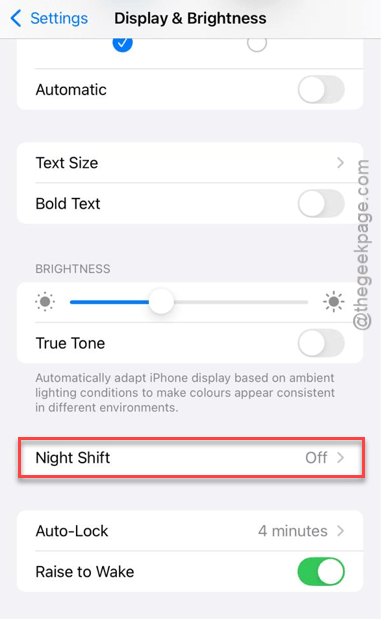
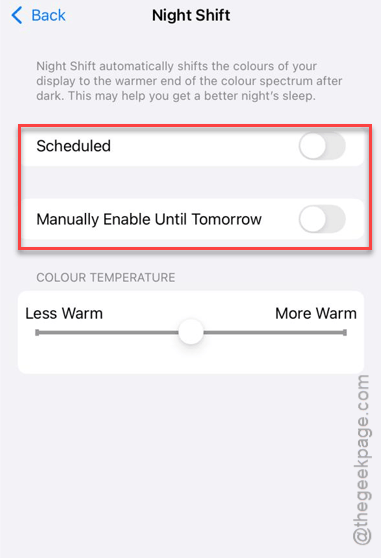
Step 3 – Toggle the Scheduled and Manually Enabled Until Tomorrow settings to OFF mode.
Step 4 – Finally, press and release the Volume Up button. Do that same thing with the Volume Down button. Then, hold the Side button until the device shuts down and restarts.
After force restarting the device, find the True Tone in the Settings page.
Fix 4 – Refresh the Display Cache
Sometimes, refreshing the display zoom effect can retrieve the missing True Tone toggle in the iPhone’s display.
Step 1 – Proceed to the Display & Brightness settings.
Step 2 – Next, find the Display Zoom settings to open it up.
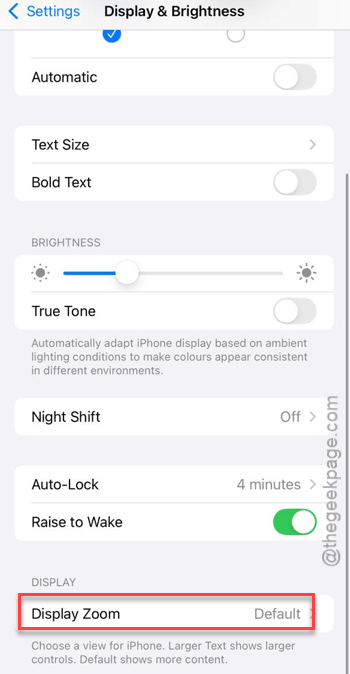
Step 3 – Change the Display Zoom to Larger Text mode. Then, revert it to Default mode.
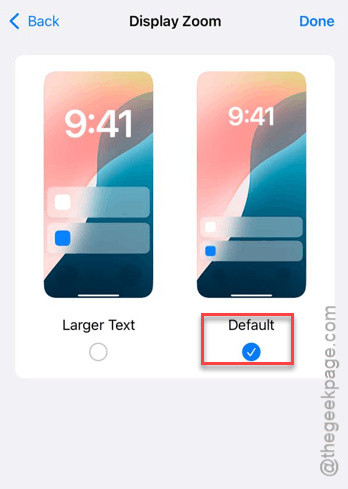
This will refresh the display cache of the device. Check again.
Fix 5 – Reset all the iPhone Settings
If the True Tone feature is still missing from your iPhone settings, you should reset all the iPhone Settings to fix that issue.
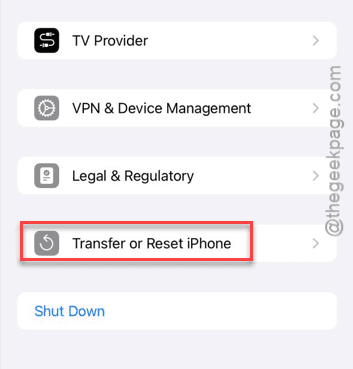
Step 1 – In the iPhone Settings page, go to the General tab.
Step 2 – Now, in the General tab, open up the Transfer or reset iPhone option. Then, open up the Reset section.
Step 3 – Finally, tap to use the Reset All Settings option.
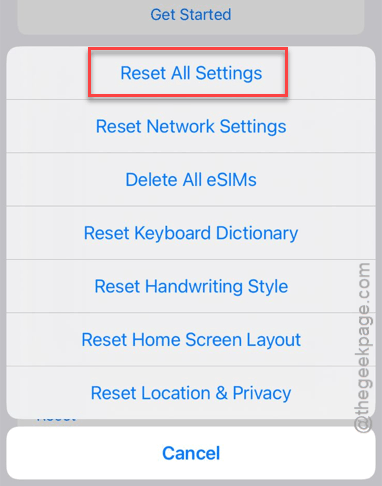
The next step of this process needs your verification. Just input your Apple passcode and all the iPhone Settings will be reset to the default settings.
You will find the True Tone feature again in the iPhone Settings page.