You open a companion app on your Apple Watch. It connects for a second. Then it just… drops. Or it won’t play anything at all. This usually comes down to a sync issue between your watch and iPhone. Could be WiFi. Could be a background glitch. Either way, fixable.
Why This Happens
Apple Watch companion apps rely on a Bluetooth and WiFi connection to your iPhone. But that connection is fragile. If your iPhone’s WiFi drops for even a moment, the companion app on your watch loses its link. And after watchOS updates, the sync data between devices can get corrupted. The watch thinks it’s connected. The phone disagrees. Neither one recovers on its own. Classic Apple.
Fix 1 – Force Quit the App on Your Apple Watch
This is the first thing to try. And honestly, it works more often than you’d expect.
1 – With the companion app open on your watch, hold down the Side Button until the Power/SOS screen appears. Takes about two seconds.
2 – Release the Side Button.
3 – Now hold down the Digital Crown until the app quits. Another two seconds or so.
4 – Relaunch the app from your watch’s home screen.
And that’s it. The app should reconnect automatically. If it doesn’t, keep reading.
Fix 2 – Restart Both Devices
Classic fix. Annoying, I know. But it works.
1 – On your iPhone, go to Settings > General > Shut Down. Slide to power off. Wait a few seconds, then hold the Side Button to turn it back on.
2 – On your Apple Watch, hold the Side Button until the Power screen shows up. Tap Power Off. Then hold the Side Button again to restart.
Give both devices a minute to reconnect. Then open the companion app again. Sound familiar? Yeah, it’s the oldest trick. But sometimes that’s all it needs.
Fix 3 – Reset Sync Data
This one’s weirdly hidden. But it refreshes the connection between your watch and phone. Worth a shot.
1 – Open the Watch app on your iPhone.
2 – Tap General.
3 – Scroll way down and tap Reset. It’s at the very bottom.
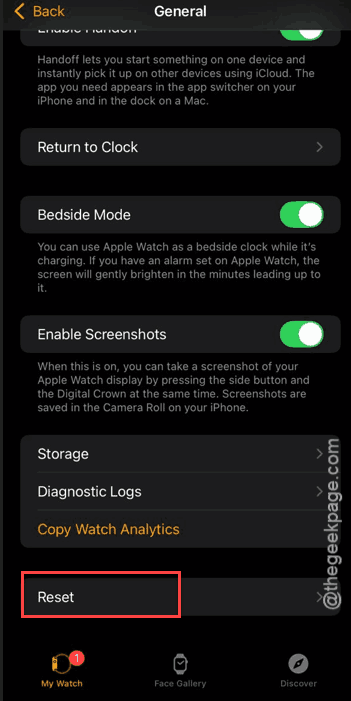
4 – Tap Reset Sync Data.
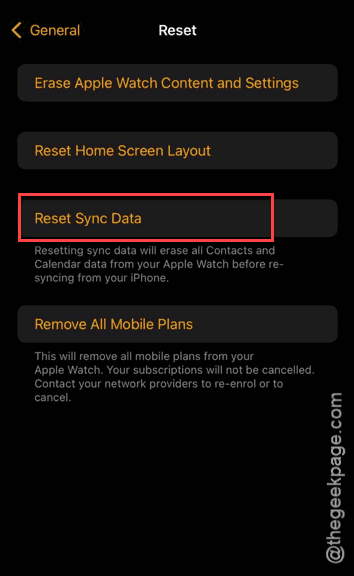
No data gets deleted (this won’t erase your stuff). It just forces the devices to re-sync everything from scratch. And for some reason, this fixes a ton of companion app issues that nothing else does.
Fix 4 – Check Your WiFi and Network
Sounds obvious. But seriously — check it. Most companion app problems come down to WiFi.
Make sure your iPhone is on a stable WiFi network. Not cellular. Not a VPN. Actual WiFi. And if you’re on a 5GHz band that keeps dropping, try switching to 2.4GHz. More reliable for watch connections.
Also? Turn off your VPN if you have one running. And disable mobile data temporarily. Some companion apps — and this is the annoying part — get confused when the phone is juggling multiple network connections at once. Which is dumb. But here we are.
Fix 5 – Update watchOS and iOS
Outdated software causes more problems than people realize. So check for updates on both devices.
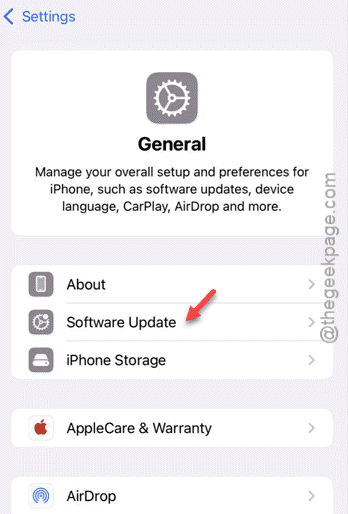
1 – On your iPhone, go to Settings > General > Software Update. Install anything available.
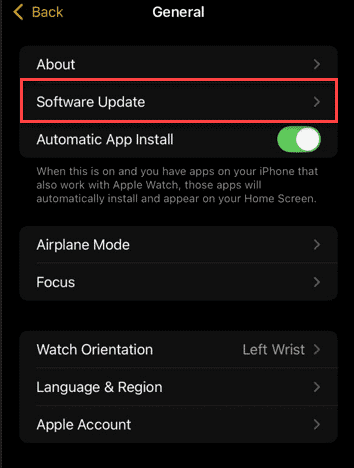
2 – Open the Watch app on your iPhone. Go to General > Software Update. Update your watch too.
Both devices need to be current. Not just one. And make sure the watch is on its charger with at least 50% battery before updating. Otherwise, it will not even start the download.
Fix 6 – Unpair and Re-pair Your Apple Watch
Nuclear option. But if nothing else works, this rebuilds the entire connection from scratch.
1 – Open the Watch app on your iPhone.
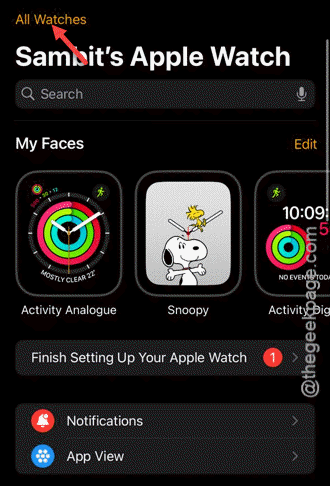
2 – Tap All Watches in the top left corner.
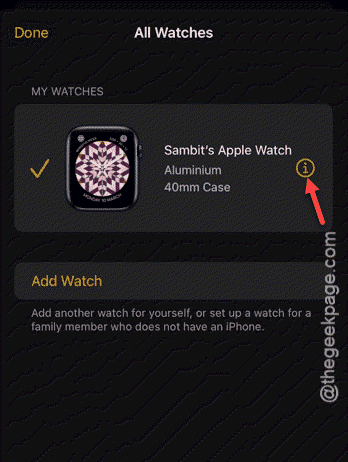
3 – Tap the i icon next to your watch name.
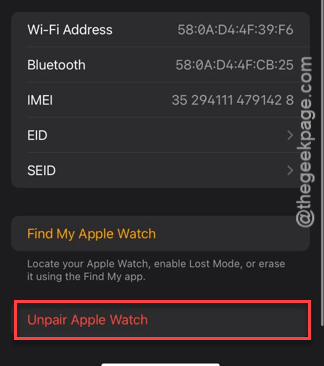
4 – Tap Unpair Apple Watch. Confirm it.
5 – Once it finishes, bring your watch close to your iPhone and follow the on-screen pairing steps.
This takes a while. Not ideal. But your data backs up automatically during the unpair process (this won’t delete your stuff). So you do not lose anything. And once it re-pairs, the companion app should work like new.
How to Prevent This
- Keep both devices updated. Seriously. Most connection issues come from version mismatches.
- Avoid using a VPN while running companion apps on your watch.
- If WiFi is spotty, stay on 2.4GHz. More stable for watch connections.
- After any major OS update, do a Reset Sync Data just to be safe. Takes two seconds.
People Also Ask
How do I fix a frozen app on my Apple Watch?
Force quit it. Hold the Side Button until the Power screen shows up. Release it. Then hold the Digital Crown until the app closes. Relaunch it after that. And if it keeps freezing? Restart the whole watch. That usually clears it up.
Why is my Apple Watch not connected to the app on my phone?
Usually a sync issue. Open the Watch app on your iPhone and check that your watch shows as connected. If not, try restarting both devices. And make sure Bluetooth is on. Sounds basic. But it gets toggled off more than you’d think.
How to fix Apple Watch not unpairing?
If the unpair button isn’t working, restart your iPhone first. Then try again through the Watch app. Still nothing? You can erase the watch directly — go to Settings > General > Reset on the watch itself. But you’ll lose any data that hasn’t synced yet. So only do that as a last resort.