Having issues using the passcode on your iPhone 11? Passcode is essential for iPhone to unlock and use the device at the startup. You can’t just start to use the Face ID unless you have unlocked the device with the 6-digit Apple Passcode. So, if the passcode is not working on your iPhone 11 device or any other iPhone model, it must be resolved quickly.
NOTE – Face ID can not be initiated without the initial usage of passcode on the iPhone. So, your access will be limited only to the lock screen of the device.
Fix 1 – Do a Force Restart Procedure
This passcode issue can be just a temporary bug or glitch in the iOS. So, you should definitely try the force-restart method to fix the issue.
Step 1 – Tap the Volume Up button and release it at once.
Step 2 – Next, tap the Volume Down button and release that as well.
Step 3 – Finally, press and hold the Power button of the iPhone. Do press-hold the power button for a 10–15 seconds.
Don’t stop pressing the power button until the Apple logo shows up on the iPhone display. After force-restarting the iPhone, try to use the passcode.
Fix 2 – Reset and Restore the iPhone via PC/Mac
If you still can’t use the passcode to verify your access, you can just reset the iPhone using a Mac or PC and fix the problem entirely.
NOTE – This process will erase all the data from your iPhone. Make sure to back up before you proceed. You should
Step 1 – At first, turn off your iPhone. Hold the Power button and the Volume Down button for a few seconds.
Step 2 – Then, use the Slide to power off option to switch off the iPhone.
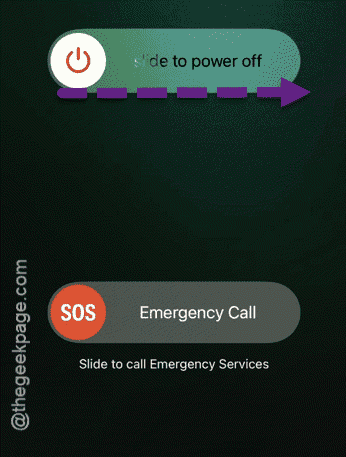
Step 3 – Next, connect the iPhone to a Mac or PC using a USB-C/lighting cable. Quickly, press-hold the Power button on the iPhone.
Step 4 – Keep pressing that button while the Apple logo shows up on the screen. You can let go off that button once the laptop icon appears on the screen. This way, you have booted the device into the Recovery mode.
Step 5 – Now, open the Finder app (on Mac) or Apple Devices (Windows PC).
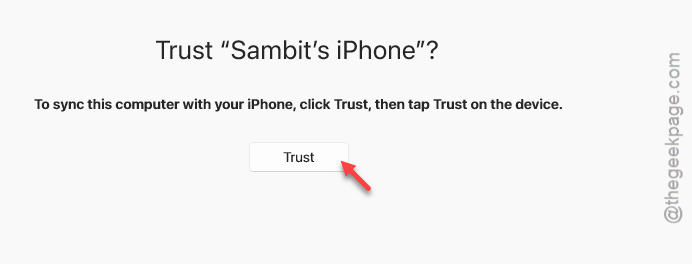
Step 6 – You will see the name of your iPhone (like- Sambit’s iPhone) on the left tab. If you get a warning prompt, tap Trust to establish a proper connection.
Step 7 – You can use the Check for Update option to check for the latest updates.
Step 8 – Once you are connected, tap the Restore iPhone option there to reset the device.
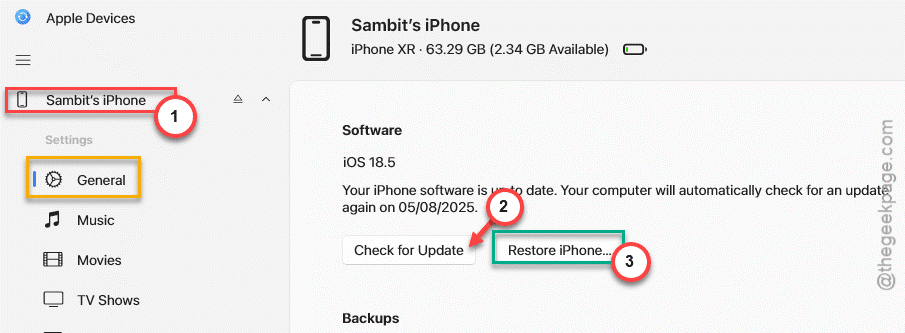
The resetting process may take a few minutes. Once
FAQs on Passcode not working on iPhone 11 –
1. Why the passcode is not working on iPhone 11?
Sometimes the Apple Passcode may stop working on your iPhone due to possible temporary bugs in the iOS, Apple ID error on the device. A simple restart should fix the issue. However, if a restart does not help, you should reset the device to impose a new passcode on it. But, if you are still having issues, you should book an appointment at your preferable genius bar.
2. Can I use the same Apple passcode all my Apple devices?
Yes. Your passcode is directly linked to your Apple ID. Apple indeed recommends users to sign in with the same Apple ID on all their device for a seamless experience. Users can take the full advantage of the synchronized features of Apple ecosystem, if they use the same Apple ID on all their devices.