Splash screen flashes on the Adobe Reader screen. Then… nothing. The app just hangs. No window. No error.
Try again — same thing. And now Task Manager shows three Acrobat processes eating CPU for no reason. Painful.
Why This Happens
Here’s the deal. Adobe Reader is huge. It loads tons of plugins on startup. Any one of them can hang the whole app.
And on Windows 11 it’s worse. Compatibility layers conflict with Acrobat’s renderer. The app waits for a response from Windows that never comes. So it sits there. Forever.
Sometimes a previous Acrobat session never fully closed. The ghost process holds a file lock. New launches just wait in line behind it. No warning. No timeout. Just frozen.
Cache corruption is the other big one. Acrobat stores preferences in three different AppData folders. If any of them go bad, startup breaks.
Fix 1 – Kill Every Acrobat Process First
Quick fix. Should be your first move.
At first, use the Ctrl + Shift + Esc shortcut keys to open Task Manager. Type “acrobat” in the search bar at the top. Right-click each result. Click End task.
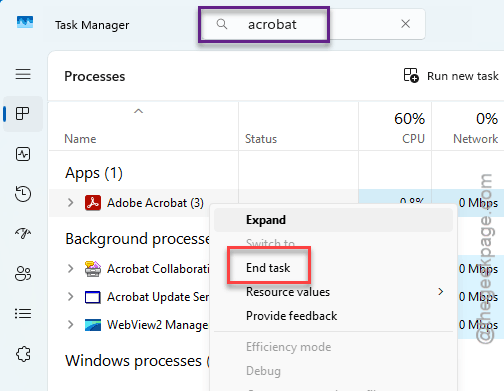
Also kill anything starting with “Acro”, “Adobe”, or “Creative Cloud”. Done. Try opening Acrobat again. Often works.
Fix 2 – Run Acrobat as Administrator (and Disable Fullscreen Optimization)
Windows 11 sometimes blocks Acrobat at the permission layer. Forcing admin rights fixes it.
1 – Find the Adobe Acrobat Reader shortcut. On your desktop or in Start menu.
2 – Right-click the shortcut. Click Properties.
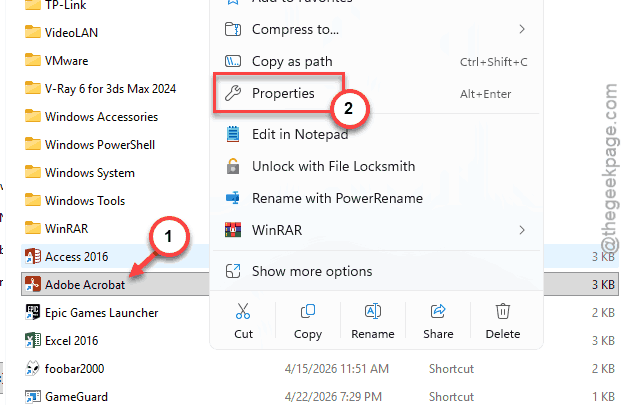
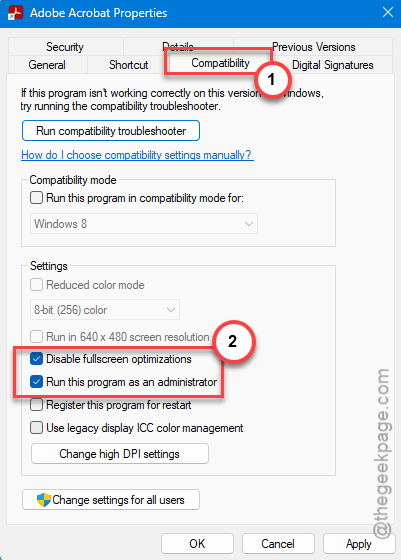
3 – Click the Compatibility tab at the top.
4 – Check Disable fullscreen optimizations.
5 – Check Run this program as an administrator.
6 – Click Apply. Then OK.
7 – Double-click the shortcut to launch Acrobat.
Fullscreen optimization is supposed to help with games. But it messes with non-game apps like Acrobat. Turning it off costs you nothing.
Fix 3 – Clear the Adobe AppData Cache
This is the fix when Acrobat is just broken at the config level. You’re deleting three cache folders. Acrobat rebuilds them fresh on next launch.
1 – Make sure Acrobat is completely closed. Kill the processes (Fix 1) if needed.
2 – Press Windows + R to open Run.
3 – Type %localappdata% and press Enter.
4 – Find the Adobe folder. Right-click. Click Delete.
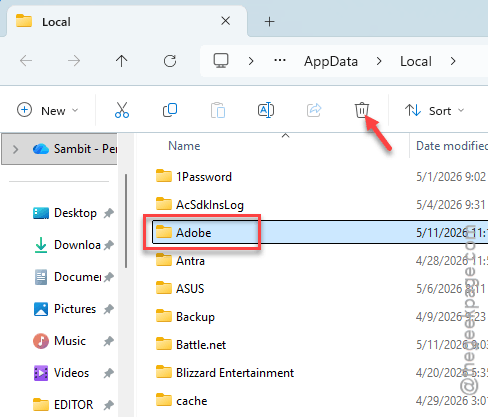
5 – Now click AppData in the address bar at the top — that takes you up one level.
6 – Open the LocalLow folder. Open the Adobe folder inside. Right-click the Acrobat folder. Click Delete.
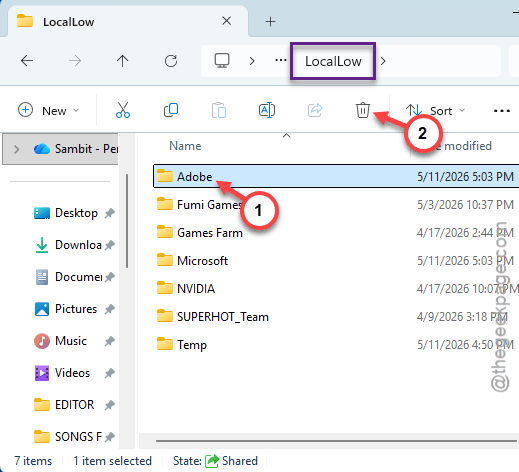
7 – Click AppData in the address bar again to go up.
8 – Open the Roaming folder. Open Adobe. Delete both the Acrobat folder and the Adobe PDF folder.
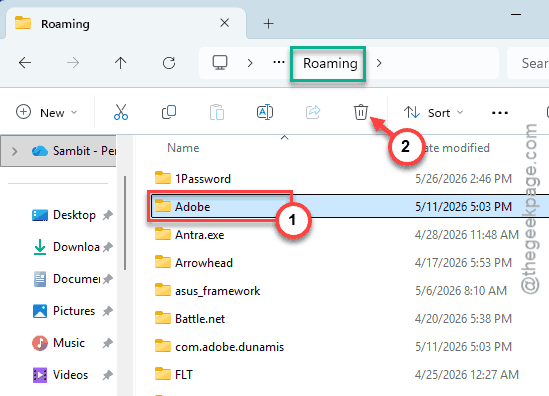
9 – Restart your PC. Important — not just close Acrobat, actually restart.
10 – Launch Acrobat. It’ll rebuild everything clean.
This won’t delete your PDFs — just settings and cache.
Fix 4 – Remove Third-Party Plugins
Plugins are a huge cause of startup hangs. Especially after a Windows update. The plugin can’t find what it expects. Acrobat waits forever.
1 – Open File Explorer.
2 – For 64-bit Acrobat, paste this in the address bar:
C:\Program Files\Adobe\Acrobat DC\Acrobat\plug_ins
3 – For 32-bit, use:
C:\Program Files (x86)\Adobe\Acrobat DC\Acrobat\plug_ins
4 – Press Enter.
5 – Look at the list. Adobe’s own plugins all start with familiar names. Anything else? Probably third-party.
6 – Move the suspect plugin to your Desktop. Instead of deleting those, you should copy and move them to your preferred location.
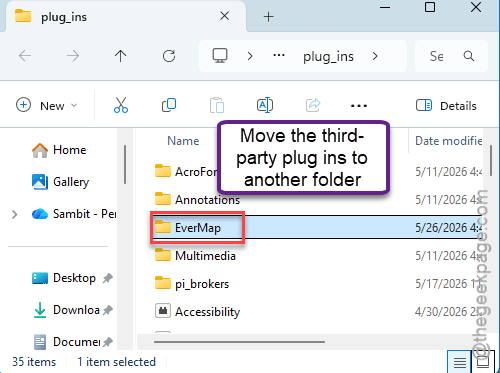
7 – Launch Acrobat. Worked? You found the bad plugin.
Fix 5 – Disable Antivirus Temporarily
Some antivirus tools — especially the aggressive ones — block Acrobat at launch. Not always an obvious error. Just hangs.
1 – Go to the your antivirus tray icon. You may find it on the taskbar.
2 – Look for a temporary disable option.
3 – Put a plug on the antivirus protection for 15 minutes or so.
4 – Try opening Acrobat.
5 – Worked? Tjen, proceed to the antivirus settings and add the Acrobat.exe to the exception list. Then turn protection back on.
Fix 6 – Repair Adobe Acrobat
If none of the above mentioned fixes have not helped you, use this method.
1 – Press Windows + I to open Settings.
2 – Go this way –
Apps > Installed apps
3 – Then, on the right-hand tab, start to write the “acrobat” in the search box at the top.
4 – Next, click the three dots (⋯) next to Adobe Acrobat. Click Modify.
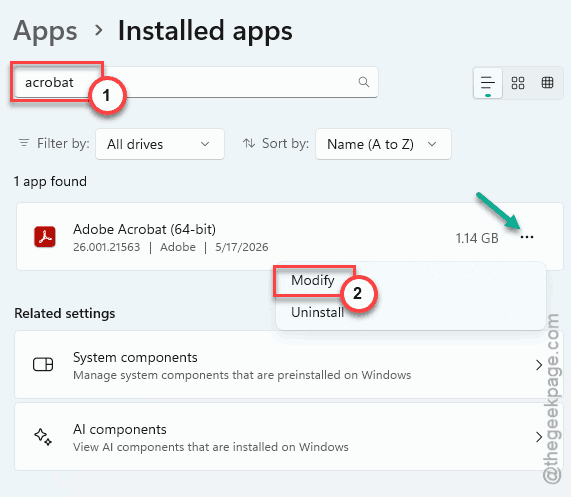
5 – Click Yes when Windows asks for permission.
6 – Click Next in the Adobe setup dialog.
7 – Click Repair.
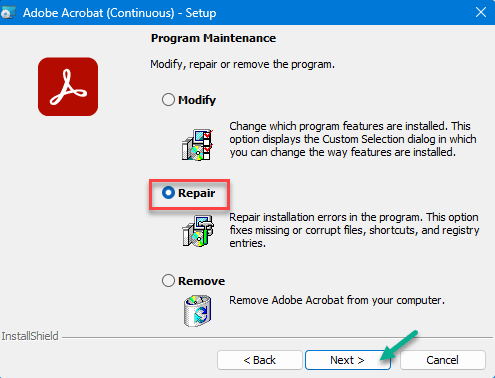
8 – Let it run. Restart your PC after.
Fix 7 – Clean Reinstall (Last Resort)
Nothing else worked? Nuclear option. But it always fixes it.
1 – Open Settings > Apps > Installed apps.
2 – Find Adobe Acrobat. Click the three dots. Click Uninstall.
3 – Confirm. Let it finish.
4 – Also delete the cache folders from Fix 3. Otherwise old configs hang around.
5 – Restart your PC. Don’t skip this.
6 – Go to adobe.com. Download the latest Acrobat Reader installer.
7 – Run the installer. Sign in when prompted.
How to Prevent This
– Don’t install random third-party Acrobat plugins. They break with every update.
– Close Acrobat fully when you’re done. Don’t just hit minimize — actually close it.
– Set Acrobat to run as admin from the start. Saves you future Compatibility tab visits.
– Use a lighter PDF reader for quick views. SumatraPDF or browser PDF — way faster than Acrobat.
People Also Ask
How to fix Adobe Acrobat freezing?
Kill every Acrobat process in Task Manager first. Next, try running the Adobe Reader program with your adiministrative rights. If it still freezes, clear the Adobe folders inside AppData (Local, LocalLow, and Roaming). Acrobat rebuilds them clean on next launch.
Why is the Adobe Reader taking so long to open?
Acrobat loads a lot on startup — plugins, fonts, cloud sync. Any one slow component can hang the whole launch. Disable plugins, clear the cache, and run as administrator. That cuts startup time dramatically. Switching to SumatraPDF for quick views also helps.