Does the Find My settings appear to be greyed out on your iPhone? Some iPhone users have found the Find My settings is greyed out on their device. The Find My iPhone is a crucial feature on your iPhone, and if it is greyed out, it means that the dependent functionalities like Location Services are disabled on your device. These solutions will help you solve the issue and make the Find my settings accessible.
Fix 1 – Turn on the Location Services
The Location Services must be turned on your iPhone for the Find My system to work properly.
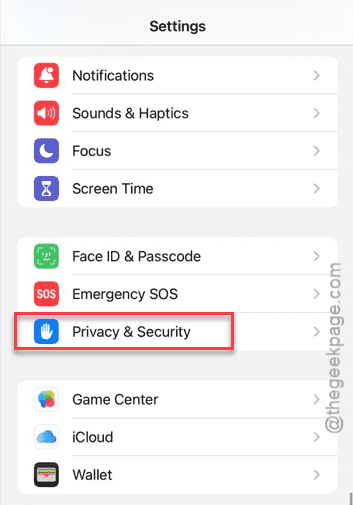
Step 1 – Load up the Settings page on the iPhone.
Step 2 – Next, proceed to the Privacy & Security settings.
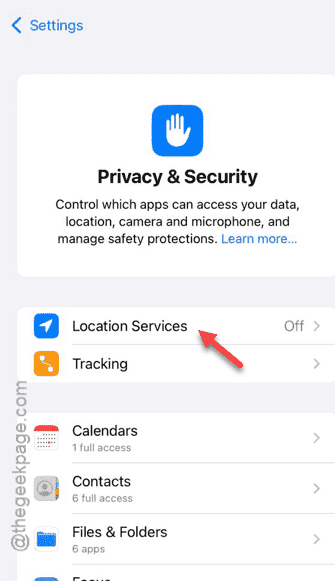
Step 3 – Then, load up the Location Services panel.
Step 4 – Turn on the Location Services from there.
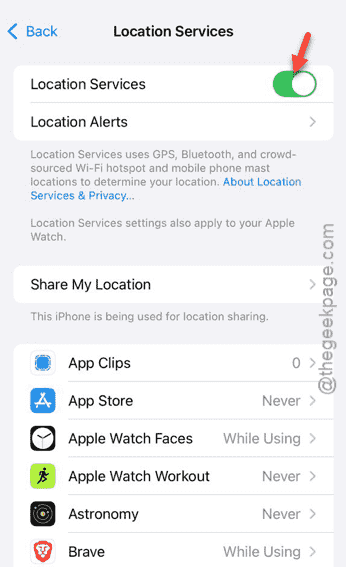
After enabling the location services, the Find My will be accessible and functional once again.
Fix 2 – Disable the Content & Privacy Restrictions module
The Content and Privacy Restrictions module can sometime limit the Find My system on your iPhone.
Step 1 – To do this, tap the ⚙icon on the iPhone to load up the Settings.
Step 2 – Next, proceed to the Screen Time settings.
Step 3 – Scroll down and load up the Content & Privacy Restrictions module.
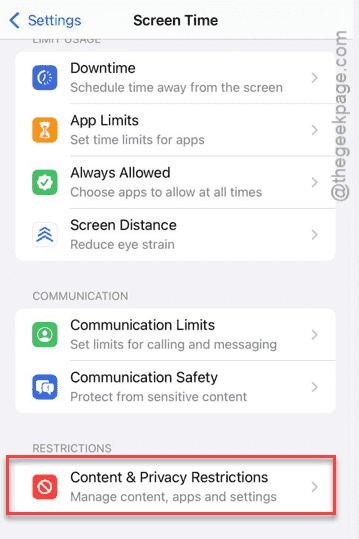
Step 4 – Disable it from there.
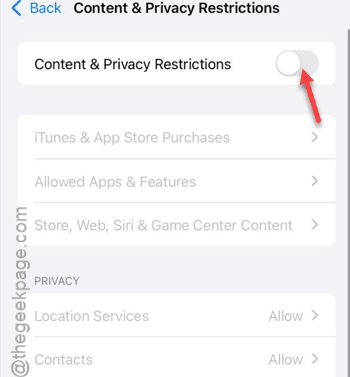
After disabling this feature, return to check the current status of Find My settings.
Fix 3 – Accept the new iCloud Terms and Conditions
Apple keeps updating the iCloud Terms and Conditions time to time. The Find My iPhone settings may not be accessible unless you accept the updated iCloud terms and conditions.
Step 1 – In the Settings page on your iPhone, tap the Apple ID banner once.
Step 2 – Next, go to the iCloud settings page.
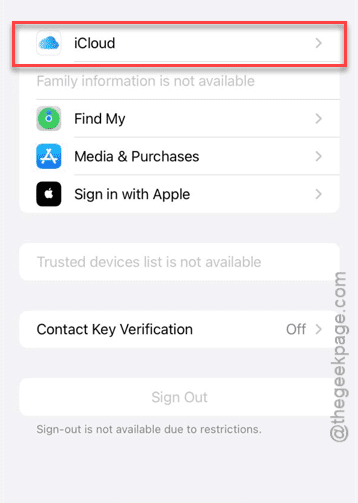
Step 3 – See whether any prompt is there asking for you to accept the updated terms and conditions of iCloud.
Step 4 – In that case, tap that prompt once and accept it.
After accepting the iCloud terms and conditions, the Find My iPhone will be accessible again.
Fix 4 – Allow changes to Passcode, Face ID and Accounts
When you enable the Content Restrictions, sometimes it disables any alteration to the Face ID and account changes. This might be the reason why the Find My iPhone is greyed out.
Step 1 – Go to the Settings console of your iPhone. Go to the Screen Time settings.
Step 2 – Then, proceed to the Content & Device Protection settings panel.
Step 3 – Go to the Allow Changes settings. Then, open up the FaceID and Passcode settings and set it to Allow mode.
Step 4 – Then, set the Accounts option to Allow mode as well.
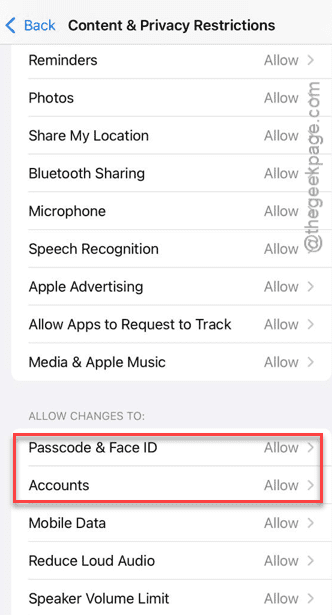
After committing these changes, see whether the Find My iPhone is still greyed out or not.
Fix 5 – Turn off Stolen Device Protection settings
Some users have fixed this issue by disabling the Stolen Device Protection settings.
Step 1 – Proceed to the Settings page on your iPhone.
Step 2 – Next, open the Face ID & Passcode settings.
Step 3 – Use your 6-digit Apple passcode to proceed to the main Face ID settings page.
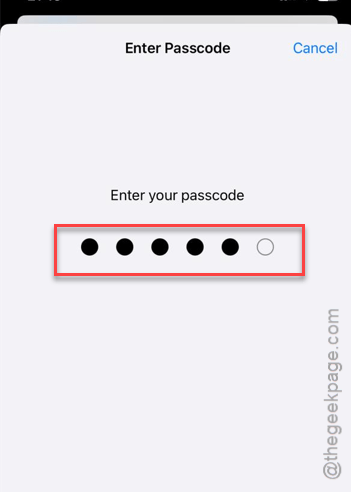
Step 4 – Open the Stolen Device Protection settings.
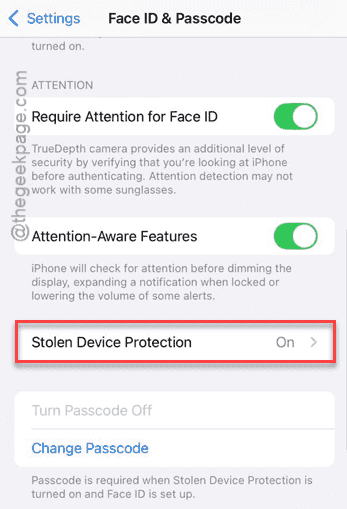
Step 5 – Turn it to Off from there.
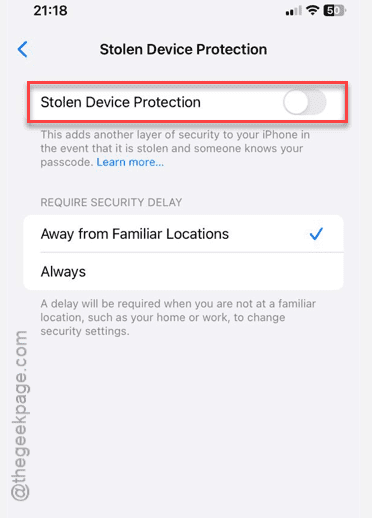
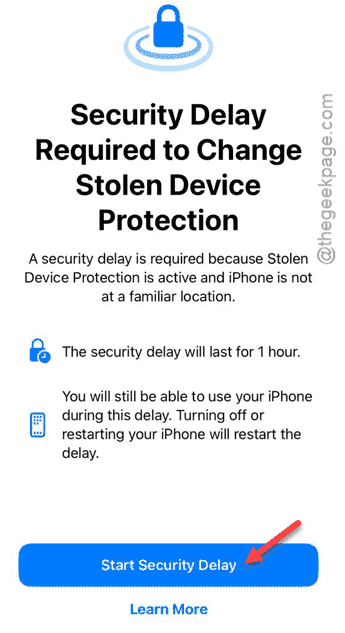
NOTE – If you have Security Delay feature enabled on your device, tap the Start Security Delay option to start the delay. Check after an hour or so, and you can turn off the Stolen Device Protection settings then.
After switching off the Stolen Device Protection settings, the Find My settings should be accessible again.
Fix 6 – Sign out and sign back in with Apple ID
If you still can’t get a hold of the Find My settings, sign out of your Apple ID and sign in with your credentials to fix the issue.
Step 1 – Go to the Apple ID settings on the Settings page on iPhone.
Step 2 – Next, tap the Sign out* function to sign out.
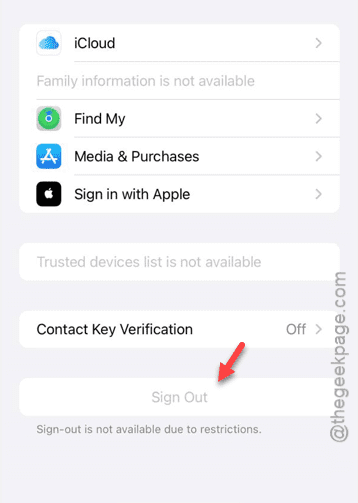
Step 3 – You may have to use your Apple ID password along with the 6-digit passcode to sign out of your account.
Step 4 – After signing out, tap the Sign in to iCloud option in the iPhone Settings page.
Step 5 – Then, input your Apple ID credentials to log in to your account.
[
*NOTE – If the ‘Sign out’ feature is locked or greyed out, it is due to privacy restrictions. Do this –
Disable the Content and Privacy Restrictions from here –
Settings ⇾ Screen Time ⇾ Content and Privacy Restrictions ⇾ Turn it off.
]
Try to modify the Find My settings now on your iPhone. See if this works.