While developing web applications using Visual Studio Code, you may stumble upon the issue where the VS Code is unable to launch the browser. This will refrain you from running and debugging your web app builds directly from the Visual Studio interface, where y. This guide contains the step-by-step guide where we will test the browser link up, JSON file configuration, VS Code related extension issue.
Quick Fixes –
1. Save the project, including all the code base, resource file modifications, etc. and then, relaunch the VS Code and run the build again.
2. Disable or remove any third-party extensions (like ad blocker, cookie blocker) while running the build.
Fix 1 – Run the VS Code without administrative rights
Many users on GitHub have resolved this problem by running VS Code without administrative rights.
Step 1 – Search for the VS Code from the search box. Right-click the VS Code app and tap Open file location.

Step 2 – Then, right-click the VS Code shortcut file and tap Open file location to reach the VS Code installation directory.
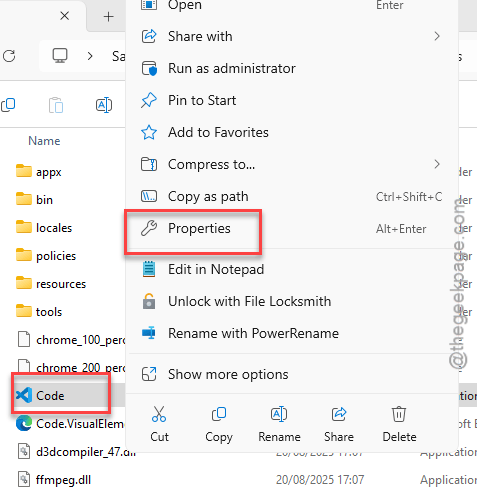
Step 3 – Now, finally, right-click the Code app and tap Properties.
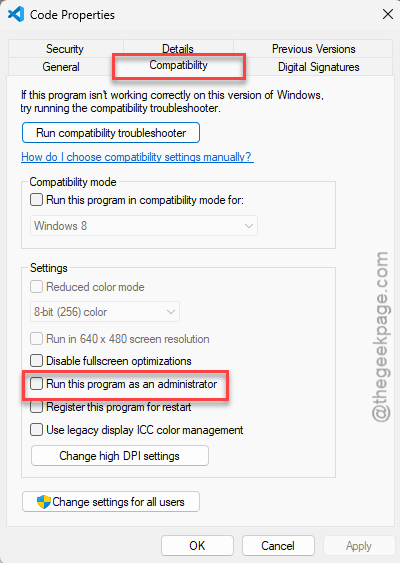
Step 4 – In the Compatibility tab, uncheck the Run this program as an administrator box.
Step 5 – Save the changes there.
You won’t run into issues with the browser links in VS Code again.
Fix 2 – Debug the associated JSON file for Property Mismatch
You have to change the type parameter in the launch.jSON file in the build. If you don’t have a .JSON file, create one in the root.
Step 1 – Load up the project in the VS Code.
Step 2 – Next, tap the Debug icon and tap the ⚙ to load the Debug configurations panel. Next, tap the Open launch.json to launch it.
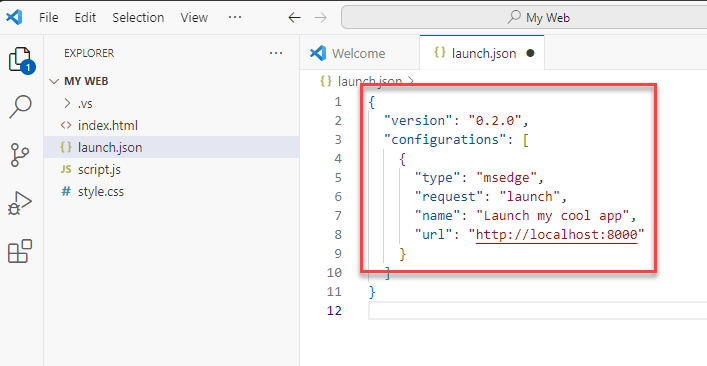
Step 3 – Now, configure it this way –
{
"version": "0.2.0",
"configurations": [
{
"type": "msedge",
"request": "launch",
"name": "Launch my cool app",
"url": "http://localhost:8000"
}
]
}
Step 4 – If you still encounter any further issues, you may change the ‘type’ value to any of these two –
For Chrome  - "type": "pwa-chrome"
For Edge - "type": "pwa-msedge"
Step 5 – If you have the browser installed in a specific location, or you want to launch a particular browser, you can mention the path of the browser as ‘Runtime executable’.
Example launch.json file –
 {
"type": "msedge",
"request": "launch",
"name": "Launch Edge",
"url": "http://localhost:8080",
"runtimeExecutable": "C:\\Program Files (x86)\\Microsoft\\Edge\\Application\\msedge.exe" // Example path for Edge
}
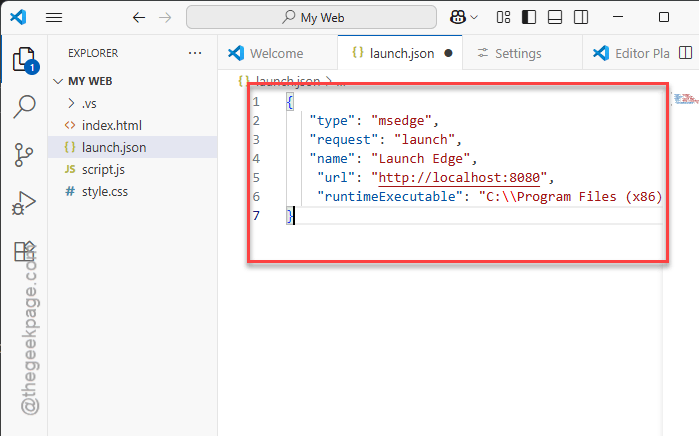
Once you have changed the code, run it. This time, you won’t run into any issues with the launch configuration.
Fix 3 – Update the VS Code Application
If you have not updated the Visual Studio Code app in a while, update it.
Step 1 – VS Code automatically downloads the update while you are working.
Step 2 – In the Visual Code app window, tap the Help option and tap Check for Updates.
VS Code will now download and install the latest version of VS Code.
Step 3 – When the update is downloaded, proceed this way –
Help > Restart to update
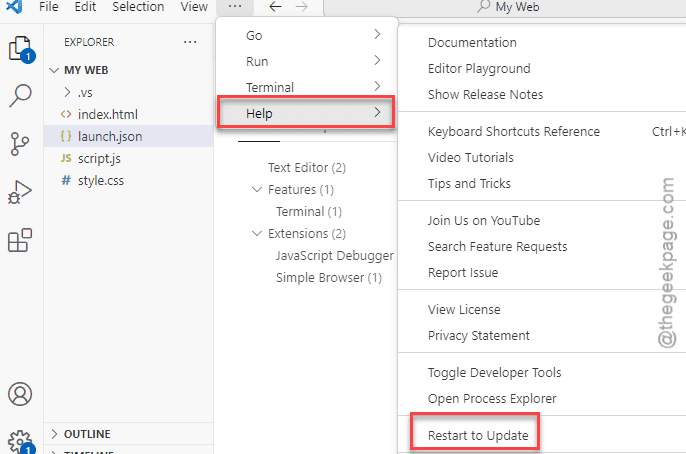
After installing the update, reload the web build and run it. See if that works or not.
Fix 4 – Disable the Antivirus/Firewall on Windows 11/10
Sometimes, Windows Security or other firewall can block the launching configuration of new web builds due to possible security reasons.
Step 1 – Load up the Windows Security or any other antivirus utility you have.
Step 2 – Go to the Virus & threat protections.
Step 3 – Tap the Manage settings.
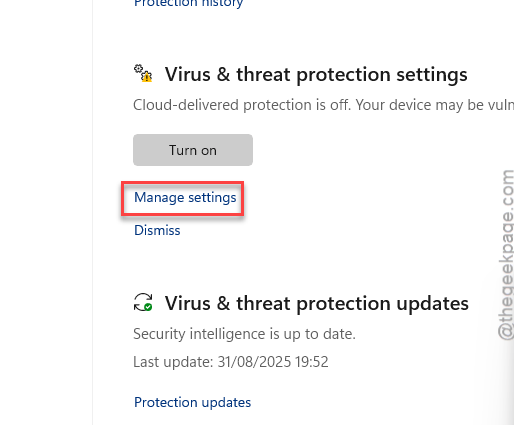
Step 4 – Later, turn off these settings –
Real-time protection
Dev Drive protection
Cloud-delivered protection
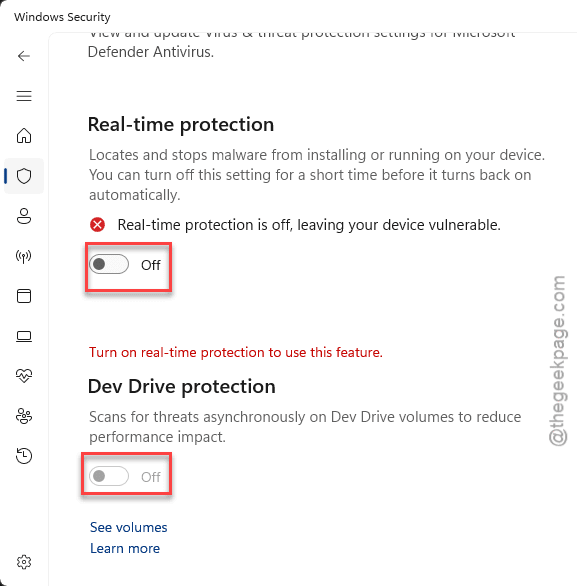
After turning off these features, retry the build on VS Code once again. Check if this works.
Fix 5 – Use the VS Code in-built debugger
The VS Code ships with a powerful Javascript debugger itself. So, there is no need for you to launch an external browser (like Debugger for Chrome, which is discontinued) to run and debug the build. But if you are still interested in debugging on Chrome, you can use Chrome DevTools on the native Google Chrome browser to do that.
Fix 6 – Uninstall and Reinstall VS Code
If you are still having the same issue, you can just uninstall VS Code app and reinstall it.
Step 1 – Type VS Code from the search box.
Step 2 – Next, right-tap the Visual Studio Code and tap Uninstall.
Step 3 – You can download the latest version of Visual Studio Code and install it on your device.
Load up your project there and test it. See if this works out or not.