You launch Docker Desktop. It spins. And spins. Then it gives up with a backend connection timeout.
Maybe your internet blinks out at the same time. Or a phantom network adapter keeps popping in and out in the corner. Annoying. The real culprit is usually a virtual network adapter — a vEthernet — fighting with the one you actually use. Here’s how to untangle it.
Why This Happens
Short version: Docker builds its own little network behind the scenes. It does this through Hyper-V and WSL (the Linux layer Windows runs Docker on).
And those create virtual adapters called vEthernet switches. Normally they stay out of the way. But sometimes one of them grabs the same address range as your real Ethernet or Wi-Fi card. Two adapters, one lane. They collide.
When that happens, the Docker engine can’t reach its own backend in time. So it times out. And your actual connection? It can drop right along with it, which is why your internet flickers.
Why does it suddenly start one day? Usually a Windows or Docker update that rebuilt the virtual switches. Not ideal. The fix is to clear out the tangled adapters and let Docker rebuild a clean one.
Fix 1 – Reset WSL Networking
Start here. WSL sometimes holds a network adapter locked, and a quick shutdown releases it. This is the least invasive fix.
1 – Click the Start button, type PowerShell, then right-click Windows PowerShell and choose Run as administrator.
2 – Approve the User Account Control prompt that pops up.
3 – Type wsl –shutdown and press Enter. This stops the Linux backend and frees its locked adapters.
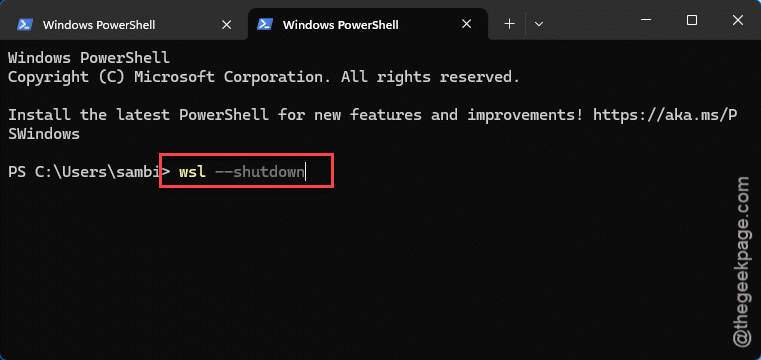
4 – Wait about 8 seconds. Give Windows time to actually release everything.
5 – Now fully kill Docker by typing taskkill /F /IM “Docker Desktop.exe” and pressing Enter.
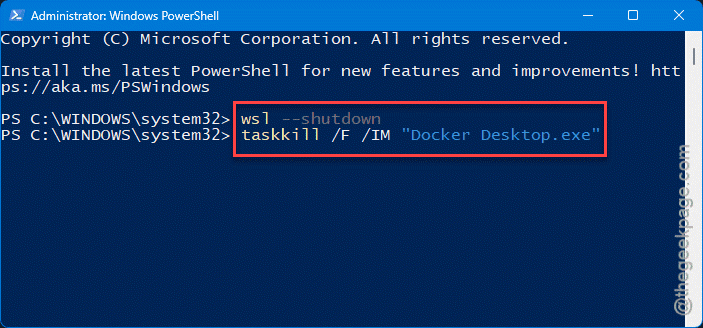
6 – Reopen Docker Desktop from the Start menu and watch the engine status.
And if it boots green this time, you’re done. If it still times out, the leftover switches are the problem. Move on.
Fix 2 – Remove the Conflicting Virtual Switches
Adapter collisions usually trace back to duplicate or stale virtual switches that Docker left behind. Wipe them out and Docker will build a fresh, clean one the next time it starts.
1 – Press Windows + R to open the Run box.
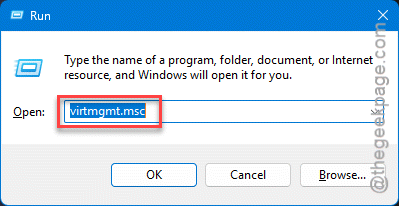
2 – Type virtmgmt.msc and press Enter. This opens Hyper-V Manager.
3 – In the Actions pane on the right side, click Virtual Switch Manager.
4 – Look through the list on the left for switches named DockerNAT or anything with WSL in the name.
5 – Select one, click Remove, then click Apply. Repeat for each Docker or WSL switch you find.
6 – Close Hyper-V Manager and start Docker Desktop again.
Don’t panic about deleting these. Docker recreates whatever it needs on the next launch — that’s the whole point. A fresh switch won’t be carrying the old conflict.
Fix 3 – Force DockerNAT to Rebind to Your Real Adapter
If the vEthernet keeps appearing and disappearing and your internet drops with every cycle, this little toggle trick settles it down. You’re basically forcing the switch to re-grab a clean binding.
1 – Quit Docker Desktop fully (right-click its icon near the clock and choose Quit).
2 – Open Hyper-V Manager again with Windows + R, then virtmgmt.msc.
3 – Open Virtual Switch Manager from the right-hand Actions pane.
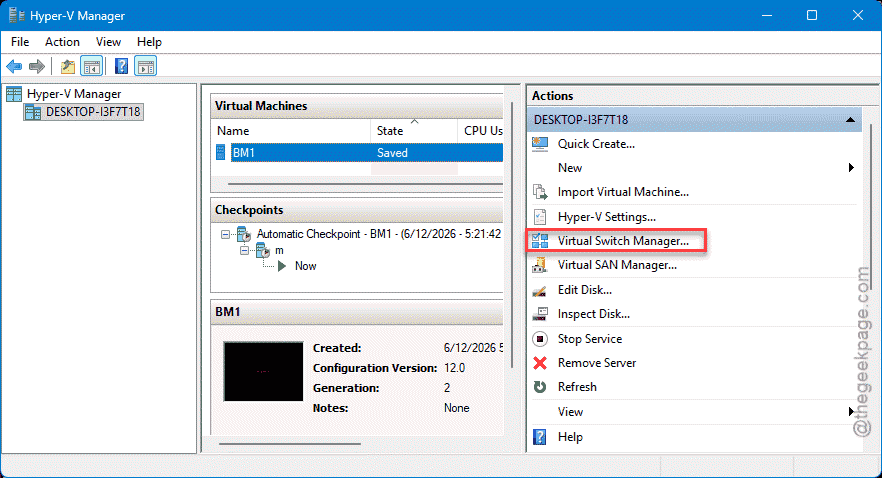
4 – Click the DockerNAT switch.
5 – Change its connection type from Internal network to External network, and bind it to your real Ethernet card. Click Apply.
6 – Now switch it straight back to Internal network and click Apply again, then OK.
7 – Close Hyper-V Manager and relaunch Docker.
Weird little dance, I know. But that flip-and-flip-back forces Windows to rebuild the binding. After this, the switch may still blink — but your domain internet stops dropping every time it does.
Fix 4 – Update Windows
Quick one, and honestly worth trying early. Some people fixed this purely by getting current on Windows. Microsoft has patched several Hyper-V networking bugs that cause exactly this collision.
Press Windows + I to open Settings, click Windows Update in the left sidebar, then click Check for updates. Install everything it offers, including optional driver updates, and restart. Then open Docker and see if the engine connects cleanly.
Fix 5 – Let Docker Rebuild Everything From Scratch
Nuclear option. If the timeout survives all of the above, reset Docker to factory defaults so it regenerates its entire network stack.
1 – Open Docker Desktop.
2 – Click the gear icon in the top right to open Settings.
3 – Go to the Troubleshoot section (the little bug icon).
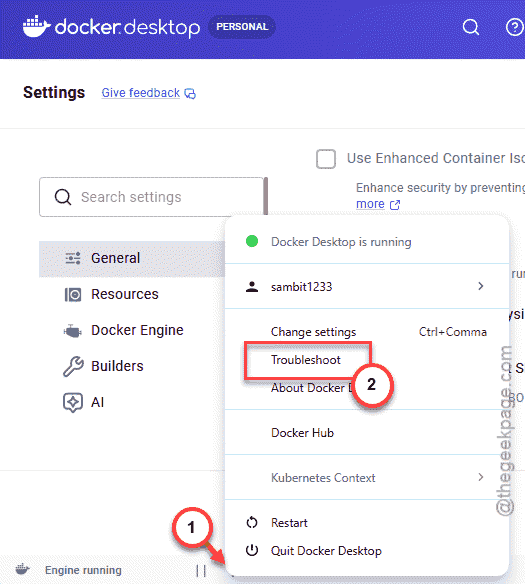
4 – Click Reset to factory defaults and confirm.
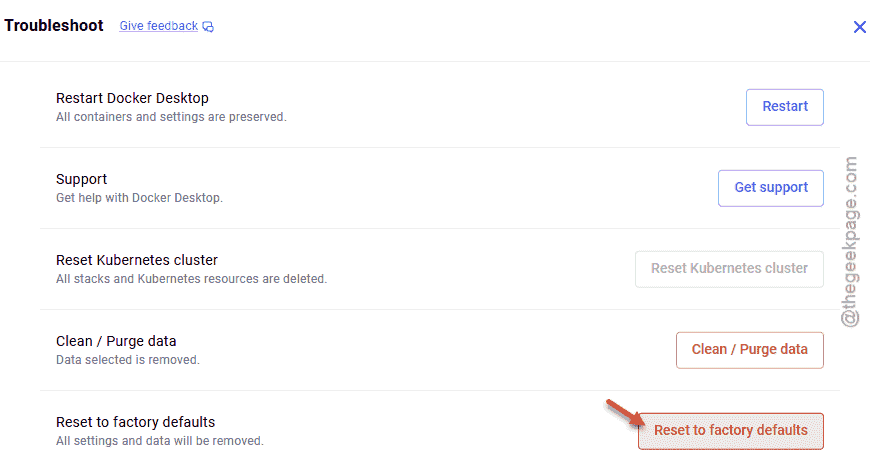
5 – Wait for Docker to rebuild. It restarts on its own when it’s ready.
Heads up — this wipes your containers and images, so back up anything you can’t rebuild. It’s a last resort. But it clears every leftover adapter in one shot.
How to Prevent This
– Don’t stack extra virtual switches in Hyper-V Manager. Fewer adapters, fewer collisions. Simple as that.
– Run wsl –shutdown before and after big Windows updates. It clears locked adapters that updates love to mangle.
– Keep Windows and Docker Desktop on their latest versions. A lot of these networking bugs are already patched.
– If you run a VPN or extra network tools, watch for them grabbing the same address range as DockerNAT. That overlap is the whole problem.
People Also Ask
Why does Docker Desktop keep timing out on Windows?
Usually a virtual network adapter clash. Docker builds vEthernet switches through Hyper-V and WSL, and one of them grabs the same address range as your real card. They collide, and the backend can’t be reached in time. Removing the stale DockerNAT and WSL switches fixes it most of the time.
Is it safe to delete the DockerNAT virtual switch?
Yes. Docker automatically recreates whatever switches it needs the next time it launches. Deleting a stale or duplicated DockerNAT switch in Hyper-V Manager just forces a clean rebuild without the old conflict. Your containers and images stay untouched — only the network adapter gets regenerated.
Why does my internet drop when Docker starts?
Because a Docker vEthernet adapter is fighting your real Ethernet or Wi-Fi adapter for the same address space. Every time the virtual switch cycles, your live connection cycles with it. Forcing DockerNAT to rebind, or removing the conflicting switches, stops the drop even if the adapter still flickers.