The #SPLL! error occurs when a dynamic array formula (like SORT, FILTER, or UNIQUE) tries to populate a range of cell, but gets obstructed in the path. Usually, this problem comes up if the cells are protected where the filter is trying to act. However, even if the cells appear empty, it cannot write data to a locked cell in a workbook. Follow this path to troubleshoot this issue.
| Issue | Recommended Fix |
| Error on Protected Sheet | Fix: Unlock the entire potential spill range before protecting |
| Error caused by Ghost data | Fix: Select spill range and press Delete to clear the hidden content |
| Merged Cells in the way | Fix: Unmerge all cells within the expected output area |
Fix 1 – Unlock the Entire Expected Spill Range
Excel cannot spill into a cell that is Locked in a protected sheet. You must unlock not just the starting cell, but every cell that data might occupy.
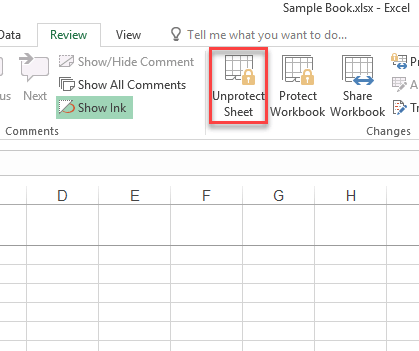
Step 1 – Go to the Review tab in the Excel sheet. Then, tap the Unprotect Sheet option there to remove the protection.
Step 2 – Hightlight the starting cell and the area where the data might grow.
Step 3 – Then, press the Ctrl+1 buttons together. Then, go to the Protection tab and uncheck the Locked button.
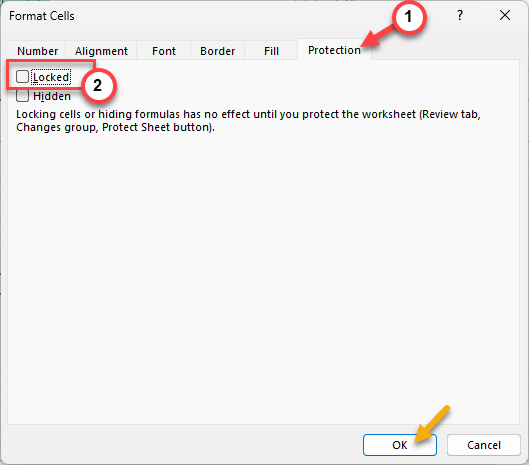
You can now re-protect the sheet. This will resolve the issue.
Fix 2 – Clear the Ghost Obstructions
A #SPLL! error often occurs because a cell in the path looks empty but contains a hidden character or formula that returns as an empty string "".
Step 1 – Select the cells where the data should be appearing.
Step 2 – Look at the Formula bar. If you find anything, delete it from there.
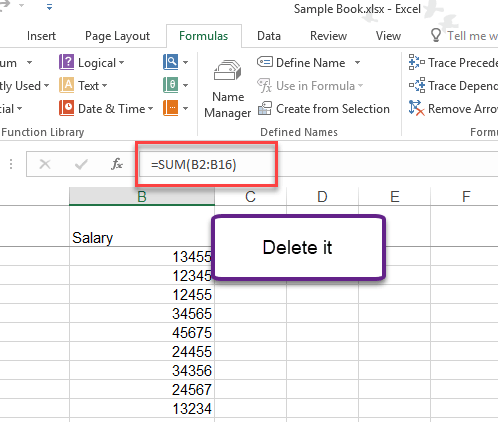
This way, a floating icon will appear beside the #SPLL! prompt which will further highlight the exact cell that is blocking the flow.
Fix 3 – Remove Merged Cells
Dynamic arrays are strictly incompatible with Merged Cells.
Step 1 – Highlight the area where the array should spill.
Step 2 – Go to the Home tab. Tap the Merge & Center to toggle it to OFF.
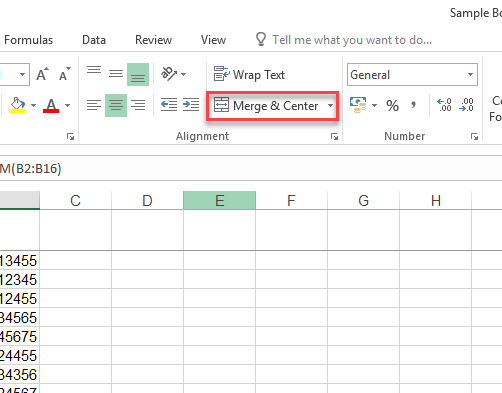
This should put a stop to the #SPLL! error. Check if this issue is resolved.
Fix 4 – Move the Formula Out of an Excel Table
Dynamic array formulas cannot spill inside an Excel Table, which have a fixed structure.
Step 1 – If the formula is inside a table, click to select the table.
Step 2 – Go to the Table Design and select the Convert to Range.
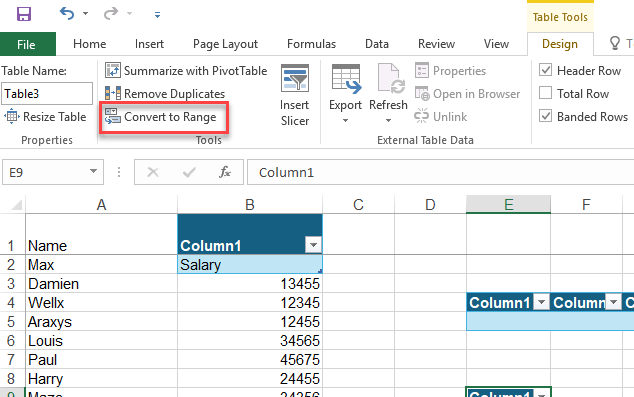
Alternatively, you can move the formula to a blank area of the worksheet.
Fix 5 – Use the Implicit Intersection Operator
If you don’t actually want the formula to spill—for example, if you want it to grab the value from the current row-you can put a plug on the spill behavior.
Step 1 – Place the @ symbol before the function name (e.g. =@SORT(A1:A10)).
This actually prompts Microsoft Excel to only return the single value relevant to that specific row, which prevents the #SPLL! error because it no longer requires any extra space.