Does your Apple Watch is becoming unresponsive, getting stuck on one screen? Apple Watch users facing this sort of issues tends to look for a quick resolution. Don’t worry. We have got you covered. We can assure you that you will get your problem resolved under a minute.
Why the Apple Watch is stuck on a frozen screen?
Your Apple Watch runs the watchOS in its core. There aren’t any bug or glitch-free OS that exists in this world. The lag or freeze problem that you are experiencing on your Apple Watch is due to a one-time bug or glitch in the system.
But, if the bugs or glitches keep appearing again and again, it may affect the usability of the device. If that is the case at your end, you must reset the data on your Apple Watch. This way, you can pair the device and start using it afresh.
Solution -1 Do a force-restart procedure
You have to restart your Apple Watch forcefully. While the device is stuck or frozen, this is the only you can refresh it.
Step 1 – Press and hold the side button and the crown on your watch.
Step 2 – If you press these two buttons for enough time, the watch will get rebooted. Soon, you shall see the Apple Logo has appeared on the watch screen.
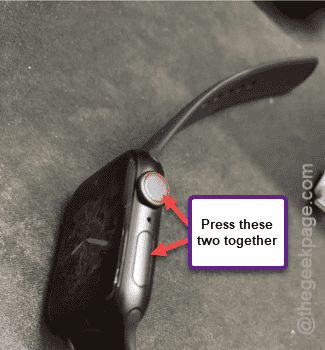
These are the exact steps to force-restart the watch. Everything should become normal on the watch once it reboots.
Solution 2 – Reset the watch
If the watch is getting stuck again and again or experiencing the freezing problem, you should consider resetting the watch.
Step 1 – Load up the “Watch” app on there.
Step 2 – In the Watch app, visit the “My Watch” tab.
Step 3 – Now, you may open up the “General” settings.
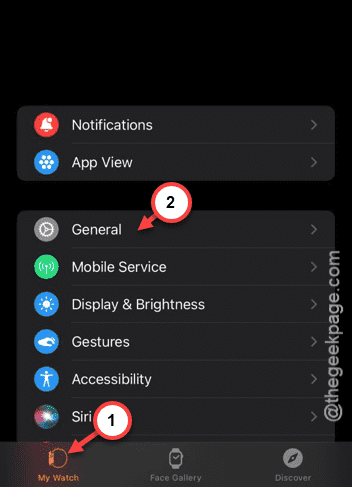
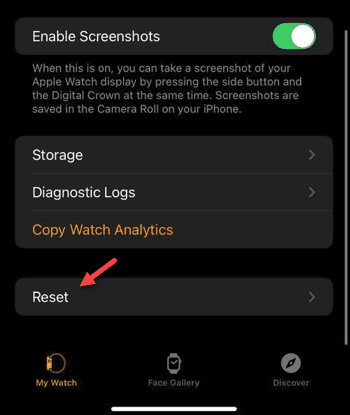
Step 4 – If you scroll down through that page to the bottom, you can use the “Reset” option there.
Step 5 – Tap the “Erase Apple Watch Content and Settings” option.
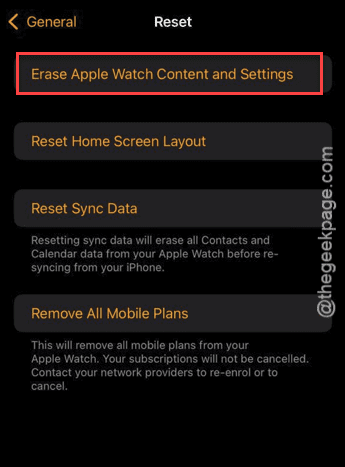
The watch won’t give you the permission to reset the watch that easily. You have to input the Apple ID password to verify the resetting process.
Once you have reset it, you may continue using the Apple Watch without any more problems.