Many users apply a personalized virtual background during video calls or meetings in Microsoft Teams. But, a handful of users have noticed that the custom backgrounds are not showing up in their Microsoft Teams client. Here are some tips that you can apply to fix this issue that you are having while setting up the custom background in Teams.
Fix 1 – Use a proper picture
You can use only an image of proper size and type as the custom background in Microsoft Teams.
1. Make sure the image is not too small or too big. An ideal Teams background image should be around 1280*720 resolution. Resize the image, if it is too big.
2. Teams supports only these .JPG, .PNG, or .BMP type of images as the custom background.
Fix 2 – Clear the Microsoft Teams Cache
Usually, the image file associated to the custom background is located in the user’s local drive. Corruption of the Teams cache may lead to such issues.
Step 1 – You can’t clear Teams cache unless you have closed the Teams app, first. To do that, close the Teams client, first.
Step 2 – Next, go to the system tray and quit Teams from there.
Step 3 – Then, wait for a few seconds and open up a Run box.
Step 4 – Paste this address there, and click OK.
C:\Users\Sambit\AppData\Local\Packages\MSTeams_8wekyb3d8bbwe\LocalCache\Microsoft
Step 5 – Delete the MSTeams folder from there.
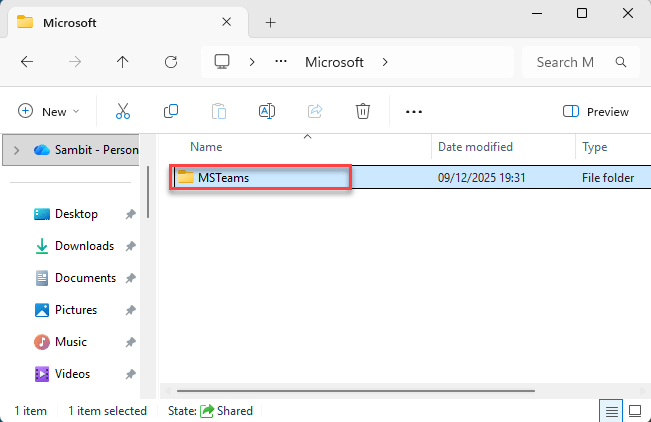
Step 6 – Now, relaunch the Teams client.
Later, there won’t be any issues applying the custom background in the Teams app.
Fix 3 – Check the location of the custom background
See whether the custom background is actually present in the designated Microsoft Teams folder.
Step 1 – Open a Run box, using the Win+R buttons together.
Step 2 – Then, paste this address and click OK.
C:\Users\%username%\AppData\Local\Packages\MSTeams_8wekyb3d8bbwe\LocalCache\Microsoft\MSTeams\Backgrounds\Uploads
Step 3 – Here, Microsoft Teams stores the user-uploaded background images. It gets stored in the Uploads folder.
Step 4 – Make sure your image is present here.
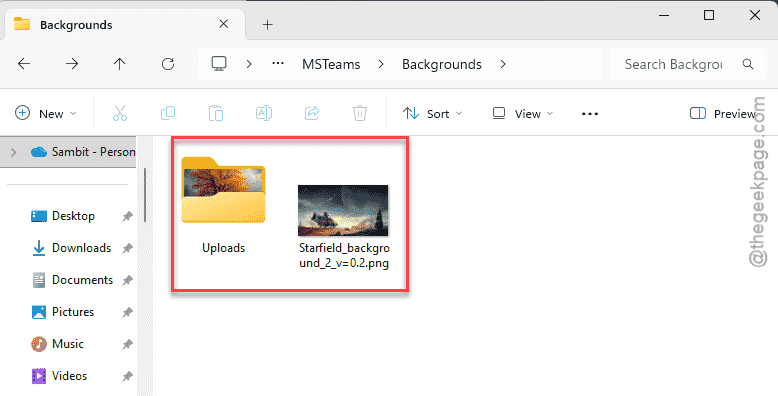
If you can’t find the image there, you must re-upload and set up the same custom image manually.
Fix 4 – Check for Camera Permission for Teams
Check whether the camera permission is allowed to the Microsoft Teams app.
Step 1 – In the Windows Settings, load up the Privacy & Security tab.
Step 2 – Next, go to the Camera settings on the right-hand pane of the Settings page.
Step 3 – Just make sure the Camera permission is turned on for the Microsoft Teams app.
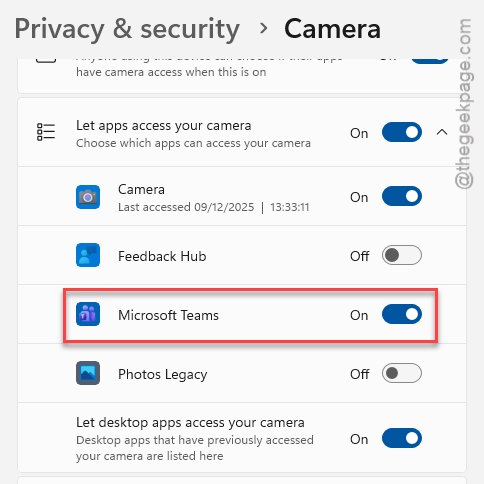
After tweaking the Microsoft Teams app permissions, go ahead and try to set up the custom background in the Teams meeting.
Fix 5 – Switch the Teams to Power Saving
Try running the Teams app in Power Saving mode.
Step 1 – Get to the System settings in Windows Settings.
Step 2 – Load up the Display settings, next.
Step 3 – Later, follow this path –
Display ⇾ Graphics
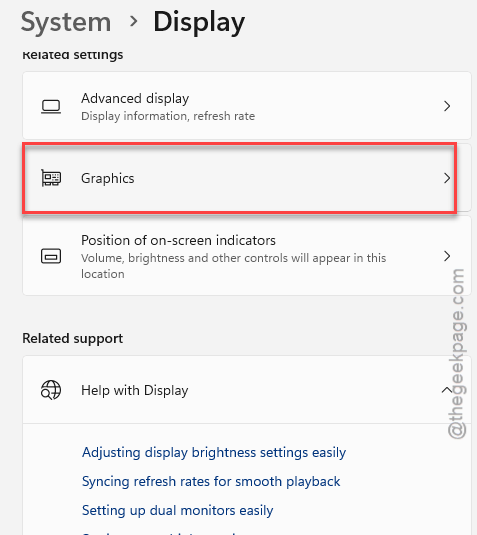
Step 4 – Find the Microsoft Teams app on the right-hand pane.
Step 5 – Toggle the GPU Preference to Power Saving mode from there.
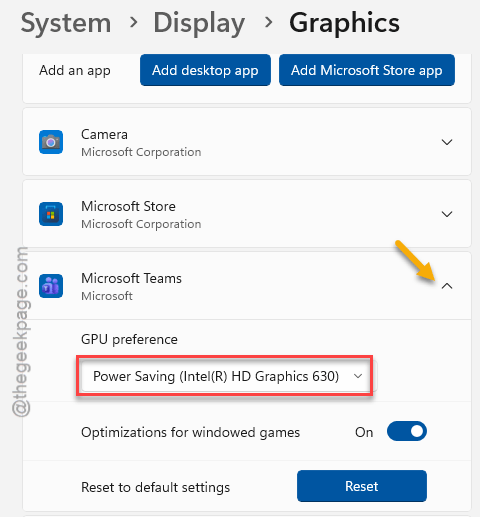
If the custom background still does not work, put the Teams to High performance mode from the same Settings page and check whether that helps.
NOTE – Can’t find the Teams app there in the list? Tap the Add a Microsoft Store app, and select Microsoft Teams app. Then, follow the above-mentioned steps to enact the same changes.
Test if this solves the custom background issue in Teams.