Having some problem setting up virtual background in Teams video calls? Microsoft Teams has many preset virtual backgrounds, which users can apply for a better meeting experience. But, some users have recently complained, as they virtual backgrounds are not applying on their clients. Here are the fixes that you must follow to set the virtual background correctly on the Teams client.
Fix 1- Clear the Microsoft Teams Graphics Cache
Corrupted graphics cache can be held responsible for this issue.
Step 1 – Before you do anything, you must close the Microsoft Teams client completely. So, do close the Teams client.
Step 2 – Later, go to the system tray and, right-tap the Teams app, and tap Quit Teams.
Step 3 – Then, load up a Run box. Simply, press the Win+R keys together.
Step 4 – Paste the Teams local directory there, and click OK.
C:\Users\sambi\AppData\Local\Packages\MSTeams_8wekyb3d8bbwe\LocalCache\Microsoft\MSTeams\EBWebView\Default
Step 4 – Delete the GPUCache folder from there.
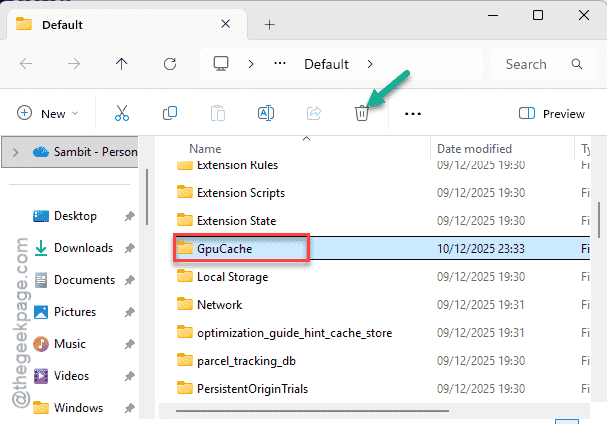
After deleting the GPUCache folder, relaunch the MS Teams client. Try to apply the virtual background now.
Fix 2 – Disable Saving Encrypted Pages to Disk feature
A proxy server issue has caused this problem on the Teams app.
Step 1 – At first, press the Win+R buttons together.
Step 2 – Then, write this and, click OK.
inetcpl.cpl
Step 3 – Go to the Advanced tab. Get to the Security settings.
Step 4 – Uncheck the Do not save encrypted pages to disk feature.
Step 5 – Save the changes.
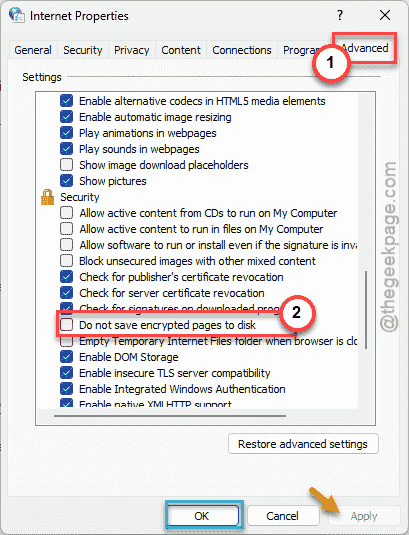
After saving these changes, you try to apply one of those backgrounds in the Microsoft Teams client.
Fix 3 – Allow the Camera Permissions for Teams
Refresh the camera permission for the Teams client.
Step 1 – Go to the Windows Settings. Next, proceed this way ⇾
Privacy & Security ⇾ Camera
Step 2 – Find the Microsoft Teams in there. Then, toggle the camera permission for the Teams app to OFF.
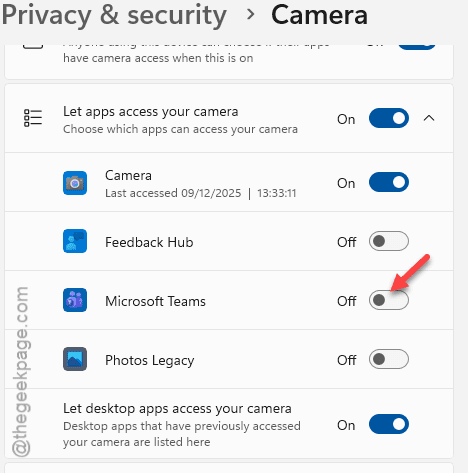
Step 3 – Then, wait for a few seconds, and turn it back On.
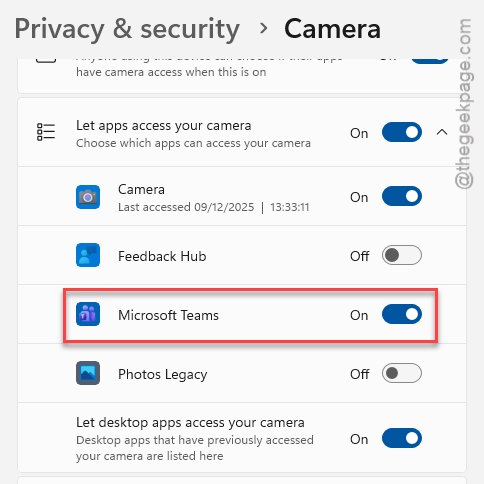
Later, proceed to a Teams meeting. Then, start a meeting. Switch to the virtual background and check whether it is working or not.
Fix 4 – Turn off the Low Bandwidth Mode in Teams
The low bandwidth mode in meetings in the Microsoft Teams client can cause such issues with the preset virtual background.
Step 1 – Tap the ⋯ button in the Microsoft Teams and click Settings.
Step 2 – Go to the Meetings tab.
Step 3 – Next, turn off the Low bandwidth mode.
After disabling the low bandwidth mode, there will be no restrictions on using any of those virtual background for the Teams meetings.
Fix 5 – Update the Graphics Driver
The virtual background function actually depends on the graphics processing unit of your computer.
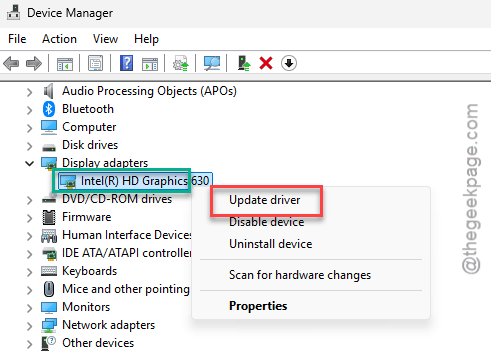
Step 1 – At first, right-click the Start button, and tap Device Manager.
Step 2 – Then, expand the Display adapters portion.
Step 3 – Next, right-click the display driver there, and tap Update driver.
Step 4 – Then, tap the Search automatically for latest driver option.
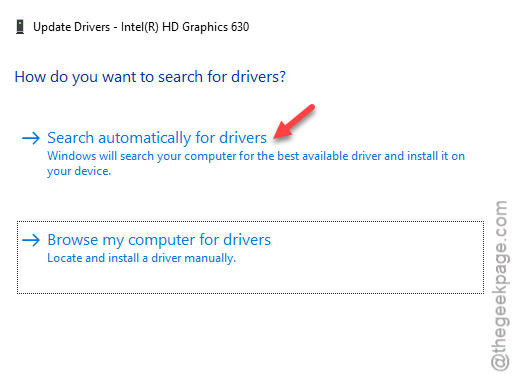
Next, Windows will download and install the latest version of the graphics driver on your machine.
Now, if Windows can’t find any such updates, take a look in the Optional updates section in Windows Settings. You may follow this path –
Windows Update ⇾ Advanced Options ⇾ Optional Updates ⇾ Driver Updates
Just select the graphics driver there and use the Download & Install option to install it.