Ctrl + C just stopped working. In Word. Out of nowhere. You can still right-click and copy. But the keyboard shortcut? Dead.
This is one of those issues that makes you want to throw your keyboard across the room. But it is almost always caused by a language or keyboard layout conflict in Windows. And the fix is surprisingly simple.
Why This Happens
Windows manages keyboard shortcuts through input methods and language packs. If you have a non-US English language installed (even as a secondary language), Windows can quietly swap keyboard shortcut mappings. Nobody asks for this behavior. But Windows does it anyway. Add-ins in Word can also hijack shortcuts. And sometimes a corrupted Office installation just forgets how shortcuts work.
Fix 1 – Add a Keyboard Layout to Reset Shortcuts
This one sounds ridiculous. But it has fixed the problem for a lot of people. You add a random keyboard layout, and that resets the shortcut mappings.
1 – Open Settings (press Windows + I).
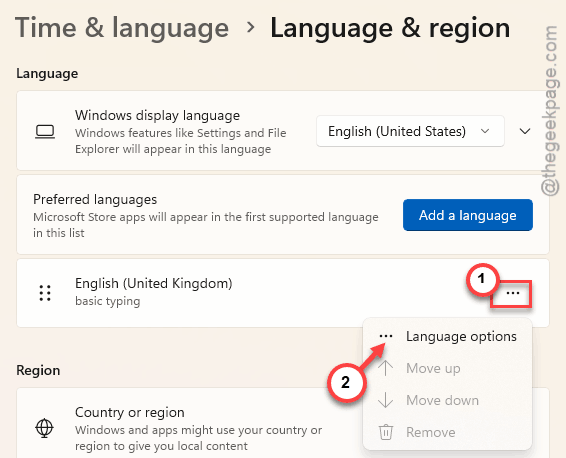
2 – Go to Time & Language on the left. Then click Language & Region.
3 – Find your current language. Click the three dots next to it. Select Language Options.
4 – Scroll down to Keyboards. Click Add a keyboard.
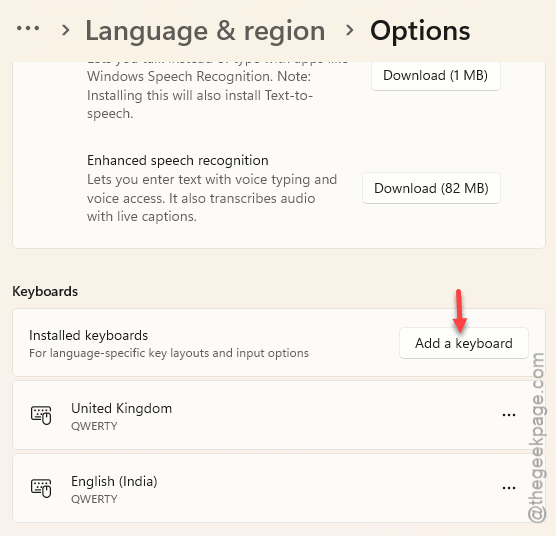
5 – Add any keyboard. Does not matter which one.
6 – Go back to Word. Try Ctrl + C.
And just like that, it works again. You do not even need to set the new keyboard as default. The act of adding one forces Windows to recalculate shortcut bindings. Weird, but true.
Fix 2 – Change the Override for Default Input Method
If you have a non-US English language installed, this might be the root cause.
1 – Open Settings. Go to Time & Language.
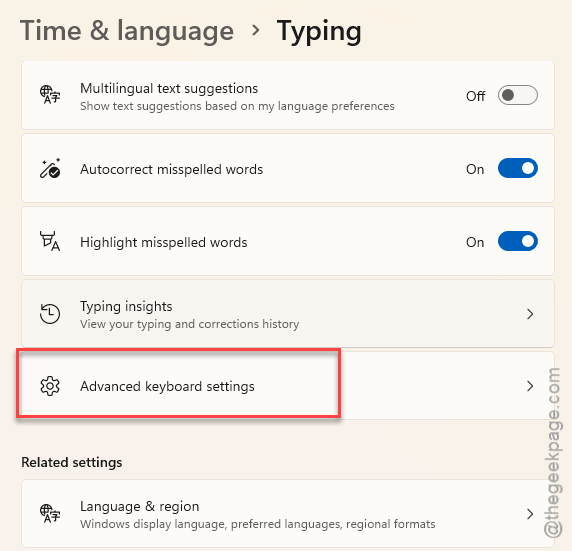
2 – Click Typing (might be under Related Settings on some versions).
3 – Click Advanced keyboard settings.
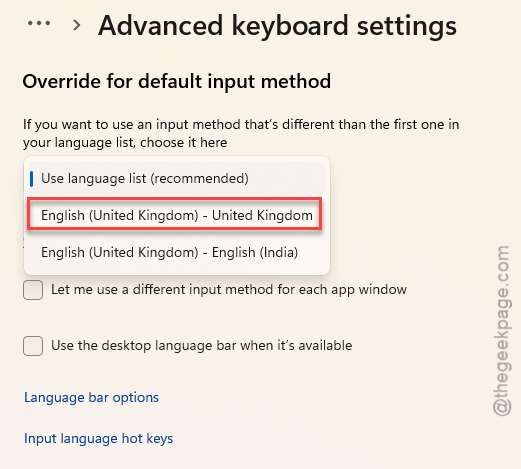
4 – Under Override for default input method, pick a language that has United States – International after it.
5 – Restart Word.
British English is the usual troublemaker here. Switching to US English or US International fixes the Ctrl shortcut mapping. Annoying? Incredibly. But here we are.
Fix 3 – Disable COM Add-ins
Add-ins can hijack keyboard shortcuts in Word. If the first two fixes did not help, an add-in might be the problem.
1 – Open Word. Click File > Options.
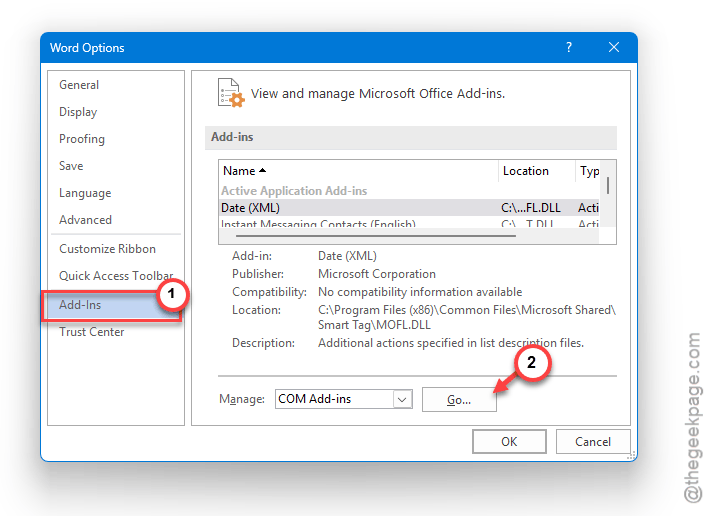
2 – Click Add-Ins on the left side.
3 – At the bottom, select COM Add-ins from the dropdown. Click Go.
4 – Uncheck every box. Click OK.
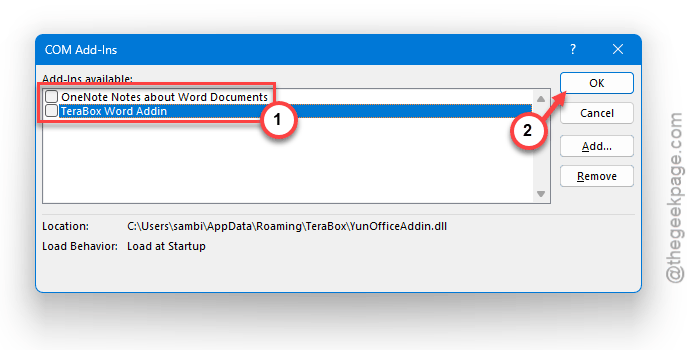
5 – Restart Word and test Ctrl + C.
If it works now, re-enable add-ins one by one to find the culprit. Tedious, but effective.
Fix 4 – Repair the Microsoft Office Suite
If shortcuts are not working through the multiple Office suite apps (not just Word), the installation itself might be corrupted.
1 – Press the Win+I buttons together, and proceed this way –
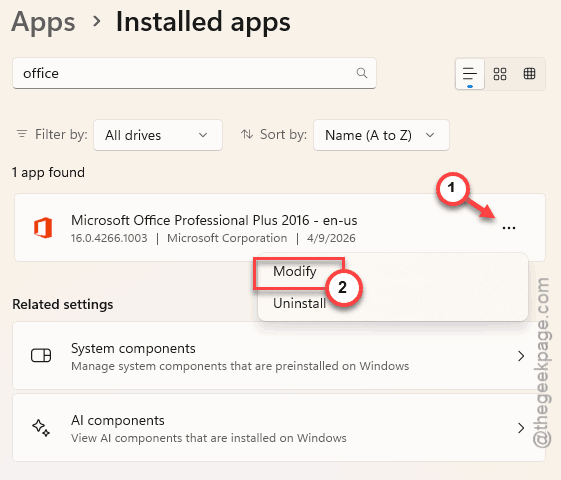
Settings > Apps > Installed apps (or Apps & features on older Windows).
2 – Do a search for the Microsoft Office or Microsoft 365 app.
3 – Tap the three dots button and select Modify.
4 – Toggle the Quick Repair radio button and let it run. If the quick repair does not cut it, you should try Online Repair.

5 – Restart your computer after the repair finishes.
Online Repair takes longer (it redownloads components) but it is more thorough.
Fix 5 – Clear the Office Cache
Temporary glitches in the Office cache can mess with shortcuts. Clearing it is harmless and quick.
1 – Open Word. Go to File > Options > Save.
2 – Look for Cache Settings.
3 – Click Delete cached files.
4 – Close and reopen Word.
This clears temporary data that Office stores locally. Will not delete your documents.
Fix 6 – Check for Laptop Manufacturer Software
This is a sneaky one. Some laptop manufacturers install software that swaps keys around without telling you.
If you are on a Lenovo, check Lenovo Vantage. It can swap the Fn key with the Ctrl key. So when you press Ctrl + C, you are actually pressing Fn + C. Which does nothing.
1 – Open Lenovo Vantage (or your manufacturer’s equivalent software).
2 – Look for keyboard settings or function key settings.
3 – Make sure Fn and Ctrl are not swapped.
HP, Dell, and ASUS have similar tools. Check those too if shortcuts are behaving strangely.
How to Prevent This
– After Windows updates, check your keyboard settings. Language and input settings sometimes reset.
– Be careful with add-ins. Do not install random third-party add-ins.
– If you use a laptop, familiarize yourself with the manufacturer’s key-swap settings.
People Also Ask
Why is sometimes Ctrl + C not working?
Almost always a language or input method conflict. Windows does remap shortcuts when you have multiple keyboard layouts active. In that case, follow this path to Settings > Time & Language > Typing > Advanced keyboard settings and set the override to US English.
Why does copy and paste sometimes stop working?
Could be a clipboard issue, a language conflict, or a rogue add-in. If restarting the app does not work, clear the Office cache and check your input method settings. And if nothing helps, run an Office repair.
Why has copy and paste stopped working in Word?
Load up the Microsoft Word in Safe Mode first (press-hold the Ctrl button while launching Word). If Ctrl + C shortcut works icorrectly in Safe Mode, an add-in might have caused the problem. Disable them one by one. If it does not work even in Safe Mode, it is a Windows keyboard settings issue.