You hit the microphone button in Copilot. Nothing. No response. Maybe the icon lights up for a second and dies. Or it just ignores your voice completely.
Usually a microphone permission issue. Or the wrong input device is selected. Takes a few minutes to sort out.
Why This Happens
Windows 11 has layered microphone permissions. The system has one master switch. Then each app has its own toggle. If either is off, Copilot can’t hear you. And it will not tell you why.
But sometimes it is not permissions at all. The wrong microphone is set as default. So Copilot is listening to a device that’s not actually picking up sound. Happens a lot if you have a webcam, headset, and built-in mic all connected.
Fix 1 – Check Microphone Permissions
Start here. Two things need to be on: the master switch and the app-level toggle.
1 – Open Settings (press Windows + I).
2 – Go to Privacy & security in the left sidebar.
3 – Click Microphone under the App permissions section.
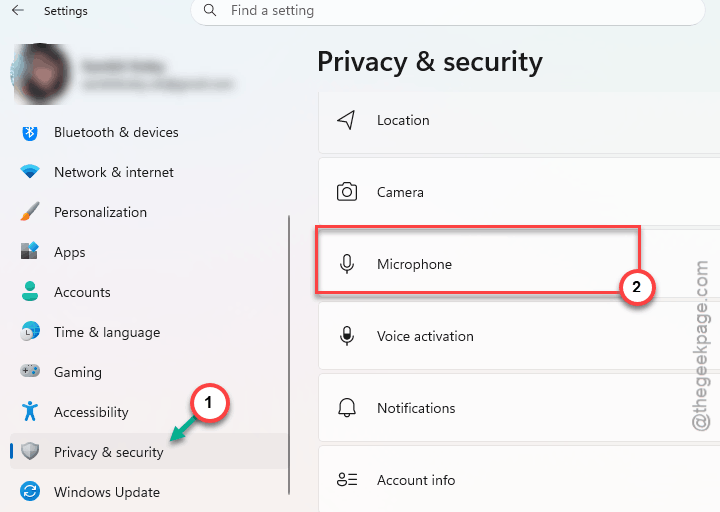
4 – Make sure Microphone access at the top is turned On.
5 – Scroll down. Make sure Allow apps to access your microphone is also On.
6 – Find Microsoft Copilot in the app list. Toggle it On if it’s off.
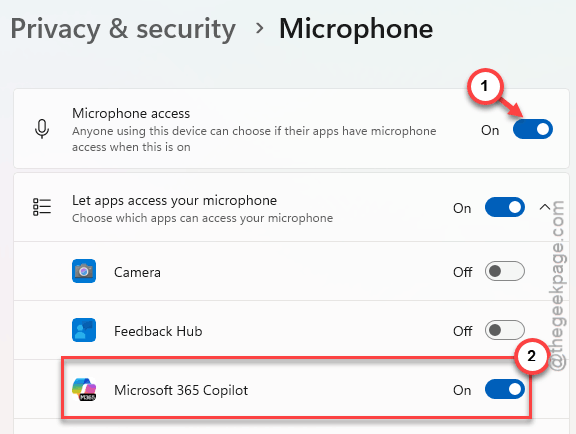
And yes, both the master switch AND the individual app toggle need to be on. One without the other does nothing. Annoying, I know.
Fix 2 – Set the Right Default Microphone
If permissions are fine but Copilot still can’t hear you, it’s probably listening to the wrong mic.
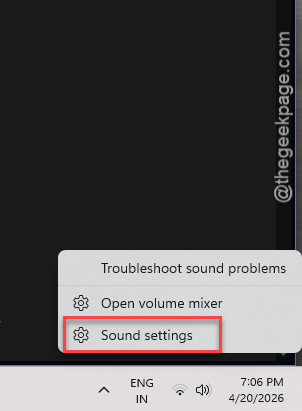
1 – Right-click the speaker icon in the taskbar (bottom right corner).
2 – Click Sound settings.
3 – Under the Input section, check the dropdown for Choose a device for speaking or recording.
4 – Select the microphone you actually want to use. Your headset mic. Or the laptop’s built-in one. Whatever works.
5 – Speak into it and watch the Input volume bar. Make sure it moves.
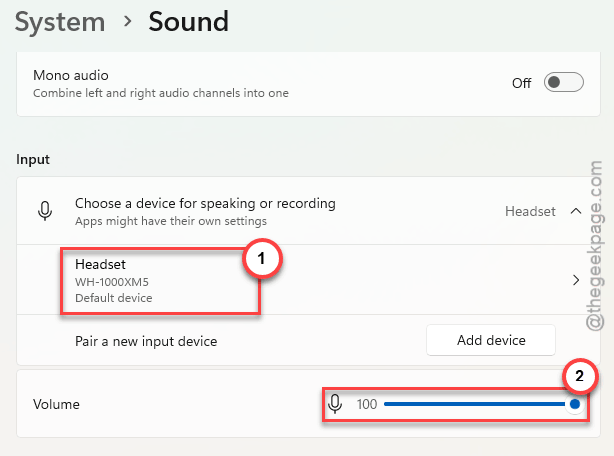
If the bar doesn’t move, either the mic is muted, broken, or not the one selected. Try a different one from the dropdown.
Fix 3 – Restart the Copilot Process
Sometimes Copilot’s process gets stuck. Killing it and restarting usually fixes voice input.
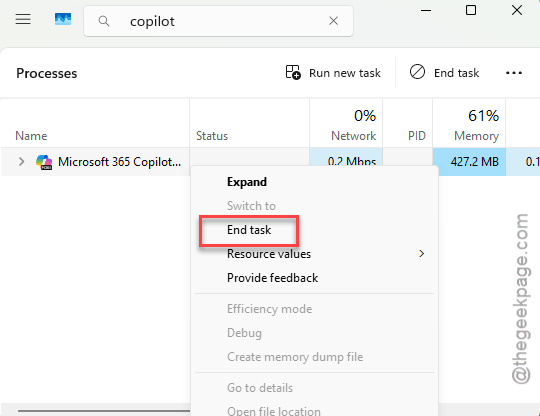
1 – Right-click the Start button. Select Task Manager.
2 – Go to the Processes tab at the top.
3 – Look for Microsoft Copilot or Windows Copilot. Might also show as Cortana on older builds.
4 – Right-click it. Click End task.
5 – Reopen Copilot and try voice again.
Quick fix. Takes two seconds.
Fix 4 – Reset the Copilot App
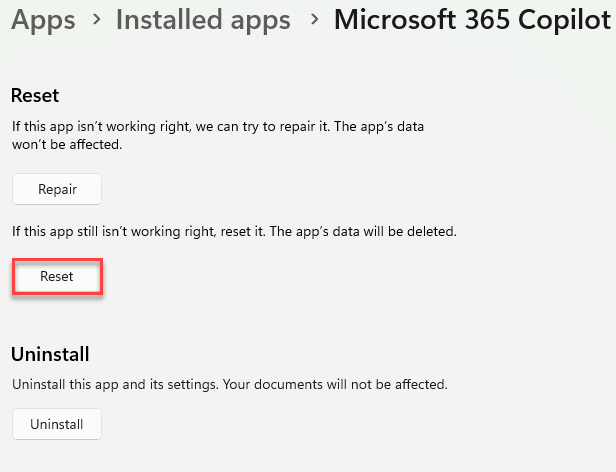
If restarting it didn’t help, try a full reset. This clears Copilot’s cache and settings.
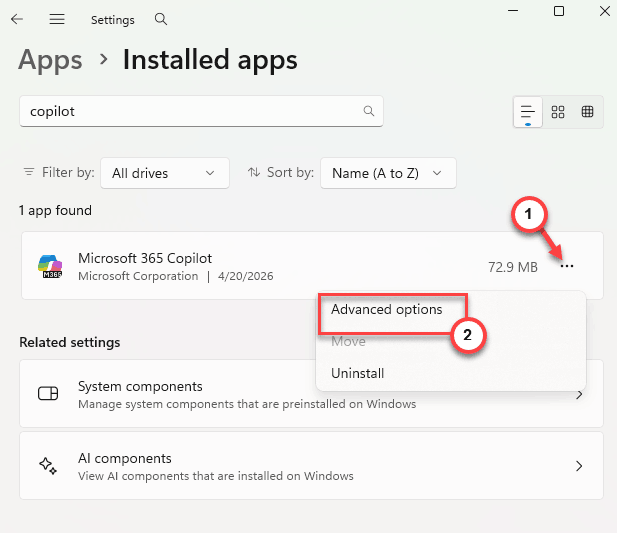
1 – Open Settings > Apps > Installed apps.
2 – Find Microsoft Copilot in the list.
3 – Click the three dots next to it. Select Advanced options.
4 – Scroll down. Click Reset.
5 – Try Copilot voice again.
And if that doesn’t work either, also try resetting the Store cache. Press Windows + R, type wsreset.exe, press Enter. Let it finish. Then test again.
Fix 5 – Reinstall the Audio Driver
Last resort. If nothing else fixes voice input, the audio driver might be the problem.
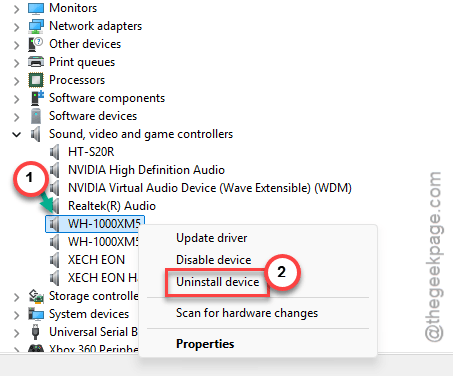
1 – Press Windows + X. Select Device Manager.
2 – Expand Sound, video and game controllers.
3 – Right-click your audio device (could be Realtek Audio or High Definition Audio or something similar).
4 – Click Uninstall device.
5 – Check the box that says Delete the driver software for this device.
6 – Click Uninstall.
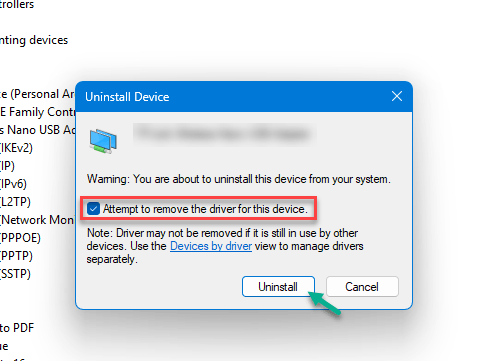
7 – Restart your PC. Windows will reinstall the driver automatically.
Not ideal. But it clears driver corruption that might block microphone access.
How to Prevent This
- After connecting new audio devices, always check the default microphone in Sound settings.
- Don’t disable microphone access system-wide unless you really need to. It breaks voice features in every app.
- Keep Copilot and the Microsoft Store updated. Older versions sometimes have broken voice support.
People Also Ask
Why is the voice not working on Copilot?
Check two things. Microphone permissions in Settings > Privacy & security > Microphone. And the default input device in Sound settings. If the wrong mic is selected, Copilot hears nothing. Happens all the time with multiple audio devices.
How to enable voice mode in Copilot?
Open Copilot and click the microphone icon. If it doesn’t respond, check microphone permissions. Settings > Privacy & security > Microphone. Make sure both the master toggle and the Copilot-specific toggle are on.
How to enable Hey Copilot in Windows 11?
Wake word activation needs microphone access plus the feature turned on in Copilot settings. Open Copilot, go to its settings, and look for voice activation options. But first make sure your mic works and permissions are set.