The Universal Clipboard feature of iPhone can sometimes fail, where the affected users can’t copy-paste contents across their devices. On the latest stable or beta version of iOS 26, many users have came across the copy-paste failure problem. It usually originates from a Privacy permission hang, where the system forgets that you have granted the app necessary permission to access the clipboard. This is the main reason why the users may not be able to see the ‘Paste’ option, where the copy function simply works!
Fix 1 – Reset the Paste from Other Apps Permission
Sometimes the permission to paste from other apps may get stuck for some of the applications on the latest iteration of iOS 26.
Step 1 – Open the iPhone Settings. Then, open the Apps tab in there.
Next, load up the problematic app where the copy-paste function is failing.
Step 3 – Tap the Paste from Other Apps option.
Step 4 – Set that to Allow mode. If it is already on Allow mode, switch it to Ask mode, and then to Allow mode.
Switching it to ‘Allow’ mode should refresh the paste from other apps’ logic in the iPhone. Copy something and try to paste it in other apps.
Fix 2 – Tweak the Universal Clipboard Handoff
Sometimes, existing synched cache can obstruct newer items to sync. This is evident if you are facing this problem while operating across your various Apple devices, such as iPhone, Mac, iPad.
Step 1 – Open the iPhone Settings. Proceed to the General tab.
Step 2 – Then, open up the AirPlay & Continuity panel.
Step 3 – Toggle the Handoff to OFF mode.
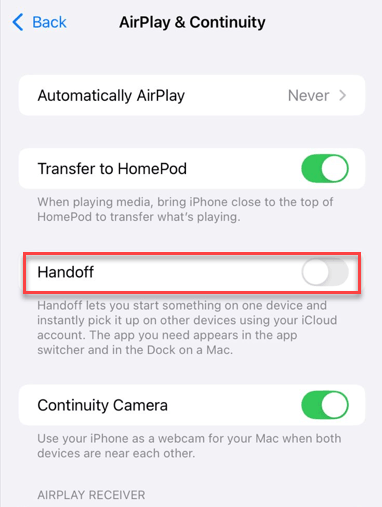
Step 4 – Restart both the Apple Watch and the iPhone.
Step 5 – Return to the Settings console, and turn ON the HandOff system.
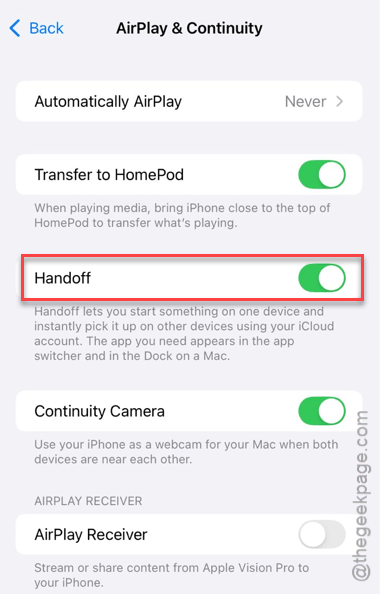
After enabling this setting, this problem will be solved.
Fix 3 – Clear the Pasteboard via Shortcuts
Corrupted metadata in the clipboard can cause this issue.
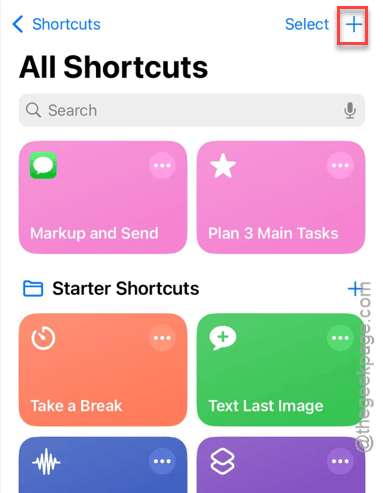
Step 1 – Open the Shortcuts app. Tap the + Button to create a new shortcut.
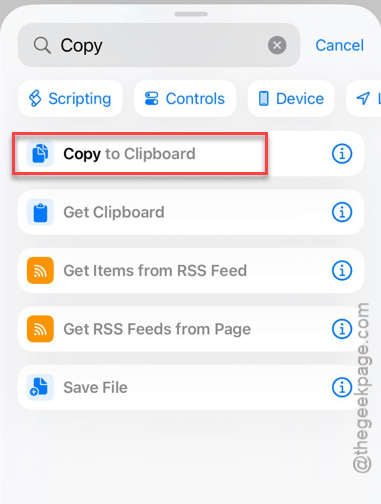
Step 2 – Search for Copy to Clipboard action and add it.
Step 3 – Leave the input as Empty toggle. Then, tap the Play button at the bottom right.
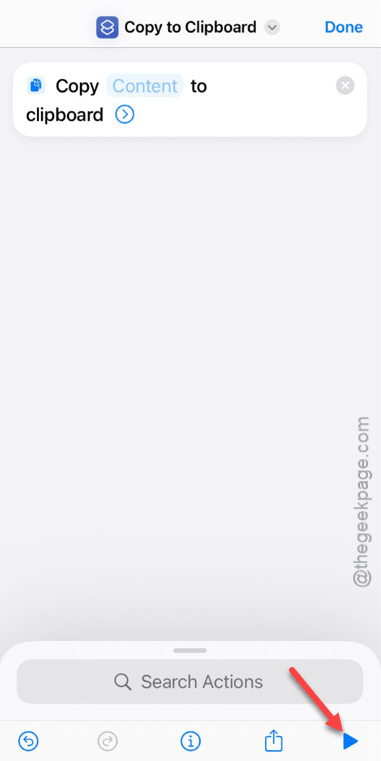
Try to copy-paste the data again.
Fix 4 – Restart the Shared with You Service
The clipboard ‘Shared with You’ service can sometimes block the paste process if it moderates the content as unsafe or restricted.
Step 1 – Load up the iPhone Settings. Then, open up the Apps tab.
Step 2 – Tap to open the Messages settings.
Step 3 – Tap Shared with You function.
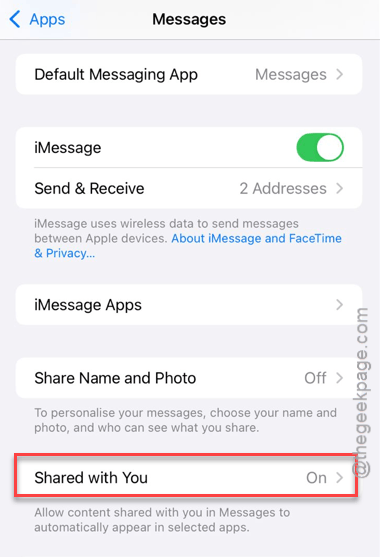
Step 3 – Toggle the Automatic Sharing to OFF mode.
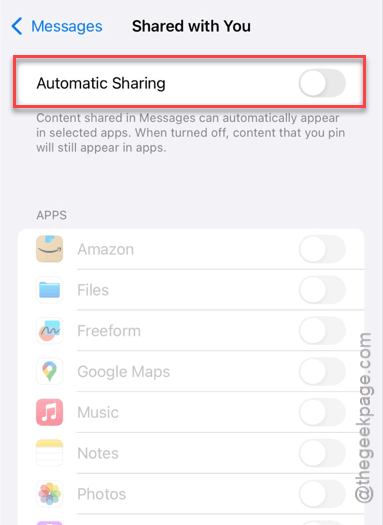
Step 4 – Wait for 10 seconds. Then, turn ON the Shared with You function.
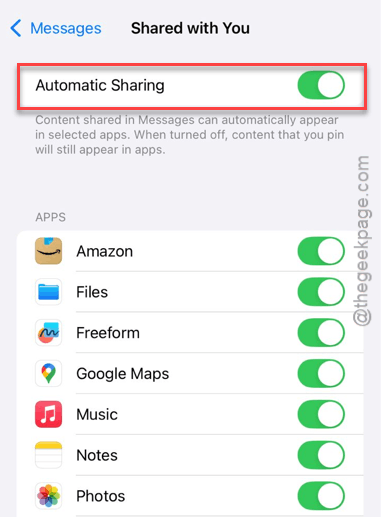
This refresh should resolve the issue.
Fix 5 – Reset all the iPhone Settings
If the copy-paste function is still not working, resetting the iPhone settings should resolve the issue.
Step 1 – Open the iPhone Settings. Then, proceed to the General tab.
Step 2 – Open the Transfer or reset iPhone option.
Step 3 – Go ahed and tap the Reset option.
Step 4 – Finally, tap the Reset All Settings option.
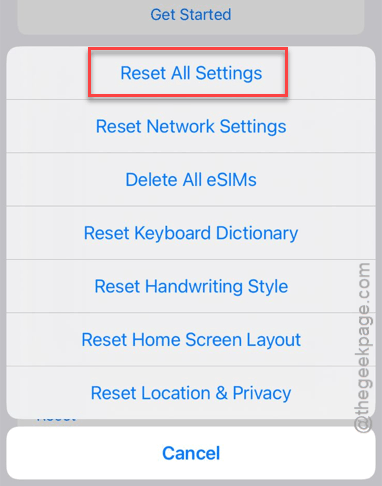
This process involves your verification. You must input the Apple passcode to proceed. Once you do that, iPhone will clear out all the changes in the settings that you have made recently.
See if this works out or not.